James is an experienced product specialist with a strong background in the IT and SaaS industry. As Senior Product Marketing Manager at Exclaimer, he plays a key role in showcasing the value of centralized email signature solutions and transforming them into a powerful communication tool for organizations.
How to automate email signature onboarding with Exclaimer
TL;DR
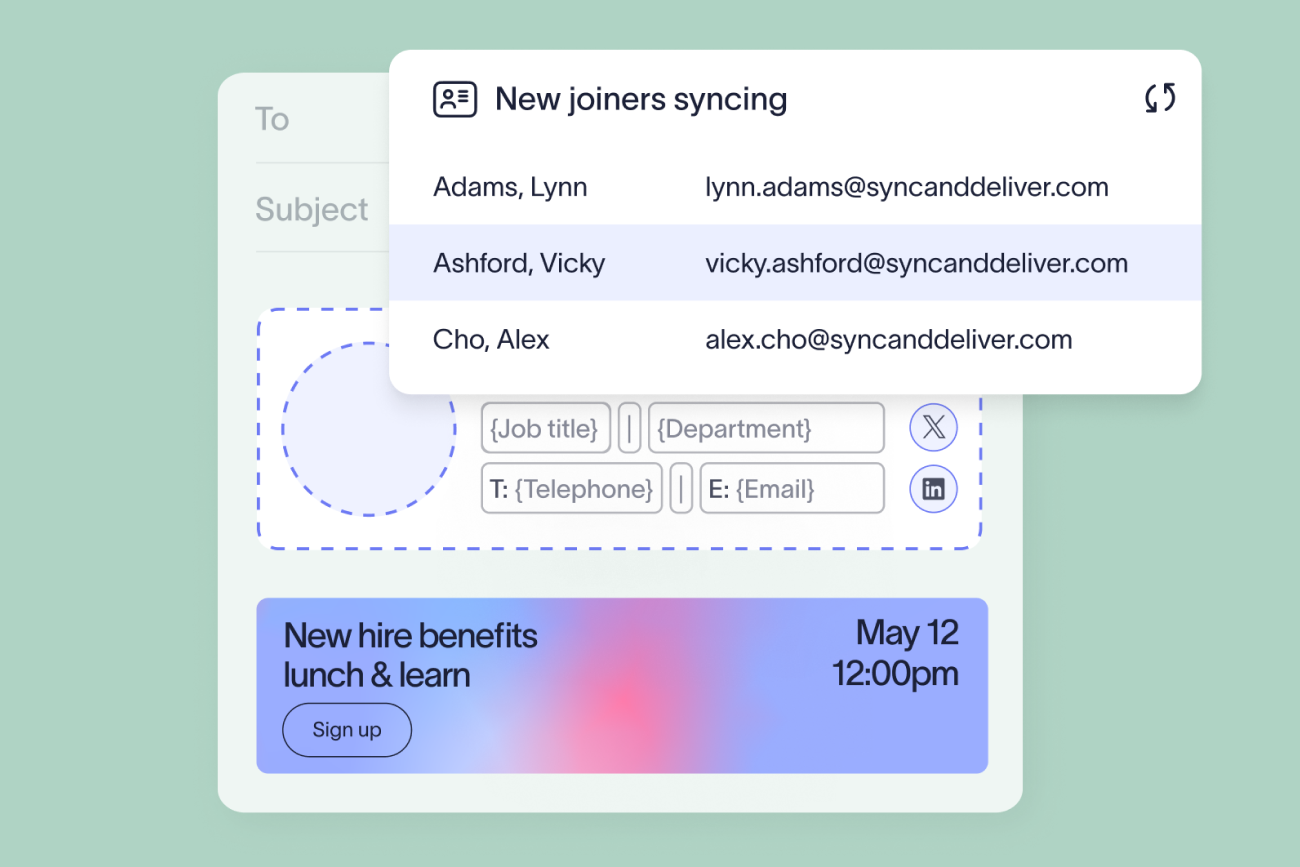
Automating email signature onboarding means the correct, on-brand, compliant email signature applies itself the moment a new hire is added to your directory, with nothing for IT, HR, or the employee to configure.
It runs on three things working together: a locked template in Brand Kits, directory sync from Microsoft Entra ID or Google Workspace Directory, and Signature Rules that assign the right template by department, location, or role.
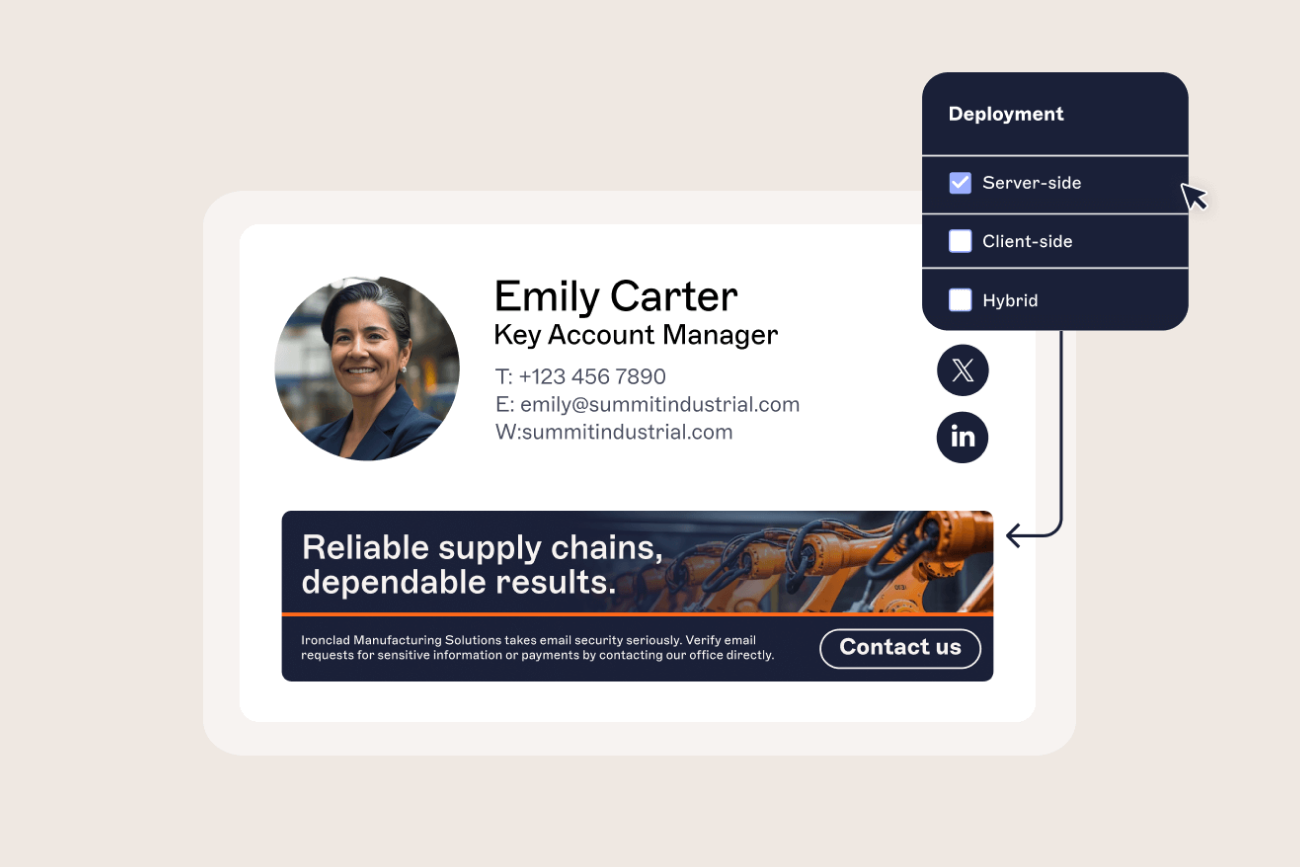
Server-side deployment applies the email signature after the message is sent, so it looks the same whether the new hire is on Microsoft 365 or Google Workspace, with nothing to install.
Contractors, employees who span two departments, and any backlog of accounts from before you set this up all need a plan before rollout, not after.
A new hire’s first email usually goes to someone who has never dealt with the company before. If the email signature is missing, carries the wrong job title, or looks nothing like everyone else’s, that’s the impression made before the actual conversation starts.
For IT, the same moment tests whether communications governance actually holds up once something changes. A new starter is exactly the case a static, manually maintained approach handles worst, because there’s no existing email signature to fall back on if the setup step gets missed.
Exclaimer provides centralized control over email signature deployment, automatically applying the correct signature to every new user as soon as they're added to your directory.
This guide covers how to do that with Exclaimer, so every new employee starts with a professional, compliant email signature from day one.
Why manual onboarding breaks down for IT
Most organizations without a centralized platform end up in one of three positions, and each fails differently.
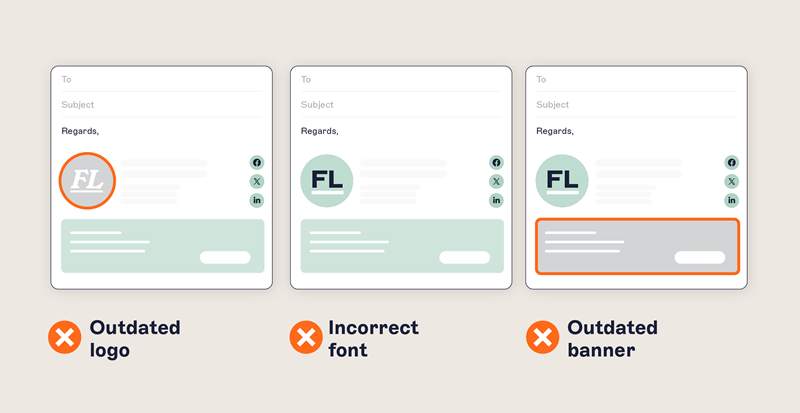
User-managed setup. IT sends the new hire a template and a set of instructions, and hopes it gets installed correctly across desktop, web, and mobile. In practice, the logo is the wrong size, the disclaimer gets dropped, or the email signature never gets installed at all. There’s no way to check who actually did it and no way to push a fix once it’s wrong.
Transport or mail flow rules. These inject an email signature at the server level, which solves the user-behavior problem but creates a directory-timing one. A brand-new account often hasn’t fully synced its attributes by the time the rule fires, so the new hire’s first few emails go out with blank fields or no email signature at all. Rules also stack awkwardly as more departments need their own version, and an external mail server blocking a hosted image breaks the recipient's email signature, not the sender's. IT often finds out last.
Scripted deployment. A PowerShell script or similar tool pushes email signatures to managed, on-network Windows machines. It has nothing to say about a new hire who spends their first week on a personal laptop, a phone, or Outlook on the web before their corporate device even arrives. The script also needs updating every time Outlook or Microsoft 365 changes, and if the person who wrote it moves on, so does the knowledge of how it works.
All three routes land in the same place: email signatures that vary by user, legal disclaimers that go missing on exactly the accounts that need them most, and a stream of small tickets that never really goes away. With the average office worker sending around 40 business emails a day, those inconsistencies reach customers and partners fast.
“Early in my career, signature management was transport rules and a Word template everyone could update. That works for a small team, but it doesn’t scale. Every change becomes a ticket, and it’s death by a thousand paper cuts, lots of small five-minute jobs that add up fast.”

What has to be true before you can automate it
Automation removes the manual work, but it isn’t a substitute for having the underlying pieces in place first.
Accurate directory data. Microsoft Entra ID or Google Workspace Directory needs correct job titles, departments, phone numbers, and office locations before you connect anything to it. An automated email signature built from an incomplete record just makes the gap visible faster.
Consistent naming conventions. If “Sales” and “Sales Team” both exist as department values, a rule written for one will silently miss the other.
Approved brand assets. Logos, colors, and fonts ready to load into Brand Kits, so the template is built once and locked, not rebuilt every time someone asks for a tweak.
A decision on compliance content. Know which disclaimers apply to which regions or departments before you start assigning templates, not after the first complaint arrives.
“The real problem underneath the IT side is that accountability is hard to work out, and data accuracy doesn’t just sit with IT. It sits across a number of different teams. You can’t fix data quality from where IT sits on your own. You have to work with teams like HR to make sure everyone’s working from good data.”
How the automation actually works
Automating email signature onboarding with Exclaimer means creating a standard template once, syncing user data from your directory, and applying signatures to every new hire automatically.
Step 1: Build the onboarding template
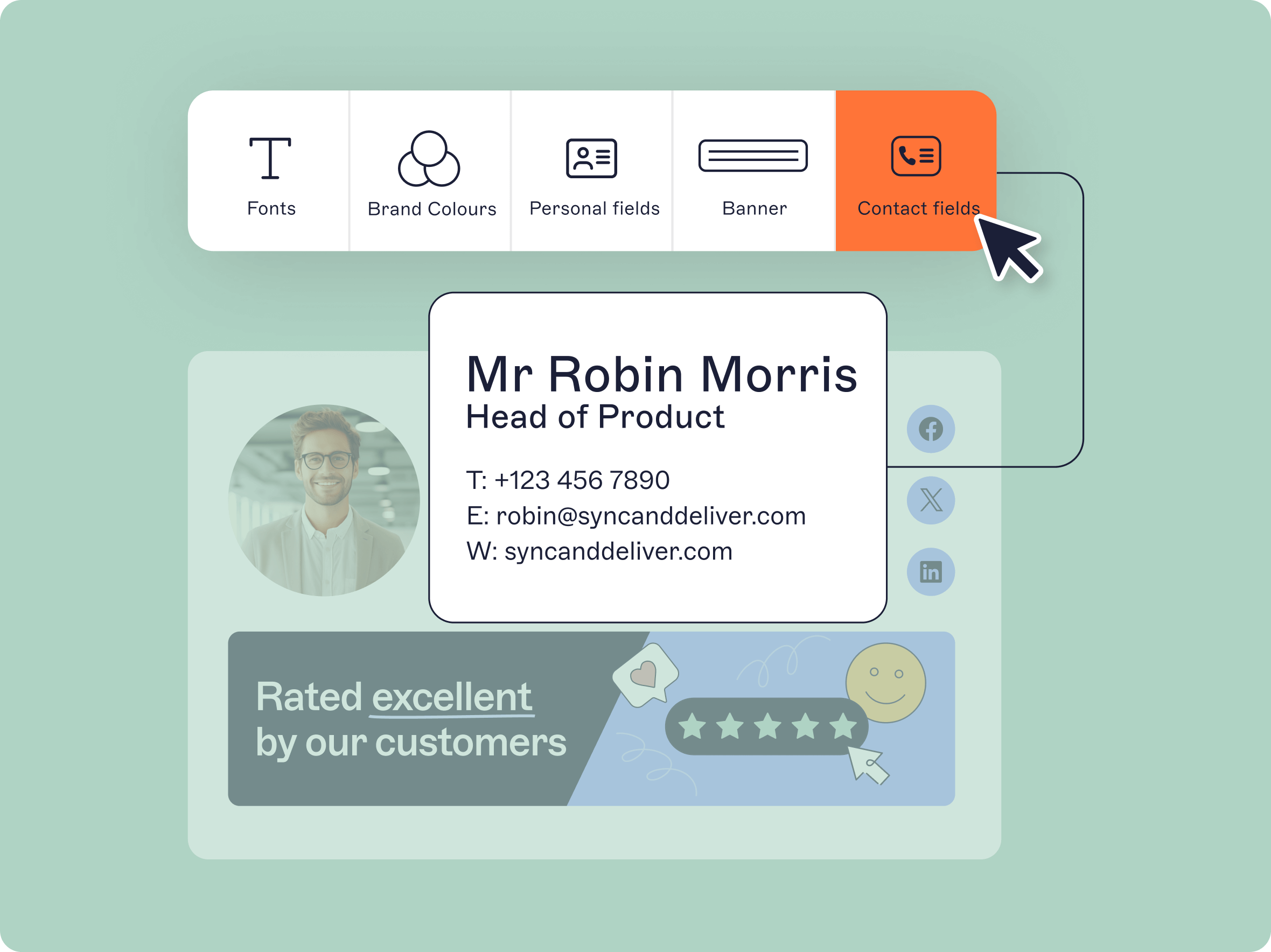
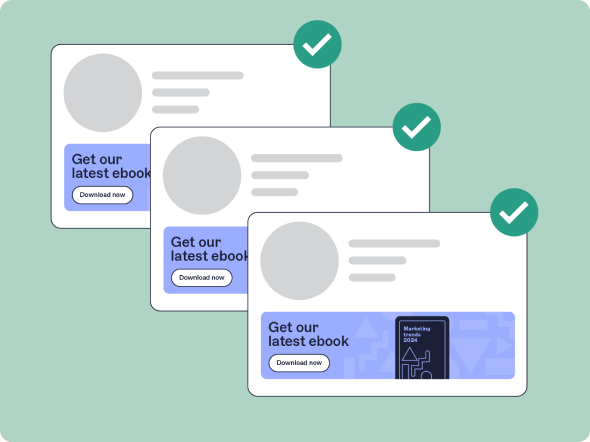
Create one locked template every new hire receives on day one. Brand Kits hold the approved logo, colors, and fonts in one place, and the drag-and-drop editor builds the template without touching HTML. Locking the brand elements means an individual employee can’t quietly change the logo or the layout later.
Step 2: Sync new starter data from the directory
Exclaimer connects to Microsoft Entra ID and Google Workspace Directory to pull names, job titles, departments, phone numbers, and office locations straight into the template. Once IT provisions the account, those details flow through on the next sync. Nobody edits the template by hand.
Step 3: Assign the right template with Signature Rules
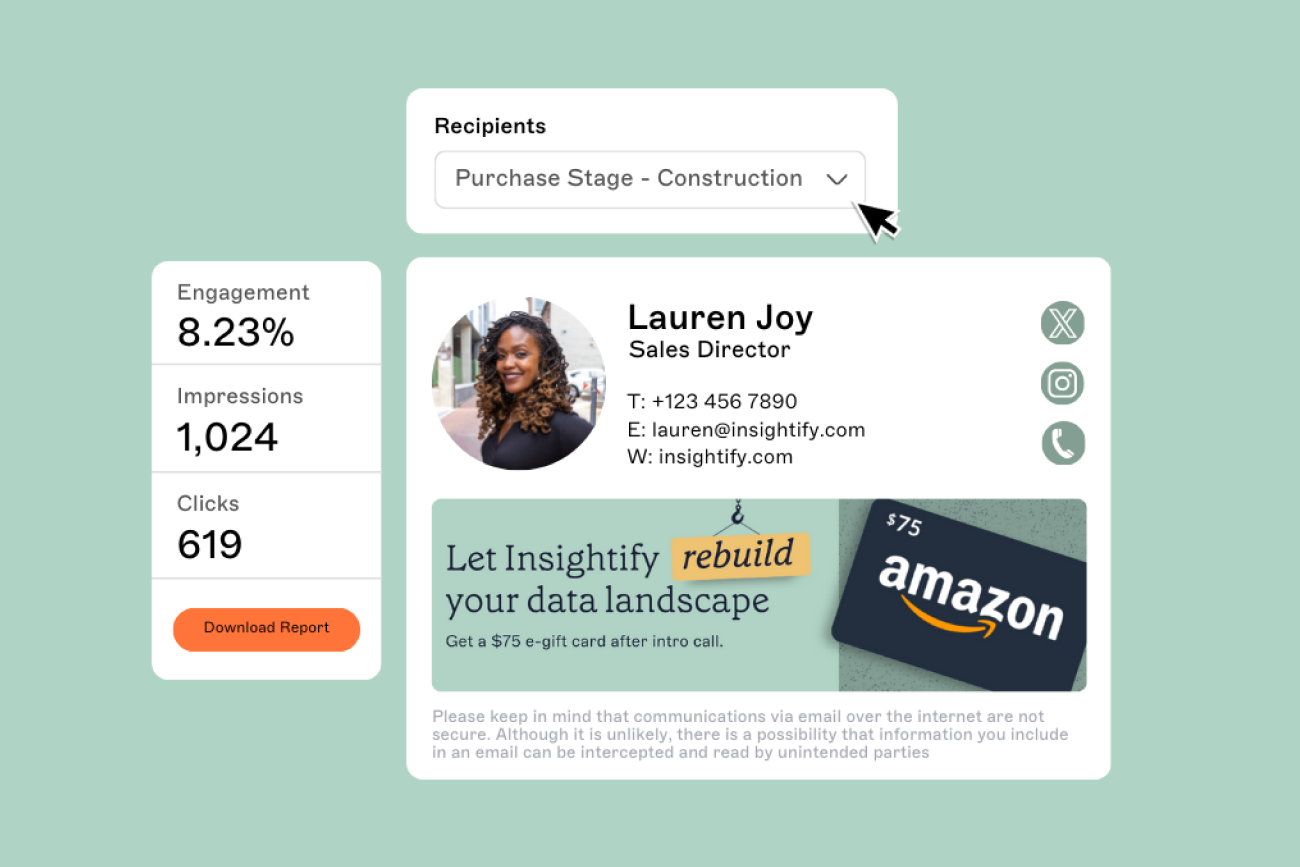
A new sales hire might need a booking link. A new hire in legal needs a specific disclaimer. A new executive might need an entirely different layout. Signature Rules apply different templates based on department, location, role, or group membership, set once and applied automatically to every new starter the rule matches.
Step 4: Deploy across every device
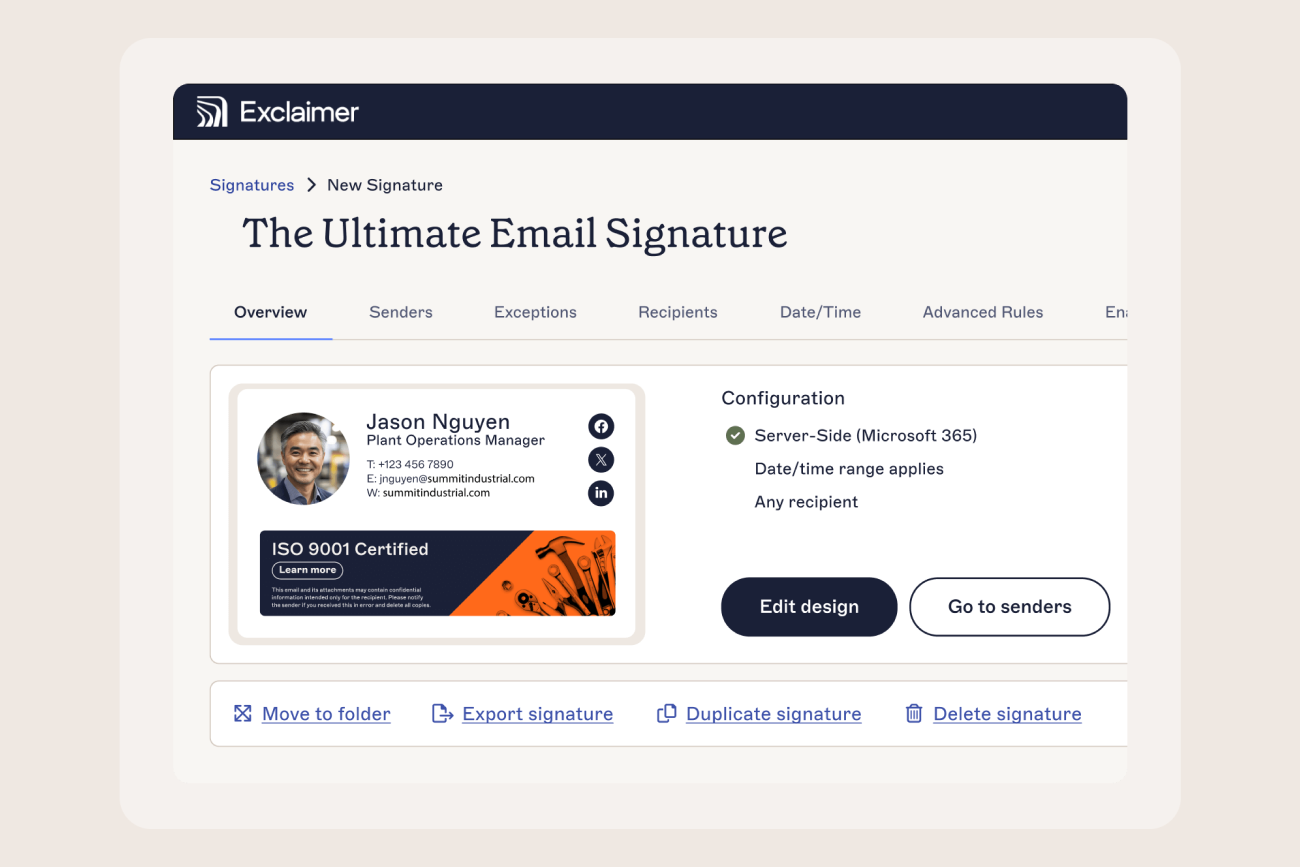
A new hire’s first email could come from Outlook desktop, Outlook on the web, the new Outlook for Windows, or a phone, often before a corporate laptop has even arrived. Server-side deployment applies the email signature after the message is sent, so it appears the same way regardless of which client or device composed it. There’s nothing to install and nothing to configure.
Step 5: Delegate ongoing updates with role-based access
Onboarding content changes: a welcome banner, a recruitment campaign, a seasonal update. Role-based access control lets IT keep control of structure, rules, and compliance content while HR or marketing update banners and onboarding messaging directly, without a ticket.
What happens in the edge cases
Most onboarding guides stop at the standard new hire. A real rollout needs an answer for three situations that come up almost immediately.
Contractors and temporary staff. Not every new account belongs to a full-time employee, and not every contractor should get the same template, or an email signature at all, depending on policy. Group contractors and temporary staff in the directory and map that group to a distinct template or an exclusion rule in Signature Rules, rather than handling each one as a one-off request.
Employees who span two departments. Someone working across sales and customer success, or holding two roles in a smaller organization, can match more than one Signature Rule at once. Decide the precedence up front, such as primary department taking priority, or the more senior role winning, so the outcome is predictable rather than whichever rule happens to fire last.
A backlog of existing accounts. If you’re setting this up after users already exist, those accounts weren’t provisioned through the new process and won’t pick up a template automatically. Run a one-time bulk assignment against the existing user base once your rules are configured, and use the same pass to identify anyone still running an outdated or non-compliant email signature.
Key takeaway
None of these are reasons to delay automating new-hire onboarding. They’re configuration decisions worth settling once, at setup, before the first exception turns into an individual support ticket.
Key benefits of automated email signature onboarding
Onboarding takes close to zero IT time per new hire, since the email signature deploys on the next directory sync instead of a manual configuration step.
Every new starter’s first email matches the rest of the company from day one.
Legal disclaimers follow the department or location automatically, not the individual’s memory.
New hires send professional email immediately, without installing or configuring anything.
The workflow doesn’t change whether you’re onboarding five people or 500.
Directory sync keeps job titles and contact details current as they change, not just on day one.
Onboarding-related email signature requests largely disappear from the support queue.
Manual vs. automated email signature onboarding
Factor | Manual onboarding | Automated with Exclaimer |
Time to apply the email signature | Minutes per user, repeated for every new hire | Applied on the next directory sync |
Setup required from the new hire | Install a template, configure it across devices | None |
IT workload per new starter | Ongoing tickets and follow-ups | None after initial configuration |
Brand consistency | Varies by user, device, and email client | Uniform across every email |
Compliance coverage | Depends on the individual setting it up correctly | Enforced by Signature Rules |
Rendering across devices | Inconsistent or broken | Consistent everywhere, via server-side deployment |
Updating the design later | Rebroadcast to every employee | One template change applies everywhere |
Platform integrations
Exclaimer integrates with the following platforms to automate email signature onboarding:
Microsoft 365: Outlook desktop, the new Outlook for Windows, and Exchange Online
Google Workspace: Gmail on desktop and mobile
Microsoft Entra ID: pulls new hire data into the email signature the moment an account is provisioned in a Microsoft environment
Google Workspace Directory: the same, for Google Workspace
Microsoft Exchange: server-side deployment for hybrid and on-premises environments
A simple checklist for email signature onboarding
Audit existing email signatures across teams and flag inconsistencies
Confirm directory data quality in Microsoft Entra ID or Google Workspace Directory
Build the onboarding template in Brand Kits
Set Signature Rules to assign templates by department, location, or role
Decide how contractors, multi-department staff, and any existing account backlog will be handled
Configure server-side deployment
Assign role-based access to HR, marketing, and legal as needed
Test with a sample new hire before rolling out
Add an email signature confirmation step to the IT onboarding checklist
Make email signature onboarding part of your IT process
A new hire’s first email is one of the earliest impressions the company makes outside its own walls. Left to a manual process, that email goes out inconsistent, off-brand, or missing a disclaimer it legally needs.
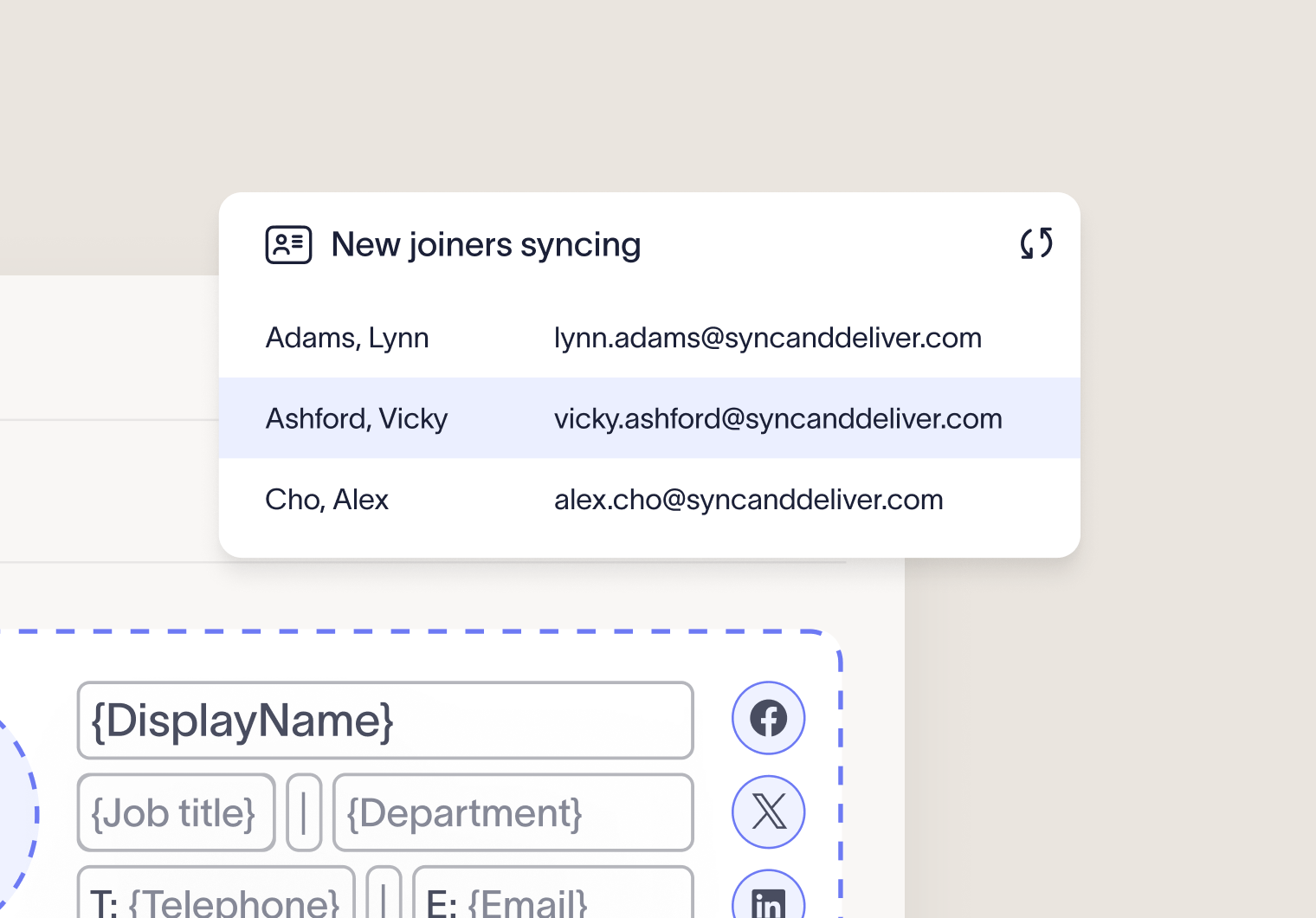
Signature Rules, directory sync, and server-side deployment are what close each of the gaps a manual approach leaves open: no waiting on directory timing, no dependency on which device someone’s using, no email signature that only works until an Outlook update breaks the script. Once configured, a new hire gets the right email signature on their first message, and IT doesn’t add another line to the onboarding checklist.
Start a free trial to see how automated onboarding runs against your own directory.