Dave is a marketing expert with 15 years experience in the tech and SaaS world. He specializes in educating IT and channel audiences, with a focus on security, privacy, compliance, and marketing technology. With a talent for storytelling and a deep understanding of the industry, Dave transforms complex IT topics into clear, engaging, and impactful narratives.
Outlook signature not working in Office 365
TL;DR
Outlook email signatures often fail in Office 365 because desktop, web, and mobile apps store signatures and apply them differently
Start with the fastest fix: confirm a default email signature is actually assigned for both new messages and replies/forwards in the Outlook app you're using
Microsoft 365 roaming signatures can override local changes or delay updates across devices and they don't cover every mailbox type
Native Outlook tools leave email signatures editable by users and dependent on devices, profiles, and sync timing
A centralized email signature platform removes these variables by applying them consistently across users and devices
If your Outlook email signature isn't working in Office 365, you're not alone. Missing email signatures, formatting issues, or email signatures that work in one Outlook app but not another are common problems for Microsoft 365 users.
The challenge is that Outlook email signatures behave differently depending on how and where email is sent. Outlook desktop, Outlook on the web, and mobile apps all handle email signatures in their own way. Microsoft's roaming signatures add another layer of complexity, especially in environments with multiple devices or shared mailboxes.
This guide explains why Outlook signatures stop working in Office 365 and, more importantly, how to fix them. It’s written for IT teams and administrators who need clear answers, fast troubleshooting steps, and an accurate view of what Microsoft 365 can and can’t do natively.
How to fix an Outlook signature not working in Office 365
Before changing policies or rebuilding profiles, start with these checks. Many Outlook signature issues in Microsoft 365 come down to configuration mismatches rather than system faults.
Quick troubleshooting checklist
Restart Outlook and sign out of Microsoft 365: Temporary sync issues can prevent email signatures from loading correctly, especially after updates.
Confirm a default signature is assigned: In Outlook settings, verify an email signature is selected for:
New messages
Replies and forwards
Check which Outlook version you’re using: Email signature behavior differs between:
Outlook desktop (Windows or Mac)
Outlook on the web
Outlook mobile apps
Review roaming signature settings: Microsoft 365 roaming signatures sync email signatures across devices, but they can override local changes or delay updates.
Test with a new Outlook profile: Corrupt profiles often cause email signatures to disappear or revert unexpectedly.
Tip
If you only have time for one check, start with the default signature assignment for both new messages and replies. That single setting explains the majority of "my email signature isn't showing" reports.
If the issue persists after these checks, the cause is usually tied to how Outlook handles email signatures in a specific client or scenario. Here's how the three clients actually differ, before the detailed breakdown below:
Outlook desktop | Outlook on the web | Outlook mobile | |
|---|---|---|---|
Where the email signature is stored | Locally on the device, or in the mailbox if roaming signatures are enabled | In Microsoft 365, tied to the account | Per device, per account — not inherited from desktop or web |
Syncs via roaming signatures | Yes, if enabled and the mailbox is on Microsoft 365 or Outlook.com | Yes, same conditions | No; mobile email signatures are configured separately |
Formatting support | Richest: HTML, images, and tables | Limited: strips some pasted HTML and externally hosted images | Basic text only; images and banners are usually stripped |
The sections below break down common problems by Outlook version and usage pattern, with fixes for each.
Outlook signature not working in Outlook desktop (Windows or Mac)
Most Outlook email signature problems in Office 365 originate in the desktop app, particularly after updates or when roaming signatures are enabled. While Outlook desktop offers the most control over signatures, it also introduces more points of failure.
Why Outlook desktop signatures stop working
Common causes include:
Roaming signatures overriding local changes: Microsoft 365 syncs email signatures across devices. If roaming signatures are enabled, Outlook may ignore or overwrite locally stored email signatures.
Corrupt or outdated Outlook profiles: Profiles that have survived multiple updates or mailbox migrations often fail to apply email signatures correctly.
Cached mode sync delays: Outlook may send messages before the correct email signature data syncs from Microsoft 365.
Conflicts with add-ins or third-party tools: Some Outlook add-ins interfere with email signature rendering or insertion.
Differences between new Outlook and classic Outlook: The new Outlook for Windows handles email signatures differently and has fewer controls than classic Outlook.
How to fix Outlook signatures in the desktop app
Work through these steps in order. Each addresses a common failure point.
1. Verify default signature settings
In Outlook desktop:
Go to File → Options → Mail → Signatures
Confirm a signature is selected for:
New messages
Replies and forwards
If no default is assigned, Outlook won’t apply a signature automatically.
2. Check whether roaming signatures are enabled
When roaming signatures are active, Microsoft 365 controls email signature storage and sync.
Open Outlook and go to File → Options → Mail
Look for roaming signature settings (availability varies by build)
Allow time for changes to sync before testing again
If signatures revert or change unexpectedly, roaming sync is often the cause.
3. Test Outlook in safe mode
Safe mode disables all add-ins.
Close Outlook
Run: outlook.exe /safe
Send a test email
If the signature works in safe mode, an add-in is interfering.
4. Create a new Outlook profile
This is one of the most reliable fixes.
Open Control Panel → Mail → Show Profiles
Create a new profile and set it as default
Reconfigure the mailbox and test signature behavior
Corrupt profiles frequently cause missing or inconsistent signatures.
5. Confirm which Outlook desktop version is in use
Email signature behavior differs between:
Classic Outlook for Windows
New Outlook for Windows
Outlook for Mac
If using the new Outlook, be aware that some signature features are limited compared to classic Outlook.
When Outlook desktop fixes aren’t enough
Even when configured correctly, Outlook desktop signatures remain:
User-editable
Device-dependent
Prone to breaking after updates or profile changes
For organizations managing signatures across multiple users and devices, this is often where native Outlook tools reach their limit.
Outlook signature not working in Outlook on the web
Outlook on the web handles email signatures differently from the desktop app. Email signatures are stored in Microsoft 365 rather than locally, which often leads to sync issues, formatting problems, or email signatures not appearing at all.
These issues are common when users switch between Outlook desktop and the web, or when roaming signatures are enabled.
Why Outlook on the web signatures stop working
The most common causes include:
Email signature not saved: Outlook on the web does not auto-save email signature changes. Closing the browser or navigating away before saving can discard updates.
Roaming signature sync delays: When roaming signatures are enabled, changes made in Outlook desktop may take time to appear in Outlook on the web, or may overwrite web-based edits.
HTML and image limitations: Outlook on the web strips or alters certain formatting, especially pasted HTML, tables, or externally hosted images.
Browser-related issues: Cached data, extensions, or privacy settings can prevent email signatures from loading or displaying correctly.
Different behavior for replies and forwards: Outlook on the web treats reply and forward email signatures differently, which can result in them missing from replies.
How to fix Outlook signatures in Outlook on the web
Work through these steps in order.
1. Recreate and save the signature in Outlook on the web
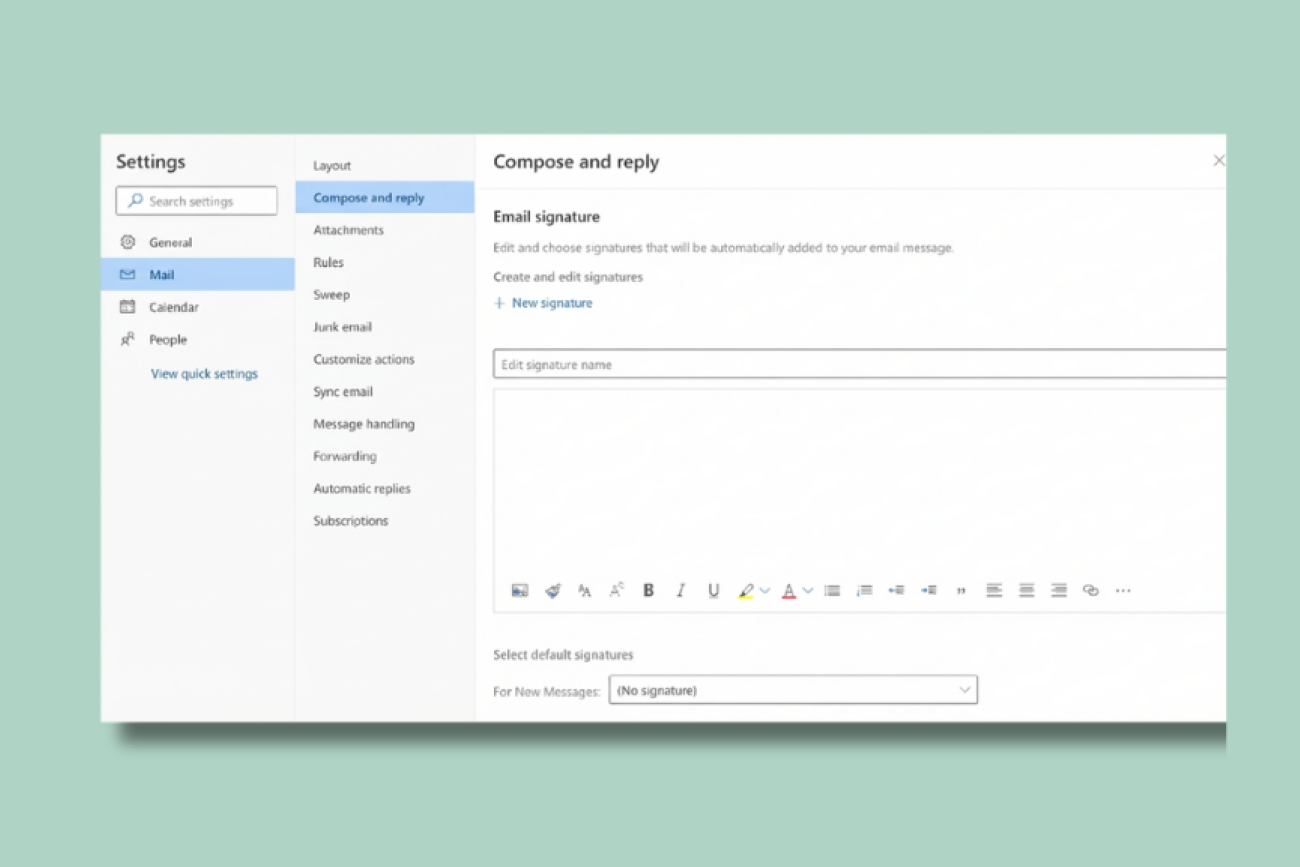
Open Settings → Mail → Compose and reply
Recreate the signature directly in the editor
Select the signature for:
New messages
Replies and forwards
Click Save before leaving the page
2. Test signature behavior in a private browser session
This helps rule out browser-related interference.
Open an incognito or private window
Sign in to Outlook on the web
Send a test email
If the email signature works, a browser extension or cached setting is likely causing the issue.
3. Allow time for roaming signatures to sync
If roaming signatures are enabled:
Avoid making changes in both Outlook desktop and the web at the same time
Wait several minutes before testing again
Conflicting edits often result in email signatures reverting or disappearing.
4. Simplify signature formatting
To reduce rendering issues:
Avoid pasted content from Word or HTML editors
Use inline images rather than externally hosted images
Keep layouts simple
Complex designs are more likely to break in Outlook on the web.
Known limitations of Outlook on the web signatures
Even when configured correctly, Outlook on the web signatures:
Offer limited formatting control
Don’t guarantee consistency with Outlook desktop or mobile
Rely entirely on Microsoft 365 sync behavior
These limitations often explain why signatures appear in one Outlook app but not another.
Outlook signature not working on Outlook mobile (iOS or Android)
Outlook mobile apps handle signatures independently from Outlook desktop and Outlook on the web. This often causes confusion when signatures appear correctly on a computer but are missing, simplified, or inconsistent on mobile.
For IT teams, this is one of the most common sources of “signature not working” reports in Microsoft 365 environments.
Why Outlook mobile signatures don’t work as expected
Common causes include:
Mobile apps don't use desktop email signatures. Outlook mobile does not automatically inherit email signatures from Outlook desktop or Outlook on the web.
Limited formatting support: Mobile email signatures support basic text only. Images, banners, and advanced layouts are often stripped out.
Default mobile email signatures overriding custom ones: Outlook mobile may fall back to a default email signature such as "Sent from Outlook for iOS" if a custom email signature isn't configured.
Multiple accounts with separate settings: Each mailbox configured in the mobile app has its own email signature settings.
How to fix Outlook signatures on mobile devices
Follow these steps on the device itself.
1. Set a signature directly in the Outlook mobile app
Open the Outlook app
Go to Settings
Select the email account
Open Signature
Create or paste a simple text-based signature
Changes made elsewhere won’t apply unless configured here.
2. Remove default mobile signatures
If the default signature appears:
Delete any “Sent from my phone” or “Get Outlook for iOS” text
Save changes before exiting settings
3. Keep mobile signatures simple
To reduce issues:
Use plain text
Avoid images, logos, or banners
Avoid complex spacing or formatting
Mobile clients prioritize readability over layout consistency.
Known limitations of Outlook mobile signatures
Even when configured correctly, Outlook mobile signatures:
Can’t be centrally enforced with native Microsoft 365 tools
Don’t support branded layouts or disclaimers reliably
Must be managed per user and per device
This explains why mobile signatures are often inconsistent across users in large environments.
Want to avoid recurring Outlook signature issues?
Learn how Exclaimer helps IT teams centrally manage email signatures across Microsoft 365 without relying on user-side configuration.

Common Outlook signature problems and how to fix them
When users report that an Outlook email signature "isn't working," they're usually describing a specific symptom, not a single root cause. The sections below map common problems to what's actually happening in Microsoft 365 and what to check first.
Email signature missing on replies or forwards
Outlook applies different rules for new messages versus replies and forwards. If no default email signature is assigned for replies, Outlook won't insert one automatically.
What to check
In signature settings, confirm an email signature is selected for:
Replies
Forwards
Verify this setting in the specific Outlook app being used (desktop, web, or mobile)
This is one of the most common configuration issues and often affects only replies, not new emails.
Email signature appears sometimes but not always
Intermittent behavior is usually caused by sync delays or client differences rather than user error.
What to check
Whether the sender switches between Outlook desktop, web, and mobile
Whether roaming signatures are enabled
Whether changes were made recently and not fully synced
Email signatures may appear correctly in one client but not another until Microsoft 365 finishes syncing.
Signature formatting is broken or inconsistent
Outlook clients render HTML differently. Outlook on the web and mobile apps apply stricter formatting rules than Outlook desktop.
What to check
Avoid pasted content from Word or external HTML editors
Reduce tables, spacing, and complex layouts
Use inline images instead of externally hosted images
Formatting issues usually indicate client limitations rather than a configuration failure.
Email signature images or logos not displaying
Images may be blocked, stripped, or fail to load depending on how they’re embedded and where the email is sent from.
What to check
Whether images are embedded or externally hosted
Whether the issue occurs only in Outlook on the web or mobile
Recipient-side image blocking settings
Images are more likely to fail in web and mobile clients than in Outlook desktop.
Duplicate email signatures appear in messages
This usually occurs when email signatures are applied in more than one place.
What to check
Whether a local signature exists in Outlook desktop
Whether server-side rules or third-party tools are also adding a signature
Whether replies include quoted content with an existing signature
Duplicate signatures indicate overlapping application methods.
Email signature disappears after an Outlook or Microsoft 365 update
Updates can reset local settings, trigger roaming signature sync, or invalidate Outlook profiles.
What to check
Default email signature assignments after the update
Whether roaming signatures were enabled automatically
Whether the issue affects multiple users at the same time
Post-update email signature issues are common and often related to profile or sync changes.
"There are several other limitations that Microsoft acknowledges: they can't insert the signature directly under the latest email reply or forward, they can't display server-side email signatures in users' Sent Items, and they can't skip lines that contain variables that cannot be updated (if the information is not in Active Directory for that user)."
Why Outlook signatures keep breaking in Office 365
Even when users follow best practices, Outlook signatures in Office 365 can still behave inconsistently. That’s because Microsoft’s native tools were designed for individual use, not centralized management across users, devices, and clients.
Understanding these limitations helps explain why signature issues keep resurfacing.
Lack of centralized control
Outlook email signatures are created and edited by end users. There's no native way in Microsoft 365 to:
Lock signature content
Prevent manual edits
Apply changes across all users at once
As a result, email signatures drift over time, especially after role changes, rebrands, or policy updates.
Exclaimer's own research puts a number on how much of IT's time this kind of email signature drift and manual upkeep costs. Exclaimer's State of Business Email 2025 report (4,009 IT leaders across the UK, US, Germany, and Australia, fielded by Censuswide in April 2025) found that 35% of IT teams name email signature management as one of their top two most time-consuming tasks. Despite that, 80% still rely on manual methods or user self-service to manage them.
Roaming signatures explain part of why that work keeps recurring instead of getting fixed once. They only sync for mailboxes hosted on Microsoft 365 or Outlook.com. Per Microsoft's own documentation, Exchange on-premises mailboxes, third-party email services, and POP/IMAP accounts don't roam signatures at all. So depending on the mailbox type, IT is either managing sync delays or has no native syncing to fall back on in the first place.
"80% still doing these updates by hand tells you everything. I think Microsoft never really decided what an email signature is. Right now it's treated like a personal setting, the same shelf as your inbox theme or your out-of-office message. That's fine if it's just yours to look at. It's not fine once it's carrying a legal disclaimer, or a brand the company is actually on the hook for. Nobody hands every employee a blank page and tells them to go write their own legal footer. But that's more or less what happens with a native Outlook signature, because nobody's checking it once it's live."

Inconsistent behavior across Outlook clients
Each Outlook client handles email signatures differently:
Outlook desktop supports richer formatting but relies on local or roaming data
Outlook on the web applies stricter formatting rules
Outlook mobile uses separate, text-based email signatures
Microsoft 365 doesn’t guarantee that an email signature created in one client will appear the same, or at all, in another.
Device- and profile-dependent configuration
Email signatures are affected by:
Local Outlook profiles
Cached mode behavior
Device-specific settings
Sync timing with Microsoft 365
This makes troubleshooting harder at scale, especially when users work across multiple devices.
Limited visibility for IT teams
Native Outlook tools don’t provide:
A way to see which signatures are actually being sent
An audit trail for changes
Central reporting or verification
This leaves IT teams reacting to issues after emails are already sent.
What this means in practice
For small teams, native Outlook signatures may be manageable. For larger organizations, the lack of control and consistency is often the root cause of recurring signature problems.
Key takeaway
Native Outlook email signatures are manageable for a handful of users. Past that, the lack of centralized control is usually the actual root cause behind recurring complaints, not a one-off misconfiguration worth chasing again.
This is typically the point where teams evaluate whether a centralized approach to email signature management is needed.
Outlook signature not working due to an AD or Entra ID connector issue
If you're already using Exclaimer to manage signatures centrally, a signature that's missing or wrong for specific users or groups usually isn't an Outlook problem at all. It's the AD or Entra ID connector feeding Exclaimer its data.
Work through the six patterns below, then check Exclaimer's sync log and the Microsoft Entra audit log for the matching error.
Symptom | Cause | Fix |
|---|---|---|
Signature fails to update for one specific user, though others are fine | A duplicate | Check the Entra Connect sync error report for |
Signatures stop updating for everyone after a change | Exclaimer's app registration permissions were revoked, for example, during a tenant security review or app cleanup | Re-grant admin consent for Exclaimer's app registration in the Entra admin center. Confirm it still holds |
Changes in AD don't reach the signature | Entra Connect sync delay (30-minute default cycle) or a paused sync | Run |
Wrong template applied to a user | User matches more than one mapped group, with no group precedence set | Set explicit group precedence in Exclaimer's Signature Rules. Re-test the affected user. |
Group-based mapping returns no users | Dynamic group rule syntax error or an attribute value mismatch | Validate the rule in the Entra admin center's rule preview. Correct the syntax. Force re-evaluation. |
Disabled user's signature still appears in outgoing mail | Possible client-side (Outlook Add-in) caching outliving the disable | Confirm deployment mode in Exclaimer admin. Server-side deployment doesn't depend on the client for enforcement. |
Where to look. Exclaimer's sync log in the admin console shows per-user sync results. The Microsoft Entra audit log shows the directory side of the same event, such as changes to users, groups, and app permissions.
For the full AD/Entra ID configuration, see Active Directory & Entra ID for email signatures.
Wish that creating a signature in Outlook for Office 365 was easier?
Exclaimer removes the client, device, and profile variables covered above: it applies email signatures centrally, so they don't depend on which device, client, or Outlook build someone is using.
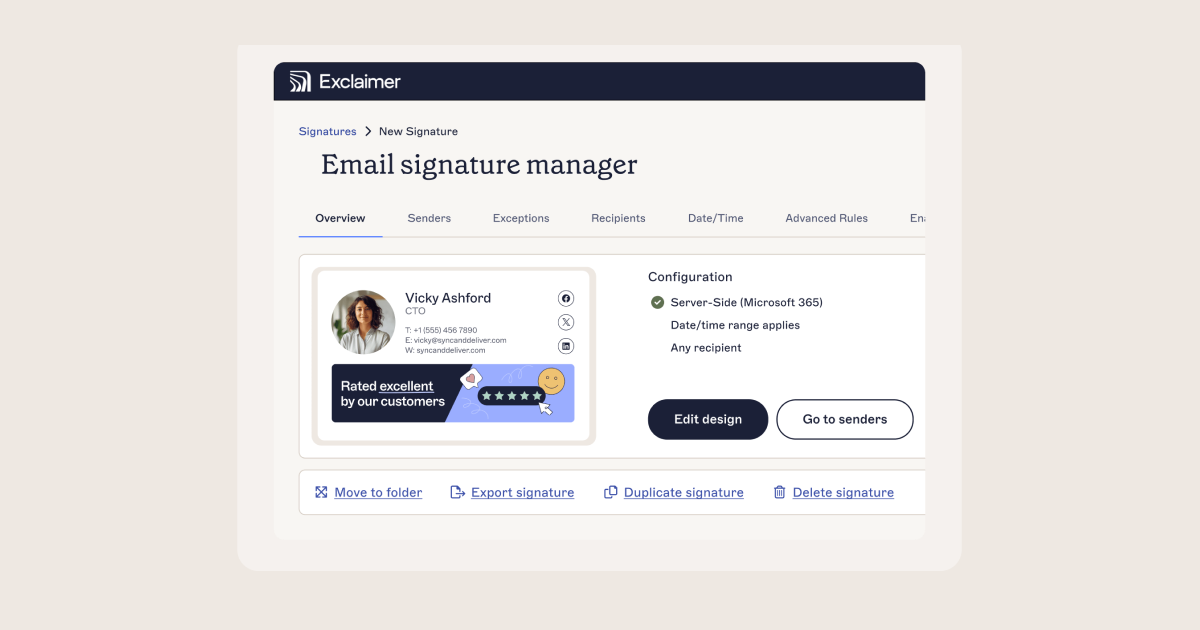
With Exclaimer's cloud solution, email signatures stay consistent across desktop, web, and mobile, with images embedded directly rather than hosted externally. Reply and forward email signatures can be set separately from the one used for new messages, and they display correctly inside a conversation thread.
Learn more about Exclaimer or start a free trial to see it applied to your own Microsoft 365 tenant.