Naimh is a seasoned marketer of 12 years, including in SaaS and tech. She’s an expert at simplifying complex technology concepts, bridging the gap between IT and marketing. Naimh specializes in turning tech speak into actionable insights, helping marketers get the most out of their tools and technology.
Creating the perfect mobile email signature
TL;DR
Exclaimer’s design guidelines recommend an email signature width of 450 pixels (px), with images in JPG, JPEG, PNG, or GIF format.
The guidelines give 11 to 12 points (pt) for the name and job title, and 8 to 10 pt for contact details.
A screen narrower than the email signature can squash it, and the Outlook Mail app on iOS and Android can cut off or shrink a logo.
With server-side deployment, Exclaimer applies an email signature on every device and email client, including mobile, with four exceptions. On Outlook for iOS and Android, the Outlook Add-in applies only the default email signature.
A professional mobile email signature is important for anyone who sends emails on the go. It adds a personal touch to your business communication while helping to promote your brand and organization.
When employees have too much freedom to create their own mobile email signature, the inconsistency can cause problems like missed branding opportunities and unprofessional communication.
By standardizing mobile email signatures across your team, you can keep your brand consistent, look more professional, and make a strong impression with every email sent.
What is a mobile email signature?
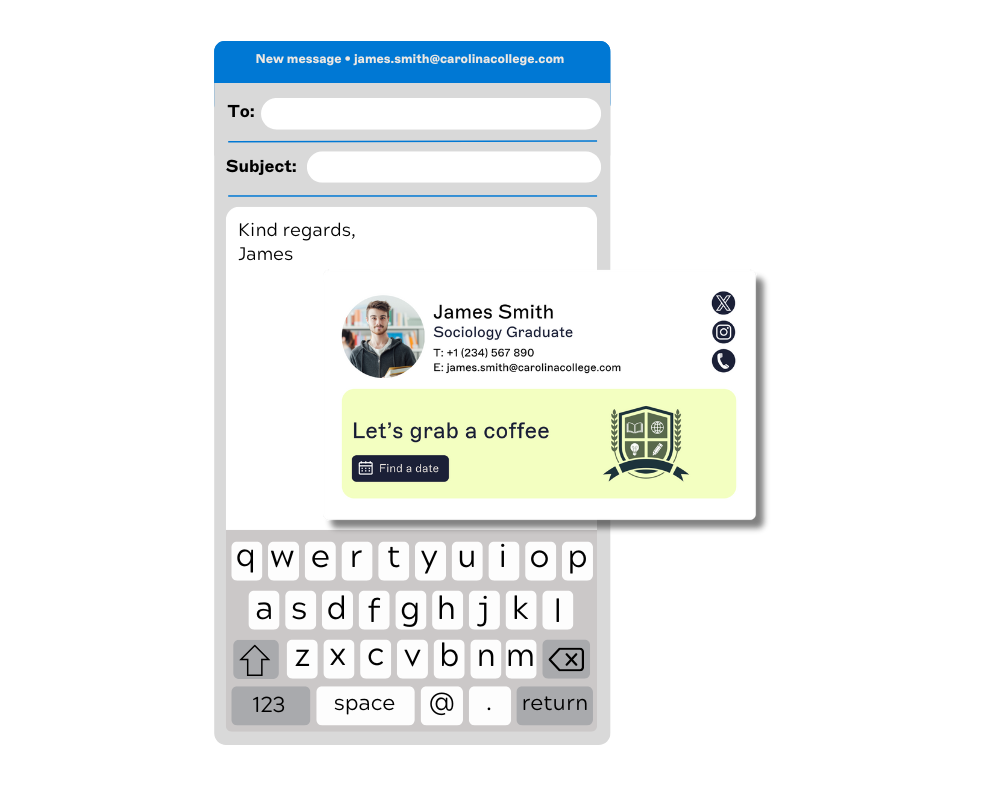 A mobile email signature is the email signature on an email sent from a phone. The term also covers how an email signature looks on the phone of the person reading the email. Senders can’t control that screen, so the design has to fit a small one.
The state of play for mobile email
Litmus’s October 2026 email client market share report says mobile devices continue to be the primary reading environment for the majority of subscribers. The report is calculated from over 1.7 billion opens in Litmus Email Analytics, and it puts Apple at 75.84% and Gmail at 17.02% of opens.
Litmus says Apple includes opens observed from Apple Mail, Apple iPhone, and Apple iPad. Litmus classes opens from users opted into Apple’s Mail Privacy Protection as not reliable opens. The same report says dark mode, a display setting that shows light text on dark backgrounds, is now used by over 25% of the total user base.
Missed opportunities with mobile email signatures
Every email can carry an email signature, and with each one comes an opportunity to say something meaningful.
In Outlook for iOS and Outlook for Android, emails can carry the message Get Outlook for iOS or Get Outlook for Android, which the app registers as an email signature. Microsoft’s guidance says the Get Outlook for iOS message appears at the end of emails as the default email signature. That default carries no contact details and nothing about the sender’s company.
Perfecting your mobile email signature design
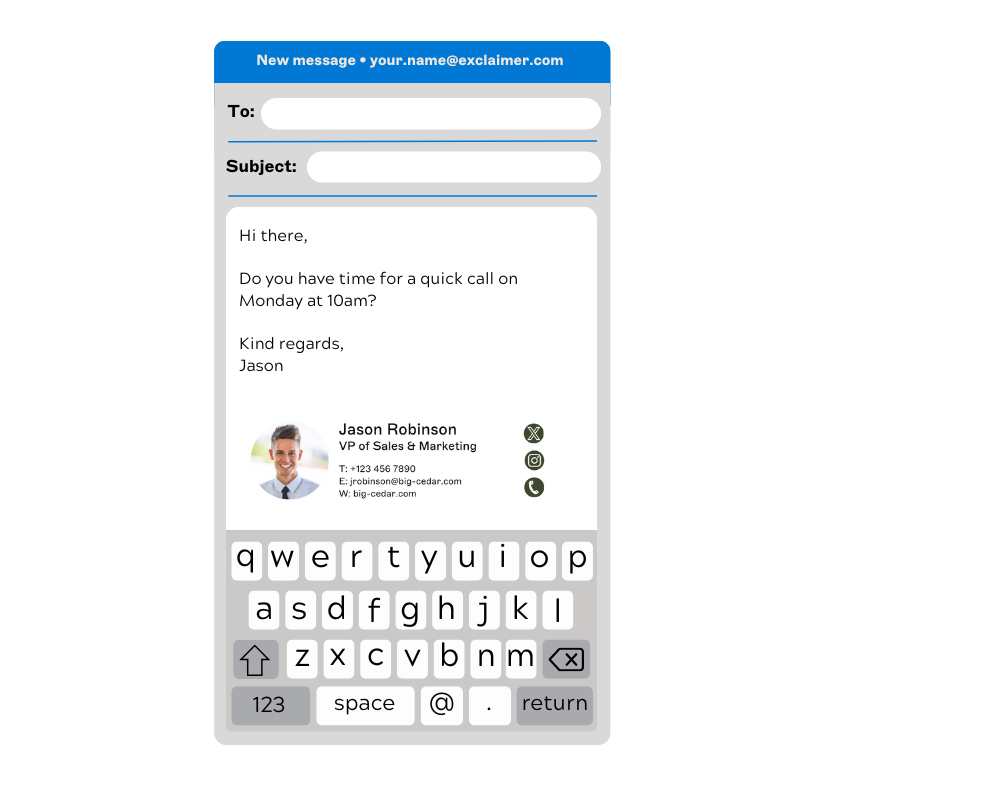
Exclaimer’s design guidelines recommend an email signature width of 450 pixels (px). A template shouldn’t exceed 600 px, and some devices may still consider that too wide.
Upload each logo or banner at the exact size it will display. The guidelines say to use up to a maximum of 300 dots per inch (dpi) for best results, and banner images can be 600 px wide at most. They list JPG, JPEG, PNG, and GIF as the supported image formats.
The guidelines say a fixed width can be set on tables and whole templates to avoid an email signature resizing on smaller device screens. Some iOS devices fit a fixed-width template to the screen, which can make the email signature look very small.
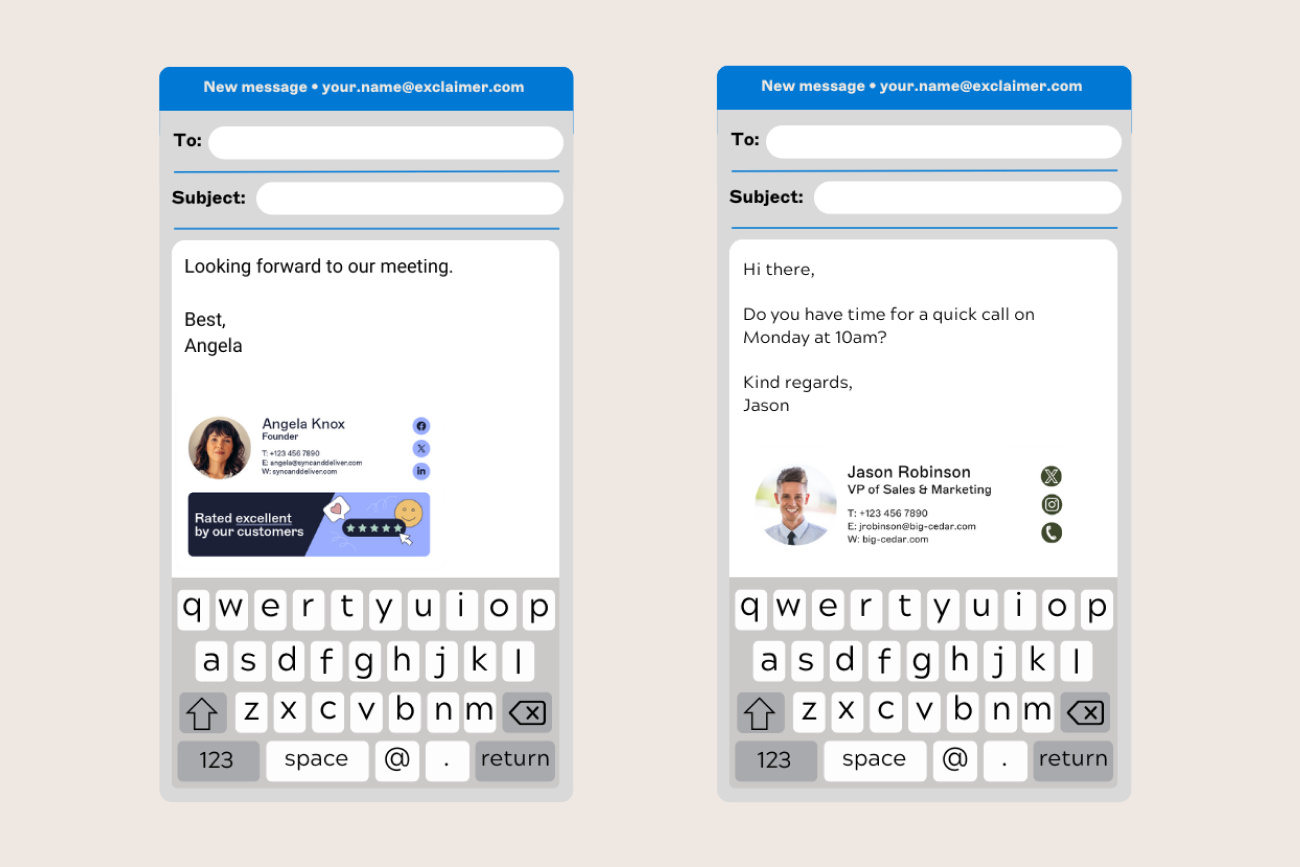
The guidelines also advise keeping the design compact and simple to avoid horizontal scrolling, and testing email signatures on mobile devices where possible. For fonts, they give 11 to 12 points (pt) for larger text such as the name and job title, and 8 to 10 pt for contact details.
Add ALT text to images so users with screen readers or slower internet connections can access your details. Use high-contrast colors and clear fonts to make your email signature easy to read for everyone, including those with visual impairments.
Specification | Recommendation |
|---|---|
Email signature width | 450 px. A template shouldn’t exceed 600 px, and some devices may still consider that too wide |
Banner image width | 600 px at most |
Image size | Upload each image at the exact size it will display |
Image resolution | Up to a maximum of 300 dots per inch (dpi) for best results |
Image formats | JPG, JPEG, PNG, or GIF |
Font size for the name and job title | 11 to 12 points (pt) |
Font size for contact details | 8 to 10 pt |
Fixed width | Can be set on tables and whole templates to avoid an email signature resizing on smaller device screens |
Fixed width in the Outlook Mail app | For a logo that Outlook for iOS or Android cuts off or shrinks, Exclaimer recommends a fixed email signature width of 450 to 600 px |
Fixed width on some iOS devices | Some iOS devices fit a fixed-width template to the screen, which can make the email signature look very small |
Layout and testing | Keep the design compact and simple to avoid horizontal scrolling, and test on mobile devices where possible |
Sources: Exclaimer’s support articles on design guidelines, email signatures that appear small on mobile devices, logos in the Outlook Mail app, and squashed email signatures.
How a device’s dark mode affects an email signature
Dark mode is a display setting that shows light text on dark backgrounds. Exclaimer’s support article on dark mode says a device’s dark mode settings can’t be overwritten, and that the effects can vary greatly between devices and clients. Different devices and mail clients can invert the colors of an email signature or apply dark backgrounds to it.
Exclaimer recommends uploading images with a light background so dark text stays visible, and rounded edges rather than square ones, depending on the logo design. A light-colored border around text-based logos or tagline images, added before upload, keeps the text visible if dark mode is applied. For an email signature with a background color, such as white, the article advises rendering it as a bitmap image, which embeds the colors used.
Including relevant contact information for your email signature
 The best mobile email signatures keep contact details to a minimum, making it easy for recipients to get in contact.
1. Employee’s full name and job title
You must include this information in your mobile email signature. This is helpful for recipients who are just getting to know you and makes it easier for clients to share your email with others.
2. Phone number
If you work only in an office or a fixed location, including just a landline number makes sense. But since your mobile number is often the fastest way for important contacts to reach you, it can be helpful to include that too.
Don’t forget to add your area code to your phone number in your email signature. This is especially important when emailing people in other countries. For example, the International Telecommunication Union’s list of assigned country codes gives the code 44 to the United Kingdom of Great Britain and Northern Ireland.
Exclaimer’s directory sync automatically populates email signature fields from Microsoft Entra ID and Google Workspace Directory, so contact details stay accurate without manual edits.
3. Email address
Adding your email address to your email signature can make it a clickable link on most mobile devices.
What to avoid in mobile email signatures
While there are guidelines for creating a winning mobile email signature, some elements should be avoided entirely. Try to avoid the following:
1. Don't tell people what device you’re sending from
A mobile email signature should represent your company, not the device it was sent from. That’s why it’s important to make sure all employees use the same email signature on their mobile devices as they do on their desktops.
2. Don't add “Excuse any typos” in your signature
It’s better not to draw attention to any errors you might have made. Instead, make sure you carefully proofread your email before hitting “Send.”

Why email signatures go wrong on phones
A screen narrower than the email signature squashes it
According to Exclaimer’s support article on squashed email signatures, an email signature can look squashed on a mobile device or smaller screen when the screen is narrower than the email signature, for example because of wide disclaimers or tables with many columns. The fix is a fixed width on a table or group, or on the whole template.
Some iOS devices fit a fixed-width template to the screen, which can make the email signature look very small, and a fixed width on a template with wide text elements such as disclaimers can scale it without text wrapping.
Outlook for iOS and Android can cut off or shrink a logo
Exclaimer’s support article on disappearing logos says the Outlook Mail app on iOS and Android tries to fit a wider email signature to the screen and may cut off or shrink the logo image, including in portrait orientation.
To stop the image size changing, upload the logo at its final display size and set its width and height to match. Values set to auto may let the mail client resize the image.
A Microsoft Intune policy can hide the email signature in Outlook for iOS and Android
Microsoft Intune is a cloud-based service that manages and secures an organization’s devices and apps. When an email signature shows in Outlook on the web and on the desktop but not in Outlook for iOS or Android on a device managed through Intune, a policy setting may be blocking Exclaimer’s Outlook Add-in, the client-side deployment for Outlook.
The support article’s fix is to check the Default App Signature setting in the Intune policy and, if it’s set to Yes or No, change it to Not configured.
Gmail apps auto-size email content
Exclaimer’s support article on Gmail auto-sizing says auto-sizing, which automatically changes the sizing of email content and email signatures, is often applied in the Gmail mobile apps.
On iOS, it can be reverted for individual emails, and on Android, the Auto-fit messages setting can be turned off for all emails.
Customers describe gaps on mobile
Zeren, a 50-person staffing and recruitment company in London, reports that before Exclaimer, logos wouldn’t display for consultants who used webmail or certain types of mobile phone. Its managing director, Harry Lewis, said that managing each person’s Outlook settings on their phones was difficult, especially for staff on webmail or on phones that couldn’t display a logo.
The International AIDS Society’s story lists “no guarantee on mobile” as a challenge, because it had no way to be sure an email sent from a phone carried the right email signature.
Creating an Outlook mobile email signature
To add an email signature in Outlook for iOS or Outlook for Android, open Settings, tap Signature under Mail, and enter your email signature.
To use a different email signature for each account, switch on Per Account Signature and enter one for each account.
Creating a Gmail mobile email signature
Exclaimer’s guide to adding and changing an email signature in Gmail gives the steps for the Gmail app on Android and on iPhone.
According to Google’s Workspace Updates blog, if no mobile signature is set in the Gmail app on Android, the email signature set on the web is inserted, with support for images, logos, and text formatting. To avoid that, set a non-empty mobile signature, such as your name.
How Exclaimer applies email signatures on mobile
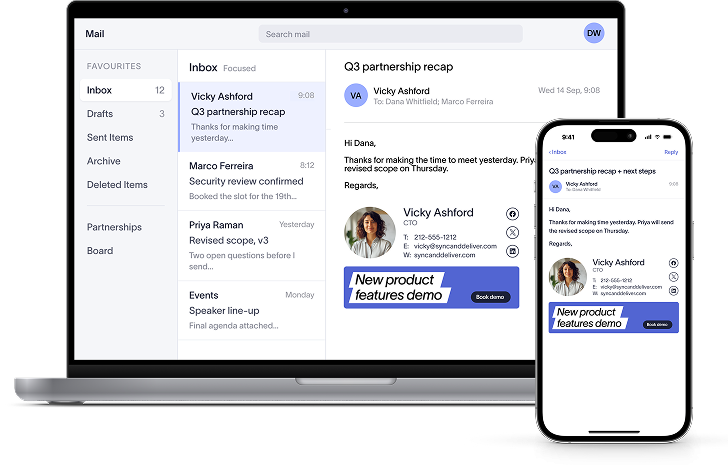
With server-side deployment, Exclaimer applies the email signature as an email routes through Exclaimer, so it works on every device and email client, including mobile, with four exceptions.
Exclaimer’s Outlook Add-in is the client-side deployment, supported on Outlook for Windows, macOS, web, iOS, and Android. On Outlook for iOS and Android, the Outlook Add-in applies the default email signature automatically, and users can’t choose one.
When Exclaimer is used with Outlook on mobile devices, Exclaimer can’t remove default messages such as Sent from iPhone from the body of an email, and the support article on removing default mobile signatures recommends deleting them on the device.
The Get Outlook for iOS or Get Outlook for Android message is registered as an email signature in the Outlook Mobile app, and can be erased in the app’s settings.
The International AIDS Society, which used Exclaimer’s cloud deployment (server-side), reports 100% of its outgoing email carrying the correct email signature, including on mobile. Ahtna, which has 1,300 employees and 30 subsidiary companies, lists consistent display across every Outlook version and mobile device in the “after” section of its customer story.