Dave is a marketing expert with 15 years experience in the tech and SaaS world. He specializes in educating IT and channel audiences, with a focus on security, privacy, compliance, and marketing technology. With a talent for storytelling and a deep understanding of the industry, Dave transforms complex IT topics into clear, engaging, and impactful narratives.
How to create a Gmail account for a company using Google Workspace
TL;DR
A professional Gmail account for a company requires Google Workspace, not a free @gmail.com account.
Gmail for business lets you use a custom domain, like [email protected].
Setup involves choosing a Workspace plan, connecting your domain, verifying DNS, and adding users.
Free Gmail accounts don't support centralized admin control or structured security policies.
Gmail for business includes encryption, admin controls, and user management for growing teams.
After setup, configure security, permissions, shared inboxes, and email signature standards. Google Workspace's built-in signature options are limited to one design per organizational unit, so real consistency across a growing team is worth planning for on day one, not fixing later.
A Gmail account for a company is created through Google Workspace, not the free personal version of Gmail. While anyone can open a standard @gmail.com account, businesses that need professional email addresses like [email protected] must set up Gmail for business.
Whether you're setting up email for a new company or replacing personal accounts with a professional solution, this guide explains how to create a Gmail company account step by step, what it costs, and what to configure to keep your organization secure. It also covers how to keep email signatures consistent when you have more people sending email than you can personally track.
To create Gmail for business:
Sign up for Google Workspace
Connect or purchase your domain
Verify domain ownership through DNS
Set up your administrator account
Add users and configure security settings
A free Gmail account doesn't support custom domains or centralized business management.
What is Gmail for business?
Gmail for business is the professional version of Gmail provided through Google Workspace. It allows companies to create email addresses using their own domain, such as [email protected], instead of a public @gmail.com address.
It provides:
Custom domain email
Centralized account management
Admin-level controls and permissions
Security features including encryption and two-factor authentication
Access to shared collaboration tools
Free Gmail accounts are built for individual use. Gmail for business is built for organizations that need multiple users, policy control, and long-term scalability.
Gmail account vs Gmail for business: What’s the difference?
A free Gmail account is intended for personal use. Gmail for business is built for companies that need professional email, centralized control, and structured management.
Free Gmail | Google Workspace | |
|---|---|---|
Custom email address | Only provides a standard @gmail.com address. | Allows you to create custom email addresses using your company's domain, enhancing professionalism. |
Storage capacity | Offers 15 GB of total storage for emails and files. | Starts at 30 GB pooled storage per user on Business Starter, rising to 2 TB per user on Business Standard and 5 TB per user on Business Plus and Enterprise. |
Security features | Includes basic spam filtering and email encryption. | Adds phishing and malware protection, security key enforcement, and mobile device management on every plan. Data loss prevention (DLP) and advanced endpoint management are reserved for Business Plus and Enterprise. |
Administrative and management tools | Lacks administrative controls and reporting tools. | Provides admin controls, including activity reports, user and device management, and audit logs. |
Support and reliability | Limited to online help resources and community forums. | Includes a 99.9% uptime SLA on every Business edition, plus 24/7 phone and email support from Business Starter up. Enhanced support levels are available on higher tiers. |
Collaboration and additional features | Limited access to Google's collaboration tools with basic features. | Enhanced collaboration tools with Google Meet for video conferencing, shared calendars, and Drive storage. Gemini AI is included in Gmail on every paid plan, expanding to Docs, Meet, and more from Business Standard up. |
User account management | No centralized user management. | Centralized management from an admin console, allowing for easy user provisioning and deactivation, and group email setup. |
If your goal is to create a professional Gmail company account, you will need Google Workspace. A free Gmail account can't use your business domain.
How to create a Gmail account for a company
To create a Gmail company account, you must set up Google Workspace. Follow these steps.
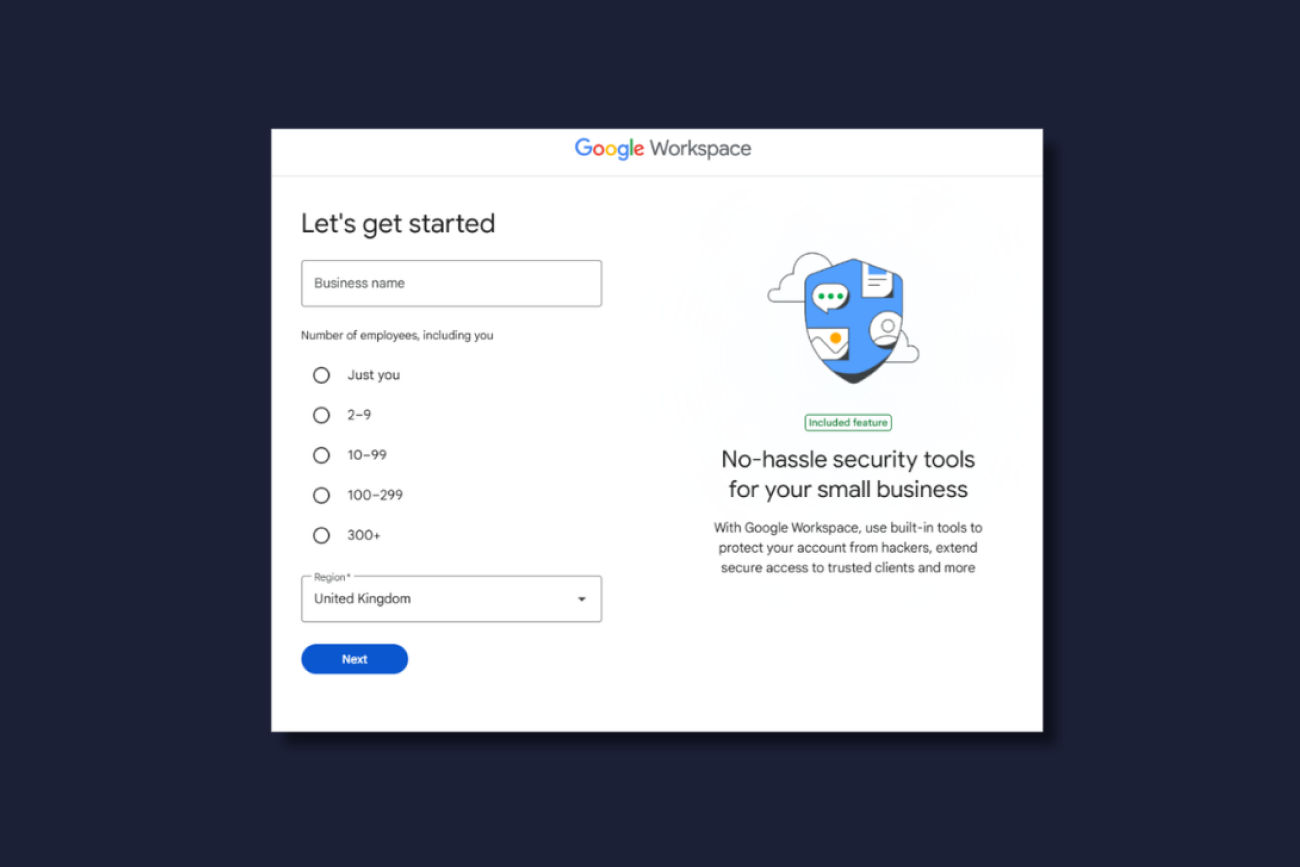
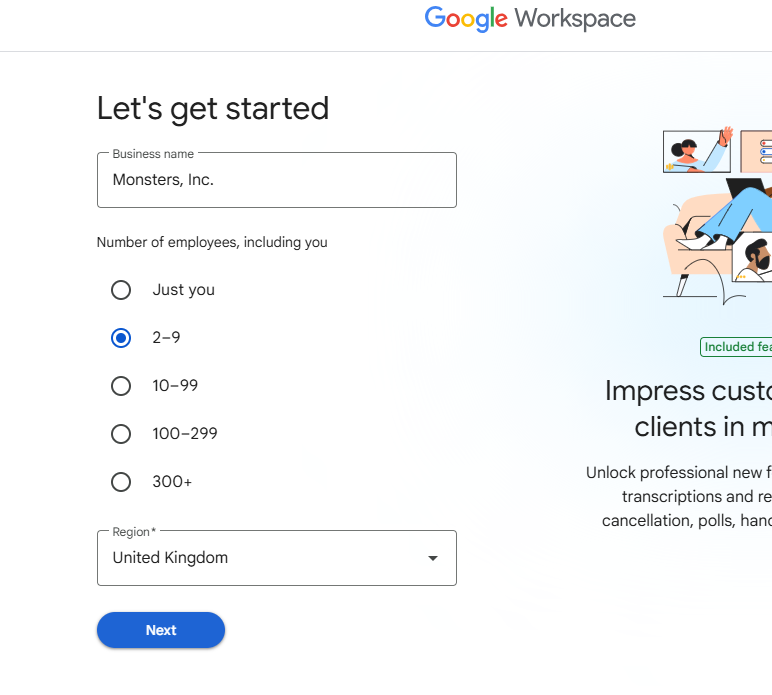
1. Choose a Google Workspace plan
Visit the Google Workspace website and select a plan based on your business size and storage requirements.
You’ll provide:
Business name
Number of employees
Contact details
This creates your primary administrator account.
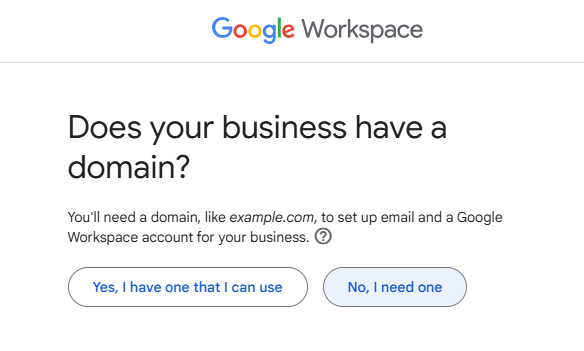
2. Connect or purchase your domain
A Gmail company account requires a custom domain, such as yourcompany.com.
You can:
Register a new domain during setup
Connect an existing domain
Your domain determines your email format, for example, [email protected].
3. Verify domain ownership
Google verifies that you control the domain by requiring a DNS update.
You’ll:
Log in to your domain registrar
Add a TXT record provided by Google
Wait for verification confirmation
Verification may take a few minutes to propagate.
4. Set up your administrator account
The first user becomes the Workspace administrator.
The admin manages:
Users and permissions
Security settings
Billing
Organizational policies
This account controls your Gmail for Business environment.
5. Add users and create company email addresses
After verification, create user accounts for employees.
Examples include:
Each user receives access to Gmail and other Workspace apps.
6. Configure security and access policies
Before full rollout, configure:
Two-factor authentication
Password policies
Device access rules
Data retention settings
Email setup is straightforward. Managing it securely at scale requires structured controls from day one.
How much does Gmail for business cost?
Gmail for Business is included with Google Workspace, which charges a monthly fee per user.
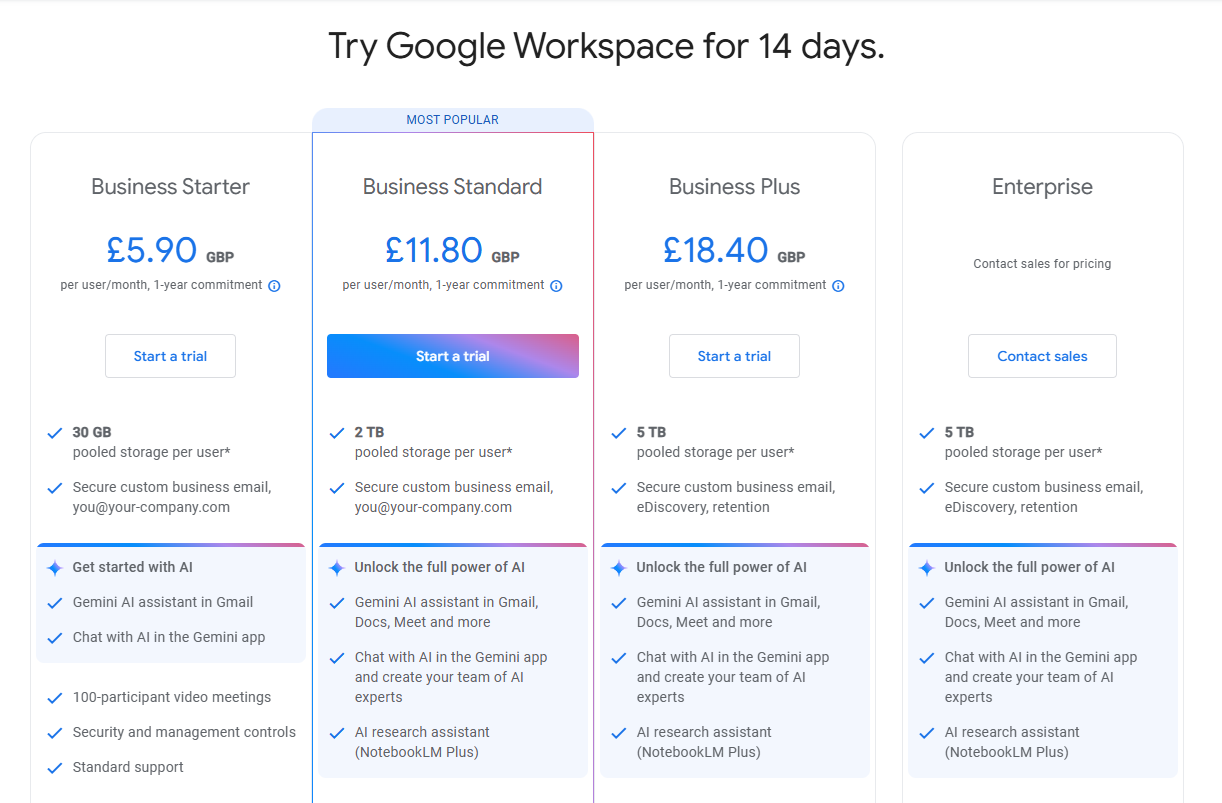
Plans typically include:
Business Starter
Business Standard
Business Plus
Enterprise
Each plan increases storage limits, administrative control, and security capabilities.
Free Gmail accounts don't include business features such as custom domains, centralized management, or advanced compliance controls.
Your total cost depends on:
Number of users
Required storage
Security requirements
Compliance needs
Because pricing scales per user, businesses should consider both current team size and expected growth when selecting a plan.
For up-to-date pricing, review the official Google Workspace website.
Can I use a free Gmail account for my company?
You can use a free Gmail account for business email, but it's not designed for organizational use.
Limitations include:
Public @gmail.com email addresses
No custom domain support
No centralized user management
Limited security controls
Minimal compliance features
Using a public Gmail address may reduce brand credibility, particularly when communicating with customers or partners.
For businesses that want professional email addresses, structured administration, and long-term scalability, Gmail for business through Google Workspace is the appropriate solution.
Is Gmail secure for business use?
Yes. Gmail for Business includes enterprise-level security controls through Google Workspace.
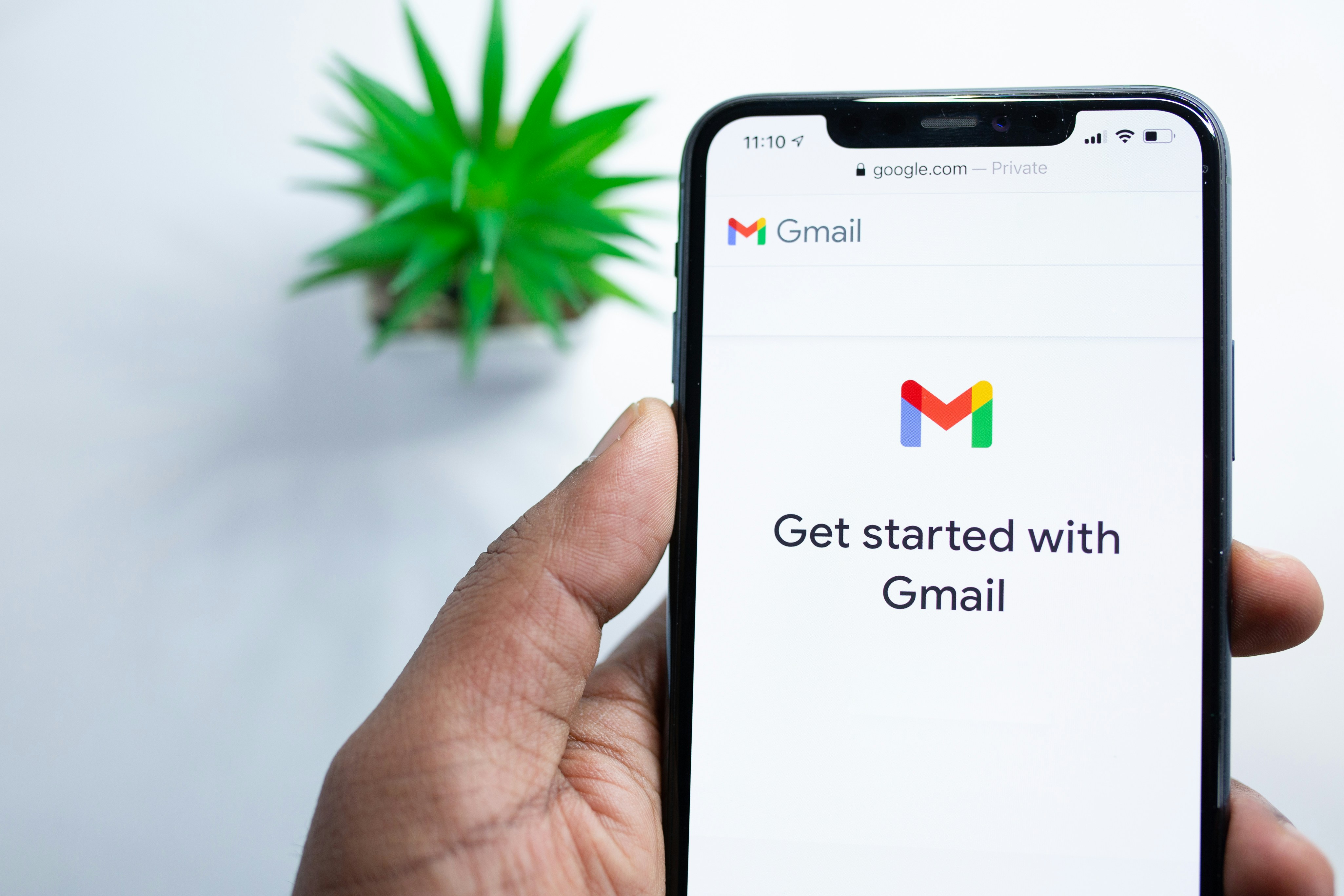
Security features include:
Encryption in transit
Two-factor authentication
Admin-enforced password policies
Mobile device management
Suspicious login detection
Built-in spam and phishing protection
These controls allow administrators to apply policies across all users.
Security features alone aren't enough. Protection depends on consistent configuration, user management, and centralized oversight. Without structured administration, risk increases as the organization grows.
What should I configure after setting up Google Workspace?
Opening a Gmail company account is straightforward. Managing it well requires structure.
After setup, review these areas.
User roles and permissions
Limit administrative access. Use role-based permissions instead of granting full control to multiple users.
Security enforcement
Enable:
Two-factor authentication
Strong password policies
Login monitoring
Device access controls
Security settings should be enforced centrally.
Shared and functional inboxes
Create structured addresses such as:
Assign access intentionally to maintain accountability.
Compliance requirements
If your industry requires legal disclaimers or regulatory notices, apply them consistently across all outgoing email.
Relying on employees to manage disclaimers manually introduces risk.
How do you keep email signatures consistent across a growing Google Workspace team?
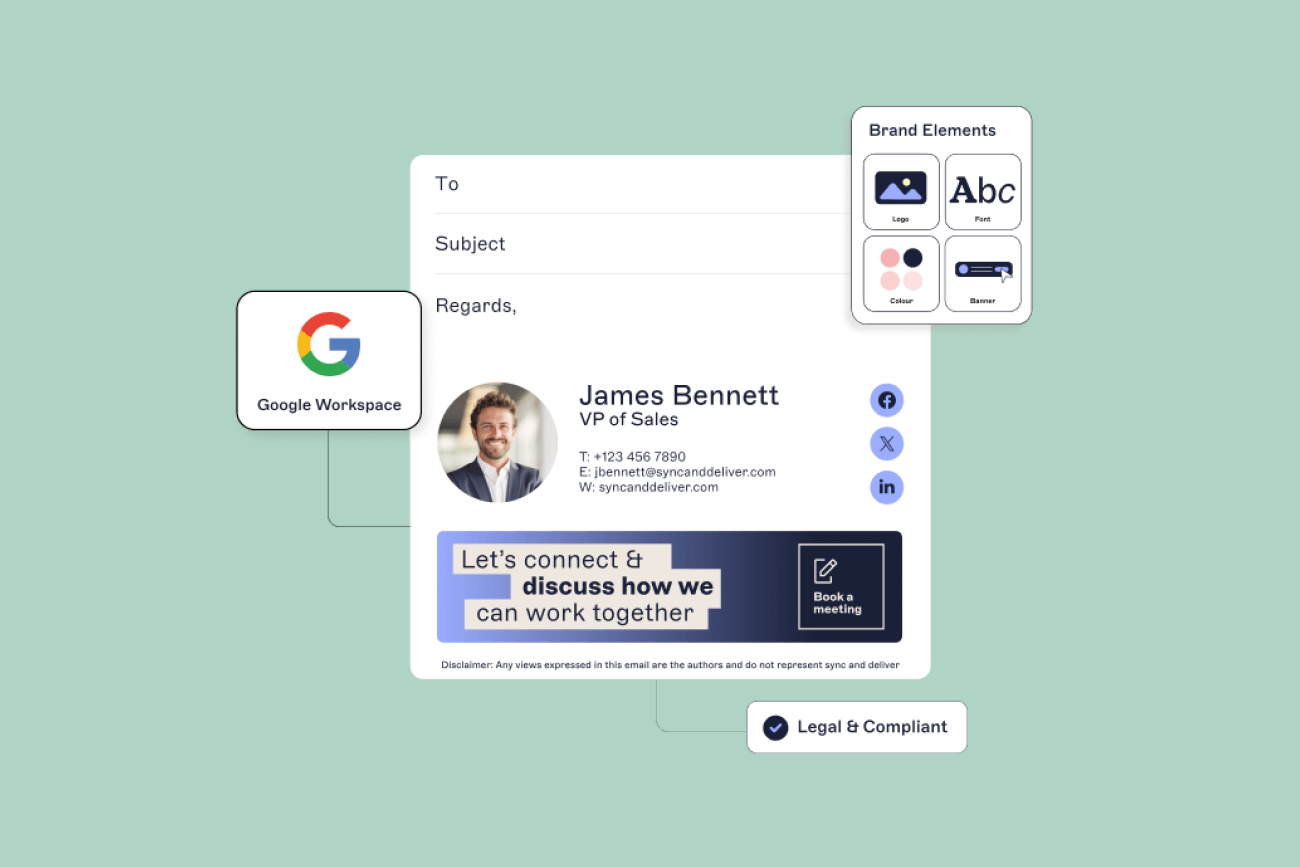
Google Workspace gives you two ways to set an email signature, and neither one gives IT real control. Each employee can set their own personal signature in Gmail's settings, or an admin can apply one basic footer template per organizational unit from the Admin console. Neither syncs live contact details from Google Workspace Directory, personalizes by employee, previews before sending, or supports more than one design per organizational unit.
That's workable for five people, but not for 50 and above. According to Exclaimer's State of Business Email 2025 report, 92% of IT leaders agree that consistent, centrally managed email signatures build trust and professionalism. Yet 80% of organizations still rely on manual updates or leave signatures to individual employees, and only 18% use a dedicated signature management tool. Google Workspace's two native options put most companies in that 80%, by default rather than by choice.
Google Workspace's native tools | Centralized email signature management | |
|---|---|---|
Who sets it | Each employee individually, or IT with one footer template per organizational unit | IT, with a rule per department, role, or region |
Syncs live directory data | No | Yes, from Google Workspace Directory |
A rebrand or logo change | Manual: an email to the team, or an admin editing the footer org unit by org unit | Updates automatically, everywhere |
Preview before sending | Not supported | Supported |
This isn't a Google Workspace shortcoming specifically, as Microsoft 365 also has the same limitation without a management layer on top.
"Every organization I've worked in, the teams that treated governance as a design decision, not just a quick Band-Aid fix, have ended up in a much better place. Get the framework right from the start, and you save a lot of pain later."

Once a company has more than a handful of people sending email on its behalf, someone has to decide whether signatures are managed centrally or left to chance.
Creating a business Gmail account: Troubleshooting common issues
Even though setting up a Gmail business account is straightforward, you may run into some issues along the way. Below are some common problems and how to fix them.
1. Domain verification failed
Issue: You receive an error message saying Google can't verify your domain.
Solution:
Double-check that you've added the TXT or CNAME record provided by Google to your domain’s DNS settings.
If the verification process takes too long, try using the alternative HTML file upload method.
Some domain registrars take longer to update records, so wait a few hours and try again.
2. Emails not sending or receiving
Issue: You’ve set up Gmail, but emails aren’t working.
Solution:
Make sure your MX records are correctly set up in your domain host settings (Google provides specific values).
Wait up to 48 hours for DNS changes to take effect.
Check your spam folder in case incoming emails are being filtered incorrectly.
Test email sending/receiving using a different device or internet connection.
3. Can't access the admin console
Issue: You forgot your admin login details or can't access Google Admin Console.
Solution:
Reset your password using Google’s Account Recovery page.
If another admin exists, they can reset your access.
Ensure you're logging in with the admin account (not a standard user email).
4. Gmail address is already taken
Issue: The business email address you want is already in use.
Solution:
Try a variation (e.g., [email protected] instead of [email protected]).
If an old employee owns the account, you may need to reclaim it through Google Admin.
Check if a personal Gmail account is using the name and consider a domain-based alternative via Google Workspace.
5. Your Google Workspace trial has expired
Issue: You didn’t upgrade before your free trial ended, and now your account is suspended.
Solution:
Log in to the Google Admin Console and update your billing information.
If your account was suspended, Google usually gives a grace period to reactivate it before data is permanently deleted.
6. Employees can't log into their Gmail accounts
Issue: New users can’t access their email accounts.
Solution:
Verify that their accounts were created correctly in the Admin Console.
Reset their passwords if they're unable to log in.
Ensure they're using the correct login format (e.g., [email protected] instead of a personal Gmail address).
7. Gmail marking business emails as spam
Issue: Outgoing emails from your business domain are landing in recipients' spam folders.
Solution:
Set up SPF, DKIM, and DMARC records in your domain settings to improve email authenticity.
Exclaimer's State of Business Email 2025 report found that fewer than a third of organizations (33%) have all three implemented, which is one of the more common reasons legitimate business email ends up filtered.
Ask recipients to mark your email as "Not Spam" to train their email provider.
Avoid sending bulk emails from your Gmail business account without using an approved email marketing tool.
By following these troubleshooting steps, you can quickly resolve setup issues and ensure smooth email communication for your Gmail business account.
Top tips for using Gmail for business
Use templates and canned responses: Gmail lets you save frequently used emails as templates or use canned responses for quick replies, saving time on common inquiries.
Use Google Meet: Take advantage of Google Meet within Gmail for video conferencing with clients, colleagues, or team members.
Integrate other business tools: Explore the add-ons and integrations available on Gmail, including project management tools, CRM systems, or social media management platforms.
Organize your inbox with tabs: Gmail's inbox tabs categorize incoming email into primary, social, promotions, and updates.
Use Google Drive for file sharing: Share files with clients or team members without sending large attachments by email.
Set up filters and labels: Use filters to automatically organize incoming emails into specific folders or labels.
Delegate access: If multiple users access one email account (for example, [email protected]), delegate access to specific employees so they can read, send, and delete emails on behalf of the shared account.
Implement regular password updates: Encourage users to update their passwords periodically.
Enable two-factor authentication: Two-factor authentication requires a code in addition to a password, adding a layer of protection to your business Gmail account.
Final thoughts: Setting up Gmail for business the right way
Creating a Gmail account for a company is straightforward with Google Workspace. By choosing the right plan, verifying your domain, and configuring users and security settings correctly, you can establish a professional email environment that supports your business as it grows.
But setup is only the starting point. Security, permissions, and shared inboxes have clear settings you configure once. Email signatures don't work that way in Google Workspace: the native footer setting covers one design per organizational unit and none of the personalization, so real consistency still depends on every employee getting their own signature right, indefinitely, on their own.
If you'd like every signature applied centrally instead of relying on individual employees to get it right, Exclaimer's Google Workspace solution gives IT control over branding and disclaimers while letting Marketing manage promotional banners and campaign messaging, without either team touching the other's settings.
Start a free trial to see it running against your own domain, or book a demo if you'd rather walk through it with someone first.