Dave is a marketing expert with 15 years experience in the tech and SaaS world. He specializes in educating IT and channel audiences, with a focus on security, privacy, compliance, and marketing technology. With a talent for storytelling and a deep understanding of the industry, Dave transforms complex IT topics into clear, engaging, and impactful narratives.
Email signature contact details: 10 best practices with dos and don’ts
TL;DR
Email signature contact details should give a recipient exactly what they need to identify you and respond: your name, role, company, and one way to reach you, no more.
One clear contact method is better than many. Extra numbers, emails, or details often slow responses.
Consistency matters at scale. Contact details should follow the same structure, order, and rules across teams.
Mobile-friendly formatting is essential, since many business emails are read on phones.
Contact details need ongoing oversight. An outdated or invented job title can quietly mislead a customer about who they're actually dealing with.
Email signature contact details: What to include
Email signature contact details are the essentials someone needs to identify you and respond quickly. In most organizations, that's your name, role, company, and one clear way to contact you.
Extra fields help only when they're relevant and up to date. When they're not, they add noise and slow communication.
Include by default | Optional (use only when relevant) |
Full name | Office location (useful for regional teams and local clients) |
Job title | Mobile number (only if you take external calls) |
Company name | LinkedIn profile (often more useful than multiple social icons) |
One primary contact method (a direct line, main switchboard, or support number) | Support page or booking link (best for customer success and sales teams) |
Email address | |
Company website (optional, but common) |
Top 10 email signature contact details: Dos and don’ts
Email signature contact details should help recipients identify you and respond without friction. When they're unclear or inconsistent, communication slows, and follow-ups increase.
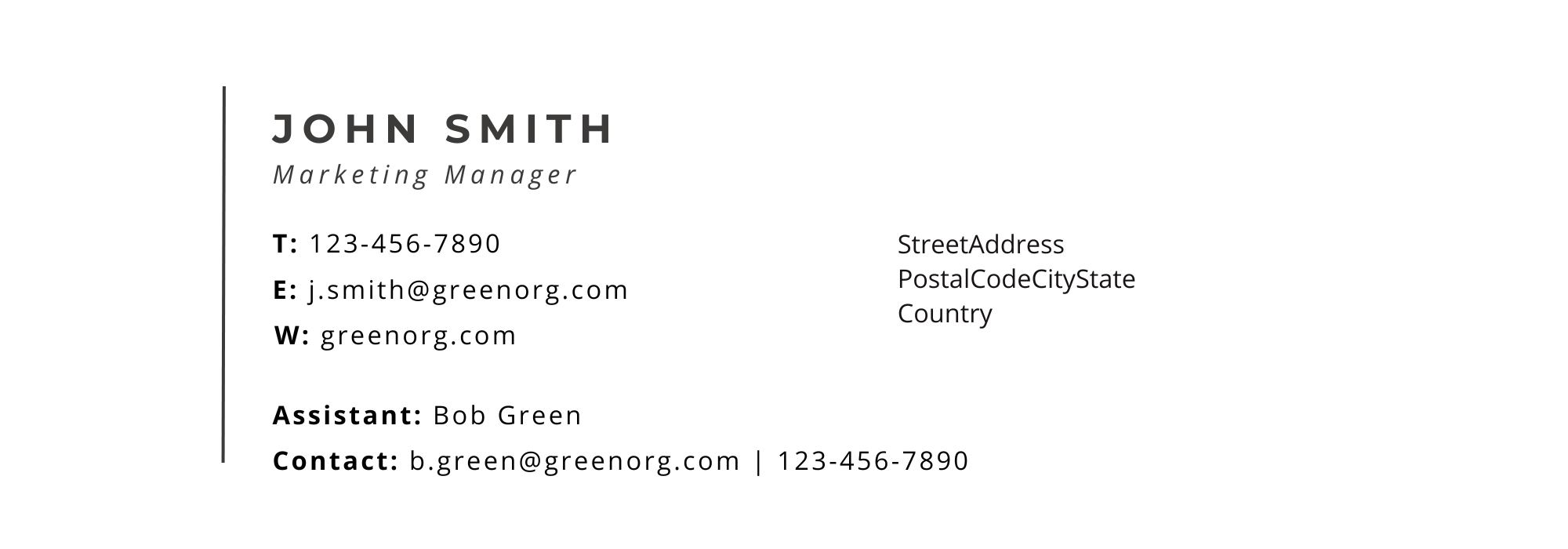
These dos and don'ts answer a common question: what contact details should be included in a professional email signature? Each point focuses on clarity, relevance, and consistency at scale.
Do #1: Include one clear primary contact method
Email signature contact details should point recipients to one clear way to get in touch. For most business emails, a single phone number is enough.
If different roles require different contact routes, define that centrally instead of leaving it to individual choice.
Don’t #1: Include multiple phone numbers
Including multiple phone numbers in email signature contact details creates decision friction. When recipients have to choose, they're more likely to delay or not act.
A direct line or main company number is usually sufficient. Desk, mobile, and regional numbers rarely improve outcomes.
Do #2: Keep contact details short and scannable
Email signature contact details should be easy to scan, especially on mobile devices where space is limited.
Use short lines and clear spacing. Group related details so recipients can find what they need at a glance.
Don’t #2: Overload email signatures with unnecessary contact details
Overloading email signature contact details makes email signatures harder to read and easier to ignore. Extra phone numbers, secondary email addresses, or outdated links add noise.
If a detail doesn't help the recipient respond or take action, remove it.
Do #3: Use consistent contact details across the organization
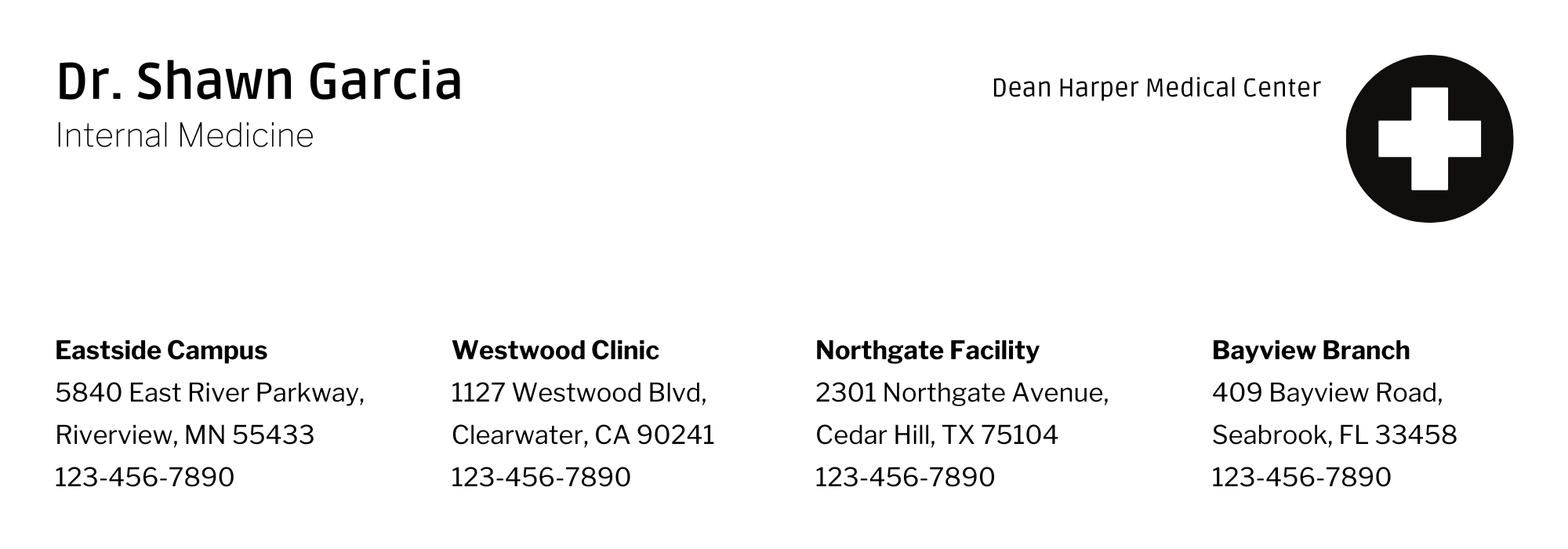
Email signature contact details should follow the same structure across teams. Consistency makes contact information predictable and easier to navigate.
This matters most in larger organizations, where recipients interact with multiple people from the same company.
Don’t #3: Let individuals decide which contact details to include
Allowing individuals to choose their own email signature contact details leads to inconsistency. Some email signatures become cluttered, while others miss essential information.
Defined standards make contact details easier to recognize and use.
Do #4: Prioritize mobile-friendly contact details
Many business emails are opened on mobile devices. Email signature contact details should remain readable on smaller screens.
Limit details to what matters most and keep lines short. This improves usability and speeds up response.
Don’t #4: Rely on long lines or dense formatting
Long lines and tightly packed email signature contact details are difficult to read on mobile devices. When text wraps unpredictably, key information gets missed.
Clear spacing helps recipients locate contact details quickly.
Make managing email signature contact details easy with Exclaimer today
Do #5: Keep job titles clear and accurate
Job titles in email signature contact details should explain a role without guesswork. Clear titles help recipients understand who they're communicating with.
Use standardized, current titles pulled from a central directory such as Microsoft Entra ID or Google Workspace Directory, not typed in by hand and left to go stale.
"Job titles are an interesting one. If you don't have a standard system, people get creative. You can have someone calling themselves account director when their actual title is account executive. That causes confusion, but also potential liability in who the customer thinks they're dealing with."
Don’t #5: Use vague, inflated, or outdated job titles
Vague or inflated job titles make email signature contact details harder to interpret. When a role isn't clear, responses are less accurate.
Outdated titles cause similar issues. Keep job titles current and easy to understand.
Do #6: Use a single, professional email address
Email signature contact details should include one professional email address that matches your company domain.
This helps recipients recognize the sender immediately and reply with confidence.
Don’t #6: Include multiple or personal email addresses
Including multiple or personal email addresses in email signature contact details creates uncertainty about where replies should go.
That increases the risk of missed messages and broken conversations.

Do #7: Include location details only when they’re relevant
Location details support email signature contact details when geography affects coverage, responsibility, or timing.
This applies to regional teams, local offices, or roles tied to specific jurisdictions or time zones.
Don’t #7: Add location details that don’t affect the conversation
When location details don’t matter, addresses and regions distract from more useful information.
Irrelevant details add clutter without helping the recipient.
Do #8: Keep contact details up to date
Email signature contact details should reflect current roles and contact information.
Accurate details help recipients reach the right person without extra clarification or email follow-ups.
"Name changes are one of the hardest things to capture well. Whether it's marriage or a gender transition, people want it updated at the earliest opportunity. They don't want to raise a ticket, and they don't want to tell the whole organization. When the HR system is the source of truth, it flows through automatically."
Don’t #8: Leave outdated contact details in email signatures
Outdated email signature contact details force recipients to stop and verify information before responding.
Incorrect phone numbers, titles, or locations slow communication and create avoidable friction.
Do #9: Place contact details in a predictable order
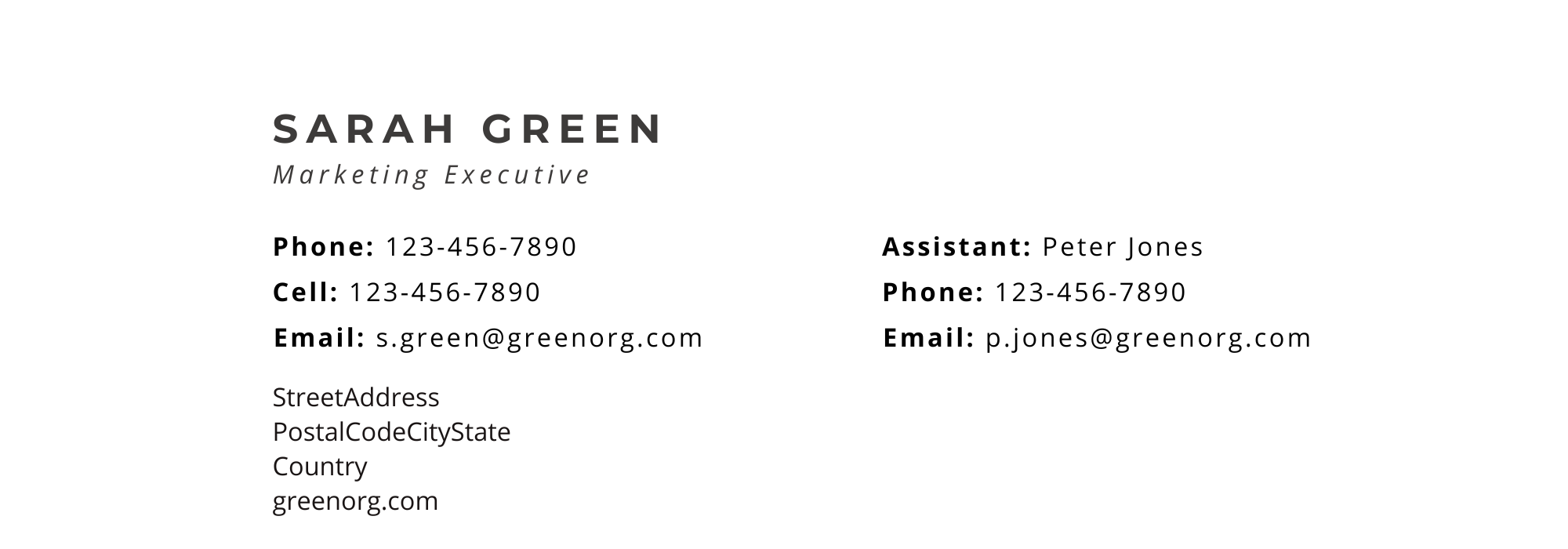
Email signature contact details work best when they follow a clear order: name first, then role and company, followed by contact methods.
A predictable structure reduces scanning time across emails and devices.
Don’t #9: Change the order of contact details between signatures
Changing the order of email signature contact details forces recipients to scan every signature from scratch.
This increases friction in ongoing conversations, especially across teams.
Do #10: Review contact details regularly
Email signature contact details should be reviewed whenever roles, teams, or contact routes change.
A regular review process helps prevent issues before they appear in daily email traffic.
Don’t #10: Treat email signature contact details as “set and forget”
Treating email signature contact details as a one-time task allows inaccuracies to build up over time.
Without regular oversight, outdated details spread quietly across everyday emails.
Managing email signature contact details at scale
Clear email signature contact details help recipients identify you and respond faster. When they’re consistent, current, and easy to scan, everyday communication works better.
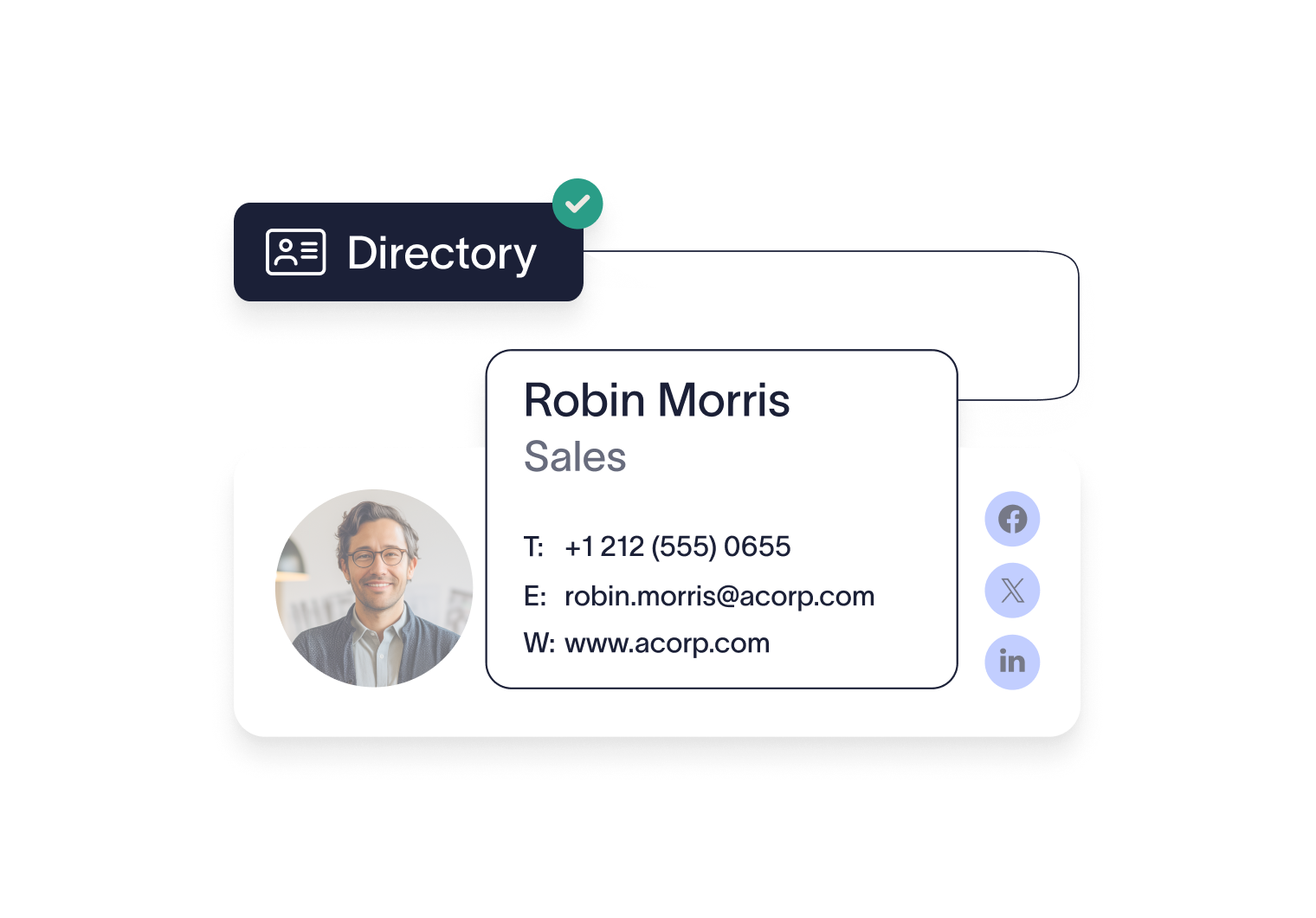
Getting the list of fields right is easy compared to what happens after. Job titles drift the moment someone changes role, and contact details fall out of date the moment a name, number, or office changes, usually with nobody catching it until a customer does.
The fix belongs at the directory level. Exclaimer connects each employee's email signature to the same directory record that already holds their current name, title, and number. The email signature updates itself when the record does, instead of waiting for someone to remember. Exclaimer holds a 4.5-star rating on G2 from more than 1,400 reviews, and it's built specifically around keeping details like these accurate without relying on individual updates.
For a deeper look at why contact details drift in the first place and how to fix it at the root rather than the signature level, see keeping employee email signature details accurate at scale.
Learn more about Exclaimer or get yourself a free trial to see the power of email signature software for yourself.