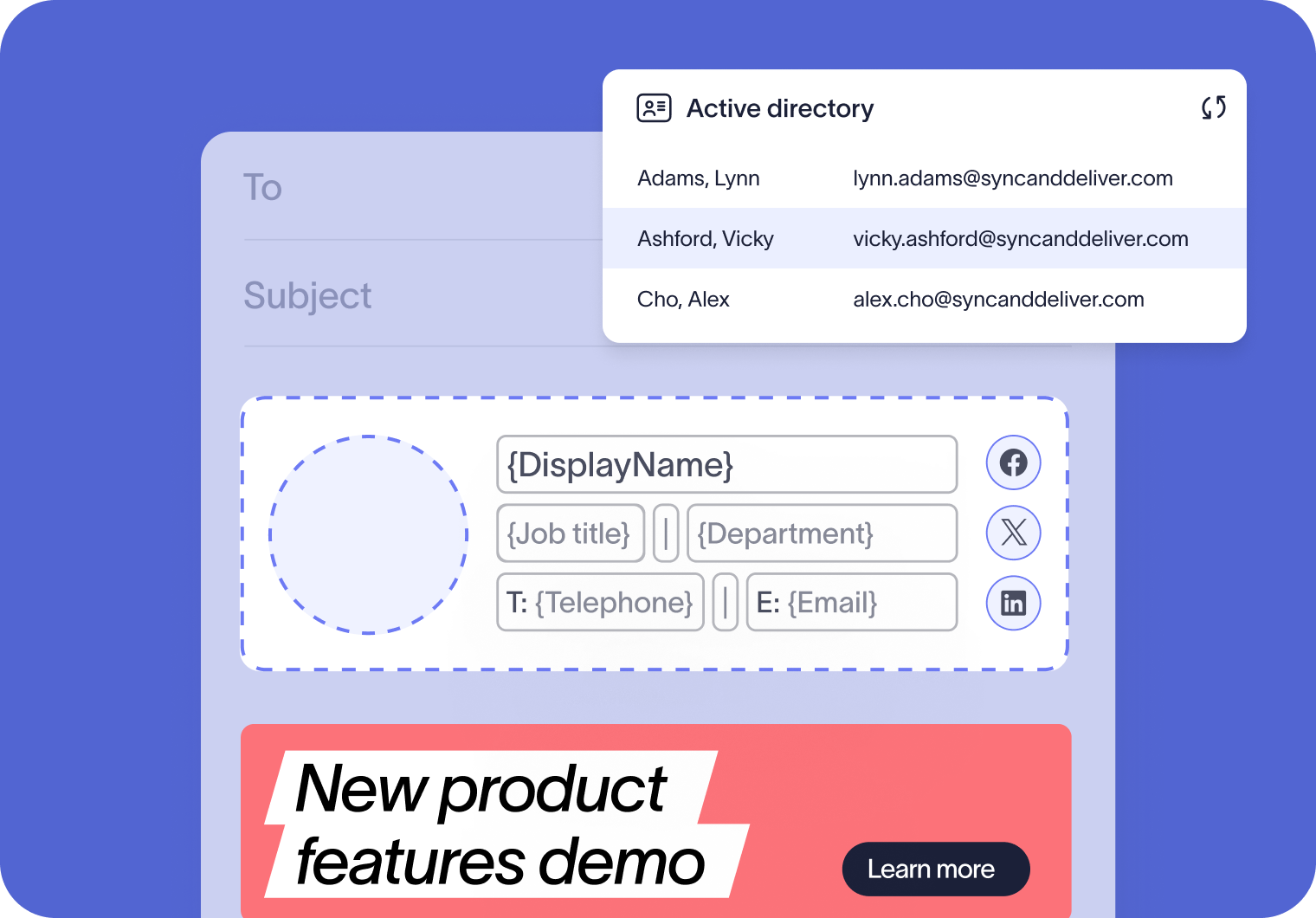
Keep email signatures aligned with your directory
Every email signature pulls the latest employee information straight from your internal directory. This prevents emails from having outdated job titles, phone numbers, or office locations.
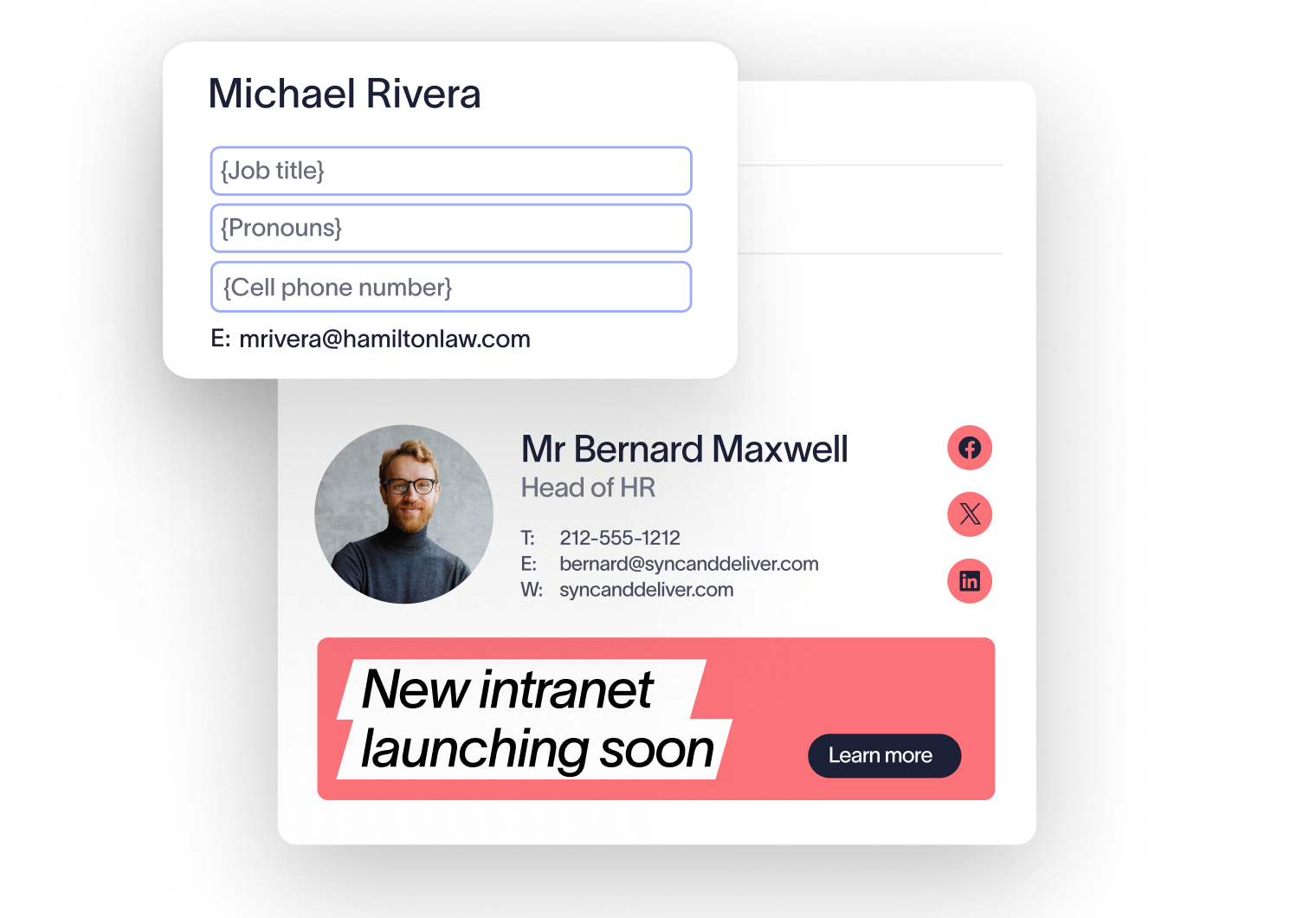
Let employees update fields like pronouns or personal numbers, while your internal team controls the rest. You decide which fields are editable and which stay locked, so signatures remain accurate and compliant while reducing admin overhead.
How directory syncing works
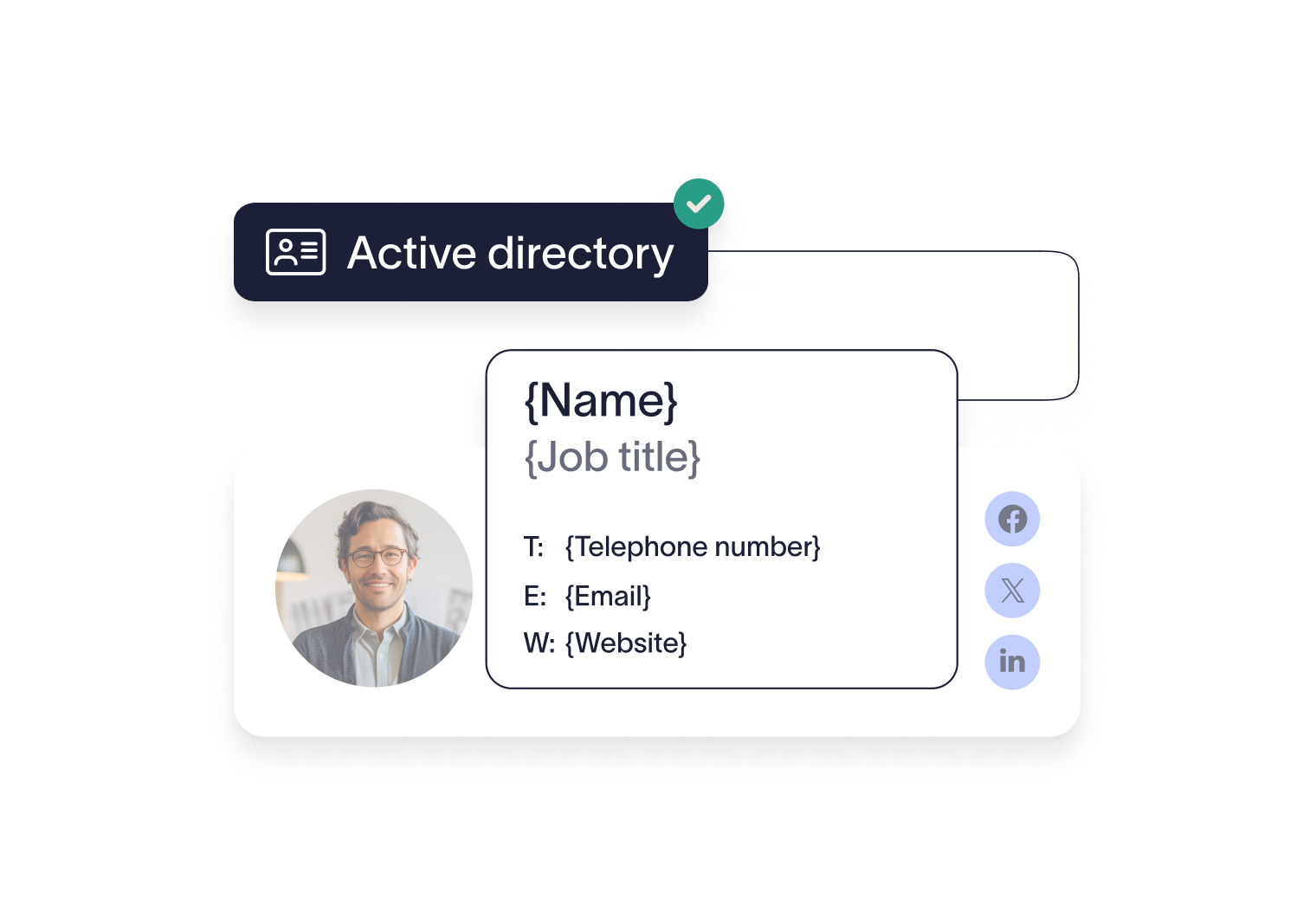
Authorize directory access
Connect Exclaimer to Entra ID or Google Workspace in just a few clicks. Or, work with our team to sync your user data via Okta or your preferred HRIS solution.

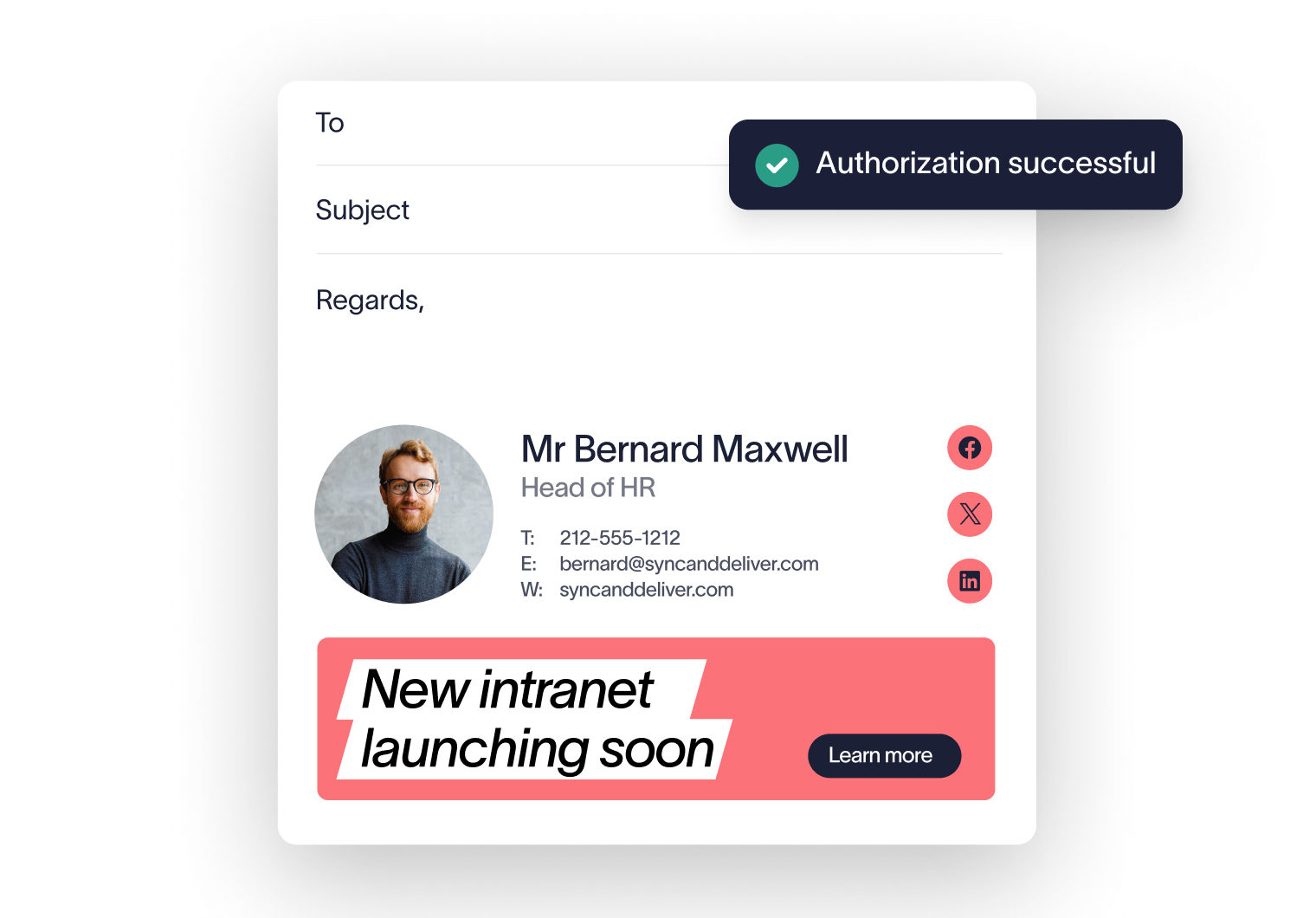
Sync with your directory
Your existing user data is pulled into Exclaimer automatically at regular intervals for automatic updates.
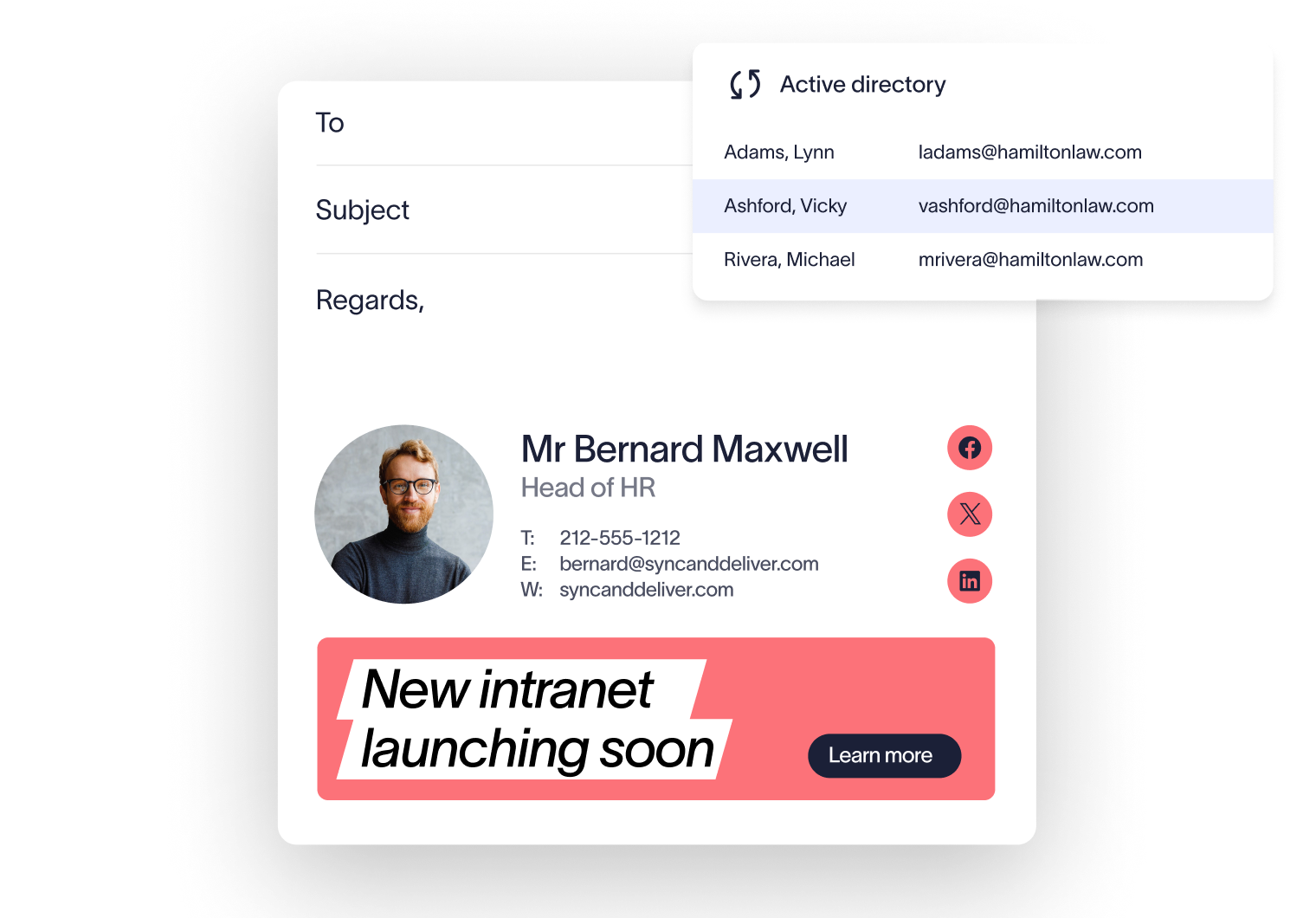
Choose editable fields
Decide which details employees can change, while IT or your chosen Admin maintains control of every other signature detail.


Score 4.6 / 5
"Excellent service, takes all the hassle out of Office 365 Signatures!"
Read more

Trusted by 9 million email accounts worldwide





Frequently asked questions
For Microsoft 365 and Google Workspace, Directory Sync runs automatically twice a day. You can also start a sync manually at any time from Sender Management. Once complete, you’ll see the date and time of the most recent sync. Allow up to three hours for the process to finish.
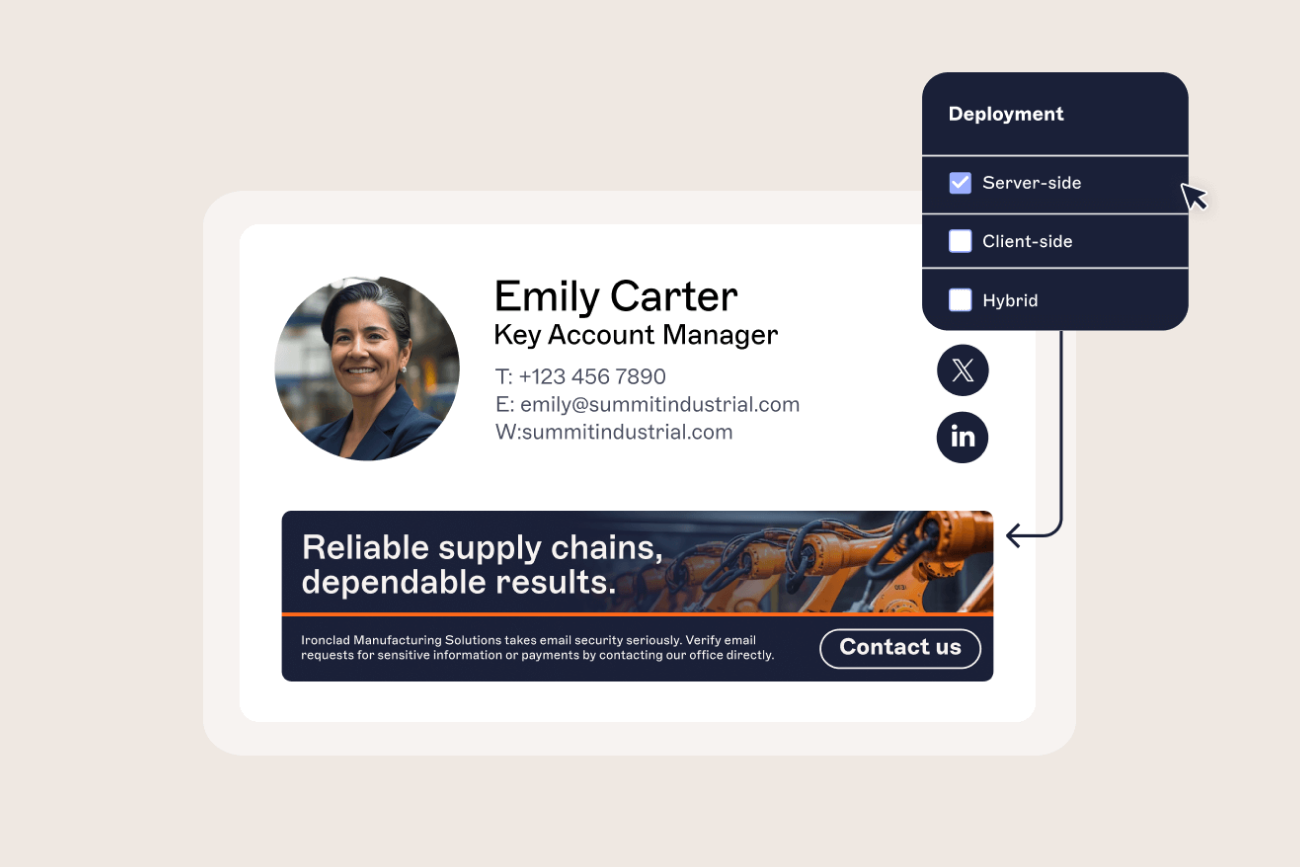
IT (or your chosen team) decides exactly which fields employees can edit—such as pronouns or personal numbers—while keeping all other fields locked. Coupled with Cloud Deployment, you can ensure every email is sent with the correct signature format, exactly as intended.
Employees can log into Exclaimer’s User Details Editor to update their information. From here, they can edit the fields IT has made available, customize their vCard, and even download their branded video background for Microsoft Teams or Google Meet.
Exclaimer only reads the user attributes needed to build signatures, using secure connections to Azure AD, Google Workspace, or Okta. All data is handled in line with ISO 27001, GDPR, and other leading compliance standards.
Exclaimer has been the leading signature management solution for 25 years. We are the only solution that has a 100/100 security scorecard. Our modern technology will save your team time, save your business money, and allow you to easily implement disclaimers and brand requirements across signatures.


Automate email signatures in just 10 minutes
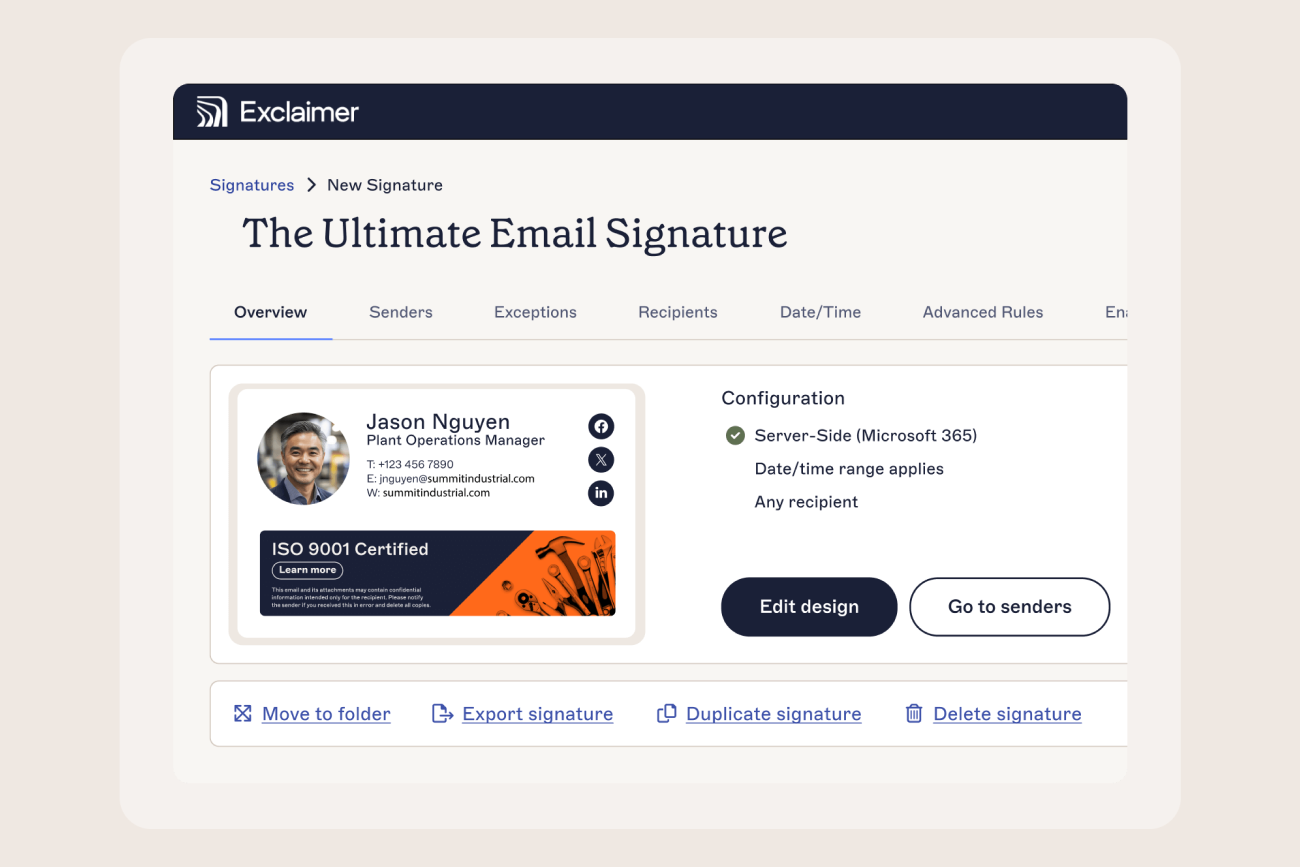
Keep every signature accurate and consistent with zero manual updates. Save IT time and let your directory do the work.