Dave is a marketing expert with 15 years experience in the tech and SaaS world. He specializes in educating IT and channel audiences, with a focus on security, privacy, compliance, and marketing technology. With a talent for storytelling and a deep understanding of the industry, Dave transforms complex IT topics into clear, engaging, and impactful narratives.
Using Active Directory & Entra ID (Azure AD) for email signatures
TL;DR
To manage email signatures with Active Directory integration, connect AD or Microsoft Entra ID as the source of truth for user data, synchronize attributes such as displayName, mail, jobTitle, department, telephoneNumber, and extensionAttribute1–15 into a centralized email signature platform, then apply server-side or client-side policies across Microsoft 365, Exchange, Outlook, web, and mobile clients.
Active Directory (AD) and Microsoft Entra ID store verified user data that can be used to automatically populate email signatures.
Manual methods (like Exchange Transport Rules or VBScripts) work but are time-consuming, error-prone, and don't scale across cloud or mobile environments.
Directory-based automation ensures accuracy, compliance, and brand consistency while reducing IT workload and eliminating manual scripting.
Ideal for on-prem, hybrid, and Microsoft 365 environments, Exclaimer turns a high-maintenance task into a controlled, policy-driven process.
Managing email signatures across hundreds or thousands of employees can be tedious for IT. Every role change, new hire, or rebrand means another round of manual updates and support tickets.
For organizations using Office 365 (Microsoft 365) or Microsoft Exchange Server, personalization in email signatures is achieved using Active Directory (AD) or Microsoft Entra ID (formerly Azure AD) to centralize user data. These directories store the key contact details that every email signature depends on.
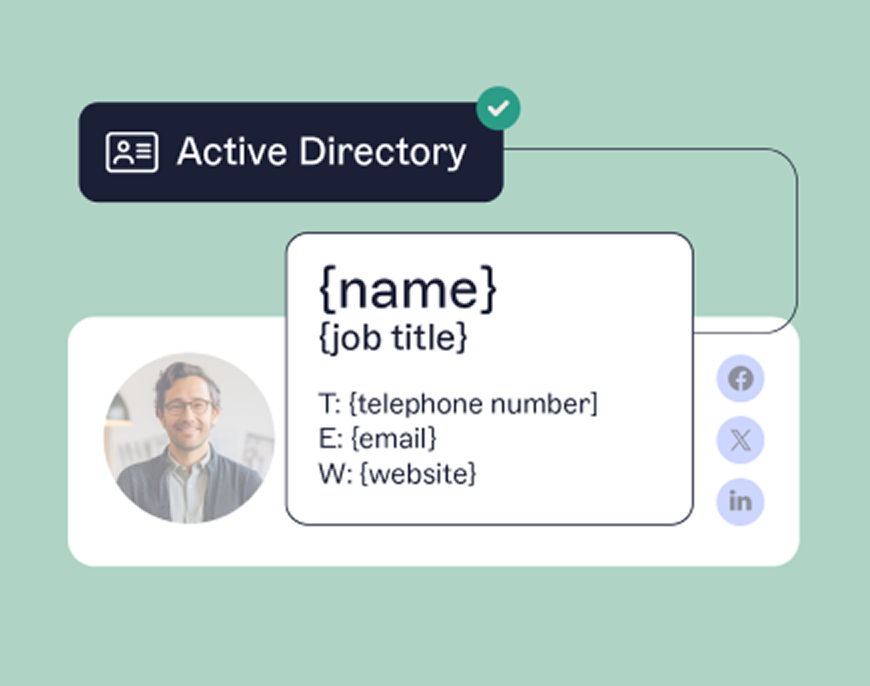
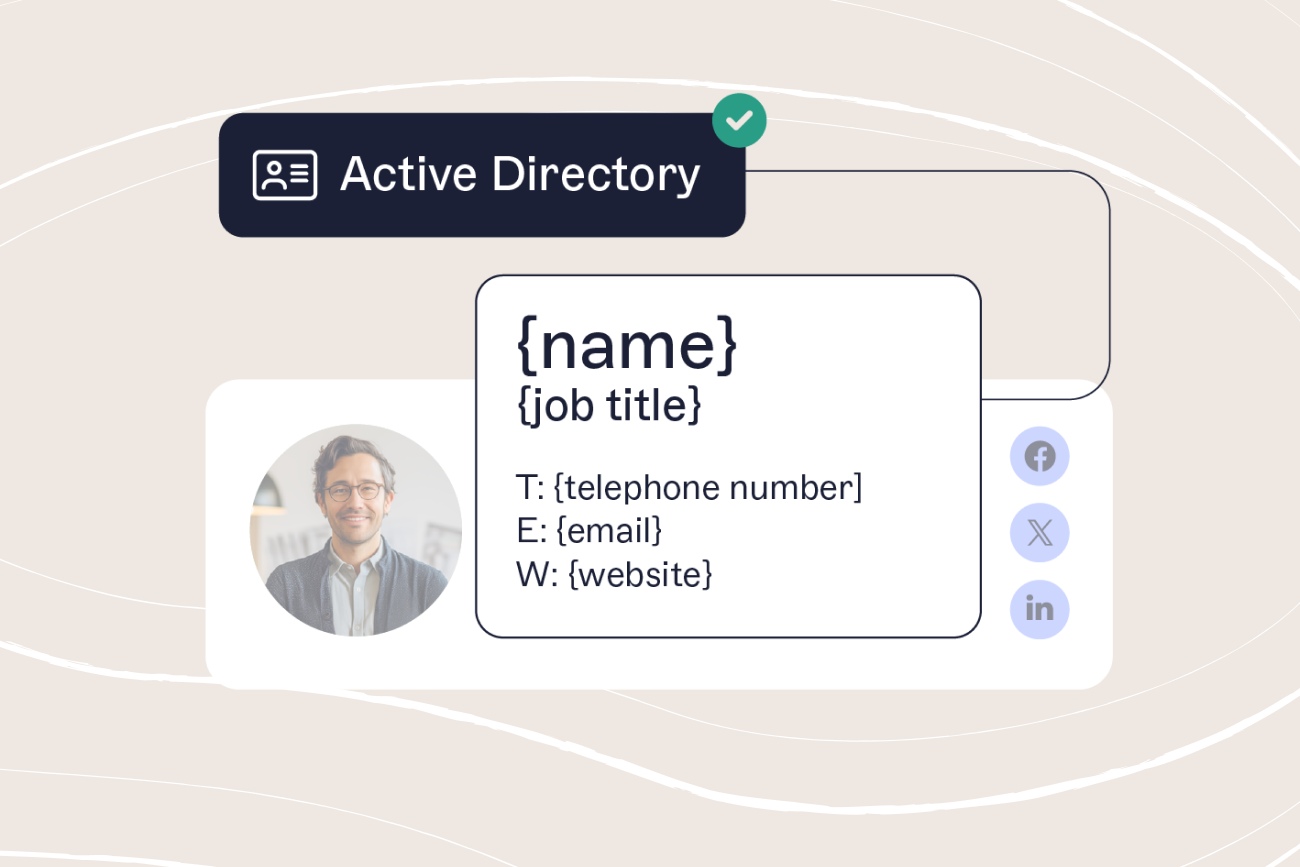
By connecting directory services like Active Directory or Entra ID with an email signature management platform such as Exclaimer, IT teams can synchronize user attributes directly into email signatures.
How does AD-integrated email signature management work?
Here's how the end-to-end flow works once a directory is connected to an email signature platform:

User data lives in AD or Entra ID. Attributes such as
displayName,givenName,surname,mail,jobTitle,department,officeLocation,telephoneNumber,mobilePhone, andextensionAttribute1–15are maintained in the directory. This is the single source of truth.Exclaimer's Directory Sync reads those attributes. In hybrid environments, on-prem AD attributes sync to Entra ID via Microsoft Entra Connect first. In cloud-only environments, Exclaimer reads Entra ID user objects directly through Microsoft Graph.
Attributes map to template placeholders. Directory fields connect to variables in the centralized email signature template — for example,
{{jobTitle}}pulls fromjobTitle,{{department}}fromdepartment. Mail flow token syntax uses double percent signs:%%DisplayName%%.Signature Rules apply the right template. Rules can be based on
department,country, group membership, or custom attributes to assign the correct email signature, legal disclaimer, or campaign banner to each user or group.Signatures go out with every email. Exclaimer applies them server-side via Microsoft 365 or Exchange mail flow connectors, client-side via the Exclaimer Outlook Add-in, or both. This covers Outlook desktop, web, and mobile.
What is Active Directory (AD) and Entra ID?
Active Directory (AD) is Microsoft's long-established on-premises directory service that centralizes authentication, authorization, and user management across a corporate network. It stores and organizes data about users, computers, and groups. This makes it easier for IT teams to enforce access control, apply policies, and maintain consistency across the environment.
Microsoft Entra ID, previously known as Azure Active Directory (Azure AD), is the cloud-based extension of that same identity management framework. It provides secure, scalable identity and access management (IAM) for cloud and hybrid environments. It connects users to Microsoft 365, Exchange Online, and other SaaS applications through single sign-on (SSO) and multi-factor authentication (MFA).
While AD manages identities and attributes locally within your network, Entra ID brings those same identity objects into the cloud. Most modern organizations run a hybrid model, where data from on-prem AD syncs to Entra ID via Microsoft Entra Connect (formerly Azure AD Connect). This keeps user information such as name, title, department, and phone number consistent across both environments.
Feature/function | Active Directory (AD) | Microsoft Entra ID (Azure AD) |
|---|---|---|
Deployment type | On-premises directory service managed through Windows Server | Cloud-based identity and access management (IAM) platform |
Primary use case | Controls access and policies for devices and users within a corporate network | Manages cloud-based identities and access to SaaS apps (e.g., Microsoft 365, Exchange Online) |
Protocol support | LDAP, Kerberos, NTLM | OAuth 2.0, OpenID Connect, SAML, WS-Fed |
Authentication method | Domain-joined authentication within a local network | Cloud authentication with Single Sign-On (SSO) and Multi-Factor Authentication (MFA) |
Device management | Joins Windows-based devices to a local domain | Supports Entra ID Join for modern device management |
Directory synchronization | Local directory only, unless synced to Entra ID via Microsoft Entra Connect | Can sync with on-prem AD or operate independently in cloud-only environments |
Data storage location | Stored on internal domain controllers | Stored securely in Microsoft's global Azure data centers |
Administration tools | Active Directory Users and Computers (ADUC), Group Policy Management | Microsoft Entra admin center, Microsoft 365 Admin Center, PowerShell, and Graph API |
Integration with Exclaimer | Connects via hybrid or server-side setup to pull user attributes from on-prem AD | Connects directly to Entra ID using Microsoft Graph API for scheduled data synchronization |
How do you use Active Directory for email signatures?
For IT administrators, Active Directory (AD) and Entra ID already define the single source of truth for user identity and contact data. Extending that same framework to manage email signatures ensures every message reflects accurate, authenticated information.
In the context of email signatures, Active Directory is used to automatically populate signature templates using one of two common methods:
Server-side configuration using mail flow or transport rules: Signatures are appended after an email is sent, typically through Exchange Transport Rules (ETRs). These rules insert HTML templates that reference AD attributes such as
displayName,title, ortelephoneNumber.Client-side configuration using VBScript: A startup or logon script runs on Windows machines to inject signature templates directly into Outlook's local signature settings, pulling data fields from the on-premises AD.
Both methods allow IT to create a level of automation, but they come with trade-offs:
Mail flow rules offer centralized control but are limited to plain-text disclaimers or static HTML. They lack advanced formatting options, banner placement, and dynamic logic (such as applying different signatures for departments or locations).
VBScript deployments require ongoing maintenance and permissions. Each device must run the script locally, and any update to the signature template requires re-distribution. This makes scalability difficult in hybrid or remote environments.
These native approaches work, but they're manual, fragile, and time-consuming. This is especially true when managing large, distributed environments or enforcing compliance standards like GDPR or HIPAA.
What are the challenges of managing email signatures manually with AD?
Even with Active Directory (AD) and Entra ID acting as the backbone for identity management, manually linking that data to email signatures introduces complexity across every layer of IT operations.
In most organizations, email signatures are still controlled through a combination of Exchange Transport Rules (ETRs), VBScript deployments, and locally applied Outlook templates. While these methods technically work, they create fragile dependencies that are hard to maintain at scale.
Method | Main limitation | Affected environments | Recommended mitigation |
|---|---|---|---|
Exchange mail flow / transport rules | Suitable for disclaimers but limited for fully branded, per-user, dynamic HTML email signatures and campaign logic | Exchange Online, Exchange Server | Use a centralized email signature platform that supports directory attribute placeholders and conditional rules |
VBScript / logon scripts | Requires Windows logon and local file deployment; does not cover Outlook on the web, mobile clients, or third-party mail apps | Windows-only Outlook deployments | Use server-side processing or the Exclaimer Outlook Add-in |
Local Outlook templates | Users can edit, delete, or ignore signatures; no central audit trail or version control | Outlook desktop users | Enforce email signatures centrally via a dedicated platform |
Hybrid AD/Entra Connect sync | Missing attributes occur if Entra Connect filtering excludes fields such as | Hybrid Microsoft 365 organizations | Validate Entra Connect sync scope and test output with pilot users before rollout |
No centralized audit trail | Native tools provide no version history, approval workflow, or timestamped change log | All native deployment types | Use a platform that logs template changes, rule changes, and administrative access with timestamps |
What Active Directory attributes can you use in email signatures?
When creating Active Directory (AD) or Entra ID–based email signatures, each signature field is mapped to an attribute stored in the directory. These attributes hold information such as an employee's name, title, department, or phone number, which can then be inserted into an email signature template automatically.
Note:
Microsoft Exchange, Exchange Online, and Microsoft 365 do not support every AD attribute for use in mail flow rules.
The attribute names used in mail flow rules differ slightly from their LDAP (Lightweight Directory Access Protocol) names, which are used in VBScript-based deployments.
When configuring mail flow rules, each attribute token must be enclosed in double percent signs. For example:
%%DisplayName%%or%%Country%%.
The table below lists the attributes Exchange Online and Exchange Server support in mail flow disclaimer tokens, alongside their LDAP attribute names. Verify the current supported set against Microsoft Learn before deployment, particularly in hybrid environments where Microsoft Entra Connect sync scope may exclude certain attributes.
Microsoft 365 / Exchange display name | LDAP attribute name |
|---|---|
City | l |
Country | co |
Company | company |
Department | department |
DisplayName | displayName |
FaxNumber | facsimileTelephoneNumber |
FirstName | givenName |
HomePhoneNumber | homePhone |
Initials | initials |
JobTitle | title |
LastName | sn |
Manager | manager |
MobileNumber | mobile |
Notes | info |
Office | physicalDeliveryOfficeName |
PO Box | postOfficeBox |
PagerNumber | pager |
PhoneNumber | telephoneNumber |
OtherFaxNumber | otherFacsimileTelephoneNumber |
OtherHomePhoneNumber | otherHomePhone |
OtherPhoneNumber | otherTelephone |
State / Province | st |
Street Address | streetAddress |
TelephoneNumber | telephoneNumber |
Title | title |
User Logon Name | userPrincipalName |
Zip / Postal Code | postalCode |
Tip for hybrid environments: In hybrid setups, some attributes sync differently between on-prem AD and Entra ID via Microsoft Entra Connect. Always verify that custom attributes (like extensionAttribute1) are included in your synchronization scope.
Using additional Active Directory data in email signatures
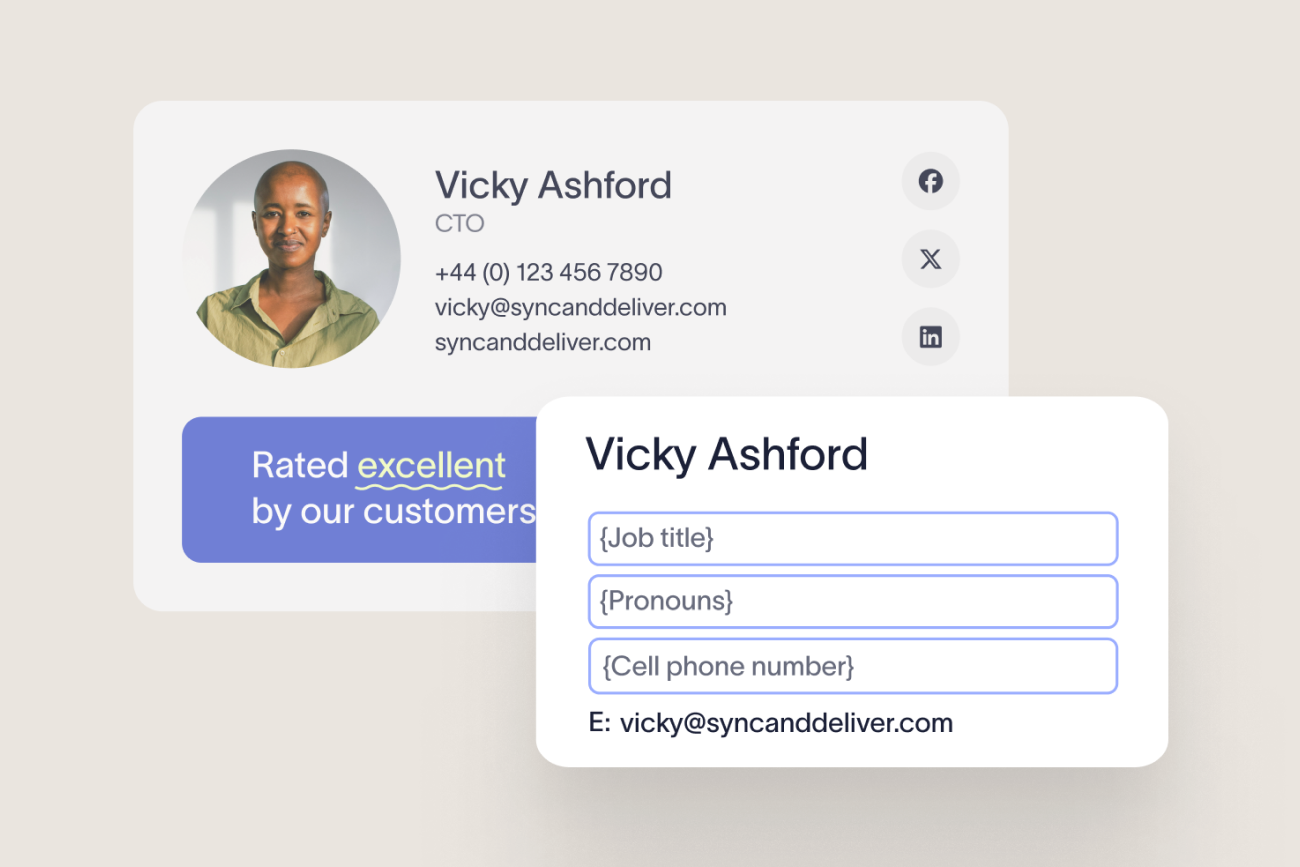
If you manage signatures manually through Exchange transport rules or Outlook scripts, you’re limited to the predefined attributes listed above. However, with centralized management tools, you can use additional custom attributes to include unique data points such as certifications, pronouns, or regional compliance statements.
Microsoft Exchange provides 15 Custom (Extension) Attributes—numbered 1 through 15—that can be used to store extra data for email signatures.
Microsoft 365 / Exchange display name | LDAP attribute name |
|---|---|
CustomAttribute1–15 | extensionAttribute1–15 |
Custom attributes can be populated using either:
The Exchange Admin Center (EAC) under Mailbox Properties → Custom Attributes, or
The Exchange Management Shell, using a command such as:
Set-Mailbox -Identity "John Smith" -CustomAttribute1 "ISO 27001 Certified"Custom attributes (extensionAttribute1–15) correspond to Microsoft Exchange CustomAttribute1–15 fields. For the full reference, see Microsoft Learn: Custom attributes in Exchange Online.
These custom fields sync automatically when connected to an Entra ID–integrated email signature management platform. This enables advanced personalization and rule-based content logic in your email signature templates.
Which attributes does Exclaimer read?
The table above covers what Exchange mail flow rules support. Exclaimer reads its own set: 16 standard attributes and 15 custom attributes. The Exclaimer field is what you pick in the Signature Designer.
Microsoft 365 display name | Exclaimer field |
|---|---|
City | {City} |
Company | {CompanyName} |
Country or region | {Country} |
Department | {Department} |
Display name | {DisplayName} |
Username / Email | {Email} |
Fax number | {Fax} |
First name | {FirstName} |
Job title | {JobTitle} |
Last name | {LastName} |
Mobile phone | {Mobile} |
Office | {Office} |
Zip or postal code | {PostCode} or {ZipCode} |
State or province | {State} |
Street address | {Street} |
Office phone | {Telephone} |
The custom attributes are {CustomAttribute1} to {CustomAttribute15}. This Entra ID attributes guide has the LDAP names and the setup for custom data.
How does Exclaimer integrate with Active Directory and Entra ID?
When integrated with Active Directory or Microsoft Entra ID, Exclaimer automatically synchronizes all available user attributes through secure, read-only connections.
Cloud integration via Microsoft Entra ID
Exclaimer's Directory Sync connects to Microsoft Entra ID using the Microsoft Graph API. The integration works as follows:
Identity source: Microsoft Entra ID user objects.
Access method: Microsoft Graph API.
Authentication: OAuth 2.0 application consent.
Synchronized fields: Examples include
displayName,givenName,surname,mail,jobTitle,department,officeLocation,telephoneNumber,mobilePhone, andextensionAttribute1–15.Signature use: Synchronized fields populate placeholders in centralized templates. Signature Rules determine which template each user receives based on attributes or group membership.
Security model: Read-only directory access. Exclaimer does not write back to AD or Entra ID objects.
Sync timing: Exclaimer syncs Microsoft 365 data automatically twice a day, at 00:00 and 12:00 UTC. For hybrid environments, the default Microsoft Entra Connect sync cycle is 30 minutes.
Signatures are applied server-side via secure connectors in Microsoft 365. Any updates made in Entra ID are reflected across all users' email signatures on the next sync cycle, without requiring scripts, local installs, or manual reconfiguration.
What does Exclaimer need from your directory?
Environment | Directory service Exclaimer reads | Server-side requirement |
|---|---|---|
Microsoft 365 | Microsoft Entra ID | Exchange Online |
Exchange on-premises | Microsoft Entra ID (a free Entra tenant works) | Exchange Server 2016 CU18 and above, or 2019 CU1 and above |
Google Workspace | Google Directory | Google Workspace |
To onboard, you need a Microsoft 365 Global Administrator account or a Google Workspace Super Admin account. Once an admin grants permission, Exclaimer no longer needs the account credentials for ongoing sync. The details come from Exclaimer's system requirements, updated August 21, 2026.
Hybrid and on-premises integration
In hybrid environments, Exclaimer connects to on-premises Active Directory via a secure LDAP or Entra Connect configuration. User attributes are synchronized to the Exclaimer cloud using lightweight directory synchronization services, ensuring the same data integrity as a full Entra ID deployment.
This hybrid approach is ideal for organizations that still host Exchange on-premises or operate in regulated industries where certain data must remain within their own infrastructure. Exclaimer's architecture ensures that:
User data remains protected in transit through TLS-encrypted channels.
Directory synchronization is unidirectional (read-only) and does not modify AD or Entra ID objects.
Attribute mappings mirror Microsoft's schema definitions, ensuring consistency between environments.
Which deployment model should you use?
Deployment model | How it works | Best for | Key consideration |
|---|---|---|---|
Server-side | Exclaimer applies email signatures through Microsoft 365 or Exchange mail flow connectors after the email is sent, using synchronized AD or Entra ID attributes | Consistent email signatures across Outlook, Outlook on the web, mobile clients, and third-party mail apps | Users don't see the final signature while composing unless paired with the Outlook Add-in |
Client-side (Outlook Add-in) | Users preview or switch between approved signature templates inside Outlook before sending, using the same synchronized directory data | Teams that need signature visibility before send — sales, marketing, executives | Coverage depends on supported Outlook clients and add-in deployment method |
Hybrid (server-side + add-in) | Server-side enforcement guarantees compliance; the add-in gives users template preview and selection | Organizations that need both consistent compliance and user-level visibility | Requires both connector and add-in configuration |
Both models use the same Exclaimer Directory Sync backbone, so directory attributes and Signature Rules are consistent across deployment types.
Can AD groups be used for email signature segmentation?
Yes. Active Directory and Microsoft Entra ID both support group-based assignment, and Exclaimer's Signature Rules use that group membership to determine which email signature template each user receives.
There are two group types to understand:
Static groups (security groups or distribution groups): Membership is managed manually. You add or remove users directly in Active Directory or the Entra admin center. These work well for stable teams or fixed organizational units.
Dynamic groups (Entra ID only): Membership is rule-based and updates automatically when a user's attributes change. A dynamic group can be defined with a rule such as
user.department -eq "Sales"— Entra ID adds anyone whosedepartmentattribute matches the rule automatically, and removes them when it no longer matches.
Exclaimer can also target by attribute without a group. In a Signature Rule, Advanced Queries let you set up to 10 conditions on a sender's attributes from Entra ID or Google Directory, and only senders who match receive the email signature. Plain security groups and organizational units can't be targeted. The AD groups guide covers both approaches.
How group-based segmentation works in practice
As an example, a 5,000-seat tenant needs three distinct email signature templates. The IT admin configures the following in Exclaimer's Signature Rules:
Template | Group | Rule or membership type |
|---|---|---|
Corporate HQ | HQ-Staff | Static — manual membership |
Field Sales — EMEA | EMEA-Sales (dynamic) |
|
Manufacturing | Plant-Staff | Static — based on |
Dynamic group rules use standard Microsoft Entra ID dynamic membership syntax. Rule strings can reference any attribute that Exclaimer reads from the directory. The most commonly used attributes for segmentation are:
Attribute | Source | Typical use in a signature template |
|---|---|---|
| AD / Entra ID | Segment by team or business unit |
| AD / Entra ID | Display role; trigger seniority-based templates |
| Entra ID | Regional contact blocks, office address lines |
| AD / Entra ID | Jurisdiction-specific legal disclaimers |
| AD / Entra ID | "Reports to" line or manager details in the email signature |
| AD / Entra ID | Distinguish between full-time, contractor, or part-time staff |
A few things to note before configuring:
Confirmed attribute set only: Use attributes that Exclaimer's Directory Sync is documented to read.
Precedence: When a user matches more than one group, Exclaimer applies the highest-priority Signature Rule. Set rule priority order in the Signature Rules dashboard to control which template takes precedence.
Cross-platform identity management for email signatures
Most organizations don't run a single identity environment. A typical Exclaimer deployment spans at least two of the following: on-premises Active Directory, Microsoft Entra ID, and Google Workspace Directory. Each has different sync behavior, and the email signature outcome depends on which attributes reach Exclaimer's Directory Sync.
Directory | Automatic sync | What to know |
|---|---|---|
Microsoft Entra ID (Microsoft 365) | Twice a day, at 00:00 and 12:00 UTC | A change made in Microsoft 365 can take up to 2 hours to reach Entra ID. A manual sync can take up to 3 hours |
On-premises AD (hybrid) | Entra Connect syncs every 30 minutes by default, then Exclaimer's twice-daily sync | Custom attributes need to be in the Entra Connect Directory Extensions scope |
Google Workspace Directory | Every 12 hours | The sync supports up to six email addresses per user |
The timings come from Exclaimer's knowledge base article on synchronizing user data, updated August 19, 2026.
During an M&A or tenant migration: The most common break point is when users move between tenants or when an acquired company's AD is merged. When a user's userPrincipalName or mailbox changes, Exclaimer may not immediately resolve the new identity to the correct template. The fix is to repoint the affected connector and verify that the new tenant's attributes are syncing correctly before the cutover date.
See this connector troubleshooting guide for step-by-step connector troubleshooting.
Centralized user provisioning for email signatures
Microsoft Entra ID Governance uses the term Lifecycle Workflows to describe how identity events — joining, moving, or leaving an organization — are managed automatically. That same joiner/mover/leaver model applies directly to email signature provisioning.
Here's how each lifecycle event flows through to the email signature:
New hire created in AD or Entra ID — Exclaimer detects the new user account on the next sync. A default template is assigned based on the user's group membership.
Department change (
departmentupdated) — On the next sync, Exclaimer reassigns the user to whichever Signature Rule matches the newdepartmentvalue. No IT action required.Promotion (
jobTitleupdated) — ThejobTitlefield in the email signature template updates on the next send. The user doesn't need to do anything.Office relocation (
officeLocationupdated) — The contact block in the email signature refreshes automatically on the next sync, reflecting the new office address or regional detail.Account disabled — Exclaimer suppresses the email signature template for that user within one sync cycle.
Account deleted — No further email signature is appended for that user identity.
Event | Time to reflect in signatures | How to force-refresh |
|---|---|---|
New user created | The next automatic sync, at 00:00 or 12:00 UTC | Start a manual sync from Sender Management. Only an Owner or Admin can, and it can take up to 3 hours |
Attribute change (department, title, etc.) | The next automatic sync, at 00:00 or 12:00 UTC, after up to 2 hours for Microsoft 365 to register the change | Trigger manual sync |
Account disabled | Within one sync cycle | Disable immediately via Exclaimer admin console |
Account deleted | Immediate on deletion | N/A |
To check that joiner, mover, and leaver events have flowed through, open Sender Management. It shows the status of the latest sync (In Progress, Consent required, or Failed) and the date and time of the most recent completed sync.
What are the benefits of directory-based automation for email signatures?
Integrating Active Directory (AD) or Microsoft Entra ID with Exclaimer turns email signature management into an automated, governed process that IT can trust. Instead of relying on scripts or static templates, user data flows securely from your directory into standardized layouts.
"Before connecting your directory to Exclaimer, email signature updates mean tickets, scripts, and inevitable inconsistencies. But then a change in Entra ID can flow through automatically. From an IT and security perspective, the real value of Exclaimer is having a single, auditable source of truth. That means no more manual processes, no more painful and time-consuming updates."

Centralized control
Every email signature is managed from one platform. Directory synchronization ensures templates are always current, removing the need for PowerShell commands, VBScript deployments, or manual transport-rule edits.
Reliable consistency
Server-side processing applies the same design across Outlook, web, and mobile clients. Brand updates or layout changes can be deployed globally in minutes, ensuring professional, unified communication without relying on end users.
Policy-driven compliance
A directory-integrated email signature platform can enforce policies based on AD or Entra ID attributes such as department, country, companyName, officeLocation, group membership, or extensionAttribute1–15. Common governance controls include:
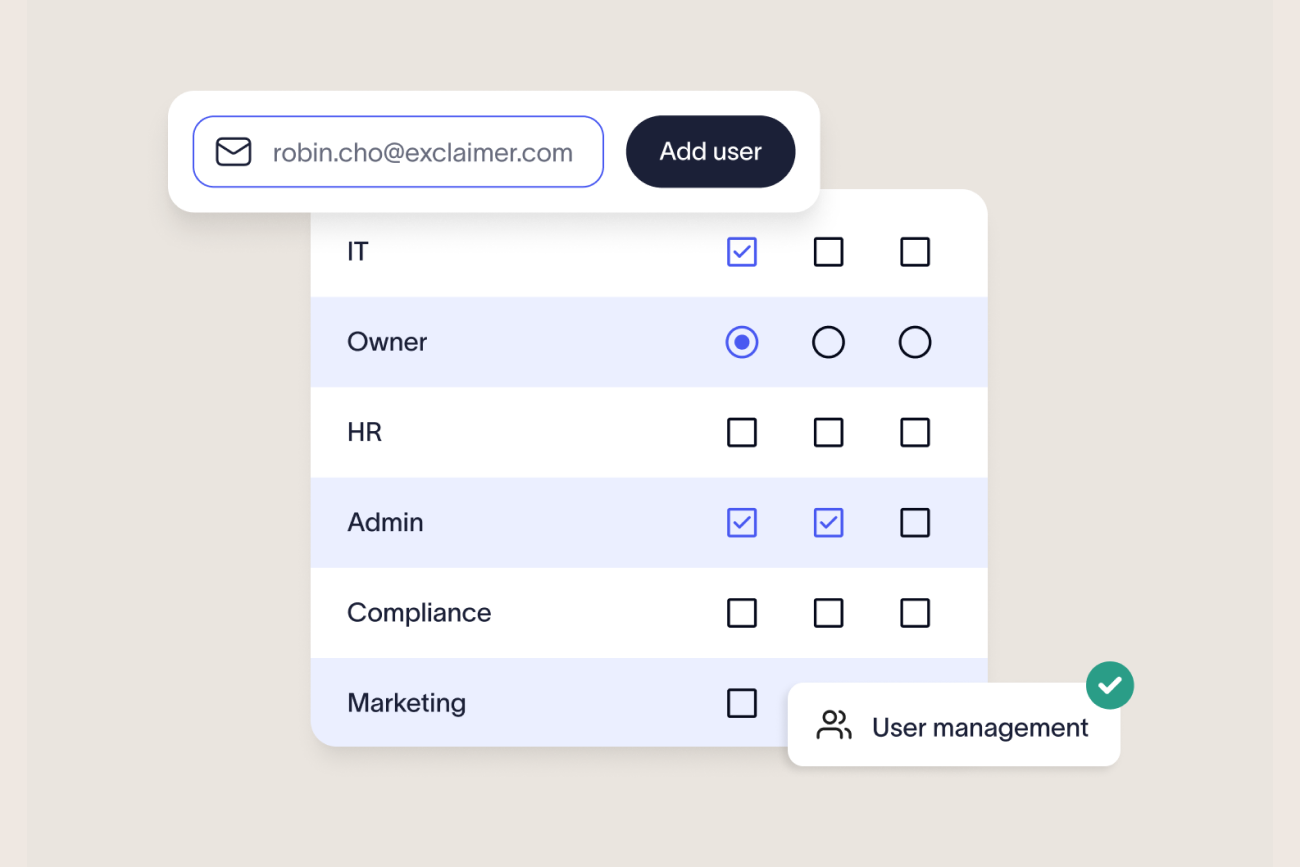
Role-based access control (RBAC): Limit who can create, approve, publish, or edit email signature templates. Separate IT admin access from marketing editor access.
Version history: Record every template change with editor identity, timestamp, previous version, and published version.
Audit logs: The User Activity Log is a CSV, available to Owners and Auditors on Pro plans, that shows each login to the subscription with a UTC timestamp and the user's role (Admin, Editor, or both).
Attribute-based disclaimers: Apply legal text automatically by country, department, business unit, or regulated role — without manual intervention for each jurisdiction.
For regulated industries, these controls mean compliance teams can verify exactly which template was active during any given period, and who changed it. See role-based access controls with Exclaimer for more details.
Security-first integration
Exclaimer connects through Microsoft Graph API or secure LDAP in read-only mode, protecting directory data while keeping it synchronized. Data is encrypted in transit, and Exclaimer's platform meets ISO 27001, ISO 27018, and SOC 2 Type II standards.
Operational efficiency
Directory-based automation eliminates repetitive updates and support tickets. IT retains oversight and governance while reducing time spent managing email signatures. This frees up resources for higher-value infrastructure and security initiatives.
How to set up AD-integrated email signature management
Audit your required signature fields. Decide which data points every email signature must contain — full name, job title, department, phone, office location, and any custom fields such as certifications or pronouns.
Confirm those fields exist in AD or Entra ID. Check that user objects in your directory are populated with the right attribute values. Empty fields in AD produce empty fields in email signatures.
Synchronize on-prem AD to Entra ID if you're in a hybrid environment. Use Microsoft Entra Connect to sync on-prem user objects to Entra ID. Verify that the sync scope includes all attributes you need, particularly
extensionAttribute1–15, which may be excluded by default.Connect Exclaimer's Directory Sync to your identity source. For Microsoft 365, connect via the Microsoft Graph API. For on-prem Exchange, connect via LDAP or Entra Connect.
Grant read permissions. Exclaimer requires read-only access to your directory.
Map directory attributes to template placeholders. In Exclaimer's template editor, connect directory fields to the corresponding template variables. For Exchange mail flow tokens, use
%%DisplayName%%syntax.Create Signature Rules for each user group. Use rules based on
department,country, group membership, or custom attributes to assign the correct email signature template. Set rule priority order for users who match multiple groups.Test with a pilot group. Apply the configuration to a small set of users first. Verify that all fields populate correctly, that the right template is assigned, and that email signatures appear correctly in Outlook, Outlook on the web, and mobile.
Deploy server-side, client-side, or both. Apply email signatures via Microsoft 365 or Exchange mail flow connectors for full coverage, via the Outlook Add-in for user preview, or both for maximum control.
Monitor sync status and audit logs. After rollout, review the sync log in the Exclaimer admin console to confirm joiner, mover, and leaver events are flowing correctly.
Troubleshooting missing AD attributes in email signatures
The most common email signature problems in AD/Entra ID environments trace back to missing or mismatched directory data, not the email signature platform itself.
Problem | Likely cause | Fix |
|---|---|---|
Job title missing from email signature |
| Update the user object in AD or Entra admin center, then trigger a manual sync in Exclaimer |
Phone number not appearing | Wrong attribute mapped — for example, | Verify the attribute mapping in Exclaimer's Directory Sync settings and check which field is populated on the user object |
Custom field ( | The | Check the Entra Connect sync scope and add the attribute to the filter, then rerun sync |
Email signature shows outdated data | Directory sync has not run since the attribute was updated, or a sync error occurred | Trigger an on-demand sync from the Exclaimer admin console and check the sync log for errors |
Some users receive the wrong disclaimer | Signature Rule uses a | Normalize attribute values across AD user objects, then test Signature Rule conditions against the cleaned data |
Manual email signature management no longer scales. By connecting Active Directory or Microsoft Entra ID to Exclaimer, IT teams get centralized control, policy enforcement, and full compliance visibility. And all without the complexity of scripts or manual maintenance.
Learn more about Exclaimer or start a free trial today.