by Dave Willis
How to keep email signatures consistent during a Microsoft 365 tenant migration
5 June 2026
0 min read
TL;DR
Email signatures don’t move with mailboxes during a Microsoft 365 tenant-to-tenant migration. They’re applied by tenant-level rules and templates, which stay behind when mailboxes migrate.
Branding, templates, and legal disclaimers can be lost the moment a migration completes, often without anything visibly failing.
The risk is highest during mergers, acquisitions, and rebrands, when the organization is sending more external email than usual and brand consistency matters most.
Plan for email signatures before migration day: audit what you have, agree the target design, and have signatures and disclaimers staged to apply as soon as mailboxes land.
Centralized email signature management takes the problem off the table, applying signatures from one place across every tenant, with no scripting and nothing to rebuild.
Migrating mailboxes between Microsoft 365 tenants involves a lengthy checklist: licensing, permissions, mailbox data, DNS records, and Outlook profiles. Email signatures rarely make that list, which is a problem because a tenant-to-tenant migration is exactly when they tend to break.
This guide covers why email signatures get lost or reset during a migration, what that does to your brand, and how to keep them consistent through the move.
Quick Answer: To keep email signatures consistent during a Microsoft 365 tenant migration, audit your existing signatures and disclaimers before migration day, stage your templates in the target tenant in advance, and apply them immediately when mailboxes land. Centralized email signature management eliminates this problem entirely by applying signatures from one place across every tenant.
What does a Microsoft 365 tenant-to-tenant migration involve?
A Microsoft 365 tenant-to-tenant (T2T) migration moves user mailboxes, and often other data, from one Microsoft 365 tenant to another. It’s what you face when two organizations combine after a merger or acquisition, when part of a business is carved out and sold in a divestiture, or when a rebrand calls for a clean start on a new tenant and domain.
The process generally looks like this:
Prepare both tenants: sort out licensing, admin permissions, and a record of every user you’re moving.
Connect source and target: set up a migration application and a trust relationship so the two tenants can talk to each other.
Run the migration: move mailboxes in batches and monitor progress.
Handle the clean-up: assign licenses, sort out domains and DNS records, and rebuild Outlook profiles where needed.
Microsoft offers native tooling for all of this, and third-party tools exist to reduce the manual work. Either way, the process is mailbox-focused: it moves the contents of an account from one place to another. Email signatures are the exception. They aren’t stored in the mailbox the way messages are, so the migration leaves them behind.
Why email signatures break during a tenant migration
Email signatures are applied by rules and templates that live in the tenant itself. When a mailbox moves to a new tenant, it leaves all of those behind.
The outcome is predictable: users arrive in the new tenant with the wrong signature, an old one, or nothing at all. Sometimes these issues are obvious at first glance. Other times, you won’t even notice until there’s a major problem.
Common causes of email signature loss during tenant migration |
|
Branding and templates don’t carry across
Logos, brand colors, fonts, and layout all live in tenant-specific email signature templates, and the new tenant doesn’t have them. Until someone rebuilds those templates, users fall back to whatever they’ve got. That might be a plain-text signature, a stale one cached in an Outlook profile, or no signature block at all. In a rebrand, the damage is hard to miss, because the whole organization is sending email under the old identity, the new one, or a broken mix of both.
Disclaimers and compliance text disappear
If your organization adds legal disclaimers or compliance text to outbound email, that text is almost always applied by a rule in the source tenant, not stored on each mailbox. When the mailbox moves, the rule stays behind, and the disclaimer stops appearing. For regulated industries, that’s a compliance gap, and it can go unnoticed because nothing visibly fails. Email keeps sending. It just sends without the text you’re required to include.
Native tools leave gaps
Microsoft 365 has native signature features, but none of them were built with a migration in mind.
Capability | Native Microsoft 365 tools | Centralized email signature management |
|---|---|---|
Survives tenant migration | No – must be rebuilt | Yes – applies across tenants |
Multi-tenant support | Separate config per tenant | Single point of control |
Server-side disclaimers | Stays in source tenant | Applies regardless of tenant |
Scripting/GPO required | Yes, for deployment at scale | No |
Real-time updates | Manual redeployment needed | Immediate across all users |
Server-side disclaimers set up in Exchange don’t move with mailboxes. The newer Outlook signature settings apply per tenant, so they don’t carry across either. And anything you deployed by script or GPO has to be redone against the new environment. Recreating all of it by hand, across every user, is the kind of work that gets rushed or skipped when a migration is already running late.
How does a tenant migration affect email signature branding?
A migration plan is judged on whether mailboxes moved and email kept flowing. By that measure, a broken signature barely registers. Mail still sends, users can still work, and nothing in the migration log flags a problem, so signatures slip down the priority list.
The trouble is that every email your organization sends is a brand impression, and during a migration you tend to send more of them than usual. Customers, partners, and suppliers are all watching how the change plays out. A fragmented email signature, or none at all, quietly tells them the transition isn’t fully under control, which is the last thing a newly merged or rebranded business wants to signal.
The people running the migration usually know this already. In Exclaimer’s State of Business Email 2025 research, which surveyed 4,009 IT professionals across the UK, US, Germany, and Australia, 92% of IT leaders agreed that consistent, well-managed email signatures build trust and professionalism. The gap isn’t awareness. It’s that a tight migration timeline pushes signatures aside until someone outside the business notices.
How do you manage email signatures across multiple Microsoft 365 tenants?
Mergers and acquisitions are the most common reason to migrate tenants, and they rarely end with a single, tidy environment. A migration takes time to plan and run, so for months, sometimes longer, the combined organization operates more than one tenant at once. Some businesses never fully consolidate, keeping separate tenants for different regions, brands, or legal entities by design.
That’s where signature management gets harder. Each tenant has its own rules, its own templates, and its own admins maintaining them. Keeping branding consistent across all of them, while applying the right disclaimers to the right people, becomes a manual job that grows with every tenant you add. Update a logo in one place and you’ve still got to repeat it everywhere else, hoping nothing gets missed.
It’s a more manageable problem than the tenant count suggests. One professional services group keeps email signatures consistent across 17 Microsoft 365 tenants from a single point of control, applying the same brand standards everywhere without touching each tenant one by one. Past a certain scale, that’s the only realistic way to hold the line on consistency.
Your pre- and post-migration email signature checklist
Email signatures don’t have to be the thing you find broken after the migration. Treat them as part of the plan rather than part of the clean-up, and most of the risk goes away.
Here’s what to cover at each stage:
Pre-migration (2–4 weeks before)
Audit what you have: document every email signature rule, disclaimer, and template in the source tenant, including who they apply to and any region- or brand-specific variations.
Decide who owns email signatures and how: confirm who manages them today and who’ll own them in the target tenant, especially if IT is handing some control to marketing or legal through role-based access controls. Settle how they’ll be maintained going forward now, so the target tenant is set up right the first time.
Agree on the target design: if this is a rebrand or merger, sign off the new branding, logo, and disclaimer text before migration day, not after.
Map disclaimers to compliance requirements: make sure any legally required text is captured, so nothing is lost when the source rules are left behind.
During the migration
Don’t rely on email signatures carrying across: assume they won’t, and plan to apply them fresh in the target tenant.
Close the gap, don’t manage it: there’s a window between mailboxes landing and email signatures being applied. Schedule the cutover outside business hours so little external email goes out during it, and have your target-tenant email signatures and disclaimers staged and ready to apply as soon as mailboxes arrive.
Post-migration (first 48 hours)
Verify, don’t assume: check email signatures on real outbound mail across devices and clients, including mobile and webmail, not just in the admin console.
Confirm disclaimers are applying: test that compliance text appears for the right users in the right regions.
Decommission the old rules: once the target tenant is correct, remove the source email signature configuration so it can’t cause confusion later.
How does centralized email signature management work across Microsoft 365 tenants?
Most of the trouble in this guide comes from one root cause: email signatures are tied to the tenant, so every tenant is a separate place to configure and maintain. Centralized email signature management breaks that link. Signatures are managed from one place and applied to email as it’s sent, no matter which tenant the mailbox sits in.
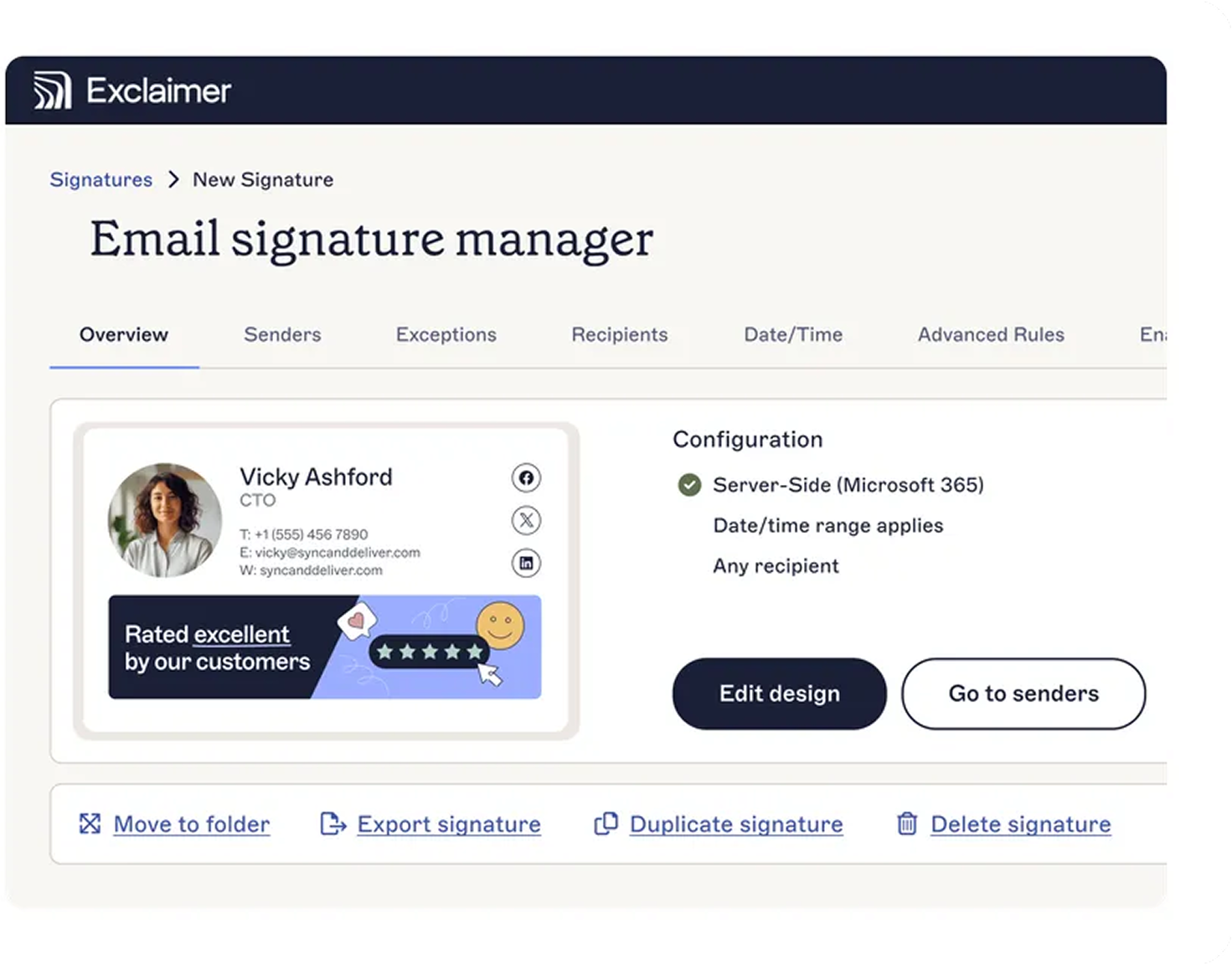 That’s what makes a migration straightforward. Your email signatures and disclaimers aren’t held in the source tenant, so there’s nothing to leave behind and nothing to rebuild on the other side. Set up your templates once, point them at the right users, and they apply consistently across every tenant you run, whether you’re mid-migration, permanently multi-tenant, or rolling out a rebrand.
It also keeps the manual work off your plate. Exclaimer’s cloud solution keeps this simple, with no PowerShell scripts, GPOs, or custom code needed. That counts for a lot right after a migration, when the last thing you want is another round of scripting against a fresh environment.
Manage email signatures centrally, and a migration no longer touches them. You move the mailboxes, and the signatures keep applying.
Next step: Get your target-tenant email signatures staged before migration day with a free trial of Exclaimer.