Dave is a marketing expert with 15 years experience in the tech and SaaS world. He specializes in educating IT and channel audiences, with a focus on security, privacy, compliance, and marketing technology. With a talent for storytelling and a deep understanding of the industry, Dave transforms complex IT topics into clear, engaging, and impactful narratives.
Gmail signature too long error: How to fix the 10,000 character limit
TL;DR
Gmail limits email signatures to 10,000 characters, and that count includes hidden HTML formatting and image markup, not just the visible text.
The error usually shows up after copying an email signature from Word, Google Docs, or a web page, since all three add extra formatting code.
Gmail counts the full HTML behind the email signature: styling, tables, and image tags, not just what's on screen.
The fix: paste the email signature as plain text first, strip unnecessary formatting, resize images, and simplify the layout.
If the error won't clear, delete the email signature and rebuild it directly in Gmail to remove markup left behind by previous edits.
For IT teams managing this across a whole organization, repeated manual edits are what cause the buildup in the first place, which is why centralized management holds up better over time.
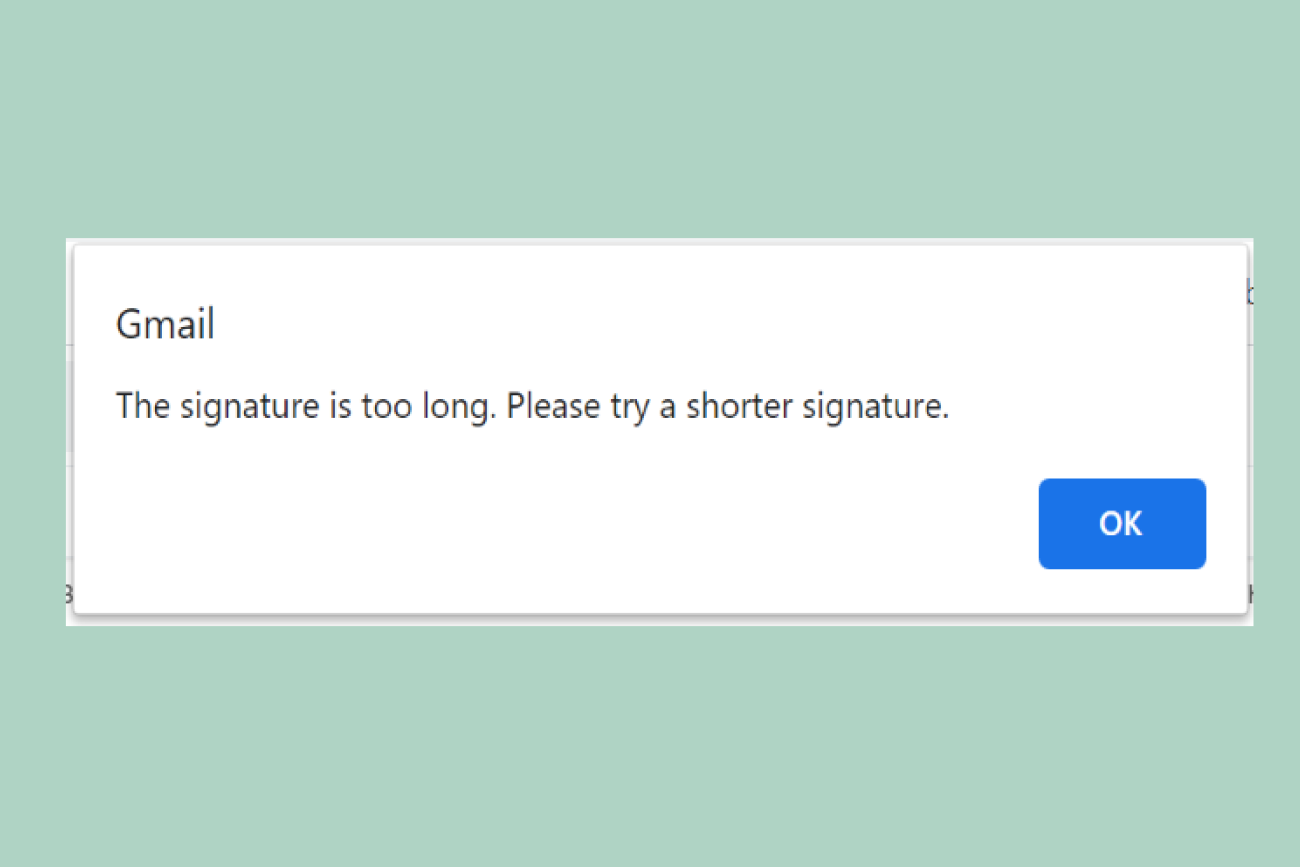
Seeing the “Gmail signature too long” error? Gmail limits email signatures to 10,000 characters, and that total includes hidden HTML code, formatting, and image markup, not just visible text.
The error usually appears after copying content from Word, adding a promotional banner, or repeatedly editing formatting over time. The fix is straightforward once you know what Gmail is actually counting.
Quick answer
Gmail signatures have a 10,000-character limit, including HTML formatting and image code. If your signature is too long, remove extra formatting, paste it as plain text, compress images, and simplify the HTML. Most issues are caused by hidden markup added during copy and paste.
Why Gmail says your signature is too long
Gmail enforces a 10,000-character limit on email signatures. This limit applies to the full HTML code behind the signature, not just the visible text.
When you save an email signature, Gmail converts it into HTML in the background. That conversion is where a short-looking signature can turn into a long character count.
What Gmail actually counts toward the 10,000-character limit
Element | Why it adds to the count |
|---|---|
Visible text | The words a recipient actually reads |
Font styling and inline CSS | Font, color, size, and layout rules, often set through both older HTML attributes and modern CSS side by side for compatibility across email clients |
Linked image tags | The markup that tells Gmail where to fetch and how to display a hosted image; the image file itself isn't counted |
Embedded (base64) images | An image encoded directly into the HTML as text instead of linked; base64 encoding runs at roughly 4:3 against the original file, so even a modest 15KB logo becomes about 20,000 characters, double the entire limit on its own |
Table structures | Rows, columns, and cells used to lay out contact details or a banner |
Hidden markup | Leftover code from previous edits, especially copy-pasted content |
This is why an email signature that looks short in the box can still exceed the Gmail email signature size limit: the visible words are only one row in the table above.
One of the most common triggers is copying content from Microsoft Word, Google Docs, or a web page. All three insert additional formatting code behind the scenes, so even a design that looks simple in the source document can carry a lot of hidden HTML once it's pasted into Gmail.
Images add to the total too, and not evenly. A linked image, pointing to a hosted file, adds only a short reference. An image embedded directly into the HTML as base64 text scales with the file itself: a modest logo can easily add 15,000 to 25,000 characters, more than the entire limit, on its own.
How to fix the Gmail signature too long error
If your Gmail signature exceeds the 10,000-character limit, use these steps to reduce its size and remove hidden HTML code.
1. Paste your signature as plain text
Copy your existing email signature and paste it into a plain text editor first. Then copy it back into Gmail and reapply formatting manually.
This strips hidden markup added by Word, Google Docs, or websites.
2. Remove unnecessary formatting
Delete extra:
Font styles
Color variations
Inline styling
Nested tables
Simple formatting reduces the total HTML Gmail stores.
3. Check whether your images are embedded or linked
This is usually the single biggest lever available, in terms of how many characters one change can save. Base64 encoding runs at roughly 4:3 against the original file, so an image embedded directly in the signature's HTML can add 15,000 characters or more, even for a modest logo, before you've written a single word of contact info. The same image referenced as a link to a hosted file adds only a short line, regardless of the image's actual size. Word paste is the more frequent trigger; an embedded image is usually the single largest one.
If your signature includes a logo or banner, host it externally and link to it. Then resize the image to its actual display dimensions and remove unnecessary tracking parameters before inserting it. Gmail still counts the markup required to render even a linked image, just far less of it than an embedded one.
4. Simplify the layout structure
Complex table layouts generate large amounts of markup.
Reduce:
Nested tables
Spacer rows
Empty cells
A clean layout lowers the character count quickly.
5. Rebuild the signature from scratch
If the error persists, click inside the signature box, select all the existing content (Ctrl+A on Windows, Cmd+A on Mac), and delete it completely before typing anything new. Rebuild the signature directly inside Gmail without copying from external sources. A partial edit leaves old markup behind; a full clear-and-rebuild doesn't.
"Telling your end users to just create their own signatures in Gmail is not really an option; this is too important from a corporate perspective to leave to chance and/or individual creativity."
How do I check the character count of my Gmail email signature?
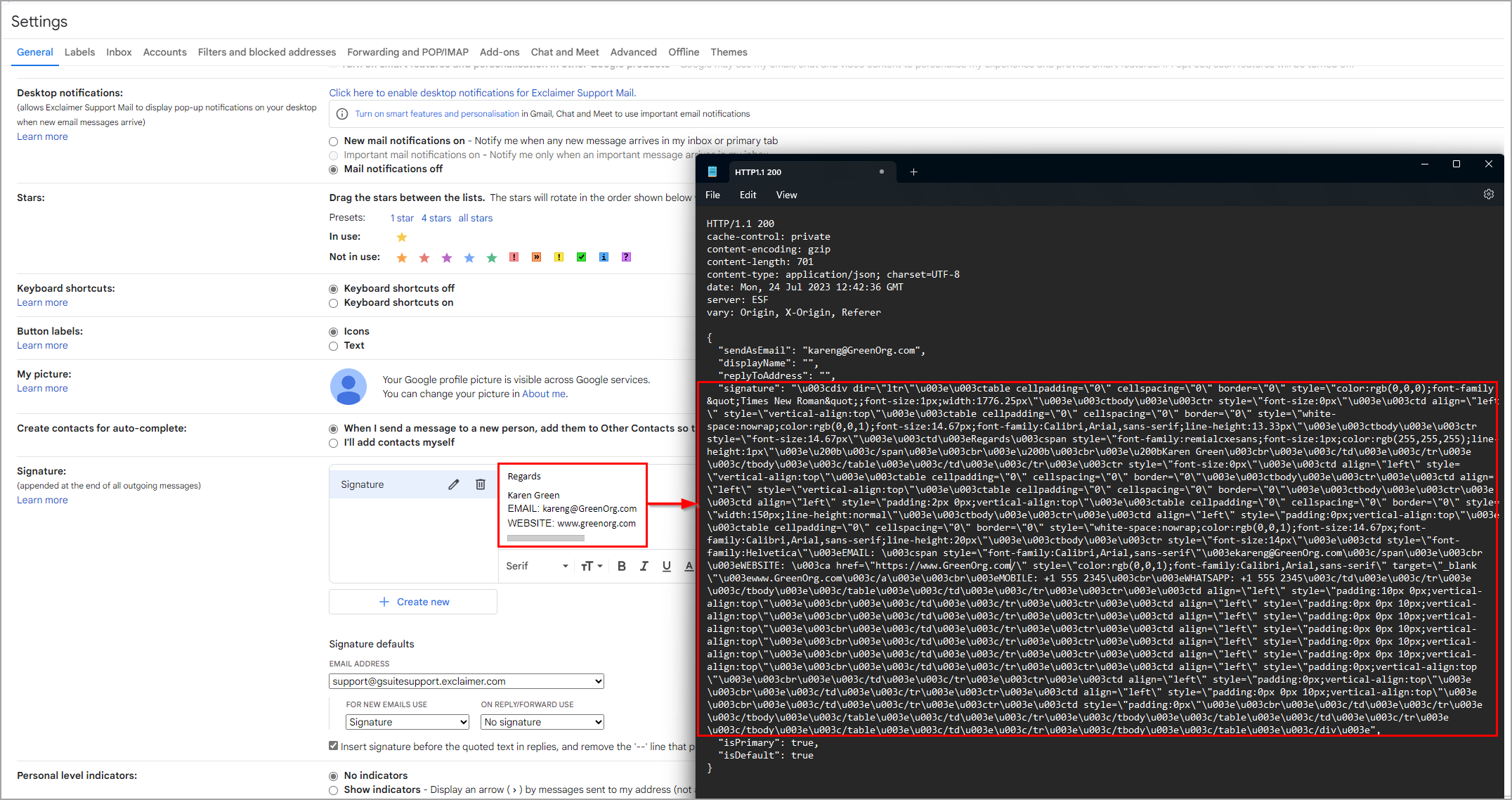
Gmail doesn't show a visible counter while you're editing a signature, and there's no simple way to see the exact number before you hit save.
Checking your signature's wording in a plain text editor or a blank Word or Google Docs file is worth doing as a first pass, but it only tells you the length of the visible text, not the HTML behind it, which is most of what actually counts toward the limit. Treat it as a rough budget check, not a real total.
For the real total, including hidden markup, right-click inside the signature box and choose Inspect (or Inspect Element), then look for the element holding your signature in the HTML panel that appears. Copying that element's contents into any character-count tool gives you what Gmail is actually counting. This depends on browser developer tools and Gmail's current page structure, so treat it as the most accurate option available, not a guaranteed one.
How to avoid the Gmail signature too long error in the future
Two habits prevent this from recurring: build clean the first time, and stop letting individual edits accumulate.
Build outside Gmail first. Draft the signature in a plain text or basic HTML editor, check its length, then paste the finished version into Gmail. Avoid copying directly from Word, Google Docs, or a web page, since all three inject hidden formatting you won't see until Gmail rejects it.
Link images instead of embedding them. A logo or banner referenced as a hosted link costs a fraction of the characters that the same image embedded as base64 does, and looks identical to the recipient.
Start clean, not incremental, when something breaks. A signature edited a dozen times over a year usually carries markup from all twelve edits. Rebuilding once is often faster than debugging what's left over from each change.
For a team, stop relying on individual edits altogether. One person hitting this error is a five-minute fix. Dozens of people hitting it, repeatedly, over years, is a centralized management problem, not an HTML problem.
Why does this error keep coming back?
A single "signature too long" fix takes a few minutes. The problem is that nothing about fixing it once stops it from happening again: the next new hire who copies an email signature from Word, the next manager who pastes in a banner from a slide deck, the next round of edits that quietly adds more hidden markup than anyone realizes.
"Nobody's ticket says 'my markup is bloated.' It says Gmail won't save my signature, so IT ends up doing forensic work on code the user never wrote and can't see. That's the actual time sink, and it's rarely the first time that mailbox has needed it."

Multiplied across dozens or hundreds of employees, that diagnostic overhead adds up to a real, ongoing draw on IT's time. It lines up with what Exclaimer's Build vs Buy 2025 research found: 91% of IT and security leaders say maintaining tools they've built in-house cuts into their team's productivity, and 50% say it keeps them from focusing on more strategic work. Email signature management is a small, recurring example of that same pattern: the same research found 13% of IT teams have built their own email signature tool rather than buy one, taking on exactly this kind of maintenance cycle by design.
Using Exclaimer to centrally manage Gmail signatures
If the Gmail signature too long error keeps appearing, the underlying issue is usually structural rather than accidental.
In growing teams, individual users frequently edit their own email signatures. Over time, this creates:
Inconsistent layouts
Layered formatting
Oversized banners
Outdated contact information
Missing or altered disclaimers
These inconsistencies increase hidden markup and push email signatures toward Gmail's 10,000-character limit.
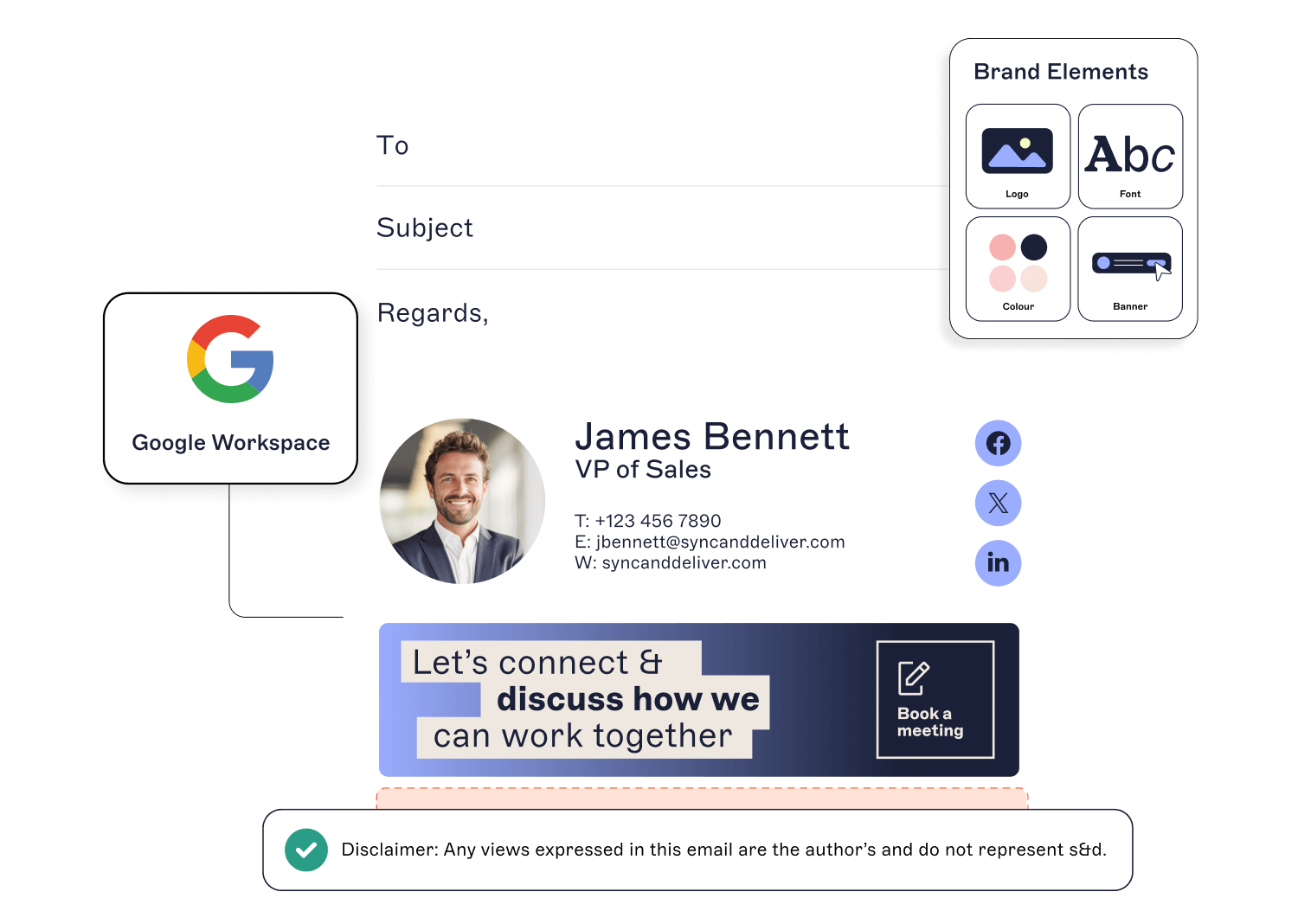
Applying Google Workspace email signatures centrally reduces that variability. A template is built once, then applied automatically to every user through Exclaimer's Signature Rules, so formatting stays consistent and email signatures stay within Gmail's size limits without relying on individual edits.
Contact information comes straight from Google Workspace Directory, so email signatures stay accurate and consistent across the organization without IT chasing updates by hand.
Take central control over your Gmail email signatures with Exclaimer, so your emails always look professional and stay within Gmail's limits. Get a free trial or book a demo today.