Dave is a marketing expert with 15 years experience in the tech and SaaS world. He specializes in educating IT and channel audiences, with a focus on security, privacy, compliance, and marketing technology. With a talent for storytelling and a deep understanding of the industry, Dave transforms complex IT topics into clear, engaging, and impactful narratives.
How to create a Google Workspace email signature
TL;DR
Google Workspace email signatures are created and deployed from the Admin console using the Append Footer setting
Native tools apply one template per organizational unit and can’t sync employee data from Google Directory
Images must be web-hosted and signatures can’t be previewed before deployment
Exclaimer’s cloud solution gives IT centralized control, automated compliance, and consistent branding across all users and devices
Managing email signatures in Google Workspace can be time-consuming, especially when every employee uses their own version. With the right setup, every message leaving your organization can be professional, on-brand, and compliant.
To create a company-wide email signature in Google Workspace, sign in to the Google Admin console, go to Apps > Google Workspace > Gmail > Advanced Settings, and configure the Append Footer setting to apply an HTML template to your chosen organizational units.
This guide explains how to create an email signature in Gmail, apply it across your organization, and understand where Google’s native tools stop short. You’ll also see how Exclaimer’s Google Workspace solution makes managing Google Workspace email signatures simple, secure, and completely centralized.
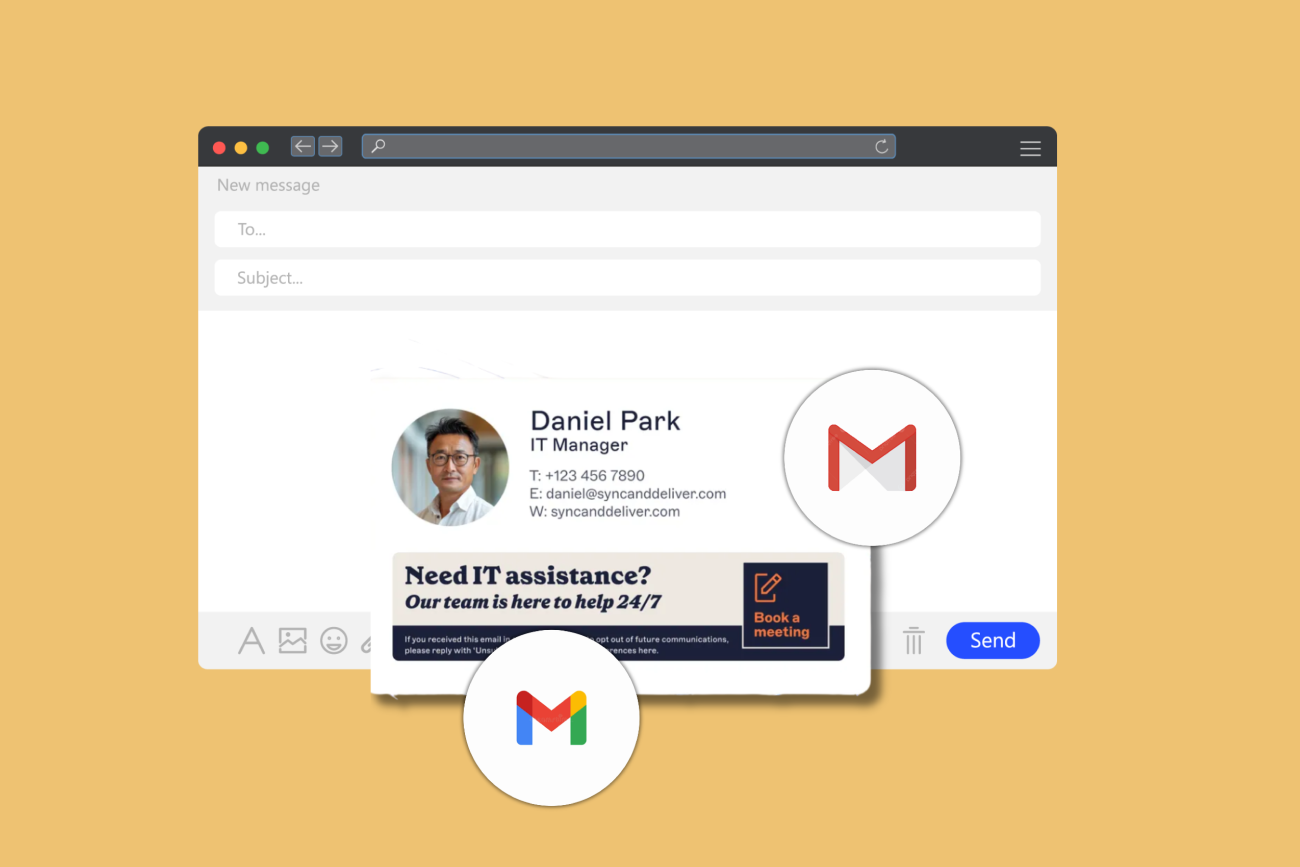
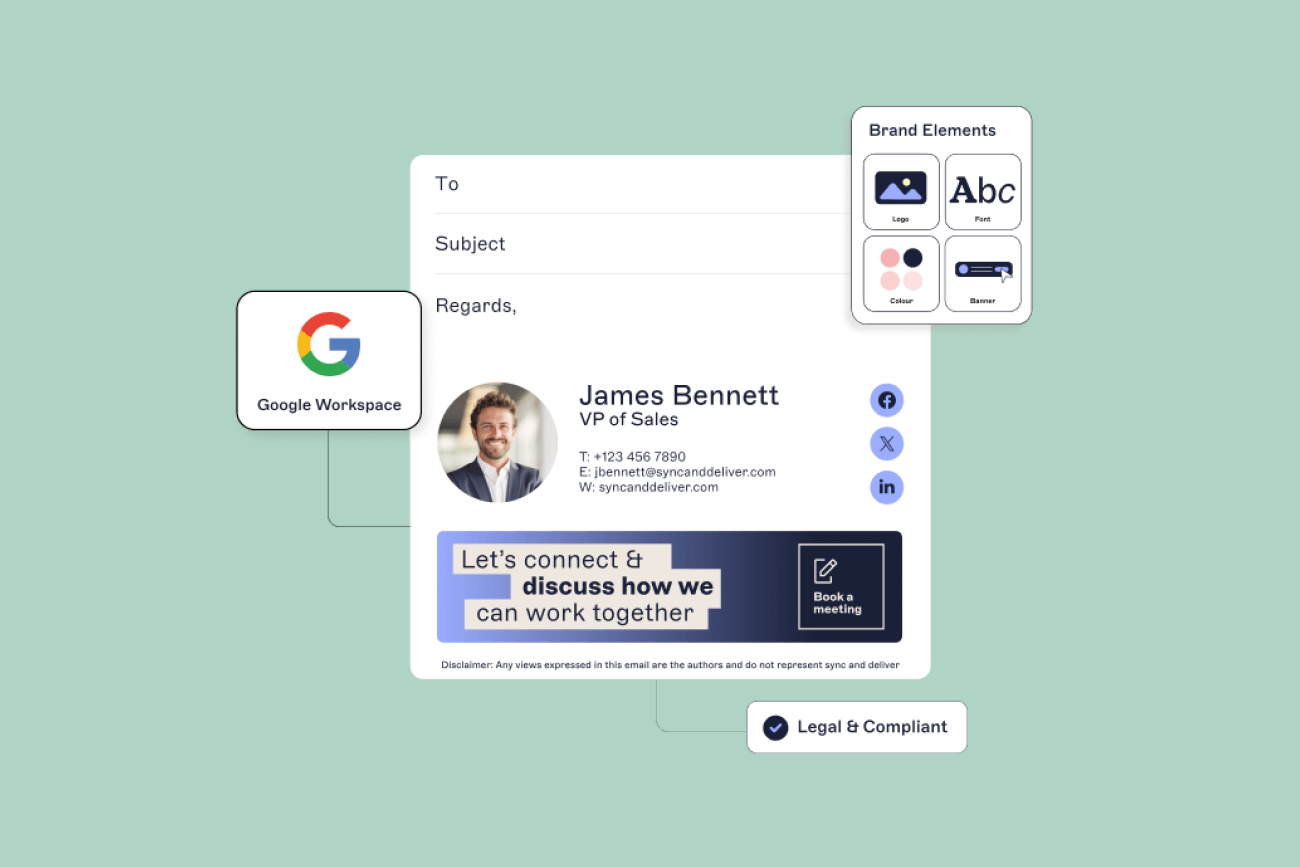
A Google Workspace email signature is the block of text and imagery that appears automatically at the end of each Gmail message. It typically includes the sender's name, job title, contact details, company logo, and sometimes a disclaimer or marketing banner.
How to create a Google Workspace email signature using the Append Footer setting
In Google Workspace, you manage email signatures with the Append Footer setting in the Google Admin console. Google Workspace IT administrators (Super Admins) can give everyone a consistent email signature template.
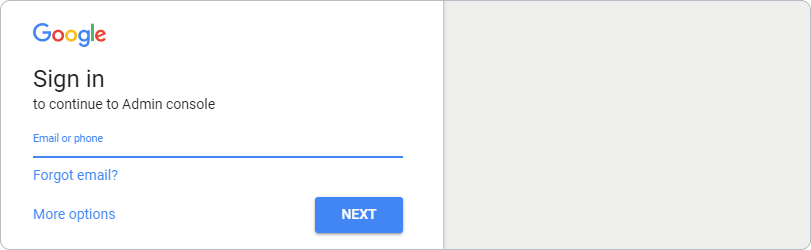
Step 1: Sign in to the Google Admin console
Go to admin.google.com and sign in with your Super Admin credentials.
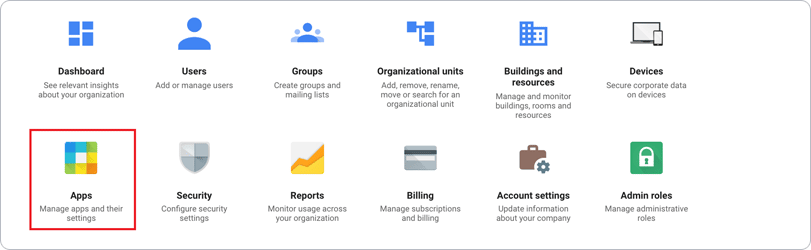
 Select Apps from the console dashboard.
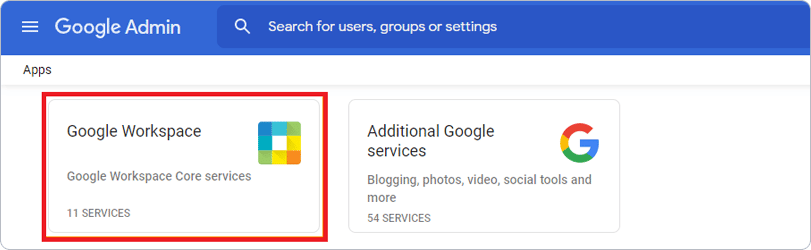
 You’ll be taken to the Apps settings page. Select Google Workspace.
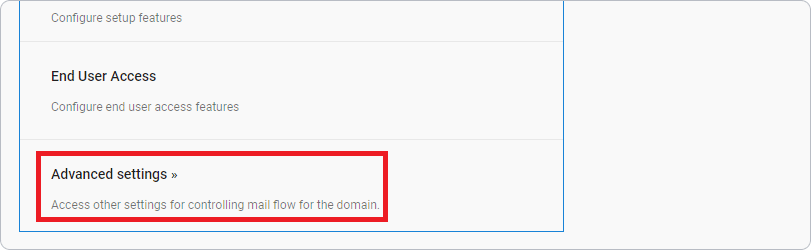
Select Gmail from the Services list. Go to Advanced settings >>
Step 2: Create an organization-wide email signature
Within the General Settings tab, scroll to the Compliance section.
Here, you can define a company email signature (also called a footer) that automatically appears on all outgoing messages for users within a specific organizational unit (OU).
Click Configure to start setting up your signature and specify which groups or OUs it applies to.
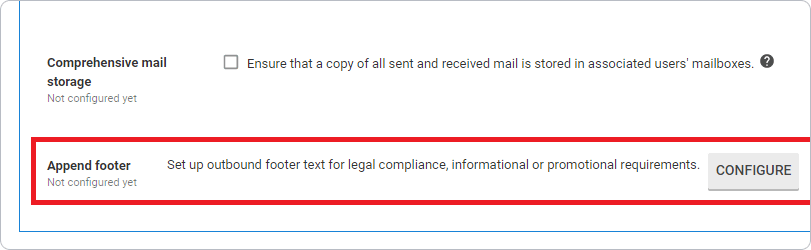
Important: HTML signatures must use web-hosted images (not attachments). For the best results, host logos on a secure HTTPS server.
Step 3: Customize formatting and branding
This will open an Add Setting window. Enter a short description for your Gmail signature.
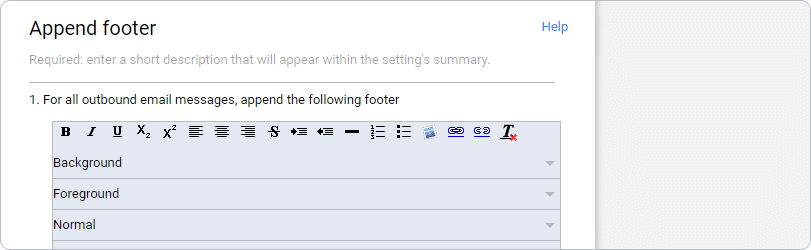
Use HTML tags to style your signature with approved fonts, colors, and layouts.
Keep the design simple — large images and complex tables don't render reliably across all mail clients.
Include:
Company name and legal address
Employee contact fields such as %FirstName%, %LastName%, or %Title%
Your organization’s logo or banner (image URL)
Optional social links or disclaimers
Step 4: Define who gets the signature
In the Email messages to affect field, choose whether the signature applies to internal, external, or all messages.
You can create separate configurations for each OU to apply unique disclaimers or layouts.
Check Append the footer to messages being sent within the organization if applicable.
Step 5: Save and deploy
Click Add setting > Save.
Changes typically take effect within an hour but can take up to 24 hours to propagate across all users.
Once applied, every outgoing message from the selected users will include your standardized Google Workspace email signature automatically.
Step 6: Verify your configuration
Send a test message from different user accounts to confirm:
The correct footer appears for each OU.
Links, formatting, and images render properly on desktop and mobile.
Email disclaimers meet your company’s legal requirements.
Optional: Add dynamic fields or HTML templates
For more advanced control, you can use dynamic variables in Gmail footers (such as %Department% or %Phone%) pulled from Google Directory.
However, this process is limited. Custom fields beyond the standard set are not supported without third-party tools.
There are many limitations to manually creating email signatures in Google Workspace.
To create business email signatures easily, look at our Google Workspace signature solution.

Tips for creating a professional Google Workspace email signature
Designing a clean, compliant, and on-brand Google Workspace email signature helps every employee represent your organization consistently. Follow these best practices to keep your signatures professional and effective.
1. Keep it simple
Avoid cluttering your Google Workspace email signature with unnecessary details or oversized images.
Use a single, legible font and avoid excessive colors or imagery.
Focus on the essentials such as your name, job title, company logo, and contact details to maintain a clean and professional look.
2. Include essential contact information
Make sure each signature includes up-to-date details:
Full name
Job title
Company name
Direct phone number
Email address or website link
3. Use consistent branding
Align your email signatures with your organization’s brand guidelines—fonts, colors, and logo usage should match other communication assets.
Consistent branding reinforces credibility and helps create a unified visual identity across all departments and regions.
4. Add relevant links
Include hyperlinks to your company website, social media profiles, or key landing pages. This will drive engagement, turning every email into a marketing opportunity.
Avoid excessive links that distract from your main message.
5. Update regularly
Review your Google Workspace email signature periodically to confirm all contact information, job titles, and disclaimers are still accurate.
Regular maintenance keeps your communication accurate and professional.
Tip: Keep a master signature template stored in your central design library or Exclaimer account.
What are the limitations of native Google Workspace email signatures?
While Google Workspace allows administrators to create organization-wide email signatures through the Admin console, the built-in functionality has several limitations that make it difficult to manage at scale. For IT teams, these gaps often turn a routine branding task into a recurring support issue.
1. Only one signature per organizational unit
The Append Footer setting lets you assign a single email signature to each organizational unit (OU).
This does mean consistency, but it also means you can’t deploy multiple designs for different departments, user groups, or regions. Every update must be configured manually, one OU at a time.
2. No dynamic contact information from Google Directory
The Admin console cannot automatically pull user details from Google Directory.
That means IT must either create a generic, one-size-fits-all signature for each OU or build and upload separate templates for every employee. This is an approach that quickly becomes unmanageable at scale.
3. Basic HTML support and strict size limits
The Append Footer tool supports HTML, but only as pasted content rather than editable code.
There’s a 10,000-character limit, and replying to a plain-text email strips out formatting, images, and hyperlinks.
You can add images (such as logos or icons), but they must be web-hosted, not stored in Google Drive, and linked securely over HTTPS.
4. No true centralized control or version history
Signatures are managed per OU, and Google Workspace provides no way to preview or test before deployment.
You must set the template live to verify how it looks. This typically has to happen during low-traffic periods to minimize disruption.
There’s also no version history or change tracking, leaving compliance teams without an audit trail.
5. Limited placement and visibility in replies
Signatures added via the Append Footer appear only at the bottom of the entire email chain, not below each reply or forward.
Over time, this causes long email threads to stack signatures repeatedly, making messages harder to read.
Workarounds, like canned responses for reply signatures, must be configured manually in each user’s Gmail settings.
6. No marketing, campaign, or personalization features
Google Workspace signatures cannot include targeted banners, promotional messages, or dynamic CTAs.
Marketing teams can’t easily update content across all users. And IT ends up managing repetitive requests that add no technical value.
7. No compliance enforcement or approval workflows
Legal disclaimers can be added manually, but there’s no automation by department or region, and no approval process for content updates.
Organizations subject to GDPR, HIPAA, and other regulations risk inconsistencies that could lead to compliance gaps.
8. No preview or testing environment
Administrators can’t test templates before activating them. This means any design error or HTML issue affects every user immediately until it’s manually corrected.
9. Limited user control and occasional duplication
Because server-side signatures are appended after an email is sent, users don’t see them while composing.
This prevents unauthorized edits but can also cause duplication when users add their own Gmail signature in settings. This can result in two signatures appearing in a single email.
What alternatives to the native Google Workspace email signature tool exist?
Google’s Gmail API lets you manage signatures on a basic level. It requires programming knowledge to use effectively and the process is lengthy and complex for most IT teams, particularly those without dedicated developer resource.
How does Exclaimer manage Google Workspace email signatures?
Managing email signatures manually in Google Workspace quickly becomes complex. This is particularly true for IT teams responsible for brand governance, compliance, and user management across multiple locations.
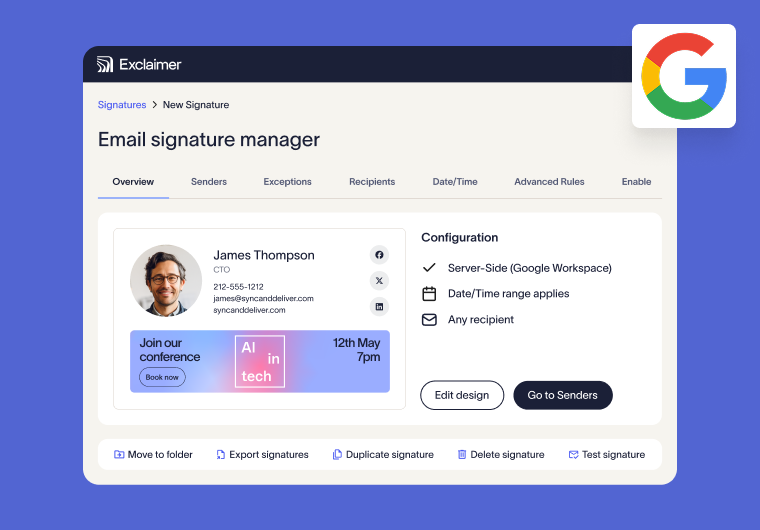
Built for organizations of all sizes, Exclaimer's Google Workspace signature manager gives IT full control and flexibility over every user’s email signature from one platform. More than 80,000 organizations worldwide trust Exclaimer to keep their communications consistent, compliant, and on-brand.
Centralized management
Design, deploy, and update Google Workspace email signatures for every user from one secure platform—no HTML coding or scripts required.
Automated compliance
Ensure every outbound message includes the correct legal disclaimers, department-specific messaging, and regional compliance statements.
Consistent branding across your organization
Standardize company logos, fonts, and layouts across departments, offices, and regions.
Directory synchronization
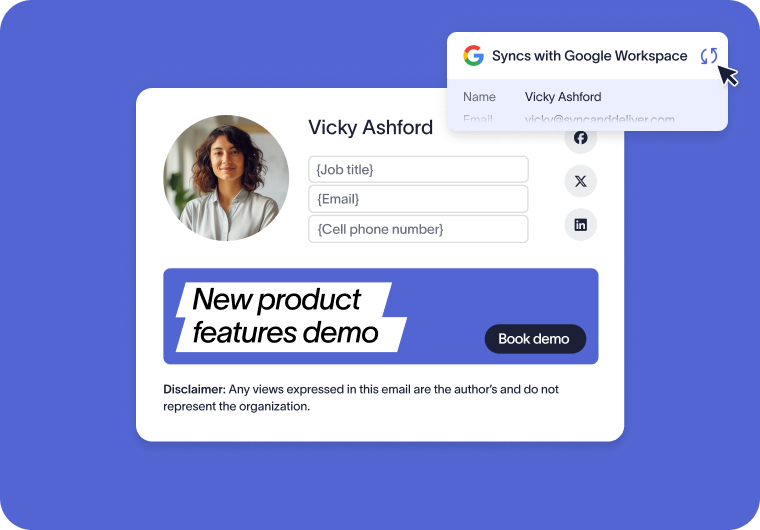
Exclaimer connects directly to Google Workspace Directory, automatically pulling through each user's name, job title, department, and contact details. When a new employee joins or a job title changes, their email signature updates within minutes — no manual template edit, no IT ticket required.
Delegated control without losing oversight
IT retains full administrative control while delegating design access to teams like Marketing. Teams can update banners, promotional content, or disclaimers safely within assigned permissions.
Audit-ready version history
Every change to your organization’s email signatures is logged, so you can demonstrate compliance and maintain full visibility.
Advanced features that add value
Turn every email into a measurable channel with:
Rotating banners for product launches or events
Click tracking and engagement analytics
One-click customer satisfaction (CSAT) surveys
Integrated scheduling links (e.g., Calendly or Google Calendar)
Built for security and reliability
The platform runs on Microsoft Azure infrastructure with SOC 2 Type II, ISO 27001, and ISO 27018 certifications and 99.999% uptime.
Compare Exclaimer with Google Workspace
Features | Exclaimer | Gmail Settings | Append Footer |
|---|---|---|---|
Centrally control Google signatures for everyone | ✔ | ✖ | ✖ |
Brand consistency on all emails | ✔ | ✖ | ✔ |
Support compliance with a disclaimer on every sent email | ✔ | ✖ | ✔ |
Gmail signatures on emails from all devices and clients | ✔ | ✖ | ✔ |
Users can see their signature while writing an email | ✔ | ✔ | ✖ |
Add embedded images and user photos | ✔ | ✔ | ✖ |
Include clickable promotional banners | ✔ | ✔ | ✖ |
Apply signatures under the most recent reply | ✔ | ✔ | ✖ |
Use shorter signatures for reply emails | ✔ | ✔ | ✖ |
Assign signatures to teams & individuals | ✔ | ✔ | ✖ |
Create signatures for specific audiences based on email domain | ✔ | ✖ | ✖ |
Segment signatures for internal & external emails | ✔ | ✖ | ✖ |
Delegate access to non-technical users | ✔ | ✖ | ✖ |
Run email signature marketing and ABM campaigns | ✔ | ✖ | ✖ |
Automatic sync of user info from Google Workspace Directory | ✔ | ✖ | ✖ |
Use a drag and drop editor | ✔ | ✖ | ✖ |
Pre-designed template library | ✔ | ✖ | ✖ |
Include HTML signatures on plain and rich text emails | ✔ | ✖ | ✖ |
Use any font in Google signatures | ✔ | ✖ | ✖ |
Monitor, analyze, and report on email signatures | ✔ | ✖ | ✖ |
Optimize performance and run A/B testing | ✔ | ✖ | ✖ |
Apply content above the email message body | ✔ | ✖ | ✖ |
Run repeatable campaigns with enhanced scheduling rules | ✔ | ✖ | ✖ |
Let users self-manage specific contact fields | ✔ | ✖ | ✖ |
Apply one-click signature surveys | ✔ | ✖ | ✖ |
Integrate with CRM platforms like Salesforce & HubSpot | ✔ | ✖ | ✖ |
Display your latest social posts on Facebook & LinkedIn | ✔ | ✖ | ✖ |
Centrally update brand assets from one hub | ✔ | ✖ | ✖ |
In short: Exclaimer takes the heavy lifting out of managing Google Workspace email signatures. IT gets centralized control, Marketing gets flexibility, and your organization gains consistent, compliant, professional communication
Simplify Google Workspace email signatures with Exclaimer
Adding or updating an email signature in Google Workspace is straightforward. The native tools have real limitations, particularly for organizations managing multiple departments, regions, or compliance requirements.
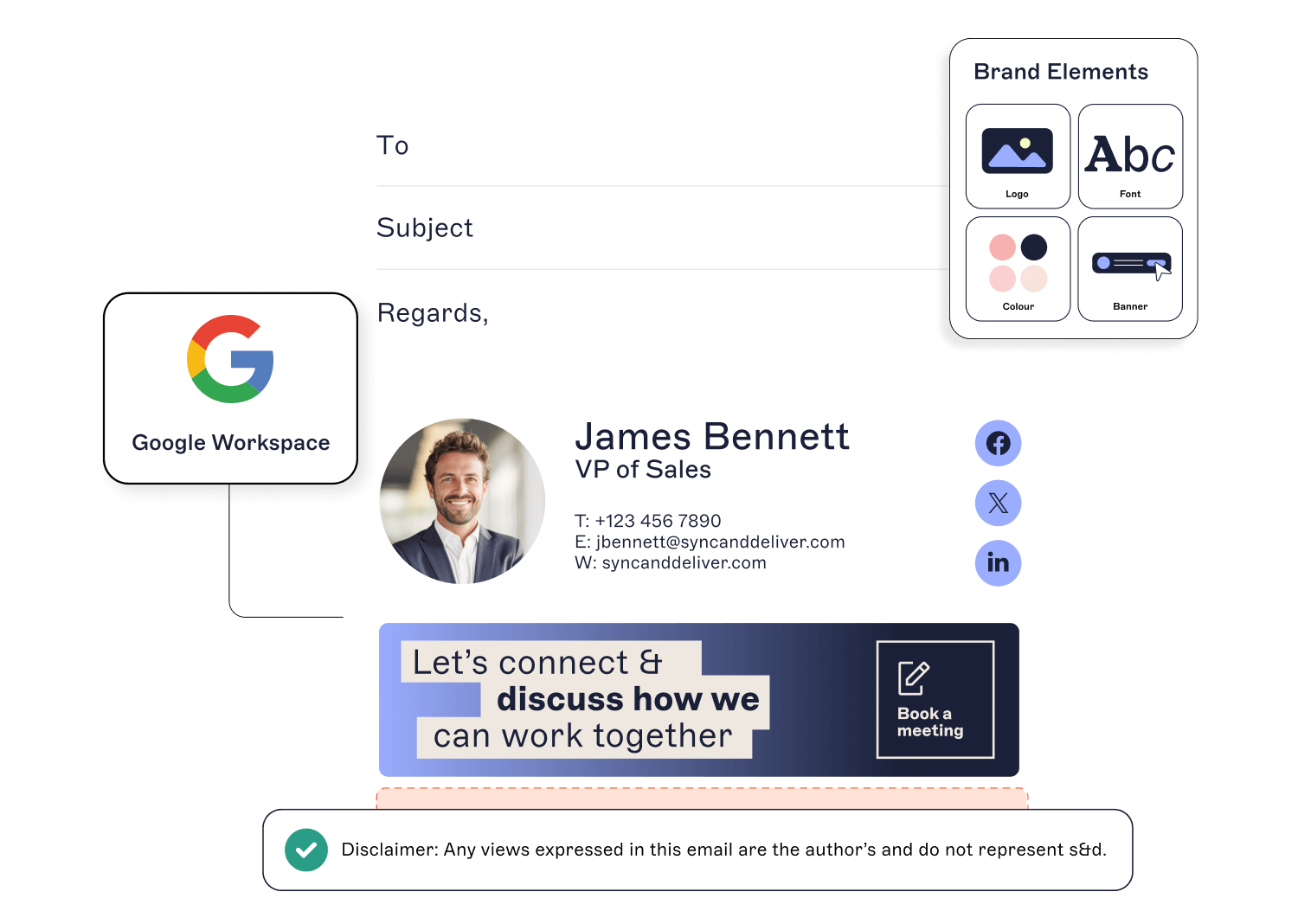 Exclaimer offers a Google email signature solution with advanced features such as centralized control, brand consistency, and customizable designs.
With the ability to easily update and manage multiple G Suite signatures, Exclaimer ensures a professional and consistent image across all emails sent from a Google Workspace domain.
Why 80,000+ organizations choose Exclaimer for Google Workspace
Centralized management: Update all email signatures from one platform.
Consistent branding: Keep every employee email on-brand and professional.
Automated compliance: Apply disclaimers and legal notices automatically.
Audit-ready controls: Track every change for compliance and accountability.
Scalable and secure: ISO 27001 and SOC 2 certified, built on Microsoft Azure.
Book a demo to see how easy it is to manage company-wide email signatures in Google Workspace.