Naimh is a seasoned marketer of 12 years, including in SaaS and tech. She’s an expert at simplifying complex technology concepts, bridging the gap between IT and marketing. Naimh specializes in turning tech speak into actionable insights, helping marketers get the most out of their tools and technology.
The pros and cons of using animated GIFs in email signatures
TL;DR
Animated GIFs can add personality to an email signature when they're small, on-brand, and centrally controlled.
Keep files under 200KB, sized 300–600px wide by 100–200px tall, and set to loop once (or not at all).
Whether a GIF actually animates in Outlook depends on where it's inserted, not just the version: email-body GIFs follow a settings toggle, signature GIFs are less predictable, and New Outlook has its own separate quirks.
If your industry calls for a conservative brand image, a static image is the safer choice.
Animated GIFs have been a staple of digital marketing for years, and it's no surprise they've found their way into email signatures too. They're attention-grabbing by design. But an email signature isn't a marketing email: it's sent by every employee, to every recipient, all day, every day, so the same qualities that make a GIF fun in a campaign can make it a liability at that scale.
At Exclaimer, we help over 80,000 organizations worldwide manage consistent, professional email signatures. That means giving IT and marketing teams central control over every element of the signature template, including whether animated GIFs are used and how.
What is an animated GIF?
An animated GIF (Graphics Interchange Format) is a bitmap image format that plays several frames in sequence to create the illusion of movement. CompuServe engineer Steve Wilhite created the format in 1987, and it's since become one of the most common ways to add motion to a static page without video.

GIFs work in most major web browsers and email clients that render HTML, which is exactly why they've spread from memes and social posts into email signatures. That same broad support is also why they're worth using carefully: a format built for casual sharing carries different expectations than one attached to every business email your company sends.
Using an animated GIF in email signatures
HTML doesn't behave identically across email clients the way it does across browsers. A GIF that looks sharp in Gmail can render differently in Outlook 365 or Apple Mail, so the impact of a GIF in your email signature depends heavily on which client the recipient opens it in.
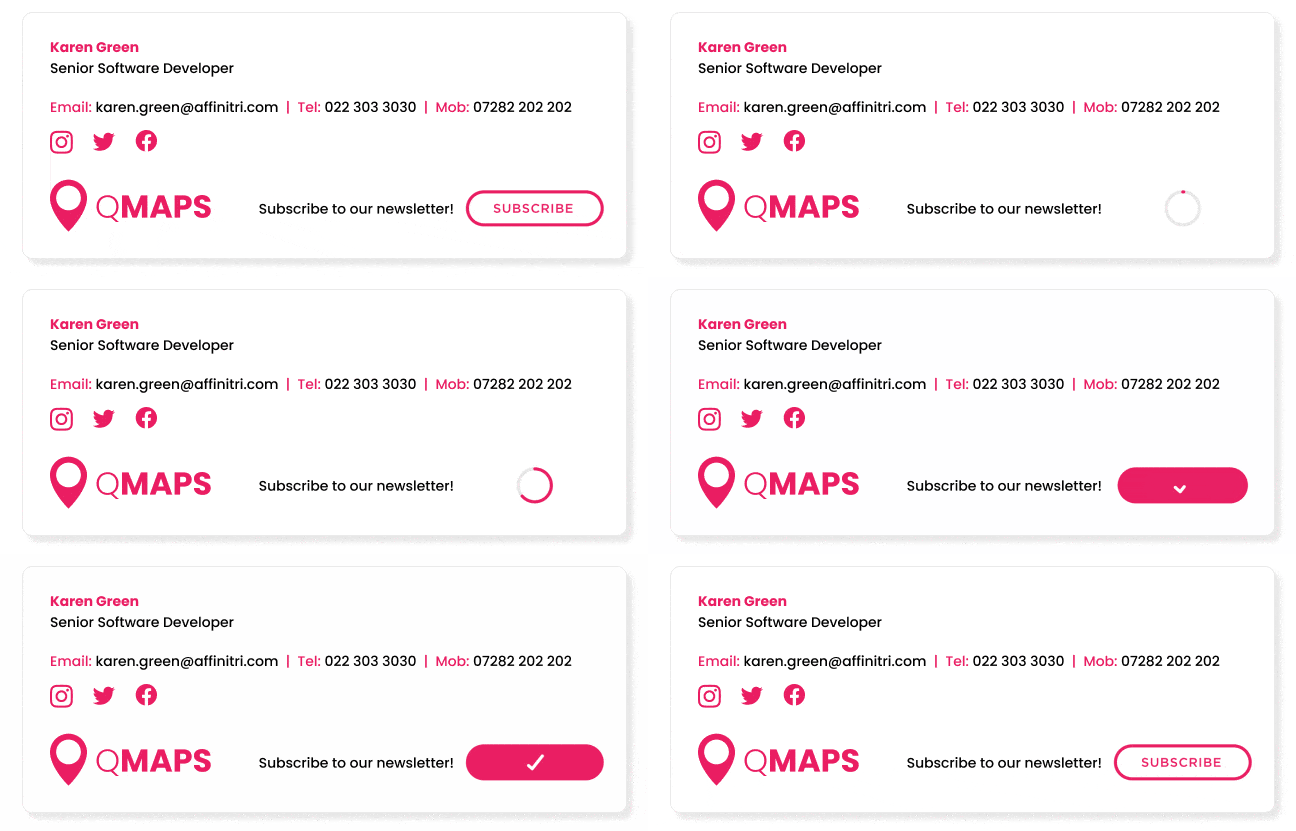
Pros vs. cons of animated GIFs in email signatures
Pros | Cons |
|---|---|
Attention-grabbing: Makes your email signature stand out | File size: Larger files slow loading times and may trigger spam filters |
Visual storytelling: Conveys more than words; useful for product demos | Compatibility issues: May not display correctly in older email clients |
Showcasing creativity: Adds personality to your email signatures | Distraction: Can take away from your email message, especially on infinite loop |
Increased engagement: Helps your email stand out in crowded inboxes | Professionalism: May be perceived as unprofessional in certain industries |
Which email clients actually support animated GIFs?
Most advice on this topic is either outdated or too simple, because "does Outlook support GIFs" has three different answers depending on where the GIF actually lives.
Key takeaway
The Outlook question isn't "which version." It's "GIF in the email body, GIF in a signature, or New Outlook", but each behaves differently.
Where the GIF is | What actually happens |
In the email body (Insert > Online Pictures, or HTML) | Outlook 2016 and later, including Microsoft 365, can play the animation, but it's gated by a setting: an in-app "Play animated GIFs" toggle on Office 365 builds before version 2008 (File > Options > Advanced > Display), or Windows' own animation setting on version 2008 and later. Outlook 2007 and 2013 — and other pre-2016 versions generally — can't animate at all, with no setting to fix it. |
In a signature, via Outlook's own Signature editor | Less predictable than the settings above suggest, especially in New Outlook (below). Microsoft's own support forum also has scattered reports of copy-pasted GIFs losing animation in the signature editor more generally, though that's not confirmed as firmly as the email-body behavior is. Insert the file directly (Insert Picture, not paste) as a precaution either way, and send yourself a real test email — the compose preview doesn't always match what a recipient sees. |
New Outlook (the newer, web-based client Microsoft is rolling out) | Uses a different rendering engine with stricter animation handling, per Microsoft's own support forum. Copy-pasted GIFs are the most likely to fail here too. If a signature GIF won't animate and you've already checked the settings, one Microsoft support thread suggests switching back to classic Outlook as a fallback, though that's not a permanent fix as Microsoft keeps expanding New Outlook's rollout. |
Outlook Web App, Outlook.com, and Outlook mobile | Play the full animation. |
Lotus Notes | Displays only the first frame. |
The Windows animation setting itself is in a different place depending on your Windows version:
Windows 11: Settings > Accessibility > Visual effects > Animation effects
Windows 10: Settings > Ease of Access > Display > Show animations in Windows
If a recipient tells you your GIF "isn't working" in Outlook, check which of the three paths above applies before assuming the GIF itself is broken. Whichever path it went through, design the first frame to hold up as a static image regardless, since you can't control which combination of client, insertion method, and settings any given recipient is running.
Recommended animated GIF specifications for email signatures
Specification | Recommendation |
|---|---|
Dimensions | 300–600px wide, 100–200px tall |
Frame rate | 10–15 fps |
Duration | Under 3 seconds |
File size | Under 500KB (ideally under 200KB) |
Loops | 1–3 loops maximum (or no loops) |
Best practices for using animated GIFs in email signatures
Once you know the trade-offs, here's how to use animated GIFs without the downsides outweighing the upside. If you want the wider checklist beyond GIFs specifically, the 17 email signature dos and don'ts covers the rest of the template.

1. Use suitable GIFs
Choose a GIF that's relevant to your message or brand and appropriate for your audience. A professional image that represents your business well beats a funny meme every time. Skip anything that could read as inappropriate, like a cute-kitten GIF on a B2B signature.
2. Loop the image once
An animated GIF that plays on repeat annoys recipients and pulls focus from the actual email. Set it to loop once so it grabs attention without holding it hostage.
3. Only use one animated GIF
Multiple animated GIFs in a single signature look cluttered fast. Pick one.
4. Don’t let it overshadow the rest of your design
An email signature has several elements working together: name, title, contact details, and branding. None of them should dominate, including the GIF. If the animation is too powerful, recipients won't notice anything else in the template.
5. Keep the file light
Stick to the specifications above: 300–600px wide, 100–200px tall, under 200KB, 10 to 15 fps, and under 3 seconds. A few oversized frames can push a poorly optimized GIF well past 1MB, which slows delivery and increases the odds of a spam flag.
If you're over budget, cut the frame count first, then simplify the visuals (flat colors and fewer moving parts render smaller than gradients and shadows, and dropping the color palette to 32 or 64 colors can cut size dramatically) before resorting to a smaller canvas.
Tip
These specs reflect established email rendering practice, not a guarantee for every client version. Test with a dedicated tool like Litmus or Email on Acid before deploying to your whole organization.
6. Test before sending
Check how the GIF actually looks across the email clients your recipients use, and send yourself (or a colleague on a different client) a real test email before it goes into a live email signature. The compose preview and the received result don't always match, especially on New Outlook.

How to insert a GIF into Outlook email signatures
Save your GIF as a file on your device. Don't rely on copy-paste; it's a common reason a signature GIF loses its animation.
From the Message tab in Outlook, choose Signature > Edit Signatures.
Under Edit Signature, click New.
Enter a name for your Outlook email signature template.
Use Insert Picture to add the GIF file directly, then finish your email signature.
Click OK, then send yourself a test email to confirm it animates.
How to insert GIFs into email signatures in Gmail
Save your GIF to Google Drive.
Click the gear icon (Settings) in Gmail.
Choose See all settings > Signature > Create new.
Name and create your Gmail signature.
Click the image icon in the editor toolbar to insert your GIF, then click OK.
Click Save Changes when you're finished.
So, should you use animated GIFs in email signatures?
Animated GIFs work in email signatures when they're lightweight, brand-appropriate, and centrally managed. Meet those three conditions and a GIF can add personality to your company's emails without undermining the professional impression they create.
If the file is too large or the design is off-brand, a static image is the better call. The same goes if you can't be confident every recipient's client and settings will actually animate it. It's also the simpler choice if you'd rather not manage GIF weight and compatibility at all: a well-designed static image or logo gets you most of the same visual polish with none of the file-size or client-support trade-offs.
If you want motion without a GIF's file-size cost, an animated PNG (APNG) is worth a look too, though per Caniemail's current test data, APNG support is currently patchier than GIF in Gmail and Outlook specifically.
Consider your audience, brand standards, and the purpose of your email signature template before committing to a GIF. Keep it simple, appropriate, and tested across email clients before it goes out to your whole organization.
Enforce consistent designs with Exclaimer
You don't want just any employee choosing their own animated GIF for their email signature. They might pick something off-brand, or something that leaves the wrong impression on an external recipient. What you need is email signature templates that every employee uses, built to your brand guidelines from the start.
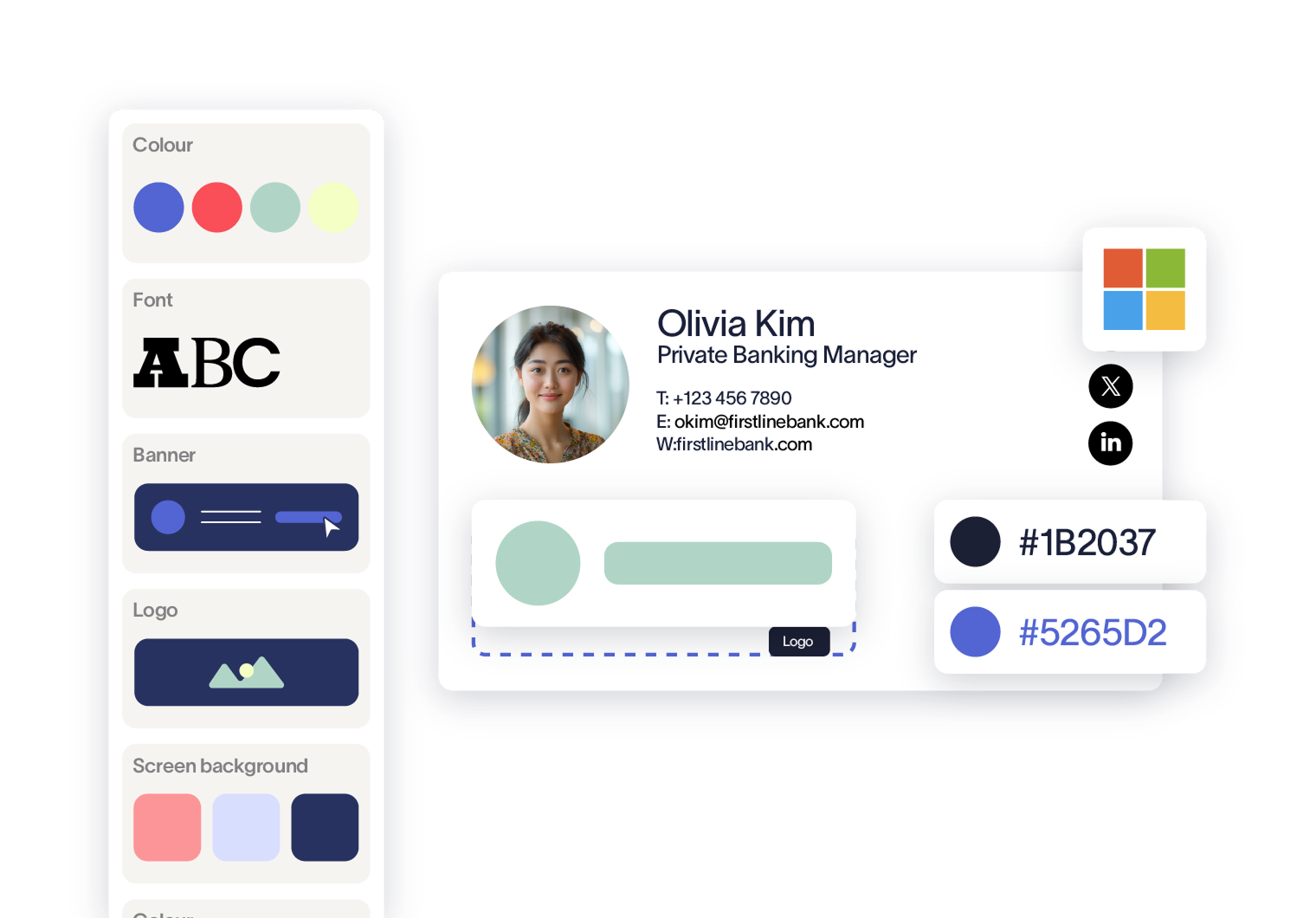
This is where Exclaimer comes in. With Signature Rules, you control exactly what goes into every email signature template centrally, without relying on each employee to get it right on their own. Want an animated GIF across the whole organization's signatures? Deploy it once from a single admin console. Decide against it, and no one can add one on their own.
Learn about getting brand consistency with Exclaimer, or book an online demo to see Exclaimer in action