







Microsoft 365
Seamlessly manage email signatures across all users within Microsoft 365. Centralized control means consistent branding, compliance, and updates without needing to configure individual devices.







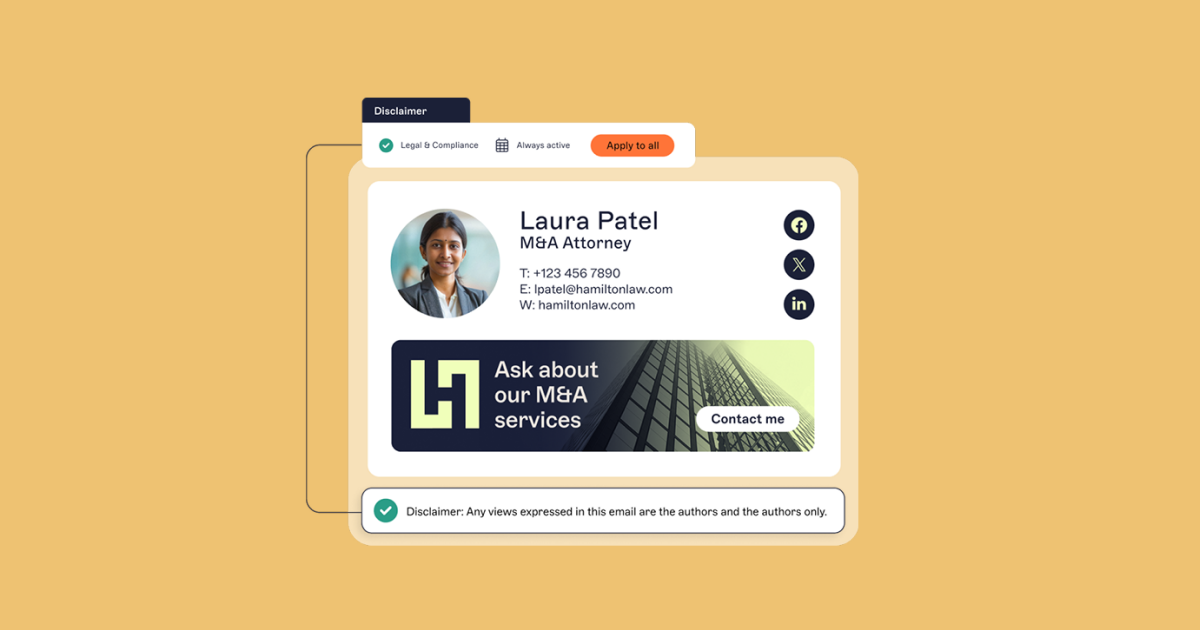
A professional email signature is a structured block of text that automatically appears at the end of an email. It includes important details like the sender’s name, job title, company name, phone number, and email address.
Many professional signatures also feature a company logo, brand colors, social media links, legal disclaimers, and, where appropriate, promotional banners or survey links.
An effective professional signature acts as a digital business card, helping recipients identify the sender quickly while reinforcing brand credibility. A strong email signature design creates consistency across all emails, building trust and ensuring every interaction feels professional.
Including an email signature manager, such as Exclaimer, allows businesses to maintain brand consistency, save time, and manage signatures centrally across platforms like Outlook and Gmail.
A well-designed email signature strengthens your brand, builds trust, and makes it easy for people to get in touch. Here’s how to create a professional signature email that leaves a positive impression with every message.
Include the essentials: The foundation of a professional email signature is clear, accurate information. Always include you full name and job title, company name, direct phone number, email address, and link to your company's website. This ensures your contacts have immediate access to the right details without searching elsewhere.
Personalize with purpose: While consistency matters, adding a small personal touch can make your email signature more memorable. A short call-to-action, a link to book a meeting, or a discreet tagline can help. Avoid adding quotes or graphics that don't align with your brand or message.
Keep the design simple: Use a straightforward layout that avoids clutter. Focus on delivering essential information without overwhelming the reader. Limit the number of graphical elements and stick to a layout that works well across both desktop and mobile screens.
Use visuals to reinforce your brand: Including your company logo or a small profile picture can help reinforce your professional identity. Keep images optimized for fast loading and consistent appearance across platforms like Outlook and Gmail.
Add links to relevant profiles: Expand your professional presence by linking to official company social media accounts or your LinkedIn profile. Use recognizable icons rather than full URLs to maintain a clean, polished look.
Keep it up to date: An outdated email signature damages credibility. Regularly review your signature and update it if your contact information, role, or branding changes.
Choose readable fonts and consistent colors: Use standard, web-safe fonts like Arial, Calibri, or Verdana. Keep color schemes aligned with your corporate branding. Avoid using too many colors, which can make your email signature look cluttered and unprofessional.
Meet legal requirements: Depending on your industry or location, specific disclaimers or registration details may need to be included in your email signature. Always check for any legal requirements that apply to your communications.

Optimize and test: A professional email signature should display consistently across devices. Test your signature on both desktop and mobile to make sure it retains its design integrity everywhere it’s seen.
A professional email signature reflects your attention to detail, reinforces brand consistency, and helps every email you send make a strong, lasting impact.












Visuals help make your email signature instantly recognizable and more memorable.
Consider adding:
Visual features should complement your core information without overwhelming the design. Aim for balance between imagery and text so that the signature remains clear on both desktop and mobile devices.

Adding social features to your email signature encourages recipients to engage with your brand in more meaningful ways. Use subtle, recognizable icons instead of full URLs to maintain a clean layout.

Including a disclaimer in your email signature is essential for many industries.
Legal disclaimers help:
Common types of disclaimers include confidentiality notices, legal responsibility disclaimers, and copyright statements. Place the disclaimer at the bottom of the signature in a smaller, lighter font to keep the main content clear.
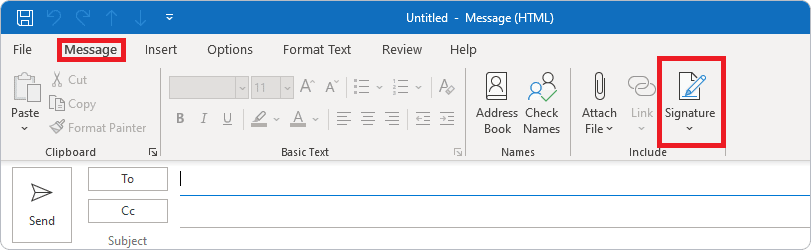
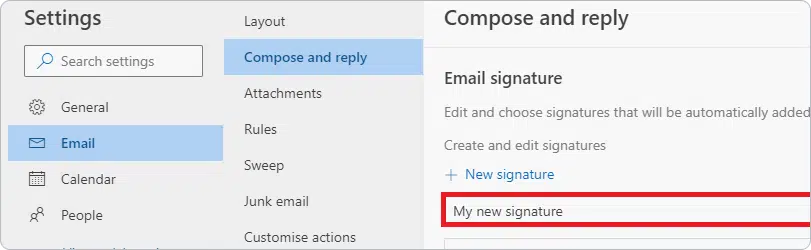
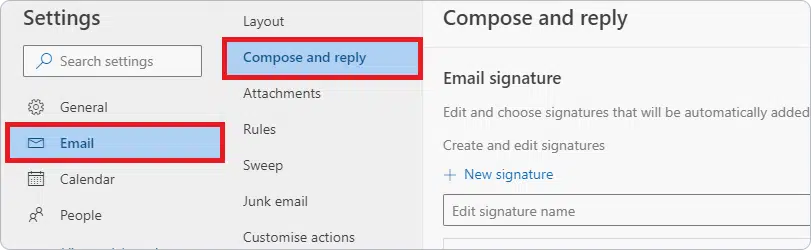
Setting up a professional email signature in Outlook helps maintain brand consistency and ensures every message looks polished.
Follow these steps to create your Outlook email signature.
Open Outlook settings: Open Microsoft Outlook. Click File in the top-left corner. Select Options from the sidebar.
Access the signature settings: In the Outlook Options window, choose Mail. Click the Signatures... button to open the Signatures and Stationery dialog.
Create a new Outlook signature: Under the Email Signature tab, click New. Enter a name for your signature to keep track of it easily.
Design your professional email signature: In the editing pane, add your full name, job title, company name, direct phone number, and email address.
Add branding visuals: Click the image icon to insert your company logo or a professional headshot.
Set default signature preferences: Choose the email account where you want this signature to appear. Set it as the default for new emails and for replies or forwards if needed.
Save and finalize your signature: Click OK to save your Outlook signature.
Setting up a professional email signature in Gmail helps maintain consistent branding and provides important contact information at the end of every message.
Follow these steps to create your Gmail signature.
Access Gmail settings: Open Gmail in your browser. Click the gear icon in the upper-right corner, then select See all settings from the dropdown menu.
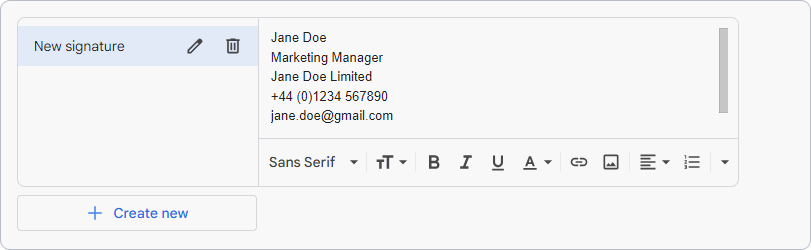
Find the signature section: In the General tab, scroll down to the Signature section. Click Create new, and give your new signature a recognizable name.
Design your professional Gmail signature: Use the Gmail editor to add your full name, job title, company name, direct contact information, and website link. Keep the layout simple and easy to read across devices.
Add branding visuals: Click the Insert image icon to upload your company logo or a professional headshot. Use optimized images that display well on both desktop and mobile screens.
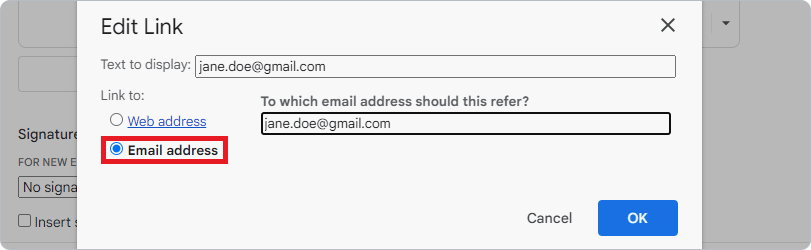
Insert hyperlinks: Highlight any text or image in your signature, then click the Link icon to add URLs. Include links to your company website, LinkedIn profile, or other relevant social media pages.
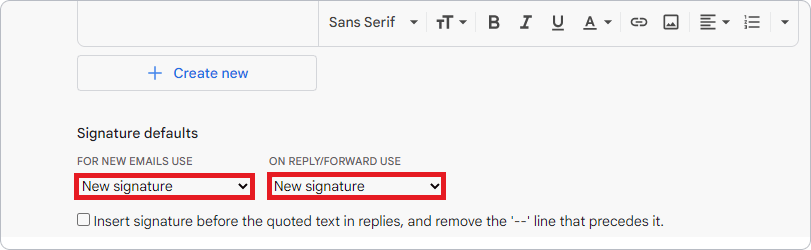
Set your Gmail signature preferences: Scroll to the Signature defaults section. Choose which email address your signature should be associated with and decide if it should appear in new emails, replies, and forwards.
Save your new Gmail signature: Scroll to the bottom of the settings page and click Save Changes. Send yourself a test email to confirm that your professional Gmail signature appears as intended.
-
Exclaimer makes it simple to manage professional email signatures, no matter which platform your business uses. Whether you're working in Microsoft 365, Google Workspace, or Microsoft Exchange, you can create consistent, branded email signatures across your entire organization.
Seamlessly manage email signatures across all users within Microsoft 365. Centralized control means consistent branding, compliance, and updates without needing to configure individual devices.

Design and deploy professional email signatures across Gmail users in Google Workspace. Keep every signature on brand and up to date, no matter how large your organization grows.

Apply centralized email signatures across Microsoft Exchange environments. Maintain consistent sign-offs even in hybrid setups, and simplify administration across on-premises servers.
Understanding how to design, manage, and maintain a professional email signature helps your communications look consistent and credible. Here are answers to the most common email signature questions.
You can manually create an email signature using the settings within your email client, such as Outlook, Gmail, or Apple Mail. These platforms offer basic editing tools that allow you to add text, hyperlinks, and images.
For more advanced features and design consistency, many businesses use an email signature management solution like Exclaimer, which provides professional templates and automated updates across your organization.
Keep your signature concise and easy to read. Use a clear, web-safe font and limit the size of images to avoid slow loading. Make sure the signature looks good on smartphones and tablets by testing it across devices. Remove outdated information, such as old job titles or incorrect links, and update your signature regularly to maintain a professional appearance.
Yes, images like company logos or professional headshots can enhance your signature if used carefully. Keep image sizes small—ideally under 10kb—to avoid slowing down emails or causing display issues. Host images on a reliable server to improve loading speed and ensure consistent appearance across different email clients.
Some details can clutter your signature or confuse recipients. Avoid including personal information not relevant to business communication, excessive quotes, multiple fonts, or too many promotional links. A professional email signature should be clean, informative, and purposeful.
It’s good practice to review your email signature every six months, or immediately when your job title, contact details, or company branding changes. Keeping your signature up to date maintains credibility and avoids missed connections.
HTML text signatures are generally preferred because they load faster, are accessible on all devices, and are less likely to trigger spam filters. Image-only signatures can cause formatting problems and may not display correctly in all email clients.
Start by selecting a pre-designed template from Exclaimer’s gallery or create a custom signature tailored to your brand. Exclaimer’s intuitive editor allows you to position key elements easily, including logos, banners, and legal disclaimers.
Once set up, Exclaimer automatically applies your professional email signature to every outgoing message, keeping branding consistent without requiring manual updates.