7 steps to deploy consistent branded backgrounds across Zoom & Teams
28 January 2026
0 min read
TL;DR
Consistent, branded meeting backgrounds help teams look professional on every call while keeping brand and compliance in check.
Start with clear brand rules so every background follows the same standards for logo use, color, type, and accessibility.
Design high-quality master assets for Zoom and Teams that work across devices, cameras, and lighting conditions.
Centralize backgrounds in a single library with clear naming, version control, and controlled localization to avoid brand drift.
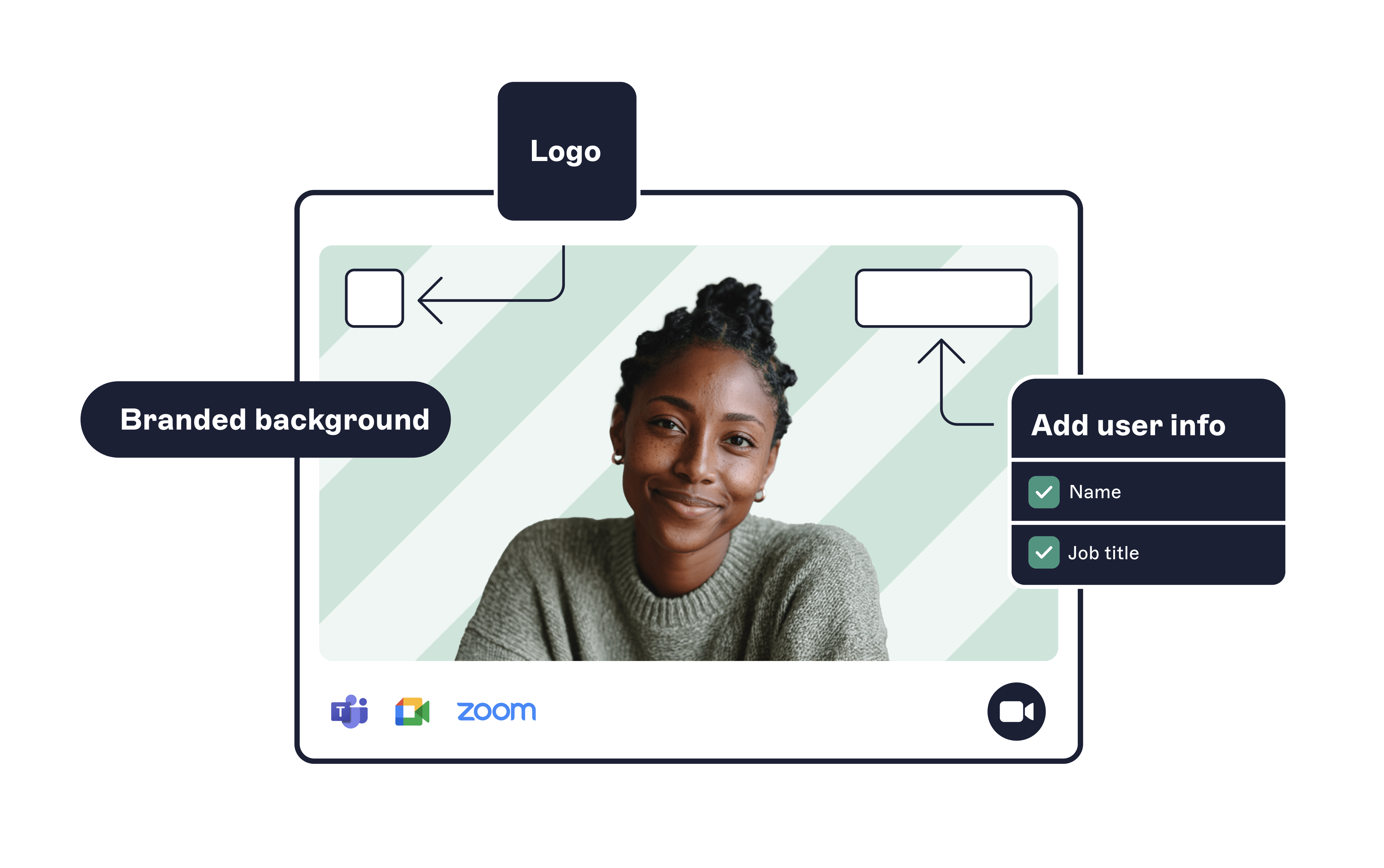
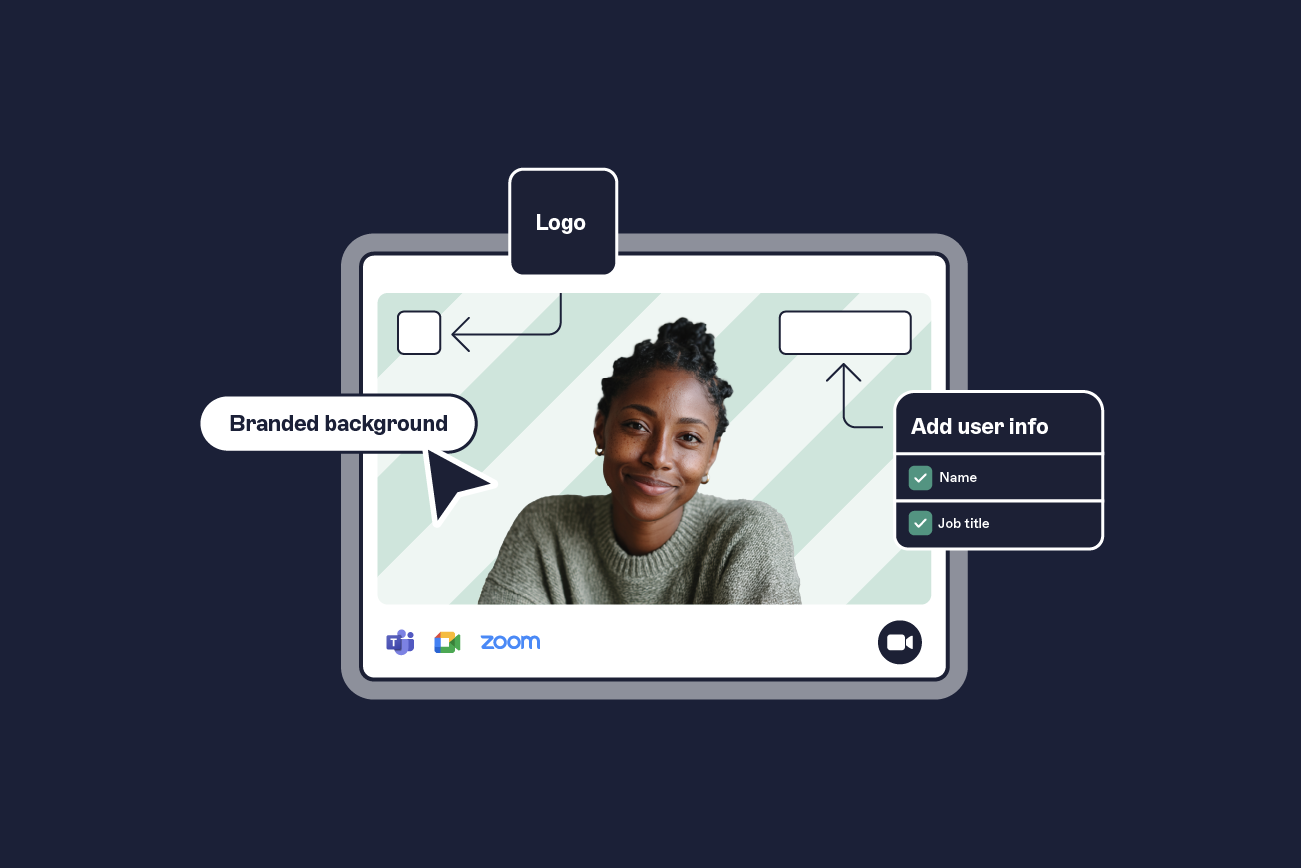
Use Exclaimer Meeting Branding to automate deployment, enforce approved backgrounds across Zoom and Teams, and manage updates at scale.
A consistent, branded virtual background helps teams look professional on every call. IT can manage backgrounds centrally across Zoom and Microsoft Teams, with clear brand rules, admin controls, and light governance.
This step-by-step guide shows IT and marketing how to roll out approved backgrounds at scale, limit personal uploads, and keep assets up to date so every employee stays on brand. You’ll also find practical tips for testing, training, and reporting, plus options to automate cross-platform deployment with tools like Exclaimer Meeting Branding.
1. Define brand templates and rules
Start with the brand before you design anything. Set clear rules for logo use, color, type, and accessibility, so every background follows the same standard. Use pre-approved templates to keep layouts consistent, no matter who creates the asset.
Define safe zones so faces never cover logos or text, and plan how designs adapt across aspect ratios. Include contrast guidance, so text stays readable in varied lighting. Strong brand templates already cover placement, color, type, and messaging as seen in Zoom’s brand positioning templates. Apply that same discipline to virtual backgrounds to keep every call consistent and on brand.
Generate your branded Zoom background in seconds
Upload your logo, choose a style, and download your custom design now.

2. Design master background assets
Create high-quality master assets that look clean on laptops, external cameras, and mobile devices. Build both desktop and mobile versions so faces, logos, and callouts stay visible across devices and camera angles.
Zoom: Use 1280 × 720 pixels or higher in JPEG or PNG to reduce blur and compression. For optimal performance, use 1920 × 1080 pixels. Keep designs simple and uncluttered for better background separation.
Microsoft Teams: Supports JPEG or PNG from 360 × 360 pixels up to 3840 × 2160 pixels. A 16:9 layout works well in most cases.
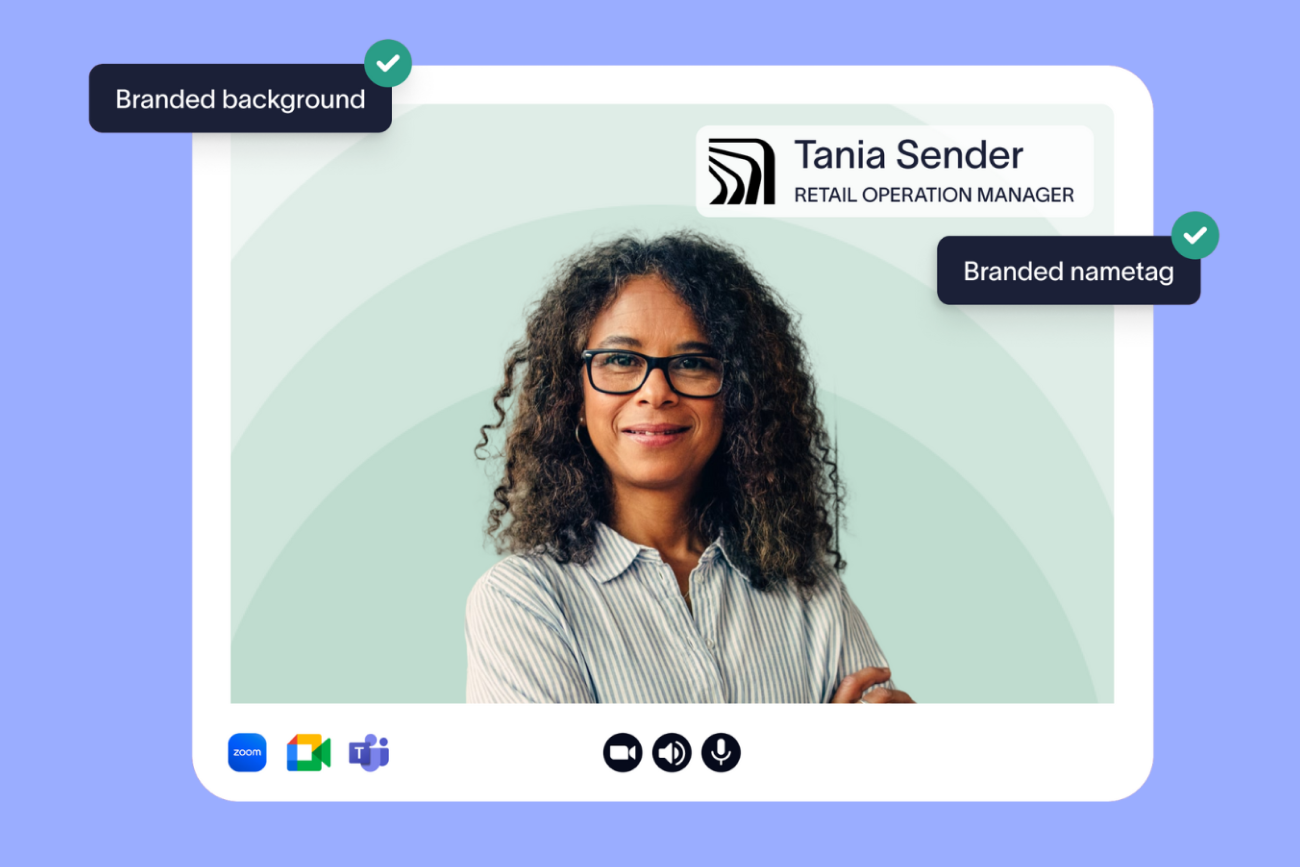
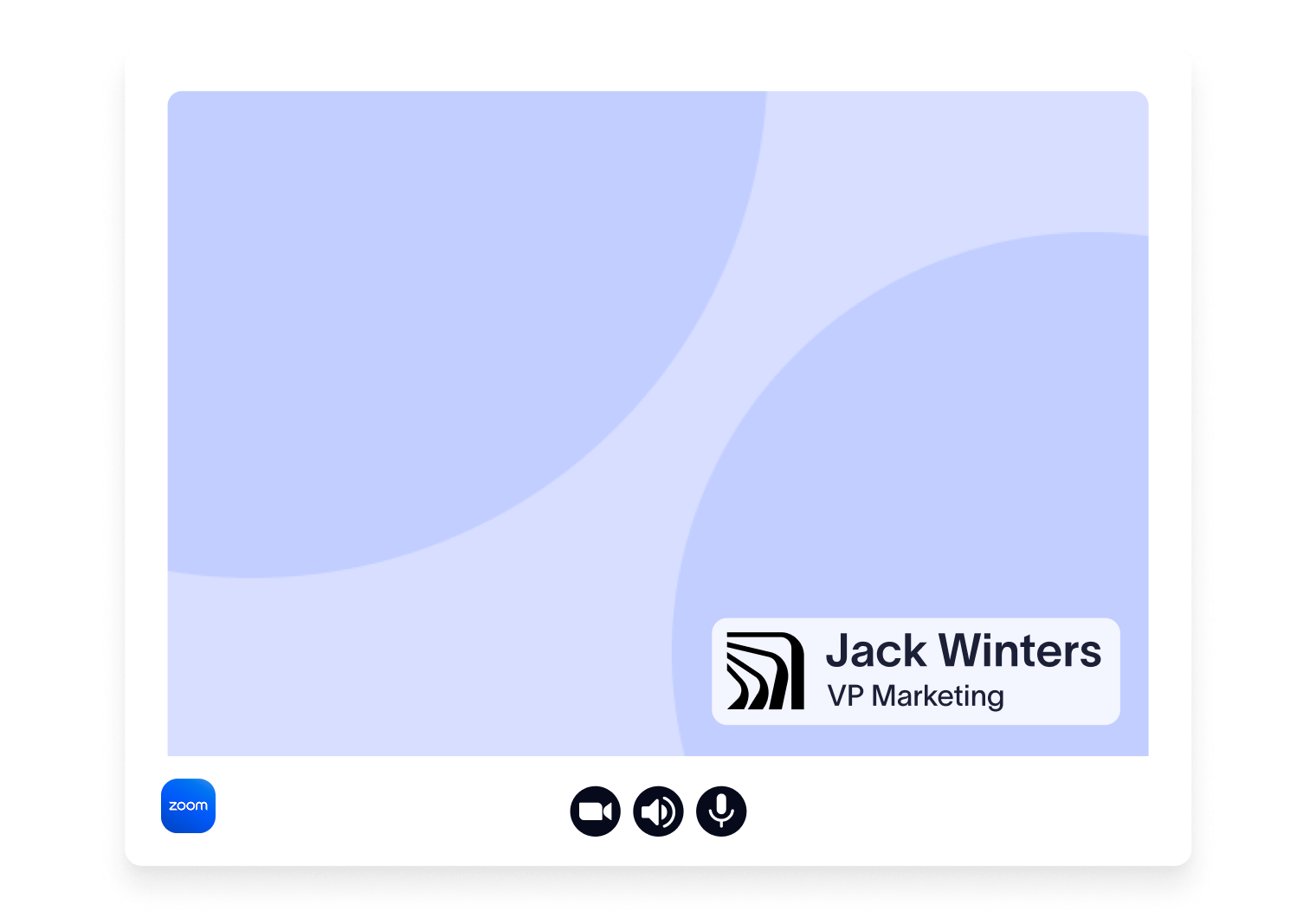
Keep logos and small text out of the head-and-shoulders area. Use strong contrast and avoid fine lines that can shimmer under video compression. Where it helps, add branded name tags that pull from your directory to show name, role, and company logo. This is especially useful on external calls and in large organizations.
3. Build a template library and versioning system
Centralize everything. A single source of truth keeps versions aligned and makes updates faster.
Use a clear naming convention: Encode department, location, contrast level, and version, so assets are easy to find and replace. For example: Dept_London_HighContrast_v1.png.
Store assets in one place: Use a digital asset manager or a purpose-built background tool to simplify access and cut down on duplicates.
Enable local ownership without losing control: Let regional teams create localized variants but lock core rules in the master templates. That way, teams can move quickly without drifting from brand standards.
Suggested library fields:
Field | Description |
File name | Encoded name: Dept_Location_Contrast_vX |
Department | Team/business unit (BU) ownership (e.g., Sales, Support) |
Audience/Use case | Internal, external, event-specific |
Resolution/Aspect | 1920×1080, 1280×720, 9:16 variant, etc. |
Safe-zone variant | Placement rules and overlays used |
Format | JPEG or PNG |
Owner/Approver | Content owner and brand approver |
Version | Semantic version (v1.2.0) |
Last updated | Date of last change |
Status | Approved, In review, Retired |
4. Configure admin settings for Zoom and Teams
Lock in consistency by enforcing approved backgrounds and limiting personal uploads at the platform level.
Zoom (account-level)
In the Zoom web portal, go to Account Settings > In Meeting (Advanced) > Virtual Background.
Turn on Virtual Background, then use Manage virtual backgrounds to upload approved images for the account or selected groups. If needed, block user uploads to prevent unapproved images.
Before rollout, check device compatibility and system requirements so users don’t hit issues on day one.
Microsoft Teams (tenant-level)
In the Teams Admin Center, open Meetings > Meeting policies or Customization policies.
Enable background effects and upload your approved images. Apply the policy to specific users or groups. Teams supports JPEG or PNG files from 360 × 360 pixels up to 3840 × 2160 pixels, with 16:9 working best in most cases.
Use policies to limit or block personal uploads, so only approved backgrounds are available.
These controls let IT standardize what users see and use, keeping branding consistent across devices and accounts. If you want to automate rollout and auditing across Zoom and Teams, centralized tools can push approved backgrounds to both platforms from one place, such as Exclaimer Meeting Branding.
5. Pilot and test background deployment
Run a short pilot before rolling this out company-wide. Include a mix of departments, devices, cameras, and lighting setups. Check readability, background edge detection around hair and chairs, and whether any elements appear mirrored.
Keep a lightweight test log. Note image sharpness, logo visibility, color contrast, motion artifacts, CPU and GPU impact, mobile behavior, and any accessibility concerns. This small upfront step helps you catch problems early and saves cleanup work later.
6. Train employees and roll out brand backgrounds
Give employees a short, practical guide that shows where approved backgrounds live and how to use them.
Cover the basics: Show how to select, preview, and troubleshoot backgrounds in Zoom and Teams. Call out any account-level limits and where to find the approved library.
Share quick setup tips: Include guidance on lighting, camera angle, and previewing the background before external meetings to avoid surprises.
Keep it lightweight: Offer a short video and a one-page PDF for quick reference. Recommend branded backgrounds for all external calls, and require them for sales, support, and recruitment.
Add clarity on calls: Where available, promote branded name tags that display name, role, and company logo. They help customers and large internal groups know who’s speaking at a glance.
Clear guidance and simple assets drive adoption without creating extra work for IT.
7. Govern and monitor background usage and updates
Treat backgrounds as living assets. Plan updates, track adoption, and retire outdated designs in a controlled way.
Refresh on a schedule: Update assets for seasons, campaigns, or rebrands. Set clear retirement dates for older files to avoid version drift.
Track what’s used: Review platform analytics and IT logs to spot adoption trends. Gather feedback from customer-facing teams and keep an audit trail of approved versions and rollouts.
Suggested governance cadence
Activity | Frequency | Trigger | Owner |
Usage review | Monthly | Drop in adoption or support tickets | IT operations (IT Ops) |
Brand check | Quarterly | Campaigns, events, or rebrand | Marketing |
Accessibility audit | Biannually | New device types or policies | Compliance |
Asset refresh | As needed | Product launches, seasonal updates | Marketing + Design |
Policy review | Annually | Platform feature changes | IT Admin |
Elevate your meeting experience with consistency and control
By following these seven steps—from defining brand rules and designing master assets to enforcing policies, training users, and governing updates—you’ll deliver a consistent, professional meeting experience across Zoom and Teams.

To automate video background deployment, maintain control at scale, and simplify cross-platform governance, see how Exclaimer Meeting Branding can help and request a demo today.