by Dave Willis
Sensitivity labels in Microsoft 365: what they are and how to use them
3 June 2026
0 min read
TL;DR
Sensitivity labels are Microsoft 365’s way to classify and protect documents and emails, controlling who can open content and what they can do with it.
Because a label stays attached to its content even after it leaves your organization, it offers more than a standard access permission can.
Microsoft provides default labels from Personal to Highly Confidential, all configured in Microsoft Purview and refined by most teams over time.
Labels also add some friction, from a small performance cost to occasional app quirks, so reserve the strictest controls for data that genuinely needs them.
What labels don’t cover is the email signature and disclaimer attached to a message, which leaves a whole layer of every email outside their reach.
The fix is to manage that signature layer the same way you manage labels: centrally and by rule, through dedicated email signature management.
What are sensitivity labels in Microsoft 365?
A sensitivity label is a classification you attach to a document or email that carries your protection rules with it wherever the content travels. That persistence is what separates a label from a standard access permission.
Ordinary permissions stop at the edge of your environment. Once a file is downloaded or forwarded, the control is usually gone.
A sensitivity label works differently. Because the classification and its rules are bound to the content itself, the protection holds even after a document leaves your organization. If someone receives a labeled file they aren’t authorized to open, the label can keep them out.
A single sensitivity label can enforce a range of actions:
Access control: restrict who can open, edit, or view the content, down to a specific group or person.
Usage restrictions: block copying, printing, or forwarding so the content can’t be reused outside the rules you set.
Content marking: add a header, footer, or watermark that flags the content as confidential to anyone who sees it.
Automatic application: apply a label on its own when it detects sensitive data such as account numbers, passport details, or source code.
Most organizations build a set of labels rather than relying on one. Each label maps to a level of sensitivity: a general label for routine internal material, a confidential label for financial reports, and a top-tier label for the few critical assets only named people should open. This tiered approach lets you match protection to risk instead of applying one blanket rule to everything.
What to consider before using sensitivity labels
Sensitivity labels add real protection, but they also add friction. Before you roll them out, it’s worth knowing the trade-offs so you can configure them to protect data without frustrating the people who use it every day.
Expect a small performance cost. Every time someone opens a labeled document or email, the app checks the protection rules before granting access. That verification is usually quick, but it adds a step that becomes noticeable on slower connections or with large files.
Labels are thorough, sometimes more than people expect. When a label blocks copying, it doesn’t just disable Ctrl+C. It can also stop screenshots, capture from OCR tools, and content sharing in Teams. That’s exactly what you want for genuinely sensitive material. It’s less welcome when someone needs to present a labeled document in a meeting and finds the content won’t display for anyone else.
Heavily protected files can occasionally behave oddly in Office apps. A document might appear checked out to someone else when it isn’t, or an app might crash while saving or opening protected content. These issues are rare, but they show up more often in older desktop versions of Outlook.
None of these are reasons to avoid sensitivity labels. They're reasons to apply them deliberately. Over-protecting routine content creates support tickets and workarounds without adding meaningful security, so reserve the strictest controls for the data that genuinely needs them.
What are the default sensitivity labels in Microsoft 365?
Microsoft provides a set of default sensitivity labels you can switch on quickly to get baseline protection in place. They won’t fit every business exactly, but they’re a useful scaffold you can build on by editing them or adding your own.
The defaults run from least to most restrictive, so you can map most content to one of them without designing a scheme from scratch:
Label | Applies to | Intended for |
|---|---|---|
Personal | Files, email, meetings | Personal, non-business content |
Public | Files, email, meetings | Content meant for public distribution |
General | Files, email | Internal content that may be shared externally, with sublabels for wider or employee-only audiences |
Confidential | Files, email | Sensitive business data like contracts, reports, or sales figures, with sublabels controlling the recipient scope |
Highly Confidential | Files, email | The most sensitive data, such as passwords, source code, or customer records, restricted to specific people |
You can generate these defaults in the Microsoft Purview portal, but only before you’ve created any labels of your own. Once they exist, you can preview and edit them, then publish them to users through a label policy. Most teams refine the defaults over time, renaming labels to match internal terminology or adding tiers for specific departments.
One thing worth keeping in mind: more labels aren’t always better. A long list of near-identical options slows people down and leads to inconsistent choices. A handful of clearly named, well-differentiated labels works better than a dozen overlapping ones.
What sensitivity labels don’t cover
Sensitivity labels protect the content inside a message, but their reach has a clear edge. They don’t touch the email signature or disclaimer attached to that message, which means a whole layer of every email sits outside Purview.
A label travels with the content it classifies. It controls who can open a document, what they can do with it, and whether the protection holds after the file leaves your organization. What it has no awareness of is the block of text appended to the bottom of every email your people send. The signature and disclaimer aren’t part of the content a label governs, so they fall outside its scope entirely.
For most organizations, that’s a bigger blind spot than it first appears. An email signature does real work. It carries the legal disclaimer that keeps regulated messages compliant, the contact details recipients rely on, and the logo and layout that make an email recognizably yours. Each of those is a small governance decision, repeated across every message that leaves the building.
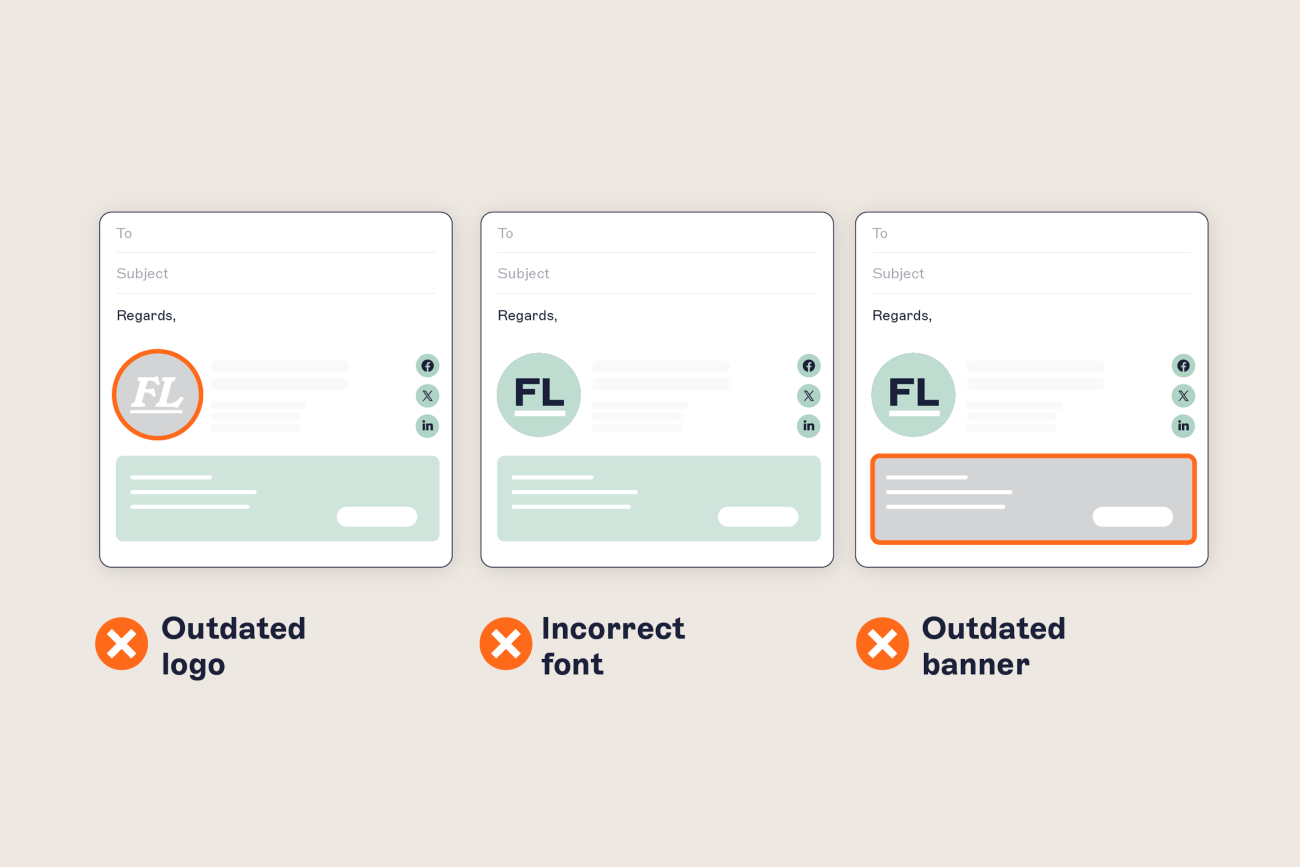
And it’s the layer most organizations leave to chance. In Exclaimer’s State of Business Email 2025 research, only 18% of organizations use centralized email signature management, while 80% still rely on manual methods or let employees manage their own. Content classification gets locked down through Purview, while the email signature layer runs on copy-paste. The result is inconsistent branding, missing or outdated disclaimers, and no reliable record of what actually went out.
How to govern email beyond sensitivity labels
Closing the gap means treating the email signature layer the way you treat content classification: centrally controlled, rule-based, and consistent across every user. That’s the job of dedicated email signature management.
Sensitivity labels and email signature management solve different problems, and they work well side by side. Labels protect what’s inside the message. Signature management governs what’s wrapped around it. Between them, both halves of every outbound email are covered.
The principle that makes labels effective, central control instead of per-user effort, is exactly what the signature layer needs. Done properly, email signatures are deployed server-side from one place, so every message carries the correct, current signature whatever device or app it was sent from.
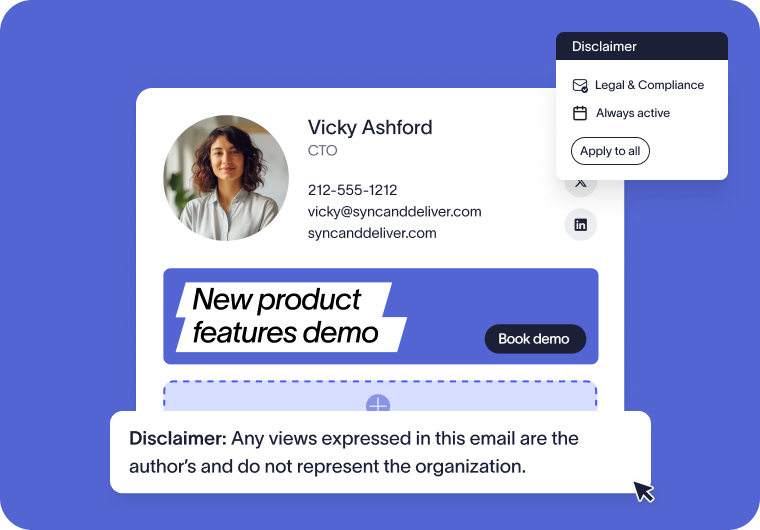
The same approach applies to legal text. With a dedicated platform, disclaimers are applied automatically by rule, per user, region, or audience, and employees can’t edit or remove them. That’s the difference between hoping the right disclaimer is present and knowing it is.
This is the category Exclaimer has worked in for over 20 years, and it’s now trusted by more than 80,000 organizations worldwide. Exclaimer’s cloud solution applies email signatures and disclaimers centrally across Microsoft 365 and Google Workspace, with a full record of what was applied and when. It governs the email signature layer the way Purview governs content: by rule, from one place, without depending on individual users to get it right.
The bottom line for IT teams
Sensitivity labels do one job well: they control who can open your content and what they can do with it. They’re worth using. They just aren’t the whole picture of what leaves your organization.
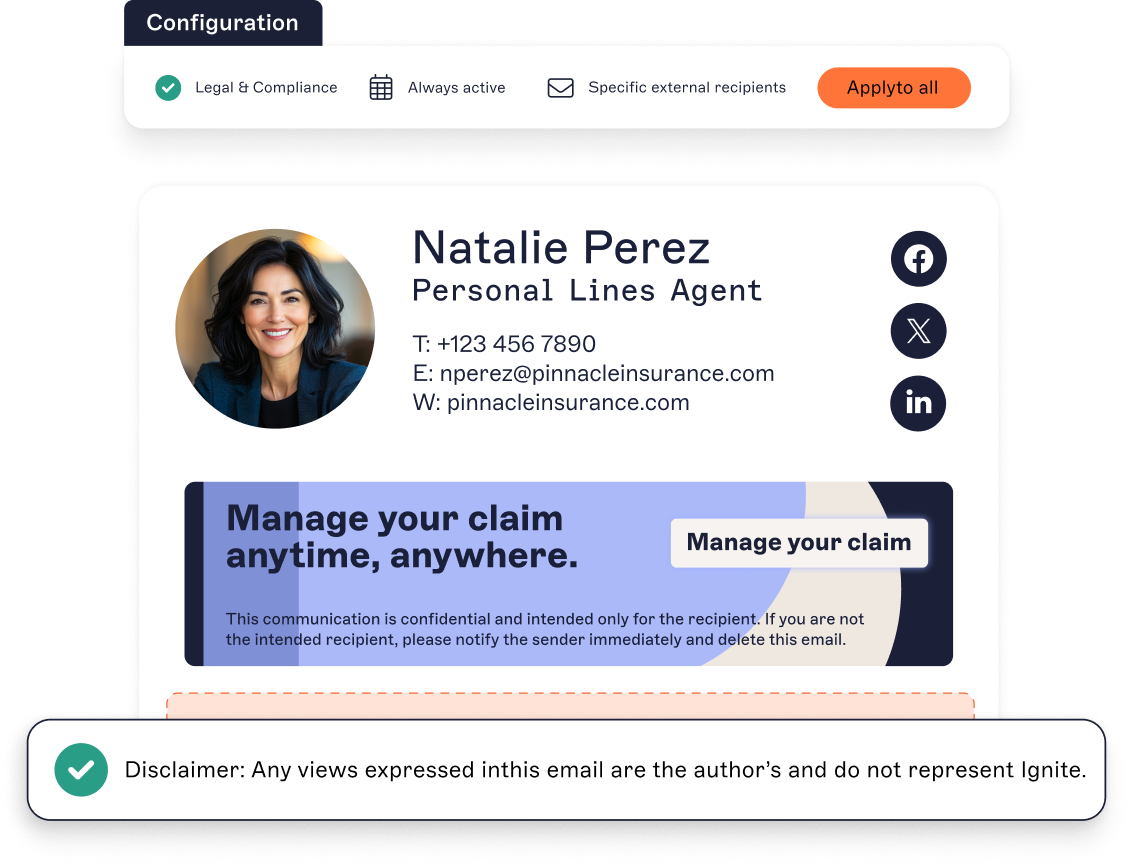
Every outbound email has two layers worth governing, and labels handle only the first. The second is the email signature layer, your branding and your legal disclaimers, and it needs the same central, rule-based control that makes labels effective. Leaving it to individual users is how disclaimers go missing and branding drifts.
So treat both as part of one governance picture rather than two separate tasks. Configure your labels deliberately, reserve the strictest controls for the data that needs them, and hold the signature layer to the same standard, so every message that goes out is consistent, compliant, and recognizably yours.
Next step: see how centralized email signature management closes the gap labels leave, with Exclaimer’s email signature management platform.