How to create a professional meeting background
31 October 2025
0 min read
Online meetings have become the default way businesses communicate with clients, partners, and colleagues. Yet while companies invest a lot in their brand identity across digital platforms—including through email signature management—video call backgrounds often get forgotten.
The result? A distracting mix of personal photos, cluttered spaces, and visuals that don’t reflect your brand.
A professional, branded meeting background is one of the easiest ways to bring consistency, credibility, and polish to every video call. Here’s how to get started.
Why a professional meeting background matters
Video calls are as critical to business communication as email. Leaving backgrounds unmanaged leads to inconsistencies and can damage brand perception.
Meeting backgrounds are essentially another visual extension of your brand. When used correctly, they can positively shape how employees are seen and how your company is remembered.
Make a strong first impression: A professional meeting background communicates authority before a single word is spoken. Just as a clean office reflects well on a business, a branded backdrop signals professionalism and reliability.
Maintain consistency across teams: When everyone uses the same look, meetings feel organized and unified. It avoids the “polished vs. casual” imbalance that happens when backgrounds are unmanaged.
Reinforce brand identity: Every client-facing call becomes another branded touchpoint. Logos, colors, and design elements reinforce recognition and build trust over time.
Boost credibility and trust: A branded backdrop makes meetings feel more secure and intentional. It shows stakeholders that you take every interaction seriously.
Together, these benefits turn every video call into an opportunity to strengthen your company’s brand and reputation.
How to design a video background (best practices)
The best designs balance brand expression with usability. Your video background should present your brand in a polished, professional way without being a distraction.
Here are some tips to keep in mind:
Use brand colors and logos carefully
Stick to official brand guidelines. Place the logo in the top or bottom corner to avoid covering the speaker’s face. Avoid oversized logos that dominate the frame.Keep designs clean and distraction-free
Avoid text-heavy layouts, busy imagery, or anything that pulls focus away from the person speaking. Solid colors, subtle gradients, or clean patterns work best.Choose the right format and resolution
For many platforms, the recommended video background size is 1920 x 1080 pixels (16:9 ratio). Brand icons should be 150 x 150 pixels with a transparent background. Use JPEG or PNG files under 5MB.Ensure readability across environments
A video background that looks good in one setting may not work in all instances. Test designs in bright, dim, and mixed lighting to confirm visibility. High contrast between the background and text is key.Adapt designs for different contexts
Not all meetings are the same. An external-facing webinar or sales pitch may benefit from a background featuring a company slogan, for instance, while internal updates might only require a simple branded design. Use tools like Canva or Adobe to create custom backgrounds for different use cases or leverage your internal design team.
Following these best practices ensures your video backgrounds remain professional and aligned with your brand in every setting.
What is Meeting Branding by Exclaimer?
Designing backgrounds is straightforward enough. The real challenge lies in deploying them consistently across hundreds—or even thousands—of employees.
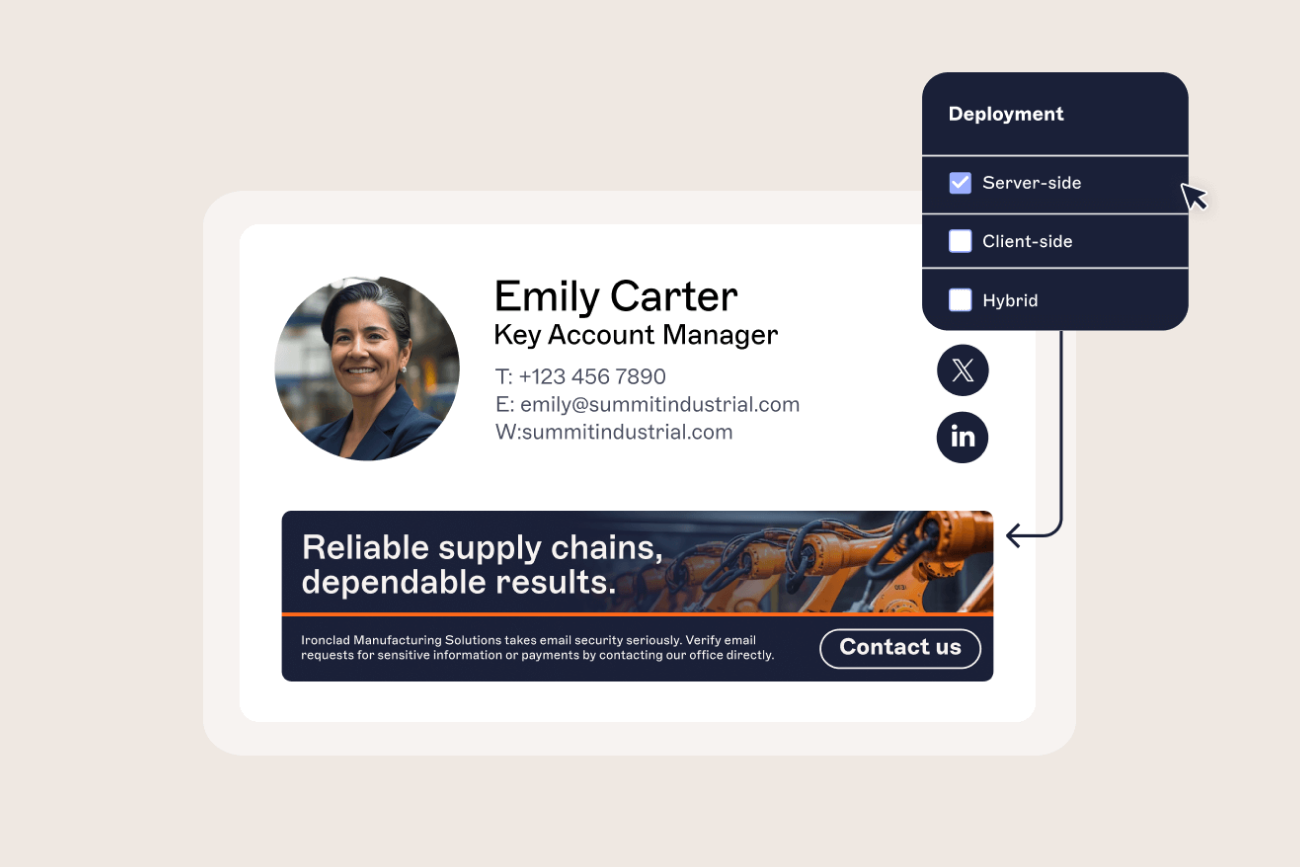
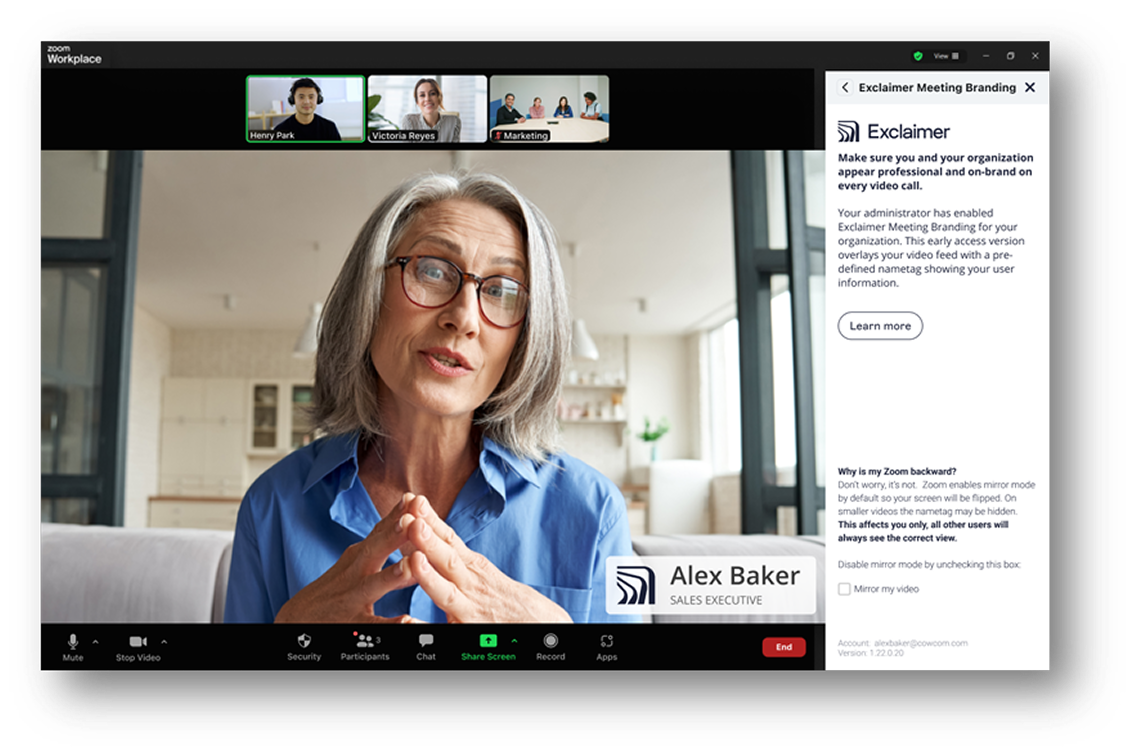 Exclaimer’s email signature management solution brings brand consistency to emails. The Meeting Branding feature lets IT teams also centrally manage and deploy video call backgrounds and overlays. Designs stay consistent. Compliance risks are removed. Updates apply instantly across the organization.
Why use Meeting Branding?
Meeting Branding gives your organization control over how employees appear on every call. This ensures brand consistency, clarity, and professionalism.
Apply branded video call backgrounds across the organization with just a few clicks.
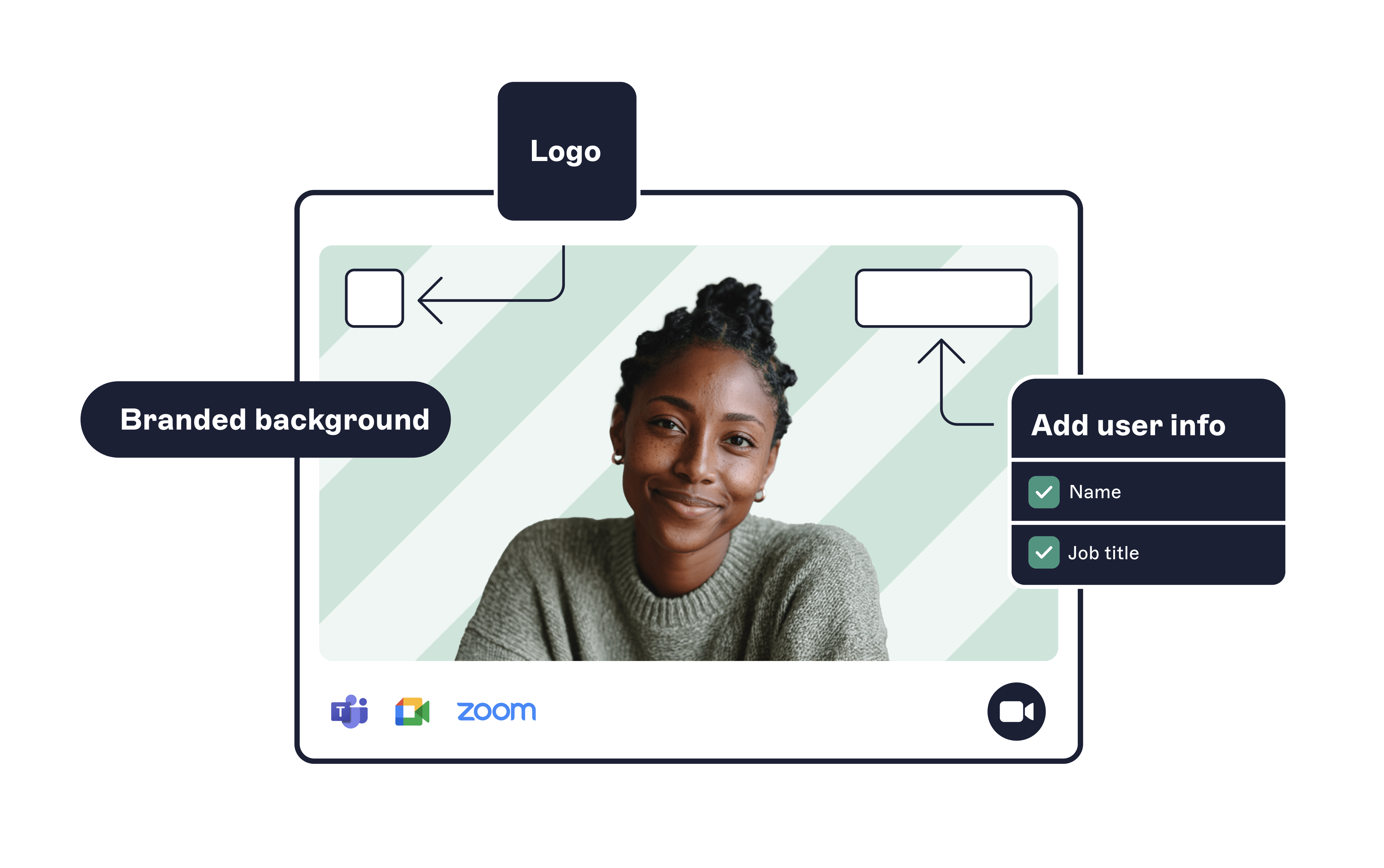
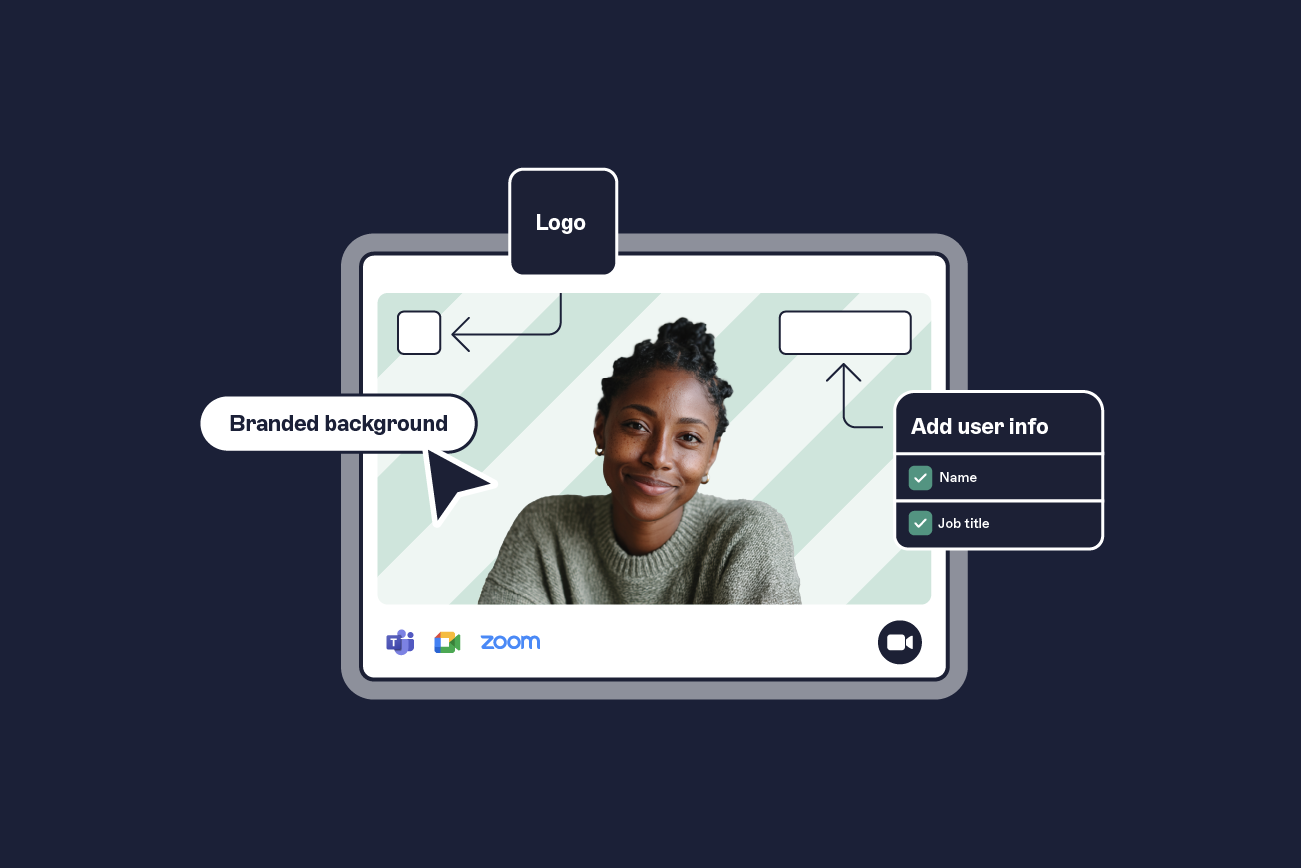
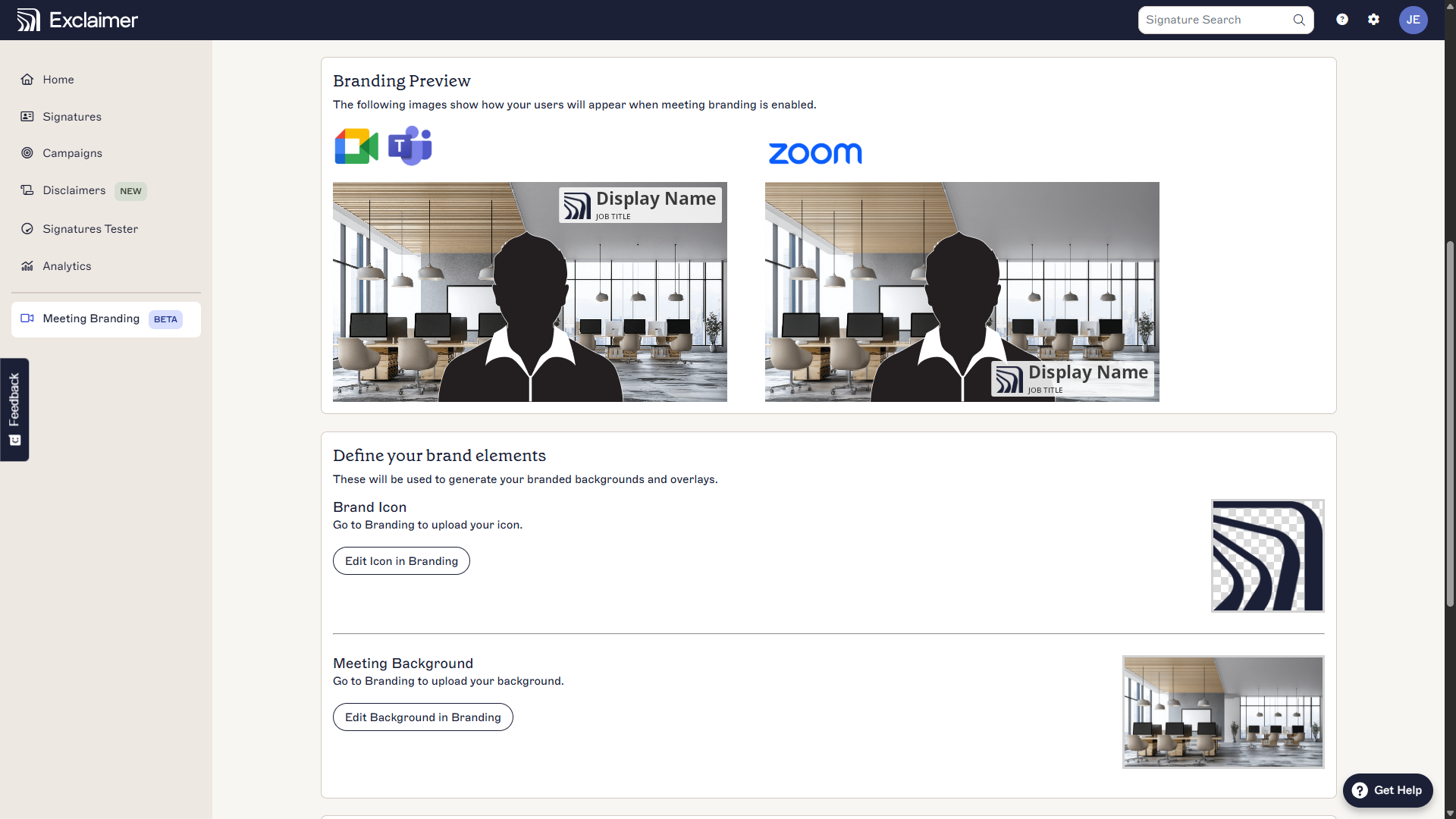
Add custom overlays showing participant details, such as name, job title, and company logo.
Keep contact information accurate by syncing details automatically from your user directory.
Maintain brand consistency across platforms such as Microsoft Teams, Google Meet, and Zoom without extra IT effort.
Reduce IT support requests from employees struggling to set up their own backgrounds.
Manually distributing templates and relying on employees to set them up doesn’t scale. It’s inconsistent, time-consuming, and adds extra work for IT every time there’s a new starter, a title update, or a brand refresh.
How Meeting Branding works
Getting started with Meeting Branding is simple:
Step 1: Access Meeting Branding
Log into the Exclaimer portal.
In the sidebar, select Meeting Branding.
Step 2: Sync your user directory
Connect your user directory to Exclaimer to ensure employee details—like name, title, and department—are always up to date.
Exclaimer integrates with popular user directories such as Microsoft Entra ID (Azure ID) and Google Workspace Directory.
Step 3: Define your brand elements
Upload your brand icon (150 x 150px with a transparent background).
Add your meeting background (1920 x 1080px).
Step 4: Deploy across platforms
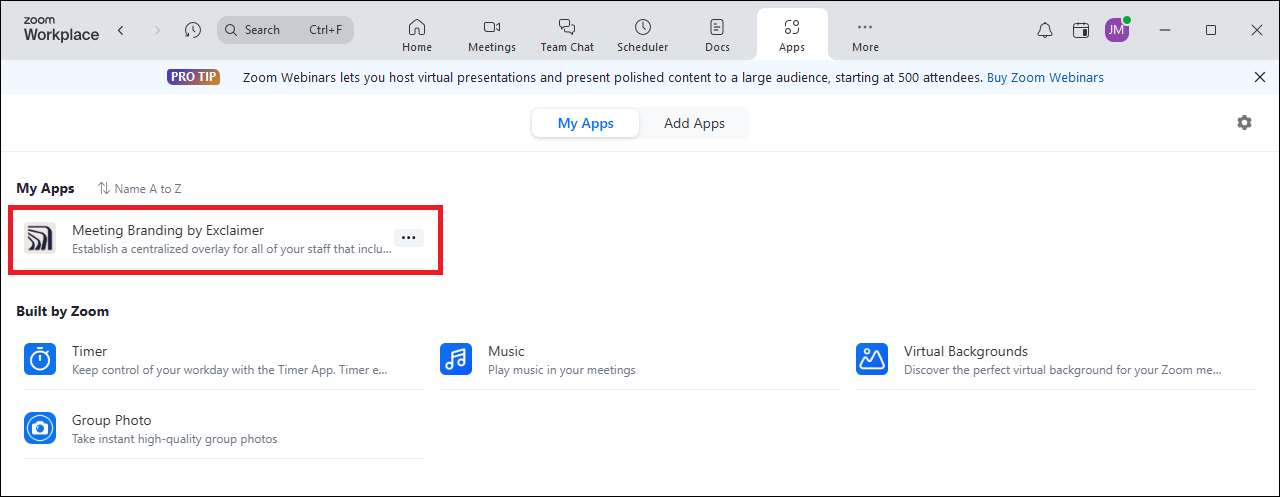
Zoom: Admins configure the “Meeting Branding by Exclaimer” Zoom app so employees can simply enable their assigned background within Zoom with no extra setup.
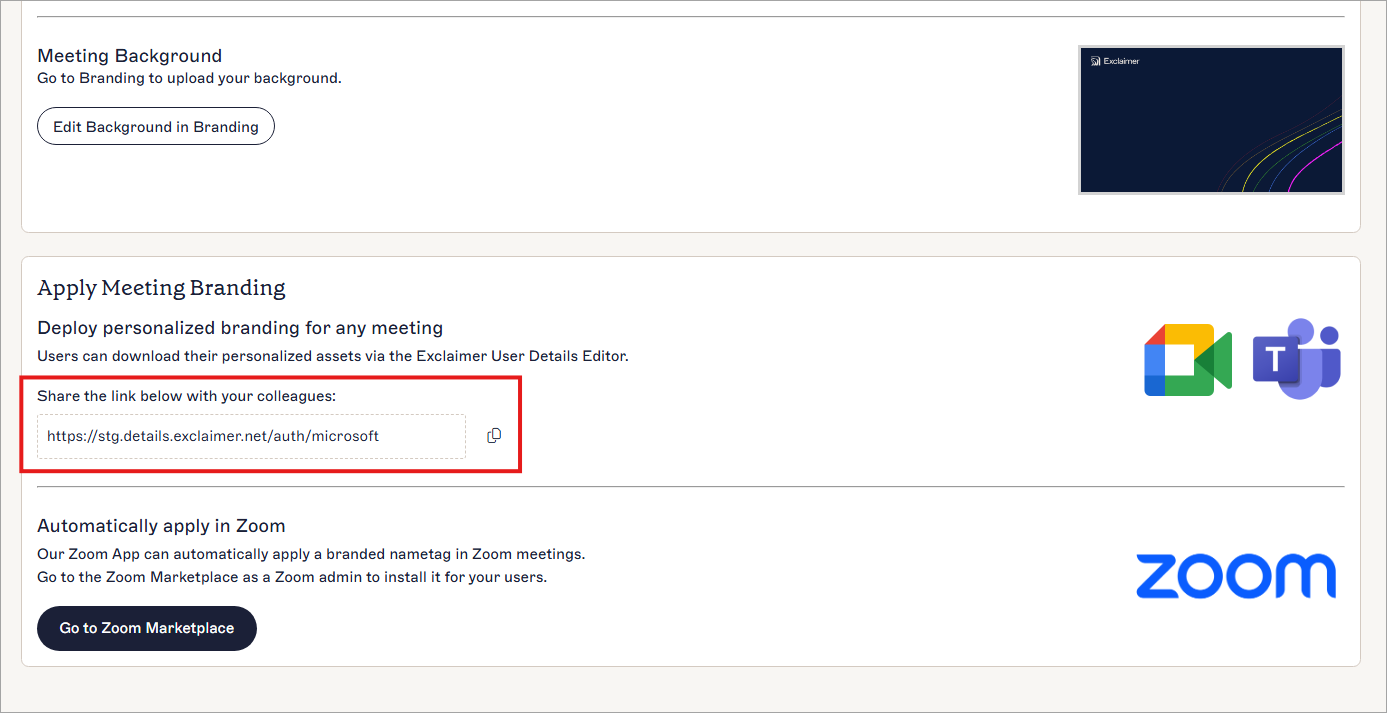
Other video platforms: Users download their personalized background directly from Exclaimer and apply it in their client settings.
 Your design needs may change over time, such as for a rebrand, a new campaign, or a compliance requirement. With Meeting Branding by Exclaimer, it’s easy to implement changes. Make updates once and roll out the new template across the entire organization instantly.
Bring your brand to every video call with Exclaimer
The next time your team joins a client call, imagine what the impact would be if everyone was using the same branded background. No distracting personal backdrops. No mismatched visuals. Just a unified and professional brand presence. The kind of polish that builds confidence, trust, and recognition in every video call.
 By combining strong design principles with Exclaimer’s Meeting Branding feature, organizations can roll out professional, consistent video call experiences that reinforce trust and brand identity.
With one platform managing both email signatures and meeting branding, IT keeps control while other teams like marketing keep every interaction on-brand. That’s how you turn everyday communications into a professional extension of your organization.