by Dave Willis
Server-side vs client-side email signatures in Microsoft 365: What IT admins need to know
24 February 2026
0 min read
TL;DR
Server-side signatures are applied during Exchange Online transport after send
Client-side signatures are inserted during composition in Outlook
Server-side deployment provides centralized compliance enforcement
Client-side deployment allows compose-time preview and visibility
Native Exchange transport rules have formatting and template limitations
Exclaimer enables server-side, client-side, or hybrid deployment with centralized control
When managing Microsoft 365, email signature deployment affects more than formatting. It influences compliance enforcement, Exchange Online mail flow, user experience in Outlook, and consistency across devices.
IT teams evaluating email signature management typically need to decide how signatures should be applied:
After an email is sent
Or during message composition
In Microsoft 365, these approaches are known as server-side and client-side deployment.
Each model has operational trade-offs. This guide explains how both work, how they interact with Exchange Online, and how to determine which approach fits your governance and user requirements.
What is the difference between server-side and client-side email signatures?
Server-side and client-side refer to where and when the email signature is applied in the sending process.
 Let’s take a look at what makes each method different and why it matters in day-to-day use.
A server-side email signature is applied after a user sends an email. In Microsoft 365, this is handled through Exchange Online mail flow rules or secure connectors. The signature is added while the message is in transit, before delivery.
A client-side email signature is inserted into the email during composition in Outlook. The user sees the signature before sending, and it becomes part of the message body immediately.
This distinction affects:
Signature visibility in the compose window
How messages appear in Sent Items
Coverage across Outlook desktop, web, and mobile
The level of centralized compliance enforcement
How mail routing is configured in Exchange Online
Both methods are centrally managed in Exclaimer. You control signature templates, sync employee details, and push updates from one platform. The difference is how those signatures are experienced by users.
How server-side email signatures work in Microsoft 365
In Microsoft 365, server-side email signatures are applied after a user sends a message. Processing occurs within Exchange Online during mail transport.
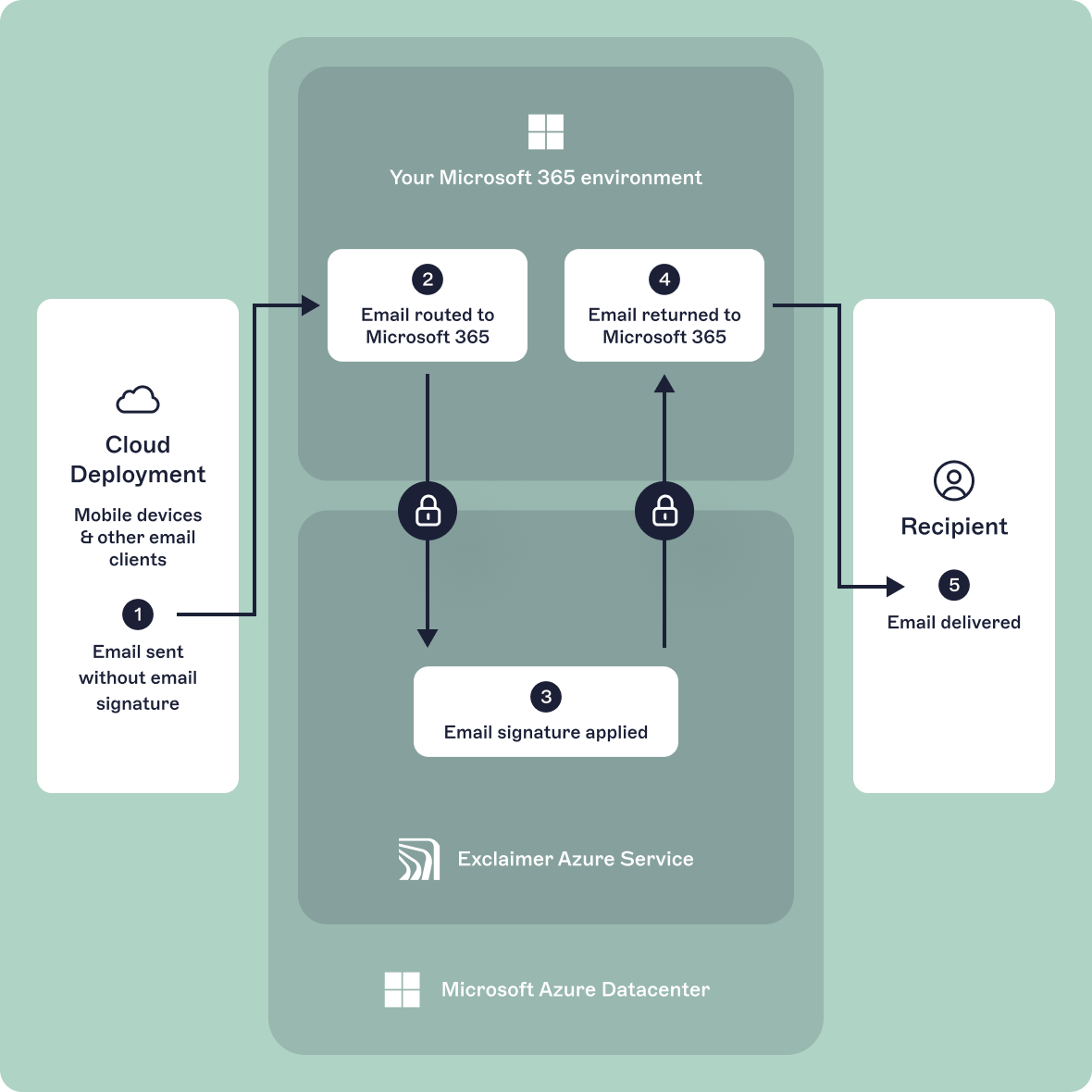 When a user selects Send in Outlook, the message enters Exchange Online. Mail flow rules (transport rules) evaluate the message as it passes through the service. If signature conditions are met, the signature is appended before final delivery to the recipient.
Because the signature is added during transport, it is applied consistently regardless of:
Outlook desktop
Outlook on the web
Outlook for iOS or Android
Other SMTP-connected clients
This deployment model has several practical implications:
The user doesn't see the final signature while composing the email
The Sent Items folder may not reflect the final delivered version without additional configuration
Signature enforcement doesn't rely on user settings
Conditional rules can apply signatures based on attributes such as department, job title, or recipient type
Since processing occurs centrally within Exchange Online, administrators can apply standardized legal disclaimers, department-specific templates, and external-only signatures without modifying individual mailboxes.
For organizations prioritizing centralized governance and consistent enforcement across devices, server-side deployment provides administrative control at the transport layer.
How client-side email signatures work in Microsoft 365
In Microsoft 365, client-side email signatures are inserted during message composition within Outlook. The signature is added before the user sends the email and becomes part of the message body immediately.
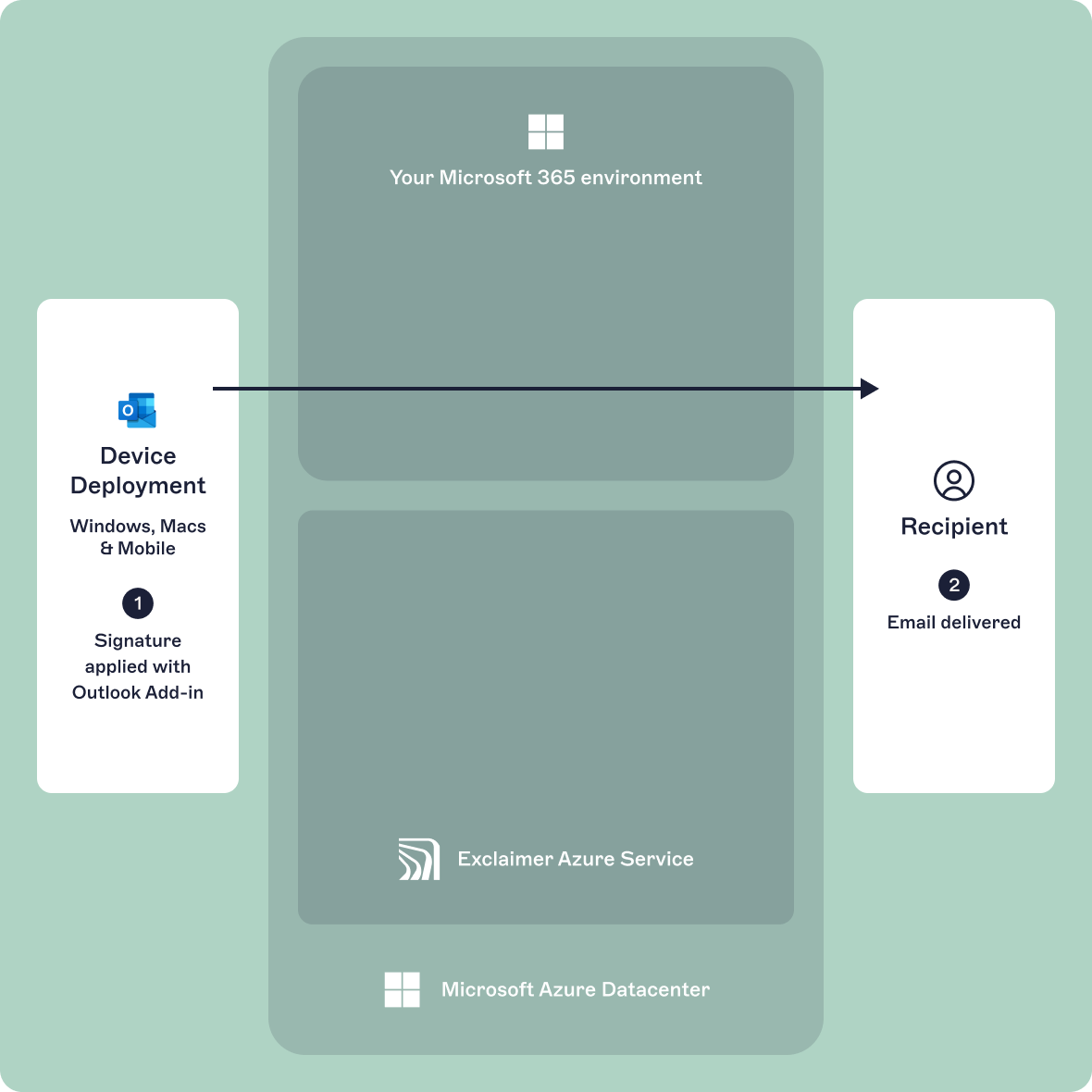 This can occur through Outlook’s native signature settings or through centrally deployed Outlook add-ins that insert signatures dynamically while the user drafts the message.
Because the signature is embedded before transport, the Sent Items folder reflects the exact version that was delivered.
This approach has several practical characteristics:
The sender can preview the signature before sending
The signature is visible in draft mode and editable unless restricted by deployment method
Rendering depends on the email client and device used
Formatting may differ across Outlook desktop, Outlook on the web, and mobile apps
Since insertion happens at the client level, consistency depends on how signatures are deployed and managed. If users control their own signature settings, formatting drift, missing disclaimers, or outdated branding can occur.
Server-side vs client-side email signatures in Microsoft 365
The difference between server-side and client-side email signatures comes down to where and when the signature is applied within Microsoft 365.
The table below summarizes the operational differences relevant to IT administrators.
Feature | Server-side deployment | Client-side deployment |
|---|---|---|
Insertion point | During Exchange Online transport, after send | During composition in Outlook |
Visible before sending | No | Yes |
Sent Items behavior | Delivered version may differ from Sent Items without additional configuration | Sent Items reflects final delivered message |
Device coverage | Applies to all devices and SMTP-connected clients | Depends on Outlook client or add-in support |
Exchange Online transport rules required | Yes | No |
Centralized enforcement | Fully centralized at transport layer | Depends on deployment controls |
Attribute-based targeting | Supported via directory attributes and rule conditions | Supported if centrally managed |
Risk of user modification | No | Possible unless editing is restricted |
External vs internal logic | Controlled through mail flow conditions | Depends on signature configuration |
Server-side deployment provides control at the transport layer and applies signatures consistently across devices. Client-side deployment provides compose-time visibility and immediate preview for the sender.
Limitations of native Microsoft 365 (Exchange Online transport rules)
While effective for adding static compliance statements, transport rules weren't designed as a full email signature management system.
The disclaimer action primarily supports text-based content with limited HTML control
Complex layouts, multiple columns, and advanced styling are difficult to maintain consistently
Inline images may not render predictably across all clients
No compose-time preview is available to the sender
Messages in Sent Items may not reflect the final delivered version
Conditional logic is also constrained by rule structure. Although rules can evaluate sender and recipient attributes, managing multiple branded templates often requires stacking numerous transport rules, which increases administrative complexity.
Additional constraints include:
No centralized template management interface
No role-based design delegation
No structured support for marketing banners or rotating content
No built-in engagement tracking
Because transport rules operate strictly at the message routing layer, they are optimized for compliance enforcement rather than structured signature management.
Should you use server-side, client-side, or both?
In Microsoft 365, the appropriate deployment model depends on how your organization balances compliance control, user visibility, and administrative overhead.
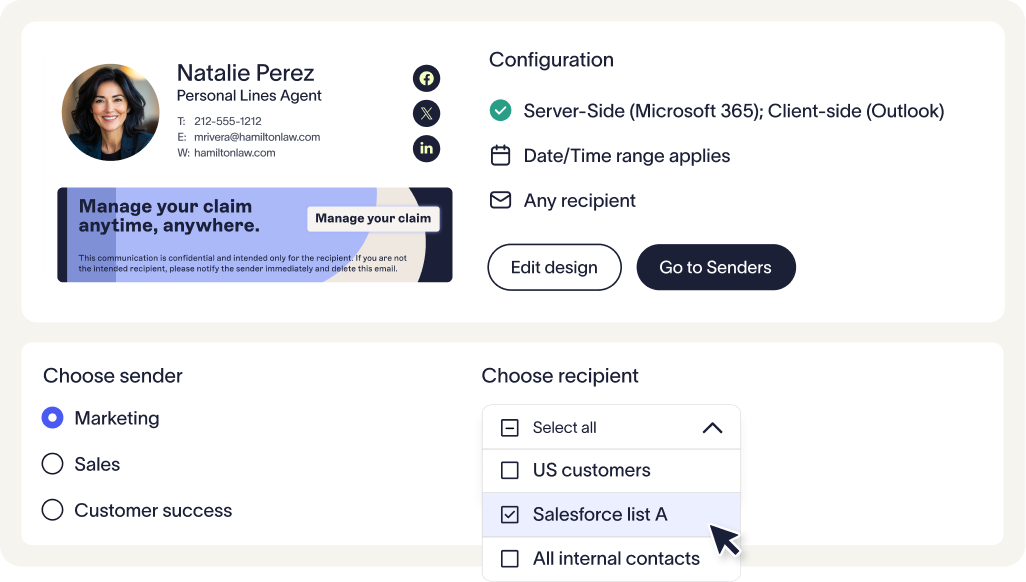 The decision is less about features and more about where signature control should sit within the message lifecycle.
When server-side deployment is appropriate
Server-side signatures are commonly used when:
Legal disclaimers must be appended to all external mail
Signature enforcement can't depend on user configuration
Messages are sent from a mix of desktop, web, mobile, and SMTP-connected systems
External and internal email require different conditional logic
Regulatory requirements mandate consistent outbound messaging
In environments using Exclaimer's centralized signature management platform, server-side processing operates within Microsoft 365 mail flow and applies signatures consistently without altering existing MX records.
When client-side deployment is appropriate
Client-side signatures are often selected when:
Users need to preview signatures before sending
Sales or account teams rely on visible formatting
Immediate confirmation of job title, contact details, or booking links is required
Compose-time awareness reduces support requests
When deployed through centrally managed Outlook add-ins, client-side signatures can be controlled without relying on manual mailbox configuration.
When a combined approach is used
Some Microsoft 365 environments implement both client-side and server-side processing.
In this model:
Client-side deployment provides compose-time visibility in Outlook
Server-side processing enforces final compliance and conditional logic during Exchange Online transport
When properly configured, transport-layer checks prevent duplication if a signature has already been inserted during composition.
This approach allows organizations to maintain centralized governance while preserving sender visibility.
Why use Exclaimer for Microsoft 365 email signature management?
Exclaimer centralizes this control within a single platform that integrates directly with Exchange Online and Outlook. Signatures can be applied at the transport layer, inserted during composition, or combined in a hybrid model without duplication.
 For IT teams managing large or distributed tenants, this provides consistent enforcement across all mailboxes while preserving compose-time visibility where needed. Compliance requirements, branding standards, and attribute-based targeting remain centrally governed without relying on user configuration.
Exclaimer enables organizations to implement the deployment model that fits their Microsoft 365 environment, without adding complexity to mail flow or mailbox management.
Take control of email signature management with Exclaimer
Choosing between server-side and client-side email signatures isn’t about picking the "right" option. It’s about understanding your organization’s priorities and choosing the setup that supports them.
Exclaimer makes it easy to set policies, adapt over time, and manage everything centrally. No silos. No scripting. No compromises. Just consistent, compliant, on-brand emails at scale.