Gmail signature too long error: How to fix the 10,000 character limit
2 March 2026
0 min read
TL;DR
Gmail signatures are limited to 10,000 characters, including hidden HTML formatting and image markup, not just visible text.
The error usually happens after copying content from Word, Google Docs, or web pages that add extra code.
Gmail counts the full HTML structure of your signature, including styling, tables, and image tags.
To fix it, paste your signature as plain text, remove unnecessary formatting, resize images, and simplify the layout.
If the issue continues, delete the signature and rebuild it directly in Gmail to remove hidden markup.
For teams, repeated manual edits can cause formatting buildup, making centralized signature management more reliable long term.
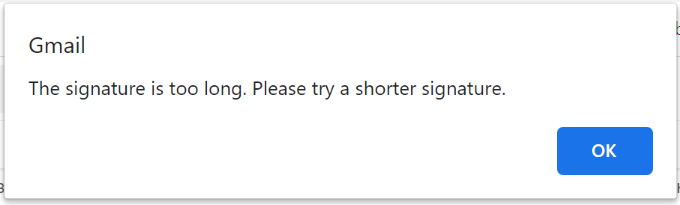
Seeing the “Gmail signature too long” error? Gmail limits email signatures to 10,000 characters, and that total includes hidden HTML code, formatting, and image markup, not just visible text.
The error usually appears after copying content from Word, adding promotional banners, or repeatedly editing formatting. The good news is the fix is straightforward once you know what Gmail is counting.
Gmail signatures have a 10,000-character limit, including HTML formatting and image code. If your signature is too long, remove extra formatting, paste it as plain text, compress images, and simplify the HTML. Most issues are caused by hidden markup added during copy and paste.
Why Gmail says your signature is too long
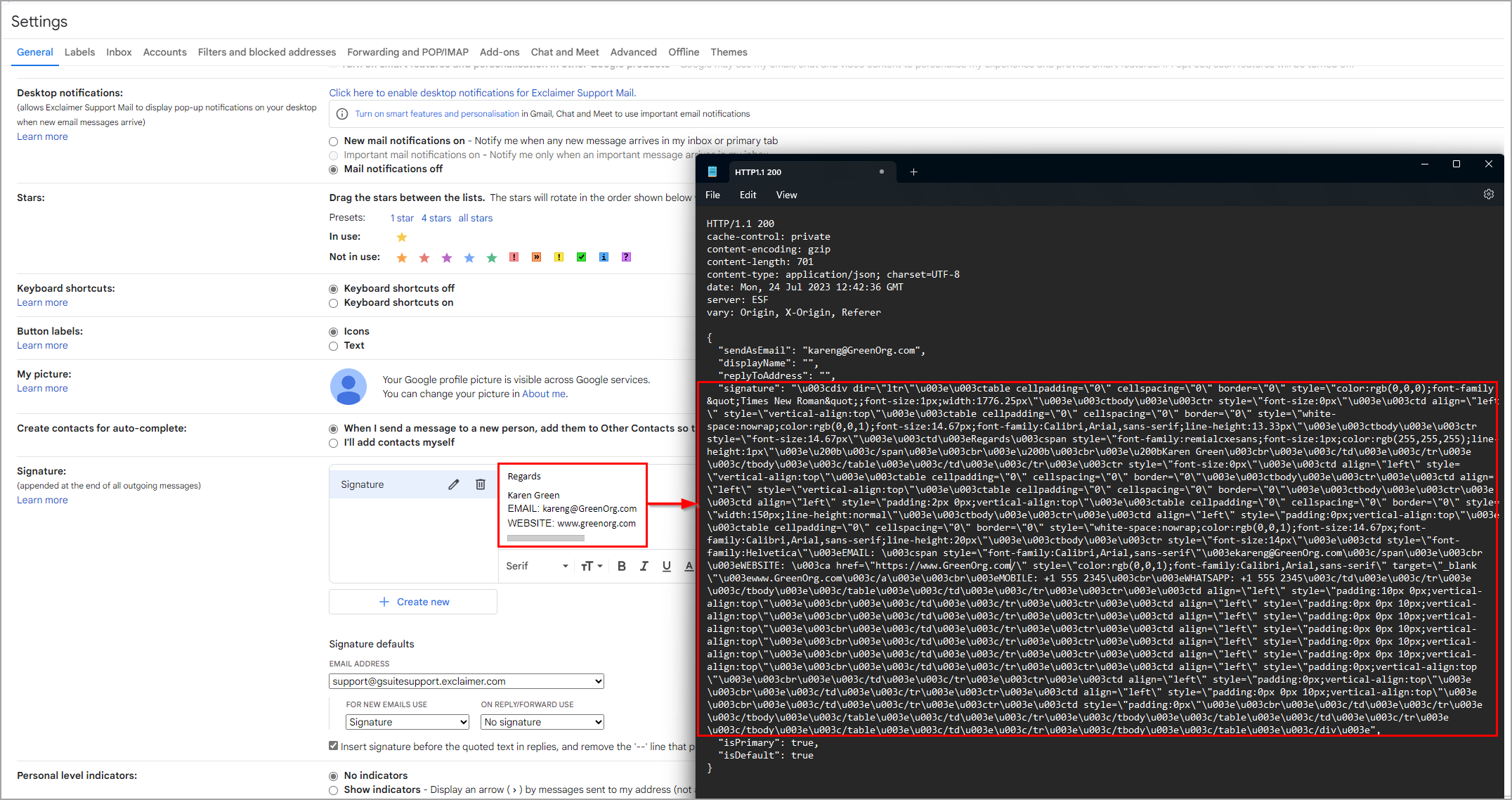
Gmail enforces a 10,000-character limit on email signatures. This limit applies to the full HTML code of the signature, not just the visible text.
When a signature is saved, Gmail converts it into HTML. The character count includes:
Text content
Font styling and formatting
Inline CSS
Image tags
Table structures
Hidden markup
This is why a signature that looks short can still exceed the Gmail signature size limit.
The most common cause is copying content from Microsoft Word, Google Docs, or web pages. These sources insert additional formatting code that increases the total character count. Even if the design appears simple, the underlying HTML can be extensive.
Images also contribute to the total. Gmail does not count the image file size itself, but it does count the HTML required to display the image, including embedded styling and tracking parameters.
Repeated edits can add layered markup over time, gradually increasing the character count until the signature exceeds the limit.
How to fix the Gmail signature too long error
If your Gmail signature exceeds the 10,000-character limit, use these steps to reduce its size and remove hidden HTML code.
1. Paste your signature as plain text
Copy your existing signature and paste it into a plain text editor first. Then copy it back into Gmail and reapply formatting manually.
This strips hidden markup added by Word, Google Docs, or websites.
2. Remove unnecessary formatting
Delete extra:
Font styles
Color variations
Inline styling
Nested tables
Simple formatting reduces the total HTML Gmail stores.
3. Resize or optimize images
Reduce image dimensions before inserting them. Remove unnecessary tracking parameters.
Gmail counts the HTML required to render images, even if the image file is hosted externally.
4. Simplify the layout structure
Complex table layouts generate large amounts of markup.
Reduce:
Nested tables
Spacer rows
Empty cells
A clean layout lowers the character count quickly.
5. Rebuild the signature from scratch
If the error persists, delete the signature and rebuild it directly inside Gmail without copying from external sources.
This removes accumulated formatting from previous edits.
Optional: Check your character count
Gmail does not show a visible counter. If needed, paste your signature HTML into a text editor to estimate the total character count before saving.
How to avoid the Gmail signature too long error in the future
Preventing the error requires cleaner design practices and more controlled signature management.
Build signatures with minimal formatting
Avoid copying content from Word, Google Docs, or web pages. These sources add hidden styling that increases the total character count.
Create signatures directly in Gmail or use simplified HTML with limited inline styling.
Keep the layout simple
Complex layouts generate more markup.
Limit:
Multiple font styles
Excessive color variations
Deeply nested tables
Large or unnecessary banners
A clean structure reduces the risk of exceeding Gmail’s 10,000-character limit.
Optimize images before inserting them
Resize images to their exact display dimensions and compress them before uploading.
Although Gmail doesn't count the image file size itself, it does count the markup required to display it.
Reduce manual editing across teams
Repeated edits can layer additional formatting into the signature code. Over time, this increases the character count even if the visible design stays the same.
In organizations where multiple users manage signatures individually, formatting inconsistencies and code bloat are common.
Applying signatures centrally removes this variability and keeps formatting consistent across all users and devices.
Using Exclaimer to centrally manage Gmail signatures
If the Gmail signature too long error continues to appear, the issue is often structural rather than accidental.
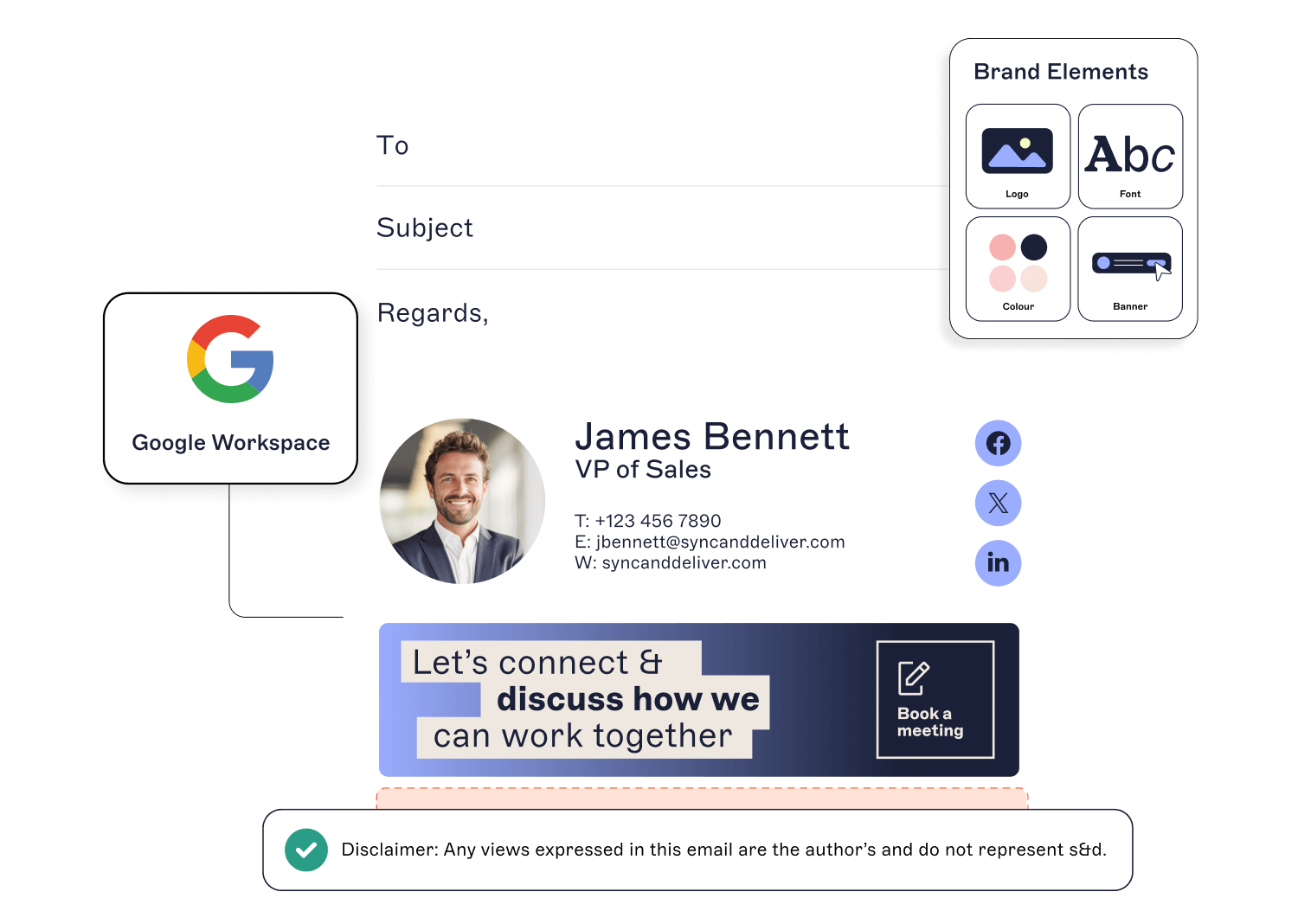
In growing teams, individual users frequently edit signatures independently. Over time, this creates:
Inconsistent layouts
Layered formatting
Oversized banners
Outdated contact information
Missing or altered disclaimers
These inconsistencies increase hidden markup and push signatures toward Gmail’s 10,000-character limit.
Applying Google Workspace signatures centrally reduces variability. Formatting remains consistent, updates happen automatically, and signatures stay within size limits without relying on user edits.
All contact information comes straight from Google Directory, ensuring accurate and consistent email signatures across your organization.
Take central control over your Gmail signatures and use Exclaimer so your emails always look professional and aligned with your brand. Get yourself a free trial or book an online demonstration today.