How to manage your Microsoft Outlook email signature

Learn how to effectively manage Microsoft Outlook email signatures. Understand what's available natively on your email application and how to automate signatures with Exclaimer.

Keep every email signature secure, on-brand, and compliant.

Frequently asked questions about Outlook email signatures

How to create an email signature in Outlook?

Here's a step-by-step guide on how to create an email signature in Microsoft Outlook:

Outlook Desktop App (Windows or Mac) - For Outlook 365 / 2019 / 2016

  1. Open Outlook & go to the File tab.

  2. Click on Options.

  3. In the left pane, choose Mail.

  4. Click the Signatures... button next to "Create or modify signatures for messages".

  5. In the Email Signature tab click New, and name your signature. In the Edit Signature box, type and format your signature.

  6. Click OK to save.

Outlook on the Web (OWA / Office 365)

  1. Log into Outlook on the web.

  2. Click the gear icon in the top-right corner to open Settings.

  3. Click View all Outlook settings at the bottom.

  4. Go to Mail > Compose and reply.

  5. In the Email signature section enter your signature in the editor box.

  6. Click Save.

Microsoft Outlook email signatures made simple with Exclaimer

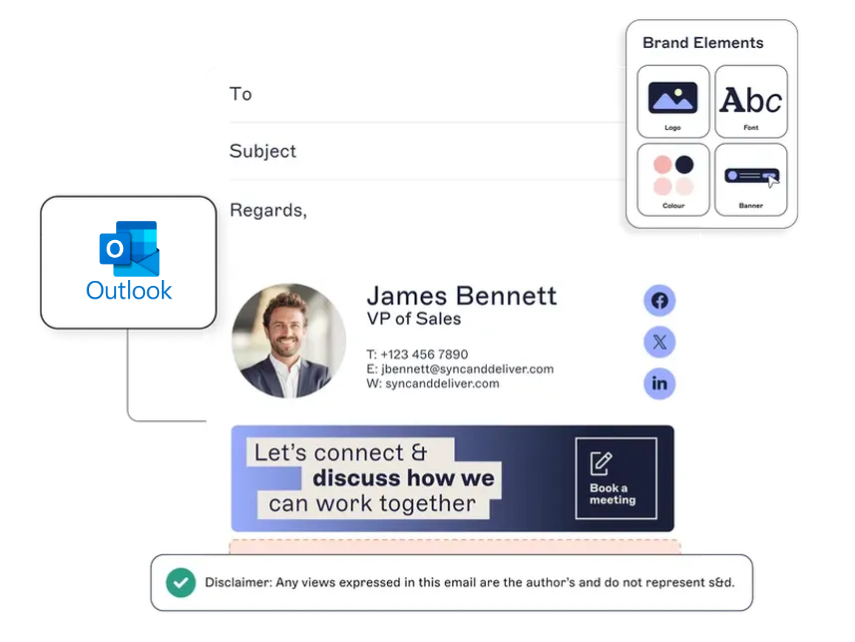
  • Manage every Microsoft Outlook email signature from one place.

  • Give non-IT teams the tools to build and update their own signatures without risking consistency.

  • Set smart rules that apply the right signature automatically, based on sender, recipient, or message type.

  • Let users pick from approved signature options inside Outlook, so they always sign off the right way.

Image Alt

Key features:

Microsoft Outlook email signature control—made simple

  • Manage every Outlook signature from one place.

  • Let non-IT teams create and update signatures without involving IT.

  • Apply the right signature automatically based on department, role, or location.

  • Roll out updates quickly and keep signatures consistent across every device.

Stronger brand presence in every message

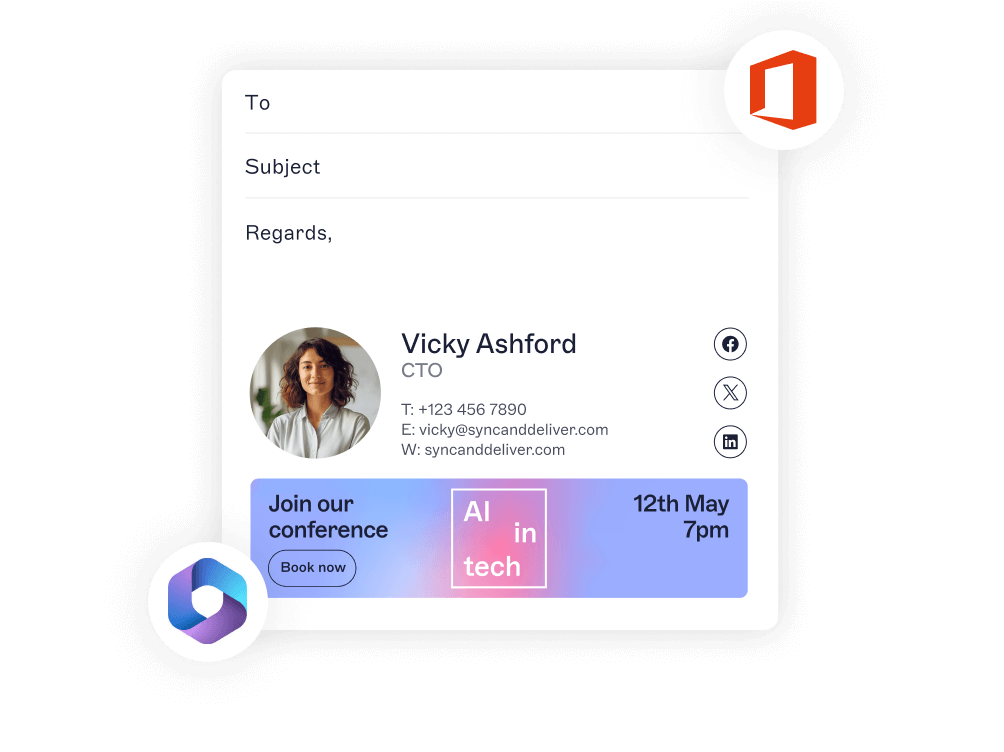
  • Add banners, logos, or links to drive awareness and action.

  • Include one-click surveys to gather instant customer feedback.

  • Tailor messages by team or region to reach the right audience.

Smart integrations and visibility

  • Sync with Active Directory (Entra ID) to keep contact details up to date.

  • Let users choose from approved signature options in Outlook.

  • Measure what works with A/B testing, usage data, and engagement insights.

Microsoft bookings integration

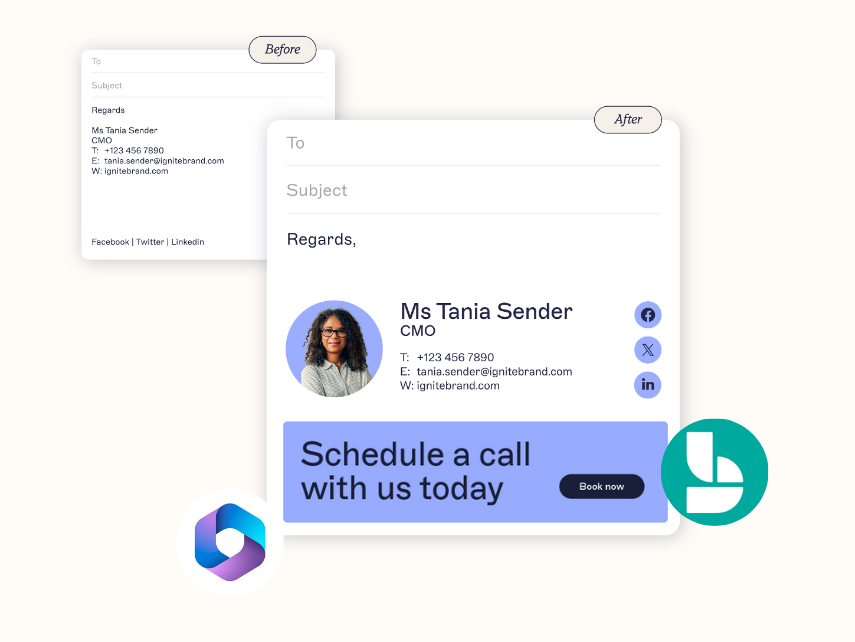
  • Add Microsoft Bookings links to email signatures automatically.

  • Make it easy for customers to schedule meetings straight from an email.

  • Give sales and support teams a faster way to connect.

Learn more about Microsoft Bookings integration
Image Alt

Plans built for business email

Pick the right plan for your organization and roll out consistent, branded Outlook email signatures.

Starter

Our basic plan delivers consistent email signatures across the entire organization.

Standard

Fire up your marketing potential with multiple templates, rotating banners and one-click surveys. 

Pro

Embrace the full power of email signatures with advanced signature targeting and scheduling, complete design customization, and access to analytics.

Try our email signature solution for Microsoft Outlook

Hero Image