James is an experienced product specialist with a strong background in the IT and SaaS industry. As Senior Product Marketing Manager at Exclaimer, he plays a key role in showcasing the value of centralized email signature solutions and transforming them into a powerful communication tool for organizations.
New feature: Signature Converter for email signatures
Key takeaway
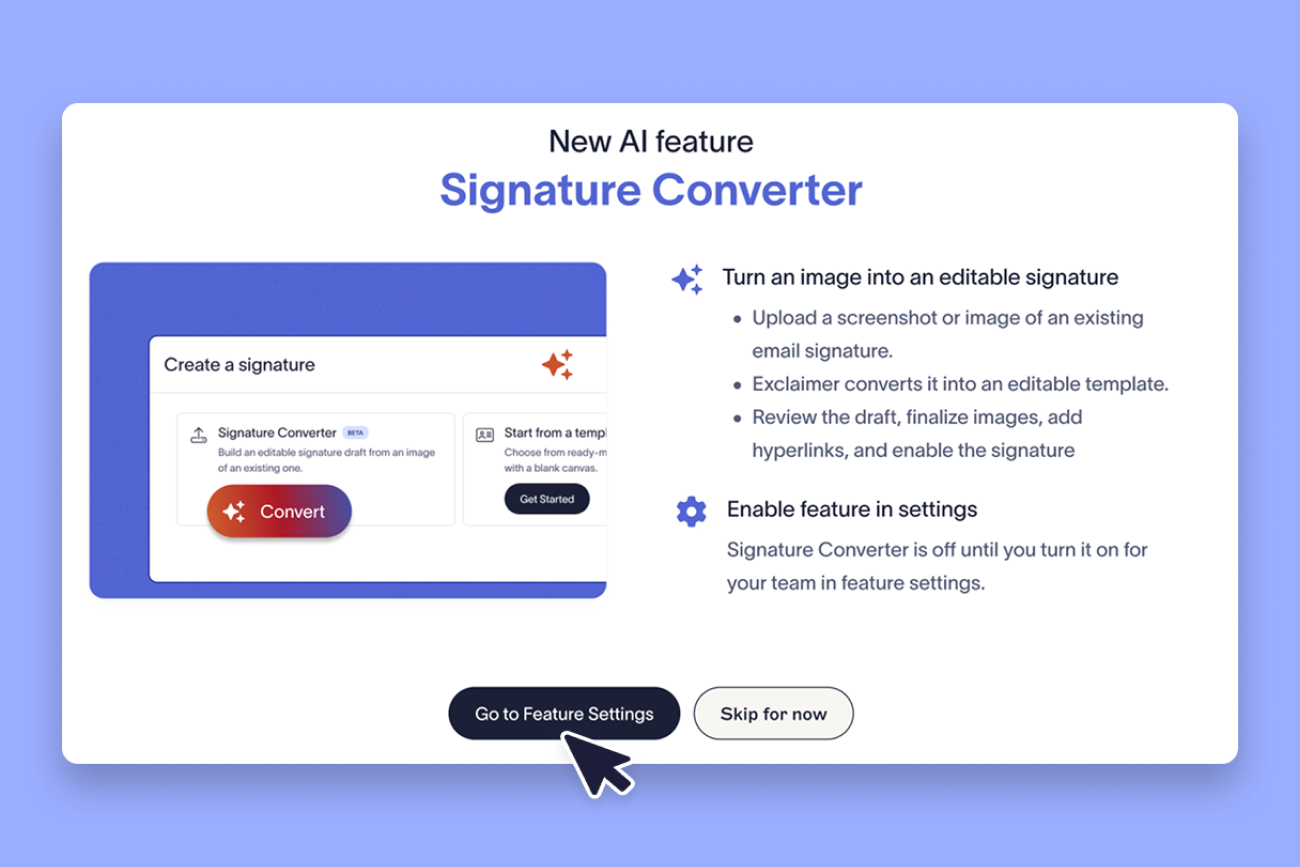
Signature Converter, Exclaimer’s first AI-assisted feature, rebuilds screenshots of email signatures as editable templates in the Exclaimer Signature Designer.
Recognized personal fields, such as name and job title, become dynamic fields that populate from your directory data.
Signature Converter is disabled by default. Exclaimer admins must turn it on in Feature Settings.
Available now to organizations located in the United States, for both Microsoft 365 and Google Workspace.
Until now, turning an existing email signature into a template meant either picking a library design that was “close enough” or recreating it element by element, matching layout and spacing as you go. Exclaimer’s new Signature Converter takes that work off your plate. Upload a screenshot or design mockup, and Exclaimer rebuilds it as an editable email signature template.
What is Signature Converter?
Signature Converter is Exclaimer’s first AI-assisted feature and sits within the Signature Designer.
To use Signature Converter, take a screenshot of an existing email signature your organization uses, one that you found online, or even a template you designed in a third-party tool like Canva or Photoshop. Upload it as a PNG or JPG (up to 5 MB), and Exclaimer analyzes the layout, typography, and field types, then builds an editable template for you to refine and deploy.
Key details include:
Dynamic fields: Recognized personal fields, such as name, job title, and contact details, are populated from each employee's directory profile, so they stay accurate without manual edits.
Review mode: After conversion, you can preview your converted template and review elements like images, hyperlinks, fonts, and colors before you start editing.
Editable text fields: Anything Signature Converter doesn’t recognize as a dynamic field, such as company websites and legal disclaimers, are copied into the template as editable text.
Tip
A clear screenshot of the full email signature gives the most accurate result. After conversion, swap converted images for your original high-resolution logo icons, or for brand images from your Brand Kit.
Why it matters
Turn the design you already have into a template you can deploy.
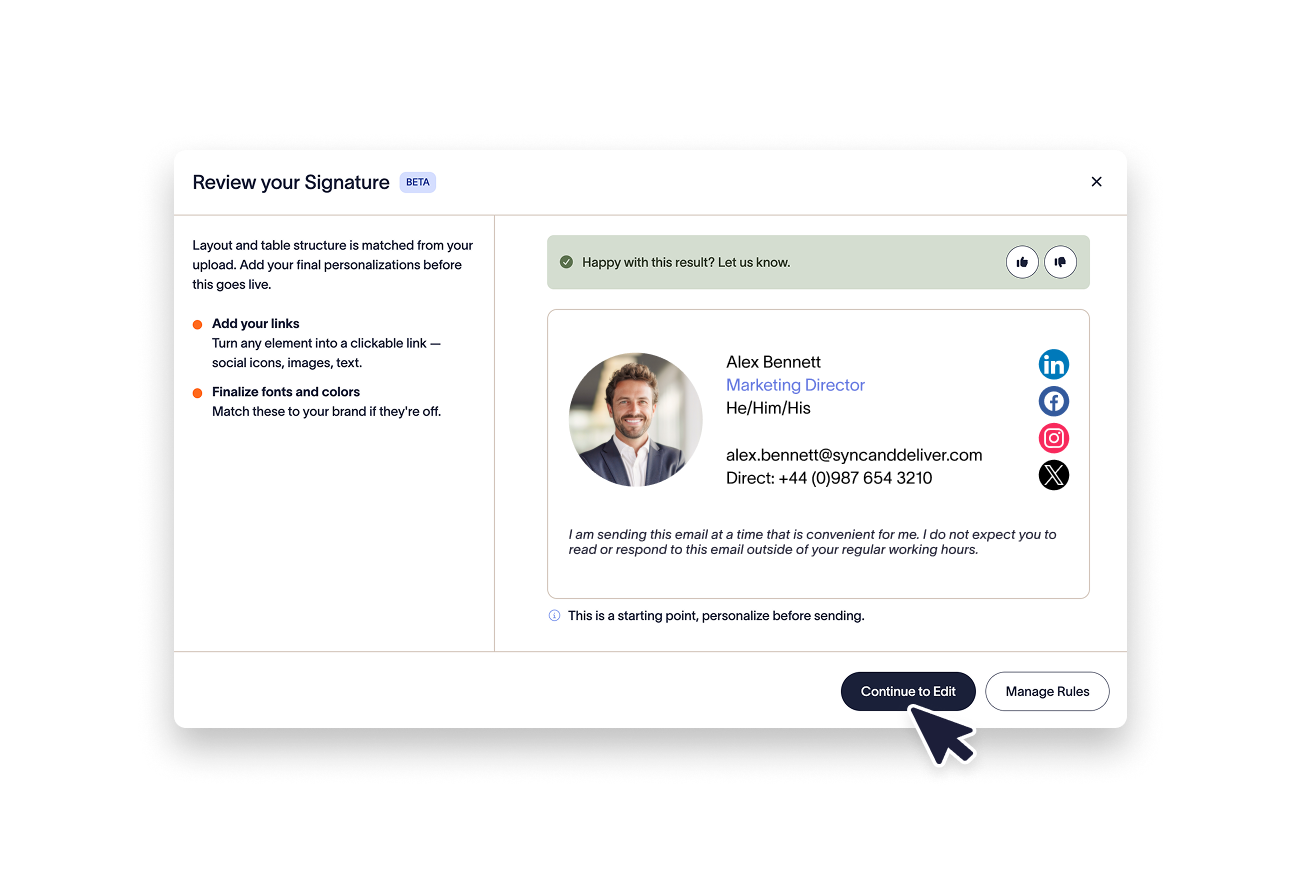 Rolling out Exclaimer comes down to one goal: consistent, on-brand email signature across the organization. Recreating an existing design by hand slows that down, and a library template won’t always fit your needs. Signature Converter starts you from a working template: all you need to do is check the details.
Once you save the template, everything else works as it does today. Use Signature Rules to decide which users receive the signature template, and then deploy it across Microsoft 365 or Google Workspace.
You stay in control
AI-assisted features like Signature Converter are optional in Exclaimer, and admins retain full control.
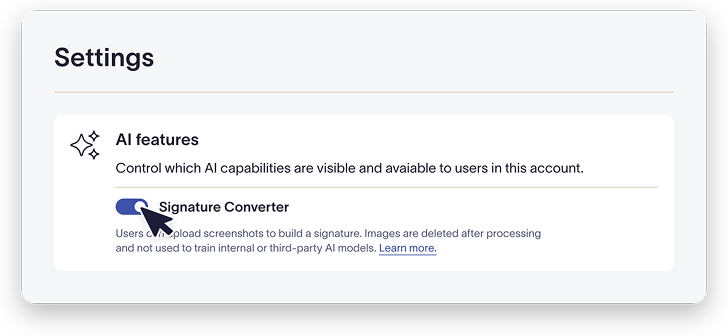
Off by default: Admins must enable Signature Converter for their organization within Feature Settings. The feature can also be turned off at any time.
Limited by role: Only Exclaimer admins can toggle Signature Converter on, and only the Administrator, Editor, and Designer roles can use it in the Signature Designer.
Reviewed before use: Nothing is published automatically, and your team reviews every converted template before it's deployed.
Exclaimer doesn't retain your uploaded screenshot after conversion, and our AI Sub-processor, Anthropic, processes all uploads under a zero data retention agreement. Uploaded images, brand assets, and generated templates aren't used to train Exclaimer's AI models or any third-party model. Learn more about how your data is handled in our Trust Center.
If your contract includes a no-AI clause, your Exclaimer contact can turn off AI features for your account entirely.
Get started
Signature Converter is available now to organizations located in the United States, once enabled by your Exclaimer admin.
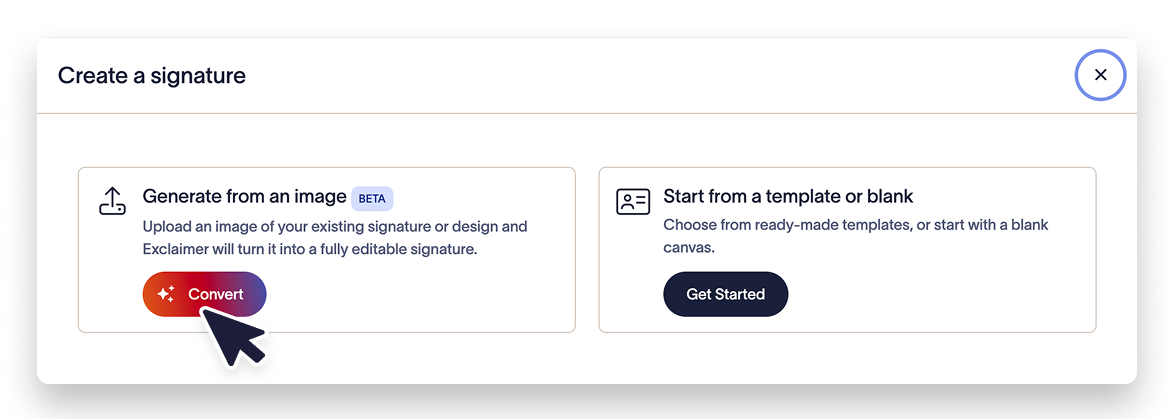
Open the Signatures pane and select Create Signature.
Upload a screenshot of the email signature you want to convert.
Check what Review mode flags, then further refine your template within the Signature Designer, ensuring colors, icons, and dynamic fields appear as you expect them to.
Once you’re happy with your template, save it, assign it with Signature Rules, and deploy it to your users.
For full setup steps, see the Signature Converter support article.
Not using Exclaimer yet? Start your 14-day free trial to try Signature Converter and bring your email signatures under centralized management.