How to create an email template in Gmail
4 March 2026
0 min read
TL;DR
Gmail includes a built-in Templates feature that lets you save and reuse email messages.
You must enable Templates in Settings → Advanced before creating one.
To create a Gmail email template, write a draft, open the three-dot menu, and save it as a template.
Templates can be inserted into new or reply emails in seconds, helping you respond faster.
To edit a template, you must overwrite the existing version. Templates are managed at the individual account level.
While useful for personal productivity, Gmail templates lack centralized control, automation, and analytics for larger teams.
Many business emails follow the same pattern. Customer replies, meeting confirmations, and sales follow-ups often contain the same information sent again and again.
A Gmail email template allows you to save a message and reuse it whenever you compose a new email. Instead of rewriting the same response, you can insert a saved template in seconds.
What is a Gmail email template?
A Gmail email template is a saved message that can be reused when writing emails. Gmail’s built-in Templates feature lets users create and store reusable responses that can be inserted directly from the compose window.
Templates help individuals and teams respond faster while keeping communication consistent. Because email remains one of the most widely used channels for business communication, reusable messages can save significant time across daily workflows.
In this guide, you'll learn how to:
Enable templates in Gmail
Create an email template
Insert a template into a message
Edit or delete existing templates
Does Gmail have email templates?
Yes. Gmail includes a built-in Templates feature that lets users save and reuse email messages. The feature is available in both personal Gmail and Google Workspace accounts, but it must be enabled in settings before use.
Once enabled, Gmail templates allow you to:
Save a draft email as a reusable template
Insert a template into a new message
Update or delete saved templates
Reuse standard replies without rewriting them
Gmail templates were previously known as “Canned Responses” in older versions of Gmail. Some users and support articles still use that term.
Gmail templates are commonly used for repetitive emails such as customer support replies, sales outreach, appointment confirmations, and internal updates. They help reduce writing time while keeping responses consistent.
However, templates are managed at the individual account level, which can limit visibility and control across teams.
How to create an email template in Gmail: A step-by-step guide
Creating email templates in Gmail can save you time and streamline your communication. Follow this simple guide to enable, create, and use email templates effectively.
Step 1: Enable templates in Gmail settings
To start using email templates, you first need to enable this feature in your Gmail settings.
- Open your Gmail account and click on the gear icon in the top-right corner.
- Select See all settings from the dropdown menu.
- Go to the Advanced tab.
- Locate the Templates section and click on Enable.

- Scroll down and click Save Changes to apply your settings.

Step 2: Create your first Gmail email template
Now that you've enabled templates, it's time to create your first one.
- Click on Compose to open a new email window.
- Write your email content, including any placeholders for personalization like [Name] or [Date].
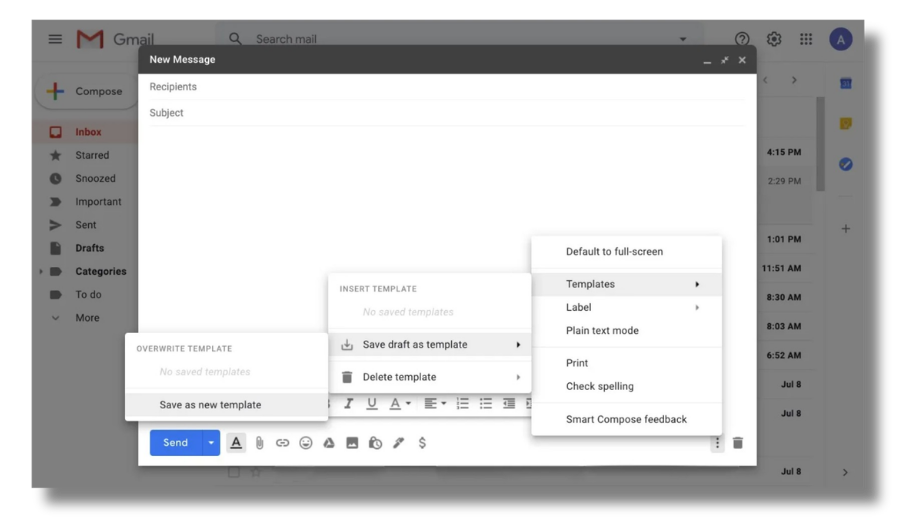
- Click on the three dots in the bottom-right corner of the compose window.
- Hover over Templates, then select Save draft as template and choose Save as new template.

- Give your template a name and click Save.

Step 3: How to use your Gmail email template
Using your email template is quick and easy:
- Click on Compose to stare a new email.
- Click on the three dots in the bottom-right corner.
- Hover over Templates and select the template you want to use.
- Customize any placeholders as needed to make the email more personal.
- Send your email.

How to manage and edit Gmail email templates
You may want to modify or delete your Gmail email templates over time. Here's how you can manage and edit them:
How to edit an existing Gmail template
Open Gmail and click on Compose to start a new email.
Insert the template you wish to edit by selecting it from your saved templates.
Make the necessary changes in the email body to customize your message.
Save the updated template by clicking on Save draft as template, and choose the existing template name to overwrite it.
How to delete a Gmail template
Click on Compose to open a new email window.
Click on the three dots located in the bottom-right corner of the compose window.
Hover over Templates, then click on Delete template and select the template you want to remove.
Limitations of Gmail email templates
Gmail email templates are effective for individual productivity. However, they can become difficult to manage as teams grow or communication requirements become more complex.
Templates are controlled by individual users
Each person creates and manages their own templates. Gmail doesn't provide centralized sharing or enforcement.
This makes it difficult to:
Standardize messaging across departments
Roll out updates instantly to all users
Maintain consistent communication at scale
No centralized governance
Organizations can't monitor or manage templates across accounts. Required content such as email disclaimers, brand elements, or regulated messaging must be updated manually by each user.
Limited automation
Gmail templates are static messages. They can't dynamically adjust based on:
Department
Location
Role
Recipient type
This limits their usefulness in larger or multi-division environments.
No built-in analytics
Gmail doesn't provide reporting on template usage or engagement. Teams can't measure performance or optimize messaging based on data.
Device limitations
Templates are primarily managed through the desktop interface, which can create inconsistency when employees work across multiple devices.
Common use cases for Gmail email templates
Gmail email templates are designed to save time on repetitive messages. They're most effective when the structure of an email stays consistent, even if small details change.
Below are common ways individuals and teams use email templates in Gmail.
Customer support responses
Support teams often answer the same questions multiple times a day. Templates allow them to:
Provide consistent answers
Reduce response time
Avoid rewriting standard instructions
Placeholders such as “Hi [Customer Name]” can be added and personalized before sending.
Sales outreach and follow-ups
Sales teams use Gmail templates to streamline outreach. Templates can include:
- Introduction emails
Follow-up messages
Meeting confirmations
Resource links
This helps maintain consistent messaging while allowing personalization where needed.
Appointment confirmations and scheduling
Teams frequently send confirmation emails that include:
Meeting details
- Calendar links
Next steps
A reusable Gmail email template keeps these messages structured and professional.
Internal communication
HR, operations, and management teams may send:
Policy updates
Onboarding instructions
Event announcements
Templates help standardize communication across departments.
Project updates
Project managers often send recurring updates that follow a set format. Templates allow them to reuse structure while adjusting timelines or milestones.
Tips and tricks for setting up Gmail templates
1. Customize placeholders for personalization
Enhance your Gmail templates by adding custom placeholders alongside standard ones like [Name] and [Date]. This adds a personal touch and makes your emails feel tailored to the recipient.
2. Personalize your emails
While Gmail templates save time, it’s vital to personalize emails where needed. Avoid sending out generic messages, as they can come off as impersonal or insincere. Tailoring your communication can improve engagement.
3. Organize your templates
Keep your Gmail templates organized to boost efficiency. Use clear, specific names for each template to reflect their purpose, and consider categorizing them with labels or folders for easy access.
4. Master Gmail keyboard shortcuts
Speed up your workflow by using Gmail's keyboard shortcuts. For quick access to your email templates, press Ctrl + Shift + L on Windows or Cmd + Option + L on Mac. This can significantly enhance your productivity.
5. Regularly update your templates
Ensure your email templates remain relevant by updating them regularly. Making necessary adjustments keeps your communication effective and aligned with current information or trends.
6. Automate responses with filters
Streamline your email management by setting up filters in Gmail. If certain emails warrant specific template responses, filters can automatically apply the right template when those emails arrive, saving you time and effort.
7. Add a signature to your Gmail templates
If you have a signature set up in Gmail, it will automatically appear in your templates. For further customization, you can add or edit your signature by clicking the More options button (three dots) and selecting Edit as new.
Streamline Gmail email signature management with Exclaimer
Creating professional email templates in Gmail enhances your email communication. A key element of maintaining a polished image is ensuring that every email features a consistent and visually appealing signature.
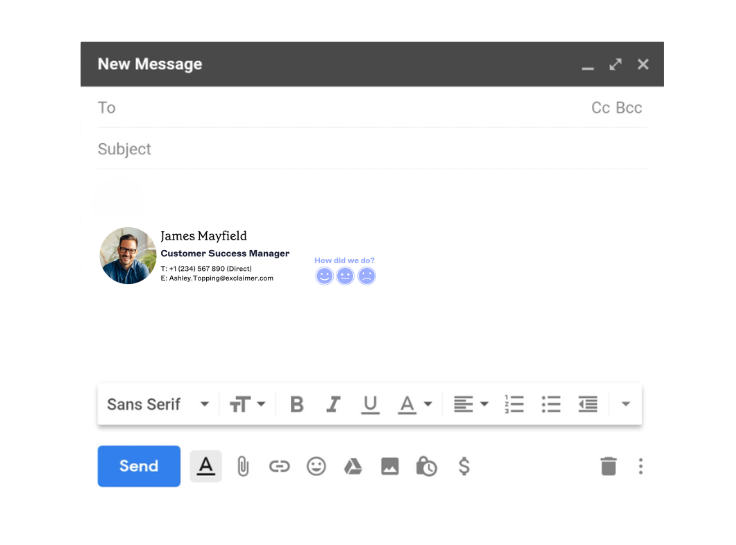 However, this can be challenging if you have multiple employees with varying signatures or if frequent updates are required.
Exclaimer's email signature management solution simplifies the process. With Exclaimer, you can effortlessly create and manage standardized email signatures for your entire organization, saving time and ensuring professionalism in all communications.
Get yourself a fully-featured free trial or sign up for an online demonstration to see Exclaimer in action.