Office 365 Transport Rules: How Exchange mail flow rules work
3 November 2025
0 min read
TL;DR
- Office 365 Transport Rules—also called Exchange mail flow rules—apply actions to messages in transit across your organization
- They’re useful for enforcing disclaimers or blocking certain content but limited for HTML-based email signature management
- Native tools can’t render or preview HTML signatures consistently across devices
- Separate rules are needed for each department, creating admin overhead
IT teams often rely on Office 365 Transport Rules—also known as Exchange mail flow rules—to automate company-wide actions like adding disclaimers, filtering content, or applying basic email signatures. These rules offer some centralized control, helping organizations meet compliance and branding requirements.
But while they’re a quick way to enforce policies, Transport Rules weren’t built for modern, branded email signatures. Below, we’ll explain how they work, their limitations, and when it’s time to switch to a dedicated email signature management platform.
What are Office 365 Transport Rules?
Office 365 Transport Rules, or Exchange mail flow rules, are a built-in feature of Microsoft Exchange Online that let administrators control how email messages are processed.
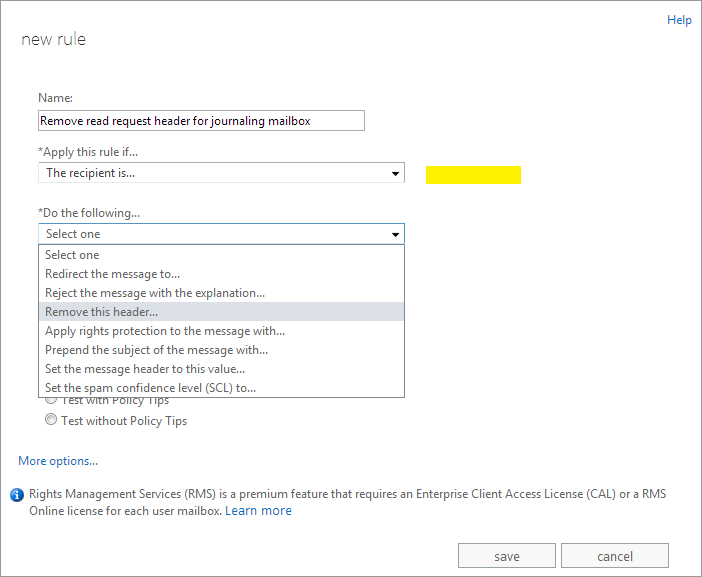 These rules look for specific conditions (such as keywords, recipients, or attachments) and apply actions (like adding disclaimers, blocking content, or redirecting messages) before the email reaches the recipient. In other words, they act on messages in transit, not after delivery.
The easiest way to think of them is as organization-wide versions of Outlook inbox rules. They're powerful, but they're best suited for policy enforcement rather than rich, branded email signatures.
Using Office 365 Transport Rules
Office 365 Transport Rules are mainly used to help IT teams enforce compliance, security, and message-handling policies across the organization.
In the Exchange Admin Center, you can configure a rule to trigger when certain conditions are met—for example:
Blocking messages that contain attachments or sensitive data.
Redirecting emails before delivery to a compliance mailbox.
Adding a plain-text disclaimer to outbound messages.
Applying a basic Office 365 email signature automatically.
Each rule modifies mail flow in real time, giving administrators more visibility and control over outbound communication. They also don't need to rely on individual users to follow manual policies.
How to create an Office 365 Transport Rule
You can create an Office 365 Transport Rule directly from the Exchange Admin Center (EAC) or by using PowerShell. Here’s a quick walkthrough for IT admins who want to apply companywide actions like disclaimers or basic email signatures.
In the Exchange Admin Center (EAC):
Open the Exchange Admin Center and go to Mail flow → Rules.
Select + Add a rule → Create a new rule.
Give your rule a descriptive name, such as Add disclaimer to all external emails.
Under Apply this rule if, choose your condition (for example, The recipient is outside the organization).
Under Do the following, select Apply a disclaimer to the message... and add your text or HTML.
Review your settings, select Save, and then Test the rule with a few accounts before deploying it organization-wide.
Using PowerShell (advanced users)
You can also configure rules with a simple PowerShell command:
New-TransportRule -Name "Add disclaimer to external emails" -SentToScope NotInOrganization -ApplyHtmlDisclaimerLocation Append -ApplyHtmlDisclaimerText "<p>This email is confidential and intended only for the recipient.</p>"Tip: Always test new rules in a staging environment before applying them globally. Even a small error in syntax or conditions can unintentionally affect email delivery.
Understanding conditions, actions, and exceptions
Every Exchange mail flow rule is built from three core components: conditions, actions, and exceptions. Understanding how these elements work helps IT teams design accurate rules and avoid conflicts.
Conditions: When the rule applies
A condition determines what triggers the rule. You can target nearly any attribute of a message or sender.
Common examples include:
Messages sent outside the organization
Emails containing specific keywords or patterns (like “confidential” or account numbers)
Messages to or from certain users, departments, or domains
Emails that include attachments
You can combine multiple conditions for granular control over how each rule behaves.
Actions: What the rule does
Once a condition is met, the rule carries out one or more actions before the email is delivered.
Typical examples include:
Adding a disclaimer or message footer
Redirecting or copying the email to another address
Blocking or quarantining non-compliant messages
Tagging the subject line or headers for visibility
For signatures and disclaimers, the common action is Append the disclaimer. This adds a simple text block to the end of outbound emails.
Exceptions: When the rule doesn’t apply
Exceptions define when a rule should not run. They’re essential for preventing conflicts or duplicate disclaimers.
Typical examples include:
Messages sent internally within the organization
Emails sent by specific users or service accounts
Messages that already contain an approved disclaimer
Setting clear exceptions keeps internal communication clean and helps maintain compliance.
Tip: Transport Rules are processed in order from top to bottom. Always review their priority to prevent overlapping or conflicting actions.
Best practices for managing Transport Rules
Managing Office 365 Transport Rules effectively requires structure, testing, and regular maintenance. Without clear processes, rules can overlap, create delivery delays, or produce inconsistent results. These best practices help IT teams stay in control.
1. Test before you roll out
Always test new rules with a small user group before deploying them organization-wide. This helps identify issues such as duplicated disclaimers, formatting errors, or blocked attachments that could disrupt mail flow.
2. Use clear, consistent naming
Give each rule a descriptive name that reflects its purpose. For example, HR – Add Disclaimer or Finance – Block Attachments. Consistent naming makes it easier to audit and manage rules at scale.
3. Avoid overlapping conditions
Complex or overlapping rules can cause conflicts. Keep logic simple and consolidate where possible. If multiple rules apply to the same messages, make sure they’re ordered correctly in the Exchange Admin Center.
4. Review priority order regularly
Exchange processes Transport Rules from top to bottom. If a new rule takes precedence over an older one, it may override critical settings. Review rule order periodically to ensure compliance and consistency.
5. Document ownership
Assign ownership of each rule—whether to IT, compliance, or departmental leads. This ensures accountability and prevents unauthorized edits that could affect compliance or branding.
6. Audit and update frequently
Email policies evolve over time. Schedule regular reviews to confirm that rules still meet security and legal requirements, and to remove duplicates or inactive rules that add complexity.
Tip: If you have more than 50 Transport Rules, it’s time to consider a centralized management platform. Large rule sets are hard to maintain, easy to break, and can introduce security and compliance risks.
Troubleshooting common Transport Rule issues
Even small misconfigurations in Office 365 Transport Rules can create big problems for IT. These can range from broken disclaimers to inconsistent signatures or delayed delivery. Here are some of the most common issues you might encounter and how to resolve them.
Rule not applying as expected
If your rule isn’t firing, check the priority order in the Exchange Admin Center. Rules are processed from top to bottom, so higher-priority rules can override lower ones.
Also confirm that your conditions and exceptions aren’t conflicting. For example, a rule that applies to external messages but also excludes certain domains.
HTML not rendering correctly
Exchange disclaimers support basic HTML, but not full CSS or embedded images. Make sure any images are web-hosted using secure HTTPS links.
If your formatting breaks on mobile or in webmail clients, it’s often due to how each email client interprets HTML differently. Test designs across platforms before rollout.
Signatures stacking or duplicating
If disclaimers appear multiple times in a thread, it’s because Exchange appends them to the entire message chain rather than directly below each reply.
You can reduce repetition by using shorter disclaimer text or applying the rule only to new messages, not replies or forwards.
Delayed mail flow or performance issues
Too many active rules, or overly complex ones, can slow message processing. Consolidate overlapping rules and remove outdated ones to keep performance stable.
Permissions or sync errors
Verify that the account managing rules has Exchange Administrator permissions. For directory-based conditions, make sure Entra ID (Azure AD) data is syncing correctly. Stale data can cause rules to skip intended recipients.
The limitations of using Office 365 Transport Rules for email signature management
While Office 365 Transport Rules can append a text disclaimer to outbound messages, they’re not designed for managing email signatures. In fact, they introduce several challenges for IT and Marketing teams alike.
Here are the most common limitations:
Plain text only: Native tools can’t create rich, branded email signatures—only simple disclaimers.
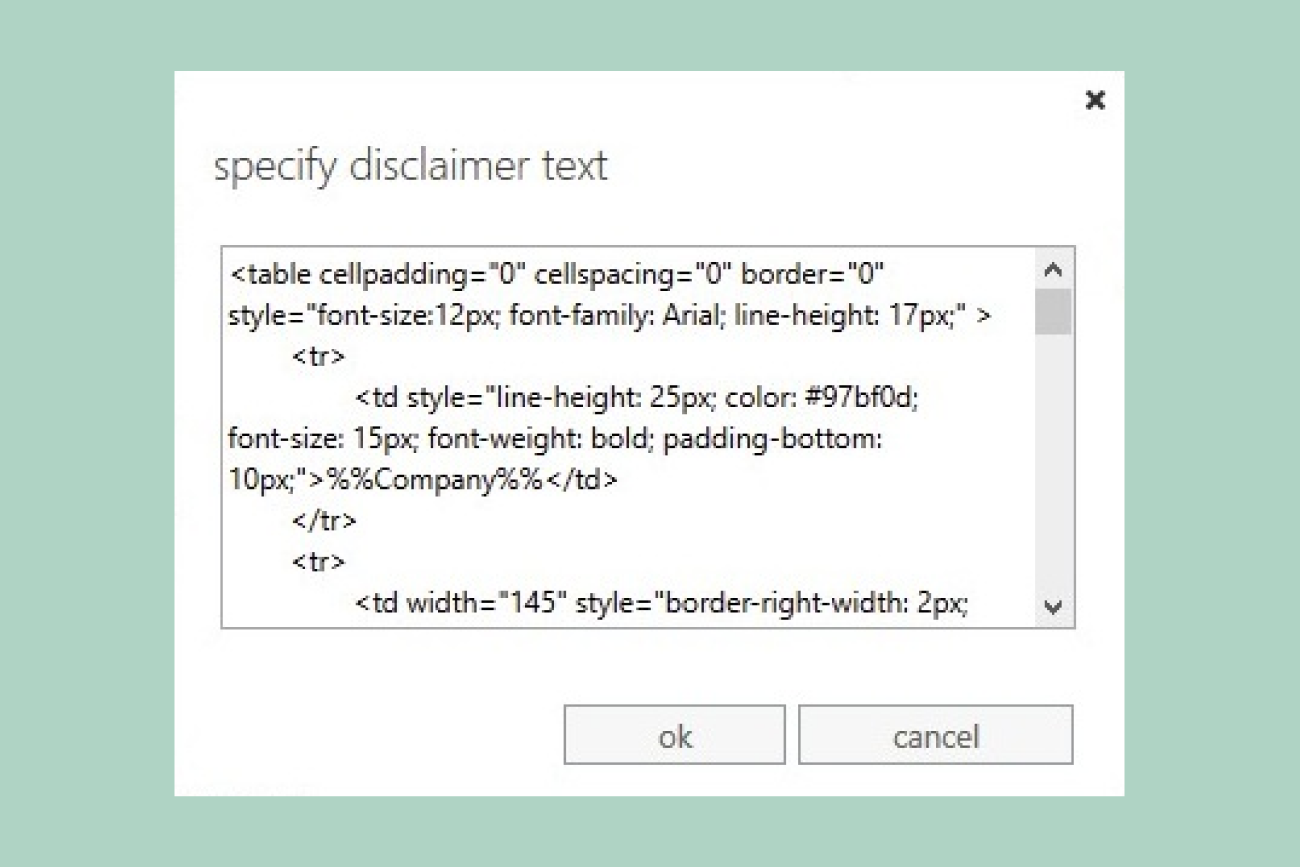
Manual HTML coding: To include logos or images, admins must paste raw HTML into the disclaimer editor and ensure all images are web-hosted (embedded images won’t display).
No preview or testing: There’s no way to preview how a design renders before deployment. This often requires trial and error.
Inconsistent rendering: Each email client interprets HTML differently. A layout that looks correct in Outlook may break in Gmail or on mobile devices.
Department-specific complexity: Assigning different signatures to teams or regions requires creating multiple rules. This can sometimes be hundreds in large organizations.
Common technical issues:
Random blank spaces within contact fields
HTML signatures failing on mobile clients
No option for simplified reply or internal signatures
Signatures stacking at the end of long threads
These limitations quickly turn email signature management into an ongoing maintenance burden for IT, with little flexibility for brand or compliance teams.
Office 365 Transport Rules vs Exclaimer
Managing email signatures through Office 365 Transport Rules might work for small organizations. But at scale, it quickly becomes unsustainable. Each new employee, department, or policy change adds more manual updates, more complexity, and more room for error.
With Exclaimer’s cloud solution, IT teams can centrally design, control, and automate every Office 365 email signature—without the need for Transport Rules or PowerShell scripts.
Centralized management: Manage every signature from one intuitive platform.
Consistent branding: Ensure every message looks professional and on-brand across all devices.
Automated compliance: Apply legal disclaimers automatically by department or region.
Delegated control: Let Marketing or Compliance teams make updates while IT keeps full oversight.
The table below shows how Transport Rules compare to Exclaimer’s cloud solution, built specifically for centralized, compliant, and branded email signature management.
| Feature | Office 365 Transport Rules | Exclaimer |
|---|---|---|
| Signature type | Basic plain text or manually coded HTML | Fully branded, dynamic designs with embedded images |
| Preview support | No visual preview available before deployment | Instant preview in drag-and-drop editor |
| Image handling | Requires web-hosted image links | Supports embedded and hosted images automatically |
| Device consistency | Varies across desktop, mobile, and web clients | Consistent rendering across all platforms and devices |
| Department-level control | Separate rule required for each team | Centralized logic using directory data (Microsoft 365 or Google Workspace) |
| Compliance management | Manual disclaimer setup | Automated disclaimers with audit-ready tracking |
| Testing and rollout | No test mode or version control | Preview, test, and publish updates instantly |
| Delegation and access control | Limited to IT administrators | Role-based permissions for IT, Marketing, and Compliance |
| Scalability | Difficult to manage at enterprise level | Designed for global deployment across regions and brands |
| Support and reliability | Dependent on Microsoft documentation | 24/5 global support, 99.999% uptime, ISO and SOC certifications |
Choose the easiest way to manage Office 365 signatures
Simplify your day-to-day admin, strengthen compliance, and make email signatures effortless across your organization.
Book a demo to see how Exclaimer replaces hundreds of Transport Rules with one centralized, secure platform.