Rotating banners in Exclaimer: How to set up rotating email signature banners for marketing campaigns
12 February 2026
0 min read
TL;DR
Exclaimer rotates multiple banners from a single email signature, so you can run several campaigns at once without redesigning or increasing email volume
Rotation is controlled centrally by time, user, or audience rules—no plugins, manual updates, or end-user involvement
Banners can be targeted by department, region, or contact type using synced directory data from Microsoft 365 or Google Workspace
Marketing teams can update, pause, or replace banners instantly, with no impact on signature design or IT workflows
Built-in analytics and UTM support let you measure clicks, compare banner performance, and test messaging over time
Email signature banners shouldn't be stuck promoting one campaign at a time. With Exclaimer’s rotating banners feature, you can run multiple campaigns from a single signature—no redesigns, no IT tickets.
This feature lets you upload multiple banner images, set rotation rules, and target them by user, department, or audience. Rotation happens automatically every time an email is sent, so you can push fresh content without relying on your team to make changes.
In this guide, you’ll learn what rotating banners are, how to set them up in Exclaimer, and why they’re the easiest way to expand campaign reach through everyday email.
What is Exclaimer’s rotating banners feature?
The rotating banner element in Exclaimer rotates multiple promotional images inside a single email signature. Each time an email is sent, a different banner can appear based on rules you control.
You might show a product launch to one contact, a webinar to another, and a case study to the next. Rotation happens automatically, with no need to redesign or involve IT.
This gives marketing teams a central way to run multiple banner campaigns simultaneously, without sending additional emails or managing separate workflows.
How does Exclaimer’s rotating banner feature work?
Rotating banners in Exclaimer are controlled centrally through the cloud platform. You define how banners rotate—by time, sender, or audience—and Exclaimer applies those rules automatically when each email is sent.
Rotation happens server-side, so there’s no need for plugins or user action. A different banner appears in the signature each time, based on your settings.
This means marketing can run multiple campaigns at once, target them by department or region, and update banners instantly. And all without changing the signature layout or involving IT.
When rotating banners make sense for your team
Rotating banners are ideal when you need to:
Run multiple campaigns at once
Target different messages to different teams, regions, or audiences
Keep messaging fresh in high-frequency email conversations
They’re especially useful for global marketing teams, product-led businesses, and any team using email as a core communication channel.
If you rely on email to reach prospects or customers—and you’re juggling more than one campaign—rotating banners make that scale without extra effort.
How to set up rotating banners in Exclaimer (step by step)
Setting up rotating banners in Exclaimer is straightforward and doesn’t require any technical skills. Once you're in the email signature designer, you can drag in a rotating banner element, upload your banners, and define how they rotate.
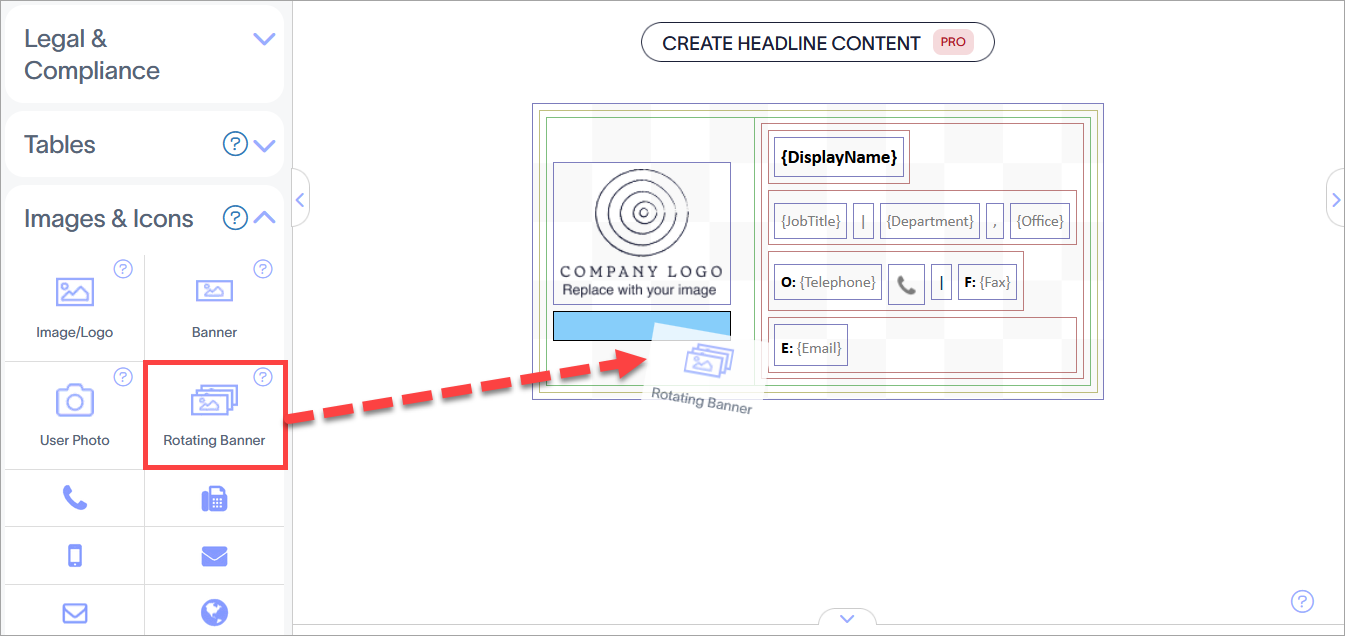
Here’s the full process from start to finish.
Step 1: Open the email signature designer
Log in to Exclaimer and open the signature you want to edit. Use the drag-and-drop editor to modify your design.
Step 2: Add a rotating banner to your signature
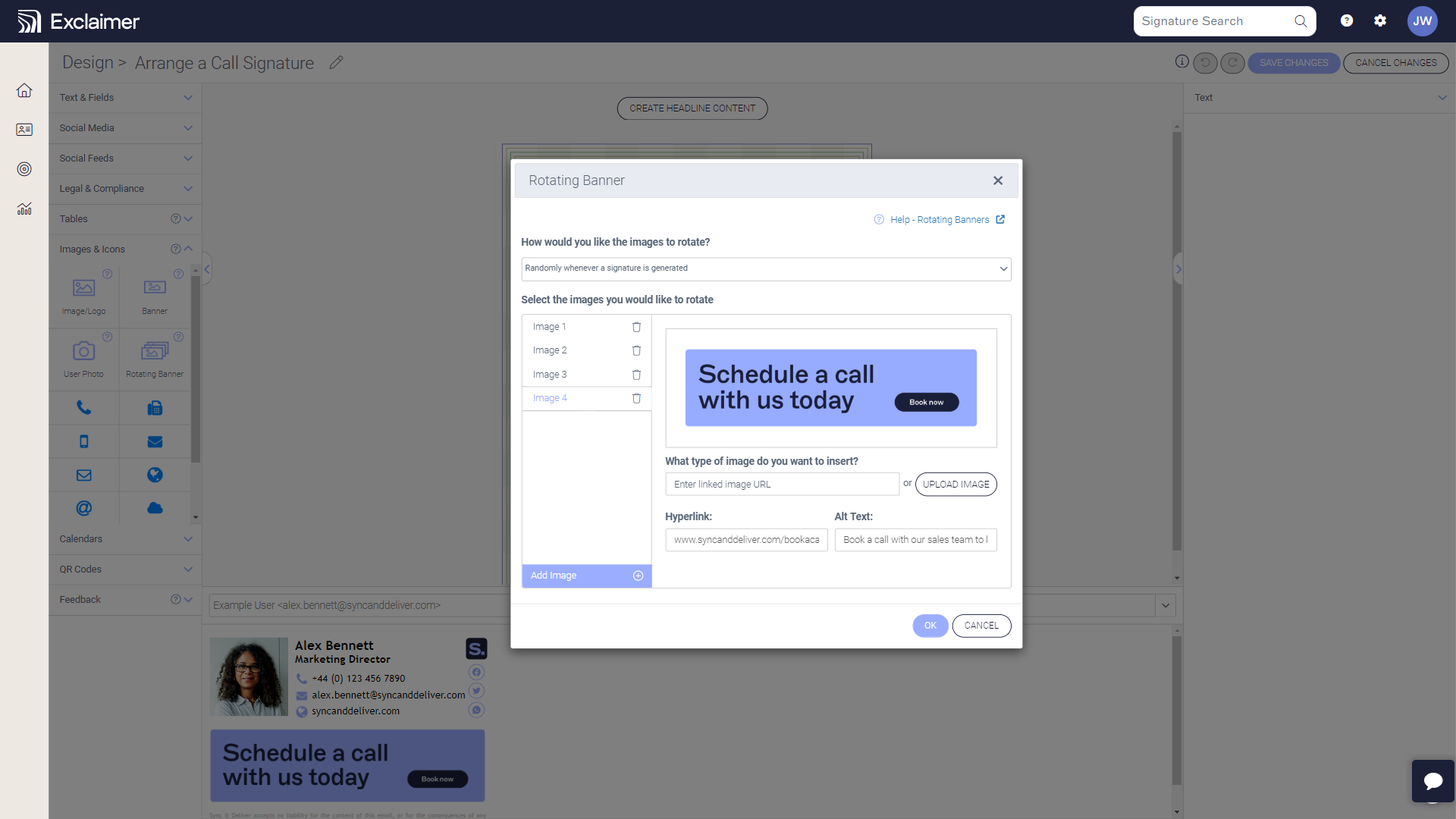
From the elements menu, drag the Rotating Banner block into your signature layout. This adds a container where your rotating images will appear.
Step 3: Upload banner images
Add up to 15 banners. These can be uploaded from your device or linked via URL. Make sure they follow the same size and format to keep things consistent.
Step 4: Add links and alt text to each banner
Assign a unique destination URL and alt text for each banner. This ensures each image is clickable and accessible.
Step 5: Choose how banners rotate
Select whether banners rotate randomly or follow a set schedule (hourly, daily, etc.). You can also prioritize certain banners to show more often.
Step 6: Preview your design
Check how your signature will appear across devices. Make sure banners display correctly on desktop and mobile.
Step 7: Publish your changes
Once you’re happy with the setup, publish your signature. Rotation starts immediately—no changes needed from your users.
Ready to try it for yourself?
See how easy it is to launch rotating banner campaigns in your own email signatures.
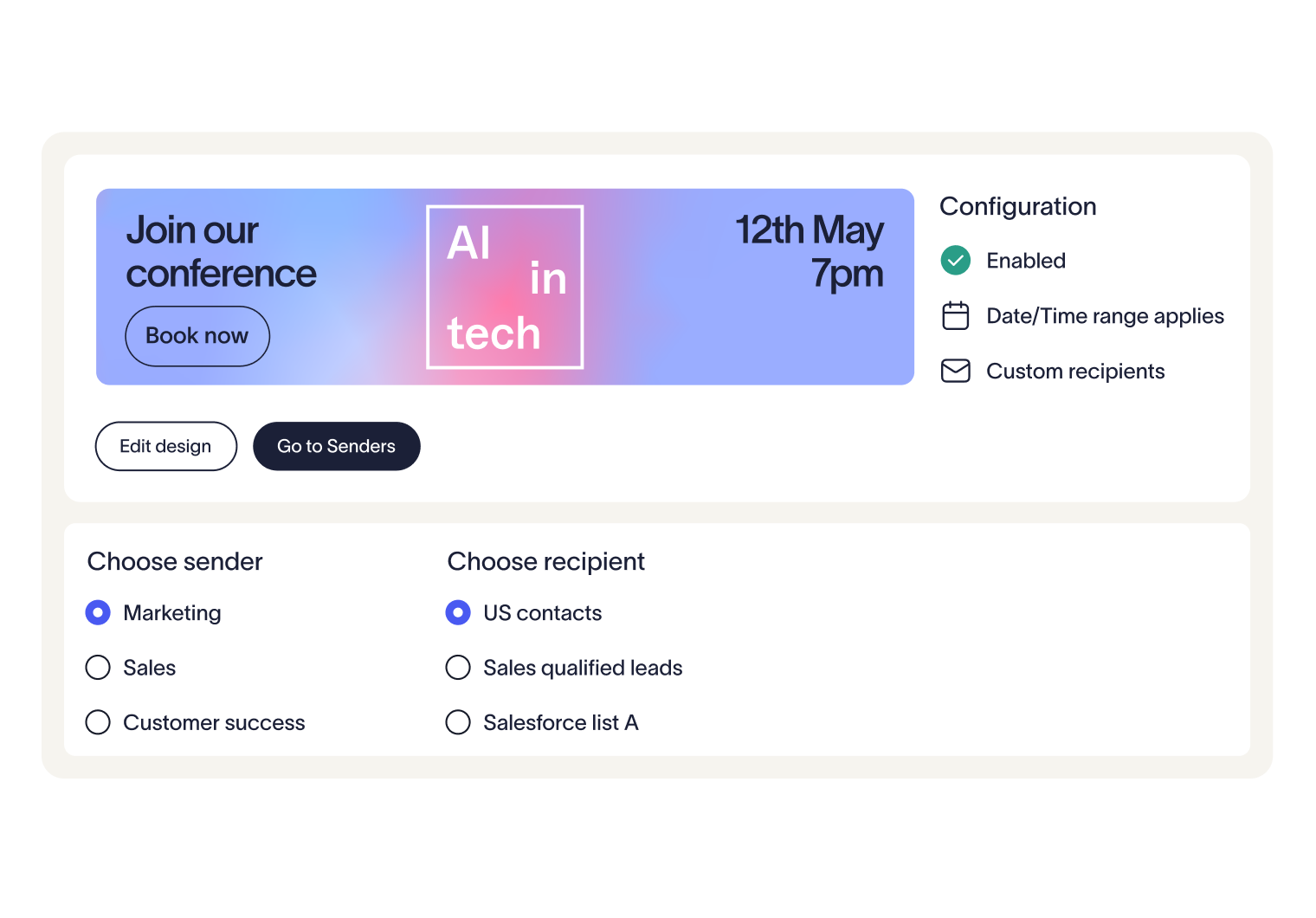
How marketers manage rotating banner campaigns in Exclaimer
Once your rotating banners are live, you can update them anytime—without changing the layout or involving IT.
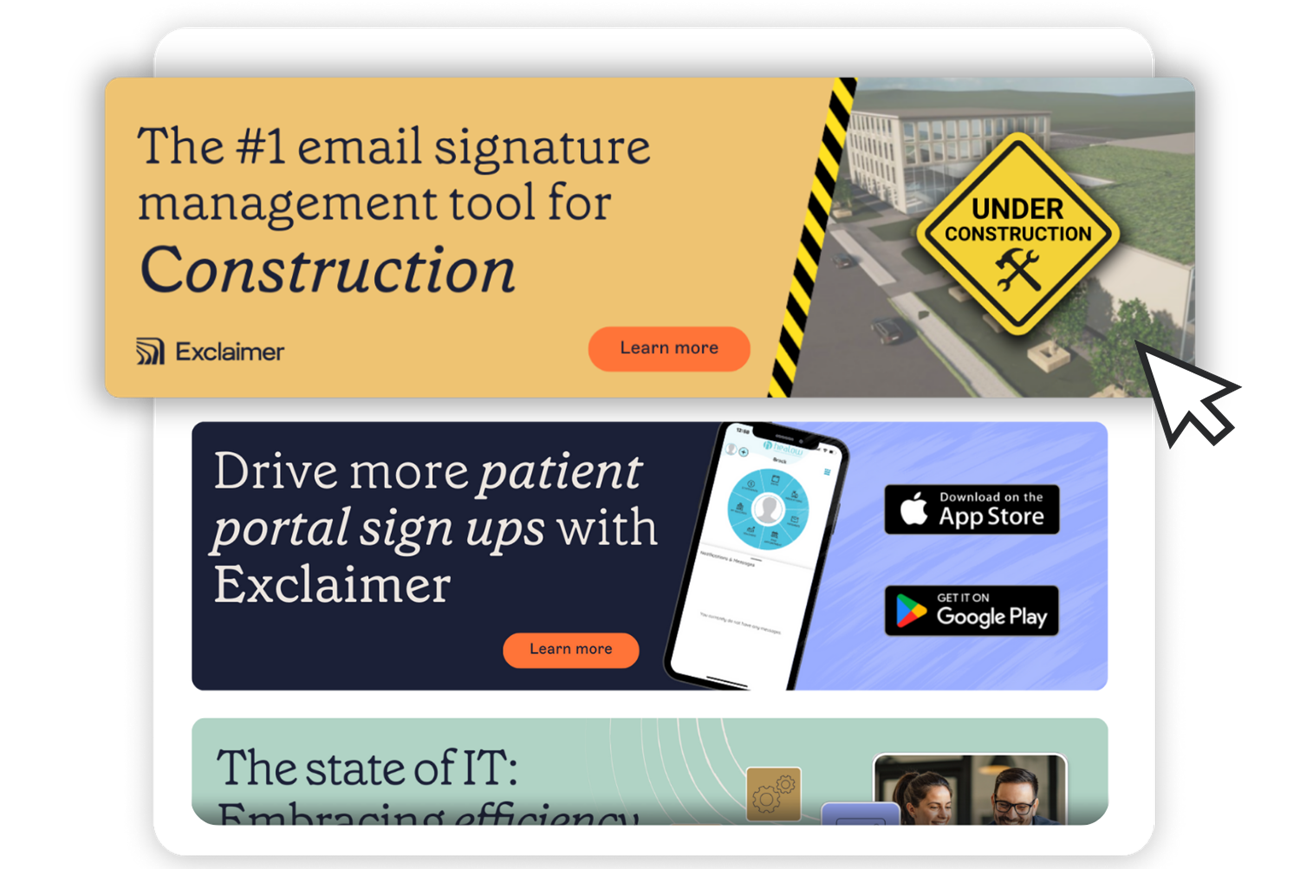
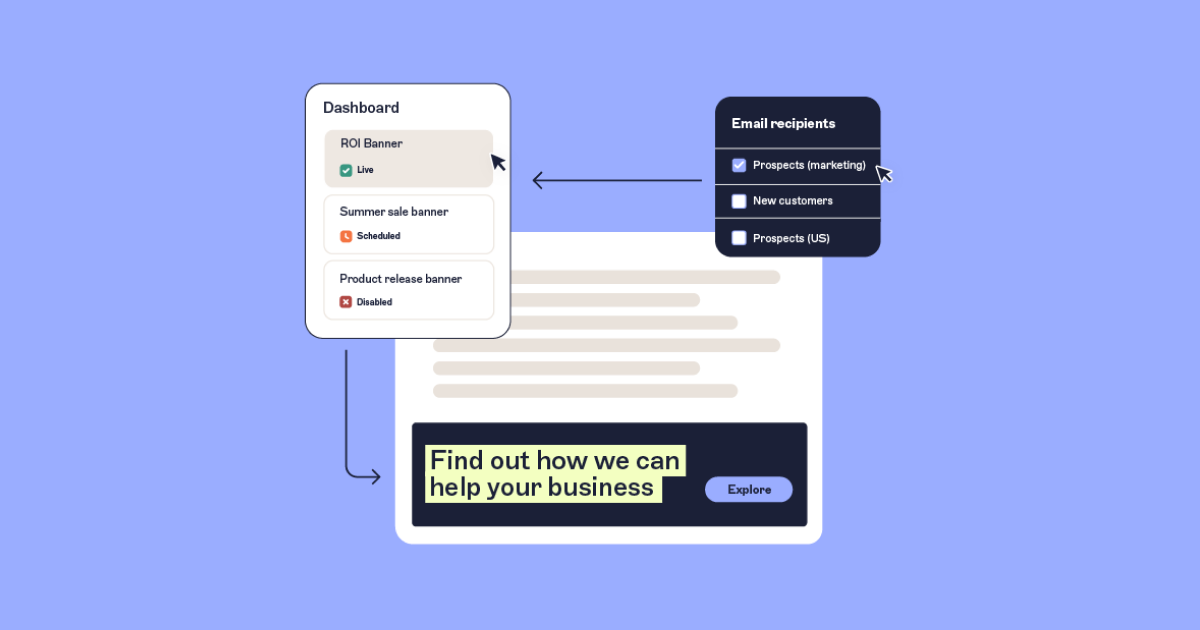
Need to end a campaign early? Disable the banner in seconds. Launching a new offer? Upload the image and add it to the rotation instantly. Swapping out low-performing creative? No disruption needed.
Because banners rotate automatically, you keep messaging fresh without relying on users or redesigns. Marketing stays in control, and every email stays on-brand.
Targeting rotating banners to the right audience
Exclaimer lets you control who sees which banners using your organization’s directory data. This means you can target specific banners to certain senders, departments, or audiences—without needing multiple signature designs.
For example, your Sales team could rotate through product-focused banners, while HR sees recruitment messages. External contacts might get campaign offers, while internal emails show none at all. All of this is managed centrally, using rules tied to user attributes synced from Microsoft 365 or Google Workspace.
This keeps your messaging relevant without adding complexity. One signature layout, multiple targeted experiences.
Using rotating banners for multiple marketing campaigns
With static email signature banners, you’re stuck promoting one campaign at a time. Rotating banners lets you run multiple campaigns simultaneously. This means you can expose different audiences to different messages without redesigning the signature or increasing email volume.
This means your email signature becomes a flexible campaign slot. One contact sees an event promo, another gets a product banner, and a third sees a case study. Over time, contacts are exposed to a wider range of offers through normal email interactions.
It also helps avoid banner fatigue. Since the message changes with each send, people are less likely to ignore it and more likely to engage.
Tracking performance of rotating email signature banners
Exclaimer includes built-in analytics to help you track how rotating banners perform. Each banner can have its own destination URL, and Exclaimer records key metrics like:
Impressions
Click-throughs
Click-through rate (CTR)
Engagement by campaign, department, or user
You can also add UTM parameters to your banner links to connect clicks with downstream activity in tools like Google Analytics or your marketing automation platform.
This makes it easy to compare banner performance, test messaging or design variations, and update underperforming banners.
Want to test two CTAs? Rotate them. One image performs better? Replace the other. Exclaimer handles the delivery and the tracking.
Why Exclaimer is the best choice for rotating email signature banners
Exclaimer gives you full control over rotating banner campaigns—without touching mail flow or relying on users to update anything.
Manage rotation, targeting, scheduling, and updates from one central platform. Marketing owns the content. IT keeps delivery secure and compliant.
Banners render consistently across devices and clients. Updates apply instantly across every user. And because rotation happens server-side, there's no impact on how emails are written or sent.
Whether you’re running one campaign or ten, Exclaimer makes it easy to scale, stay on-brand, and move fast.
See Exclaimer’s rotating banners feature in action
Want to see how rotating banners actually work? In a live demo, we’ll show you how to set up, manage, and measure banner campaigns directly in Exclaimer.
You’ll see how to rotate content by audience, apply targeting rules, and update banners instantly—without changing the signature layout or involving IT.
If you’re ready to scale campaign reach through everyday email, book your demo now.