Dave is a marketing expert with 15 years experience in the tech and SaaS world. He specializes in educating IT and channel audiences, with a focus on security, privacy, compliance, and marketing technology. With a talent for storytelling and a deep understanding of the industry, Dave transforms complex IT topics into clear, engaging, and impactful narratives.
Server-side vs client-side email signatures: Choosing the right deployment method

TL;DR
Server-side email signatures are applied during mail transport, after the message is sent, so they reach every device and client without depending on the sender's setup.
Client-side email signatures are inserted in Outlook or Gmail while the message is being composed. The sender sees the finished email signature before it leaves their outbox, but only on devices where the add-in is installed. The Exclaimer Outlook Add-in needs minimum Outlook versions, and classic Outlook builds earlier than 19725.20000 can't run add-ins once Microsoft disables Exchange Web Services, which starts October 1, 2026.
Hybrid deployment combines both. Client-side covers compose-time visibility on managed desktops, and server-side acts as a backstop for mobile, shared mailboxes, and anything else the add-in can't reach.
For most organizations running Microsoft 365 or Google Workspace, the decision comes down to how much of your email traffic already bypasses a desktop client, not which platform you're on.
IT teams evaluating email signature management usually choose one of two options, which is to apply the signature after an email is sent, or to apply it during composition.
Each model trades coverage for visibility in a different place, and getting the trade-off wrong shows up months later, when a compliance audit or a rebrand finds the gap.
Key takeaway
Both methods are centrally managed in Exclaimer. You control signature templates, sync employee details, and push updates from one platform. The difference is how those signatures are experienced by users.
What is a server-side email signature?
A server-side email signature is applied after the sender clicks send. In Microsoft 365, this happens through Exchange Online mail flow rules, also called transport rules. In Google Workspace, the equivalent is a compliance or routing rule configured in the admin console. Either way, the message passes through a rule at the server, and the email signature is appended before delivery.
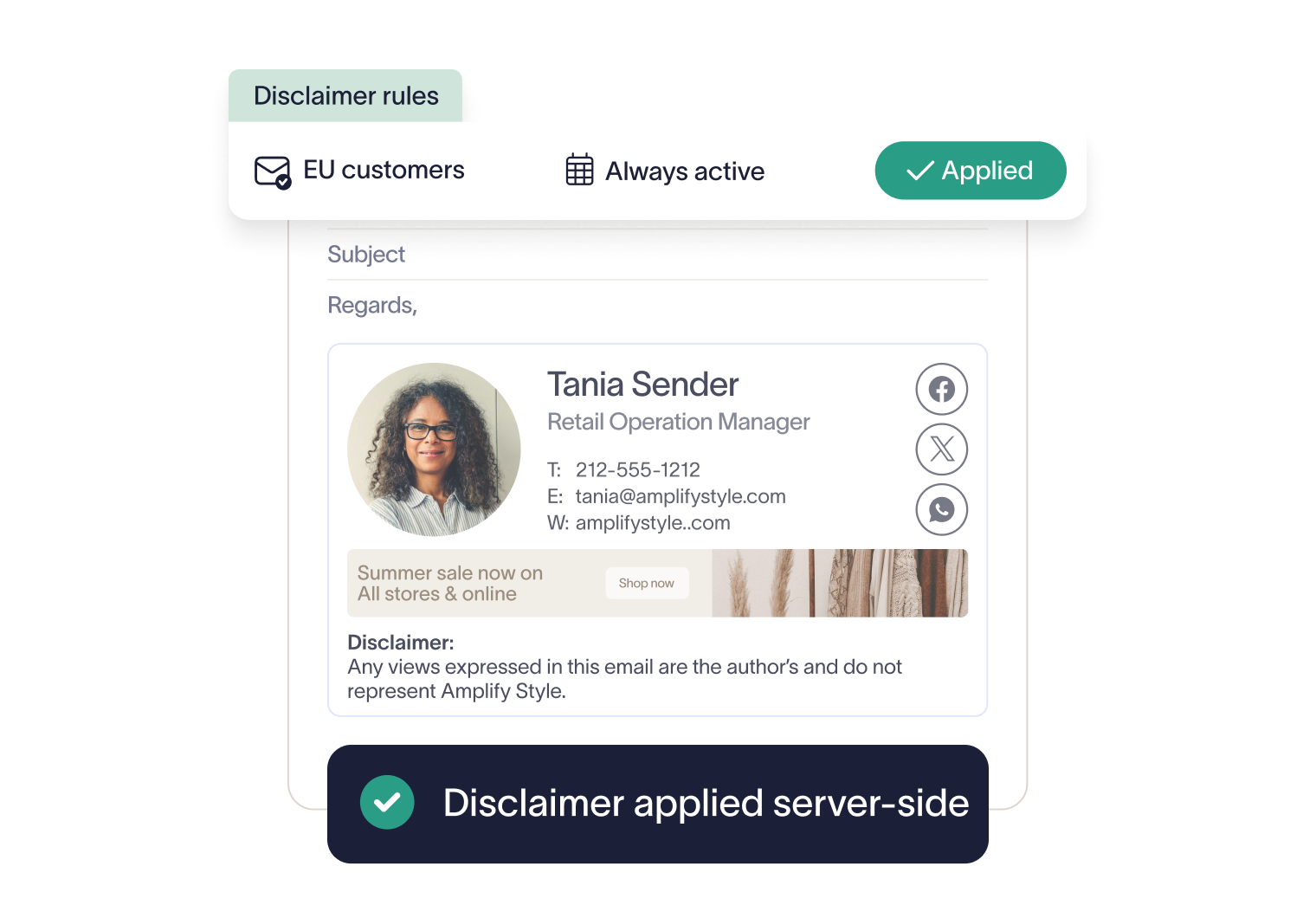
Because the work happens at the mail server layer rather than on the device, coverage doesn't depend on which client sent the message. Outlook desktop, Outlook on the web, and the Outlook mobile app all pick up the same email signature in Microsoft 365.
Google Workspace works the same way for Gmail, on a browser or the mobile app. Shared mailboxes are a separate case, covered below, since they need their own setup regardless of which deployment model is running.
However, using server-side means a lack of visibility. The sender isn't able to see the final email signature while composing. And depending on how the mailbox is configured, the copy saved to Sent Items may not match what the recipient received.
What is a client-side email signature?
A client-side email signature is inserted into the message while it's being composed, before the sender clicks send. It becomes part of the message body immediately, so the version in Sent Items is the version the recipient got.
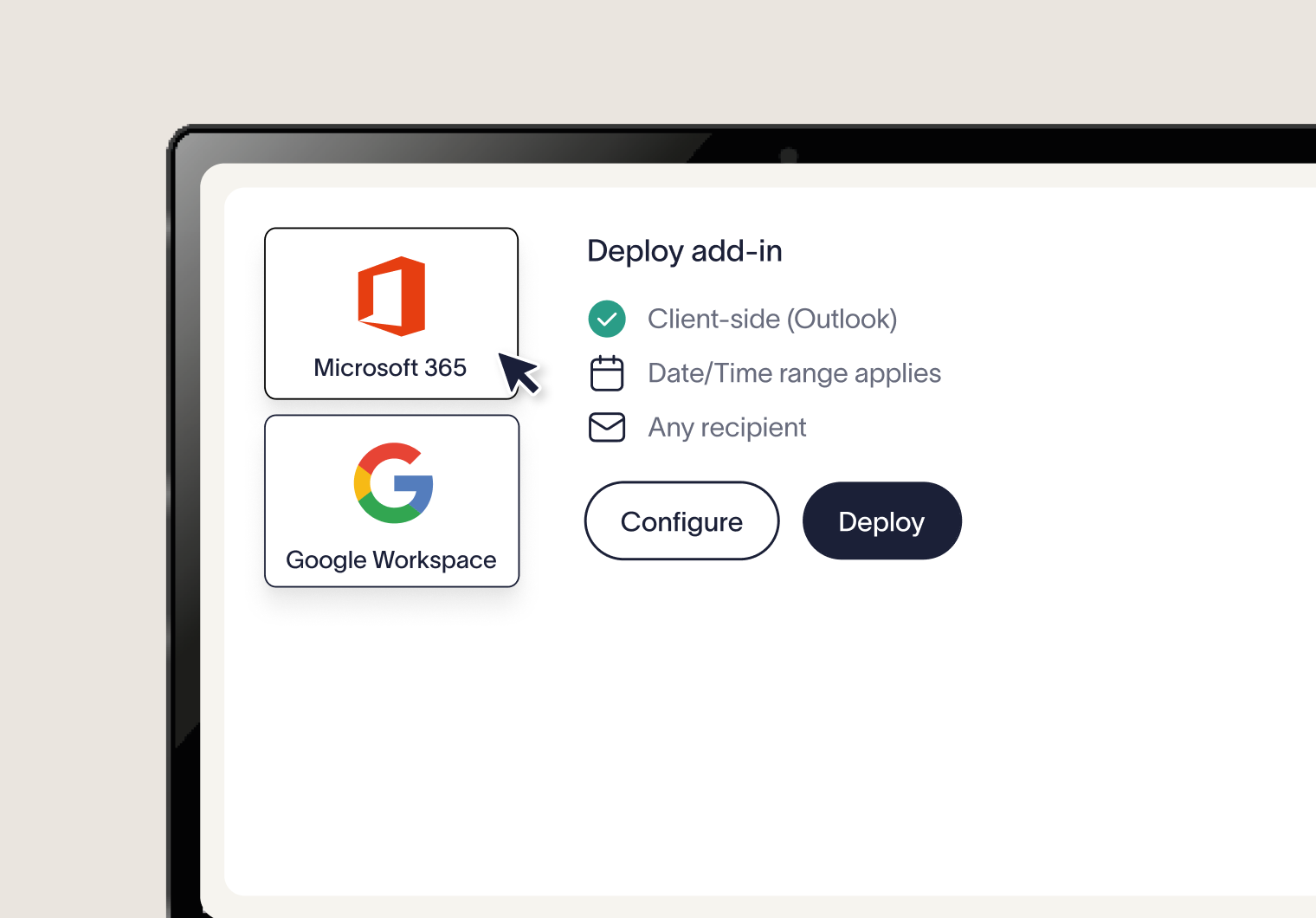
In Microsoft 365, this runs through the Outlook Add-in, centrally deployed rather than left to each employee's own Outlook settings. Google Workspace uses the same idea with its own Add-on, but the reach is narrower.
Exclaimer's current system requirements list Gmail client-side email signatures as supported in a web browser only, with no Gmail mobile app listed. On Microsoft 365, by contrast, the Outlook Add-in explicitly supports Outlook on Android and iOS, alongside desktop and web.
The advantage to using client-side is compose-time visibility. The sender sees exactly what's going out and can select between assigned templates if the setup allows it. But that means there's limited coverage. If the add-in isn't installed, or the device isn't one it supports, the email leaves without a signature at all.
What can break a client-side email signature?
The email leaves without a client-side email signature in these cases:
The add-in isn't deployed to the user, or the device isn't one it supports.
The Outlook version is older than the minimum in the table below.
The Microsoft 365 plan can't deploy apps through Microsoft AppSource. Office 365 E2 is one example.
The user sends from the Gmail mobile app, which isn't supported client-side.
On classic Outlook builds earlier than 19725.20000, Microsoft has disabled Exchange Web Services (see the Microsoft 365 section below).
What do the Outlook Add-in and Gmail add-on require?
Client | Minimum version | Notes |
|---|---|---|
Outlook on Windows, Microsoft 365 subscription | Version 2409 (Build 18025.20000) | Click-to-Run installations only |
Outlook on Windows, retail perpetual | Version 2501 (Build 18429.20132) | Click-to-Run installations only |
Outlook 2024 on Windows, volume-licensed perpetual | Version 2408 (Build 17932.20222) | Office 2024 LTSC is the only volume-licensed installation supported |
Outlook on Mac | Version 16.89 (24090815) | New Outlook interface only |
Outlook on Android | Version 4.2314.0 | |
Outlook on iOS | Version 4.2352.0 | |
Gmail | Web browser | The Gmail mobile app isn't supported. Google Workspace allows one client-side email signature per user, applied automatically |
The Exclaimer Outlook Add-in works with Exchange Online mailboxes only, and the Microsoft 365 plan has to allow app deployment through Microsoft AppSource.
On Windows, the Exclaimer Signature Update Agent is the alternative for Microsoft 365 and Exchange on-premises. It needs Windows 10 or later, Microsoft .NET Framework 4.6.2, and Outlook 2016 or later.
The figures come from Exclaimer's system requirements, updated August 21, 2026.
How server-side vs client-side compare
Factor | Server-side | Client-side |
|---|---|---|
Insertion point | During mail transport, after send | During composition, before send |
Visible before sending | No | Yes |
Mobile coverage | Yes, all mail apps and devices | Only where the add-in is installed |
Shared mailbox coverage | Needs the mailbox added to an email signature rule and synced, not automatic | Needs Send As/Send on Behalf permissions configured in the add-in |
CRM-originated email | Yes, if the CRM routes through the org's mail server | No, unless the CRM has its own add-in integration |
Centralized enforcement | Complete; no user action can bypass it | Depends on whether the add-in is centrally managed or self-installed |
Employee can remove or alter it | No | Possible before sending. On Outlook for Windows, the Signature Update Agent can stop users changing email signature options, but users can still edit or delete the email signature |
Template switching | Automatic, based on rule conditions such as department, region, or recipient | Manual, sender selects per message where multiple templates are assigned |
Software required on the device | No | Yes |
Reply and forward handling | Advanced rules | Separate options for new emails and for replies and forwards |
Recipient-based settings | Not applicable | Applied at compose time, Outlook Add-in only |
Analytics | Yes | Yes, but server-side configuration is also required. Recipient email addresses in feedback analytics need the Outlook Add-in |
Headline content | Yes | Server-side configuration is also required |
On-premises mailboxes | Yes, with Exchange on-premises | Yes, using the Exchange Transport Agent |
Feature differences come from Exclaimer's knowledge base article on client-side and server-side features.
How deployment works in Microsoft 365 and Google Workspace
What do server-side and client-side deployment require?
Environment | Server-side | Client-side |
|---|---|---|
Microsoft 365 | Exchange Online | Outlook Add-in (Exchange Online mailboxes) or Signature Update Agent (Windows) |
Exchange on-premises | Exchange Server 2016 CU18 and above, or Exchange Server 2019 CU1 and above | Signature Update Agent |
Google Workspace | Google Workspace | Gmail add-on, in a web browser |
Server-side deployment supports any standard mail client. Exclaimer doesn't support Microsoft 365 GCC High, DOD, Personal, Family, or Apps plans, Microsoft 365 tenants hosted by 21Vianet, or Google Workspace's G Suite Basic plan.
Microsoft 365
Server-side deployment in Microsoft 365 runs on Exchange Online mail flow rules. A condition is matched, typically on the sender or the recipient domain, and the email signature is appended as the message passes through.
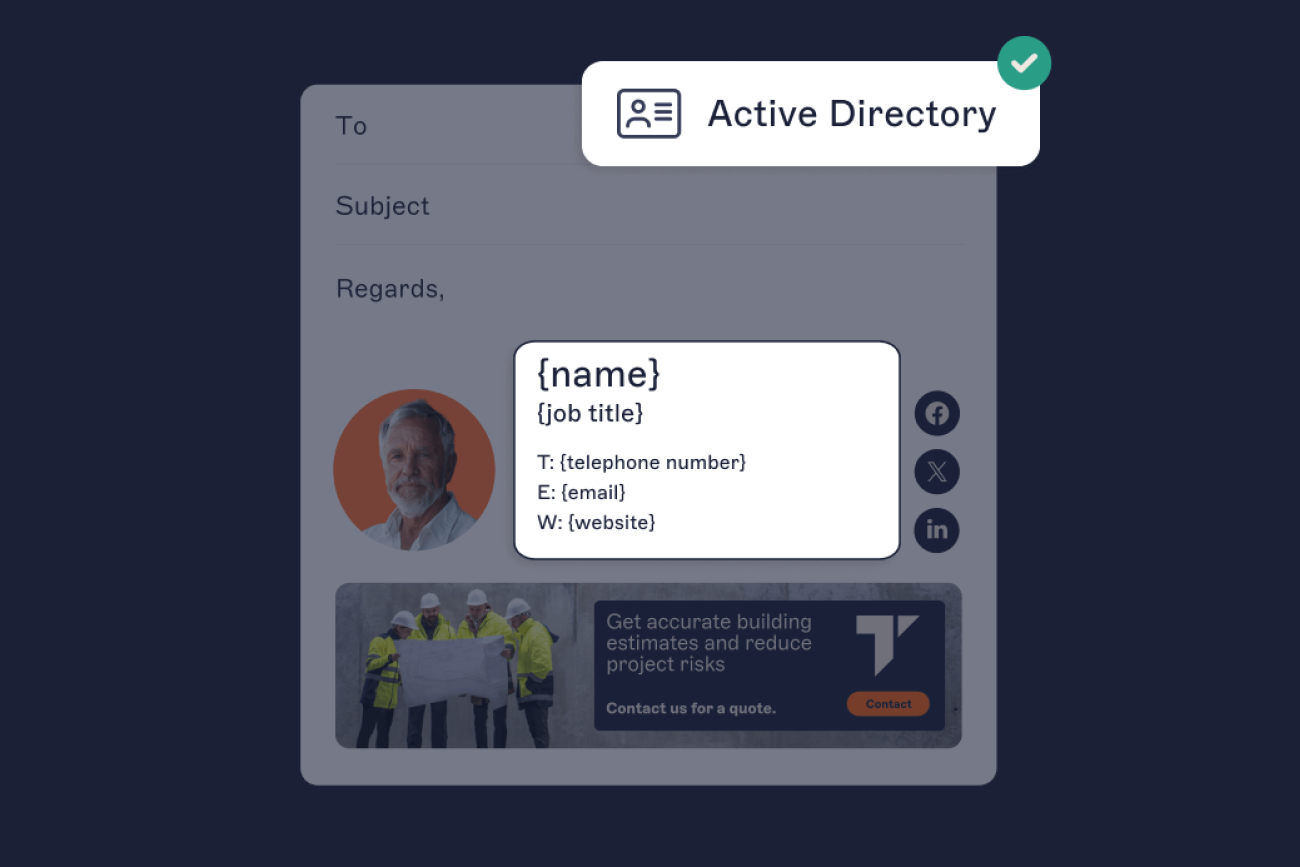
Client-side deployment runs on the Outlook Add-in, which covers Outlook desktop, the web app, and mobile, though mobile support can be more limited than desktop. Both layers pull contact details from Microsoft Entra ID, so a title or phone number change updates the email signature without a manual edit, the same way Google Workspace Directory sync works on the other platform.
Native transport rules can add basic disclaimer text, but they aren't a full template system. Complex layouts and multi-brand templates both need something purpose-built.
Exchange Web Services retirement and the Outlook Add-in
Microsoft begins disabling Exchange Web Services (EWS) in Exchange Online on October 1, 2026, and retires it permanently on April 1, 2027. Classic Outlook builds earlier than 19725.20000 use EWS to run add-ins, so the Exclaimer Outlook Add-in can't run on those builds once EWS is disabled in the tenant.
Build 19725.20000 and later doesn't depend on EWS. Microsoft provides it in the Current Channel, Monthly Enterprise Channel, and Semi-Annual Enterprise Channel, and Exclaimer recommends updating users before October 2026. Until April 1, 2027, administrators can keep EWS enabled for named applications through Microsoft's app allow list.
Sent Items Update, the optional feature that replaces the sender's copy of a server-side email signature, has moved from EWS to Microsoft Graph. Customers who use it need to reauthorize the service, or it stops updating sent items. Exclaimer's EWS article covers the steps.
Google Workspace
Google Workspace also splits into server-side and client-side layers.
Server-side deployment routes mail through an SMTP relay configured in the Gmail admin console. That's paired with a content compliance rule that identifies which messages to send to Exclaimer for processing, per Exclaimer's own configuration documentation. It's the same SMTP relay and service-account mechanism named in Exclaimer's Google Workspace security documentation rather than being a simple routing toggle.
Client-side deployment uses a Google Workspace Add-on, which inserts the email signature into Gmail's compose window and, unlike a pure server-side setup, lets the sender preview it first.
This preview capability is also confirmed in Exclaimer's product documentation. Both layers pull contact details from the same Google Workspace Directory, so a change to someone's title or phone number updates their email signature without a manual edit.
Can you use both in a hybrid deployment?
A hybrid deployment runs client-side and server-side together. The relevant add-in handles compose-time visibility on managed desktops, and a server-side layer covers everything the add-in can't reach. A properly configured hybrid setup checks whether an email signature is already present in the outgoing message and skips server-side insertion if it finds one. This means that a message that already carries a client-side email signature isn't signed twice.
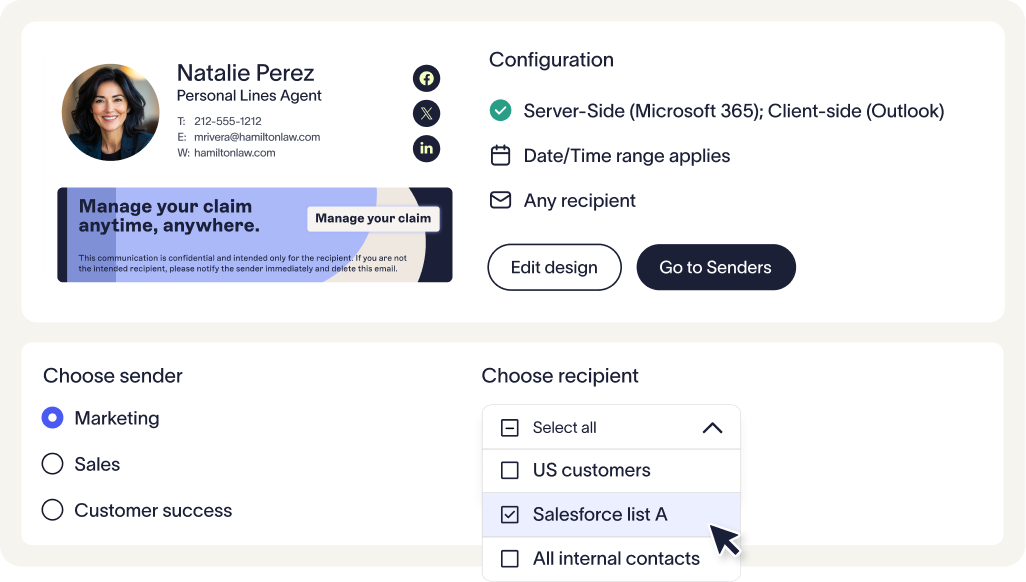
When both are enabled, the client-side email signature takes priority. When an email is sent without a client-side email signature installed or configured, Exclaimer applies the server-side one instead. That includes unsupported or unconfigured clients, such as Outlook mobile when the add-in isn't deployed for the user. Exclaimer's article on using both in one subscription covers the setup.
Organizations often land on this model after trying one deployment approach alone and running into its gap in practice. Jim Turner, Exclaimer's Chief Operating Officer, has recounted a real example of this. One customer needed three separate teams to roll out a single email signature. IT wrote the script, HR supplied the content, and legal added the disclaimer, and it still rendered incorrectly on mobile. As Turner put it, "That's the definition of inefficient." Coverage gaps like that are usually what pushes a client-side-only setup toward hybrid, department by department, rather than a clean architectural decision made up front.
How to choose which deployment method is best for you
Only 18% of organizations use centralized email signature management today, according to Exclaimer's 2025 State of Business Email research of more than 4,000 IT leaders across the UK, US, Germany, and Australia. The other 82% rely on manual methods or user self-service.
How much does device diversity matter?
If your organization sends from a narrow set of managed desktops, client-side alone may be enough. If email routinely originates from mobile, shared mailboxes, or a CRM platform, server-side or hybrid closes the gap client-side leaves open.
What are your coverage requirements?
Where a legal disclaimer, industry-specific footer, or brand element has to appear on every outgoing email without exception, server-side or hybrid is the only model that can guarantee it. Client-side depends on the add-in being present and unmodified on every sending device.
Why does governance and audit-readiness matter more than initial setup?
IT often needs to be able to demonstrate that a rule was enforced everywhere it needed to be, not only that it was configured correctly at the outset.
"Relying on individual behavior to enforce communication standards is one of the most common ways organizations get this wrong. Policies exist, but there is no mechanism to ensure they are applied in the same way across different teams, systems, or regions."

If an auditor asks whether a disclaimer was actually present on every outbound email last quarter, server-side enforcement gives a defensible answer. That's because the rule was run centrally and didn't depend on any single device. Client-side enforcement represents a weaker answer to that same question. It confirms the add-in was distributed, but not that it stayed installed and unmodified everywhere the whole time.
Where coverage usually breaks on mobile, shared mailboxes, and CRM-sent email
Why do mobile-sent emails lose their signature?
Employees often reply to email from a phone before they're back at a desktop. This affects the two platforms differently.
Exclaimer's Outlook Add-in explicitly supports Outlook on Android and iOS. That means Microsoft 365 client-side coverage extends to mobile, on Outlook for Android 4.2314.0 or later and Outlook for iOS 4.2352.0 or later.
However, Gmail's client-side Add-on doesn't. Exclaimer's system requirements list Gmail email signatures as supported in a web browser only. A Gmail message sent from the mobile app is a common place for a client-side email signature to go missing entirely.
Why don't shared mailboxes get a signature automatically?
This is the one place the "server-side just covers everything automatically" assumption breaks down. Addresses like support@, billing@, or info@ are often shared by several people, but by default their accounts are commonly disabled or sign-in-blocked in Microsoft 365.
Exclaimer's support documentation confirms a disabled account isn't pulled into email signature data during sync. That can mean no server-side email signature is applied until an admin turns on synchronizing disabled accounts and adds the mailbox to the right email signature rule.
Client-side coverage for a shared mailbox needs its own setup too, based on Send As or Send on Behalf permissions in the add-in.
Key takeaway
Neither deployment model covers shared mailboxes for free. Both need a deliberate configuration step most rollouts don't check until something's already gone missing.
Does CRM-sent email get an email signature?
Messages sent from Salesforce, HubSpot, or a similar platform reach a recipient's inbox looking like ordinary email. However, they only pick up a server-side email signature if the CRM actually routes its outbound mail through the organization's own mail server.
Some CRM configurations send directly instead, bypassing that layer entirely. It's worth confirming your CRM's sending path before assuming server-side coverage extends to it automatically.
Why use Exclaimer for server-side, client-side, and hybrid deployment?
Supporting all three deployment models isn't itself the argument for Exclaimer. Other platforms in this category offer the same three options. The real difference is what sits above the deployment layer.
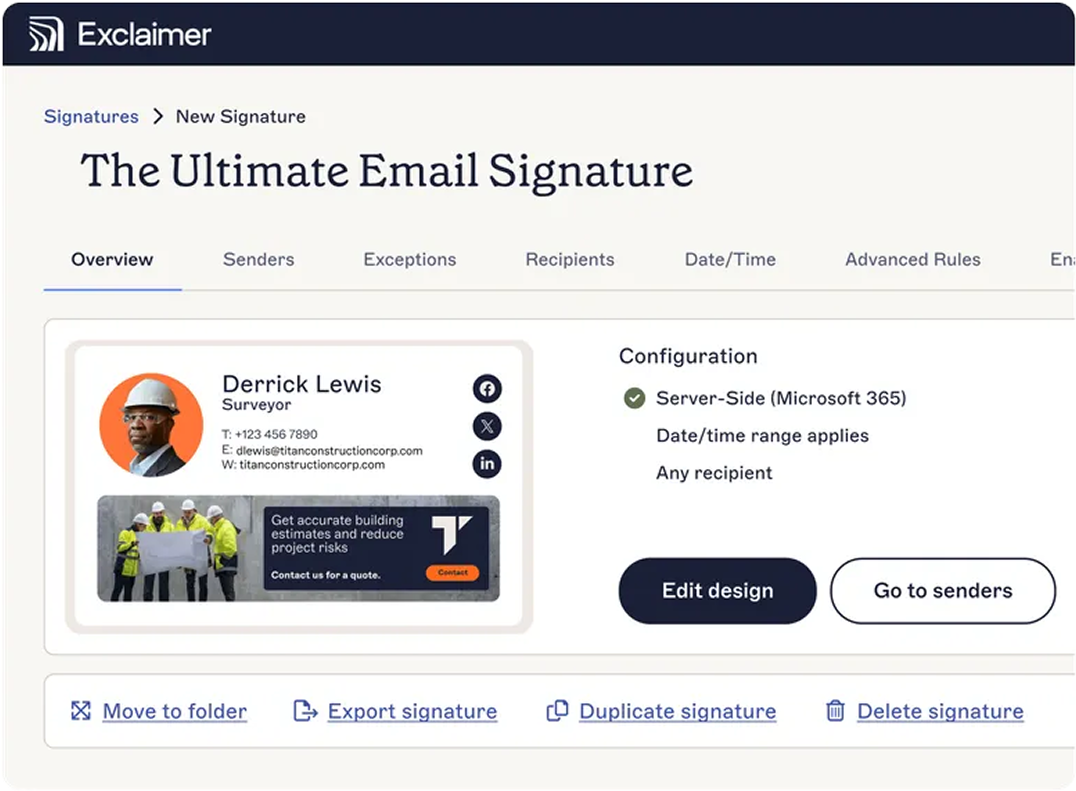
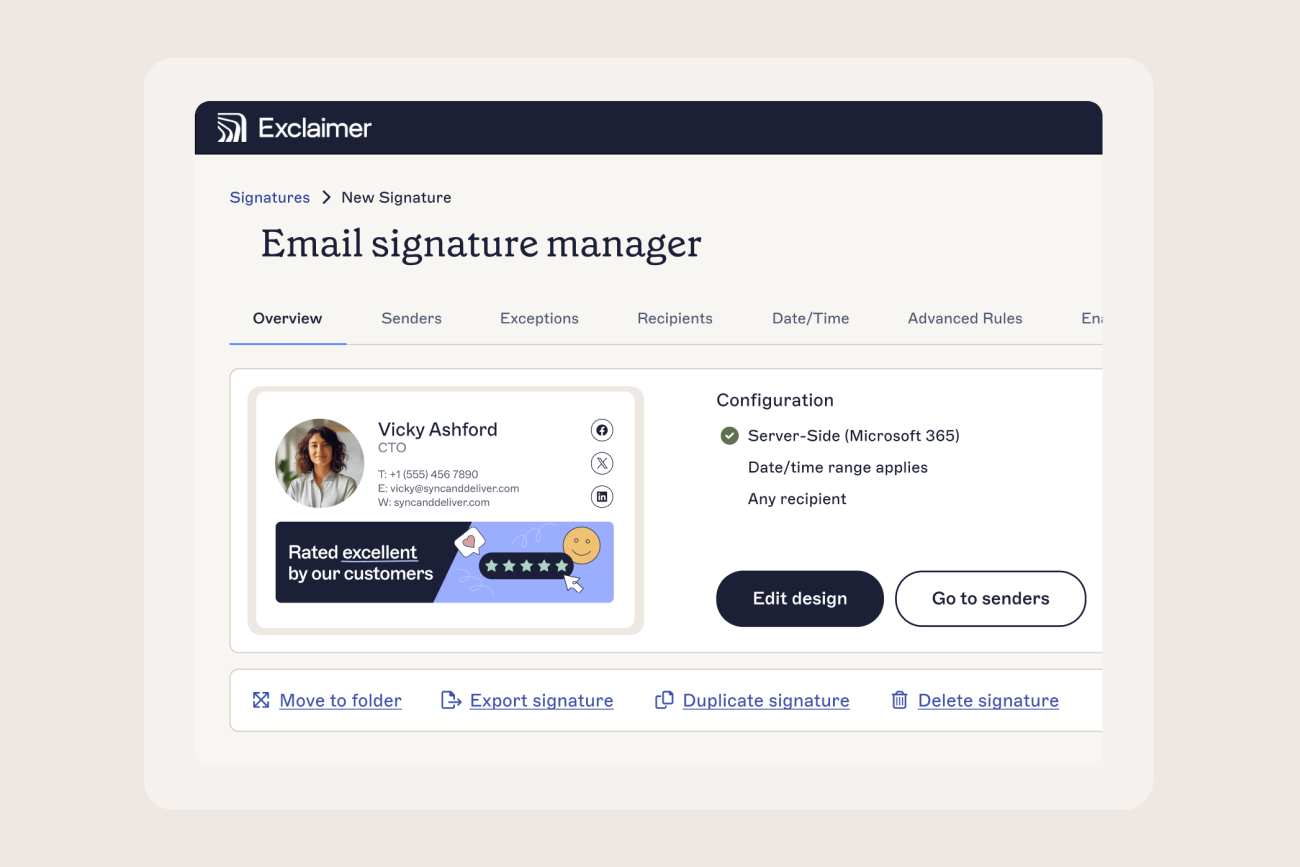
Server-side and client-side aren't separate products inside Exclaimer. They're a toggle on the same email signature rule, configured from the same "Manage Rules" screen that also holds an email signature's senders, its folder, and its advanced rules. Switching an email signature from client-side to server-side, or adding hybrid coverage, uses that same toggle rather than creating a new template.
Exclaimer's role-based access control works the same way. Owner, Admin, Editor, Designer, and Auditor roles are defined once, at the subscription level. Exclaimer's documentation on user roles and folder-level access describes permissions purely in terms of who can edit which email signatures and folders. Neither mentions permissions resetting, or needing reconfiguration, based on which deployment method a given email signature uses.
Templates and permissions are managed independently of deployment method, because of how the system is built. That's why switching from client-side to server-side, or to hybrid, doesn't require rebuilding templates or reassigning who's allowed to edit what.
Meritus Gas Partners is one real example of this. The company grew through acquisitions into more than 20 Microsoft 365 tenants, each running its own branding standards. Brand Kits now maintain 15 distinct email signature templates, one for each operating company, while role-based access control keeps governance centralized. As Allen Jezouit, Meritus's Vice President of Product Management and Digital Marketing, put it, "We're using Entra as the single source of truth for employee information, and Exclaimer automatically keeps all our signatures up to date across every operating company."
Take control of email signature management
Choosing between server-side, client-side, and hybrid comes down to matching the model to how your organization actually sends email, then being able to prove the rule holds everywhere it needs to.
See how Exclaimer's device deployment works and compare it against what you're running today.