by Dave Willis
The Exclaimer rollout playbook: From planning to deployment
15 May 2026
0 min read
TL;DR
A successful email signature rollout has six steps: confirm readiness, align stakeholders, configure templates and permissions, test signature rules, deploy, and measure results.
Exclaimer supports server-side, client-side, and hybrid deployment, so you can choose the best approach for your teams’ requirements.
Directory sync from Microsoft 365, Google Workspace, Okta, or your preferred HRIS keeps every signature accurate without manual editing.
Built-in tools like the Signature Rules Tester and live preview help you validate logic before deployment, so you can launch with confidence.
|
Email signatures look like a boring admin task—until they start causing problems. A new logo doesn’t make it onto half the company’s emails. A required legal disclaimer goes missing. A merger leaves three different signature formats in the same inbox.
Take control of signatures with centralized management to prevent these issues and more. This guide walks you through every step, from confirming readiness to full deployment across Microsoft 365 or Google Workspace.
Is your organization ready for centralized email signature management?
You’re ready for centralized email signature management when manual setup is creating friction: missing disclaimers, off-brand layouts, recurring IT tickets, or post-rebrand cleanup measured in weeks instead of hours.
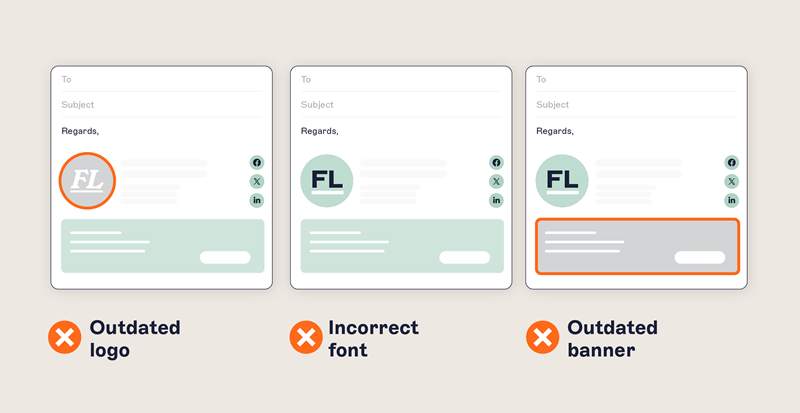
If some of these triggers sound familiar, a centralized platform will save time across departments and reduce organizational risk:
Manual setup is generating recurring IT tickets for new hires, role changes, and rebrands
Branding has drifted, with different employees sending email signatures with mismatched fonts, colors, and layouts
Compliance content is inconsistent, with disclaimers that are outdated or missing entirely
A rebrand, merger, or acquisition is on the horizon
Marketing wants to use email signatures as a campaign channel without IT bottlenecks
The cost of doing nothing adds up quietly: fragmented brand impressions across thousands of daily emails, compliance gaps, and IT time spent on low-value tickets. A strategic view of email signatures helps frame the case for leadership.
Plan your rollout and align stakeholders
Email signatures cross departmental lines, so a successful rollout starts with aligned stakeholders. Define who owns what before any technical work begins.
IT, marketing, legal, HR—each of these teams has a stake in email signatures, and each one stands to benefit from centralized management:
IT owns deployment, integrations, and platform control, making them the foundation of any rollout. For this team, centralized management frees up time and resources that would otherwise be spent responding to tickets and manually adjusting signatures.
Marketing owns brand consistency and campaign content. A centralized platform with role-based access control supports consistent branding at scale and lets marketers deploy signature-based campaign banners without going through IT.
Legal and compliance own the disclaimers and regulatory text that signatures need to carry. Centralized signature management helps ensure that this language is applied consistently where required.
HR owns employee data and is the first to know when titles, departments, or roles change. With directory sync in place, those changes flow through to signatures automatically.
With ownership mapped, set the rollout scope: which mail platforms you’re covering, which departments or regions need different signature variants, and which disclaimers apply where. A clear scope makes automated email signatures easier to deploy.
Configure your email signature templates and permissions
Template configuration covers two parallel tracks: the design and content of the signatures themselves, and the permissions that determine which teams can update which parts. Get both right and your rollout scales without governance issues later.
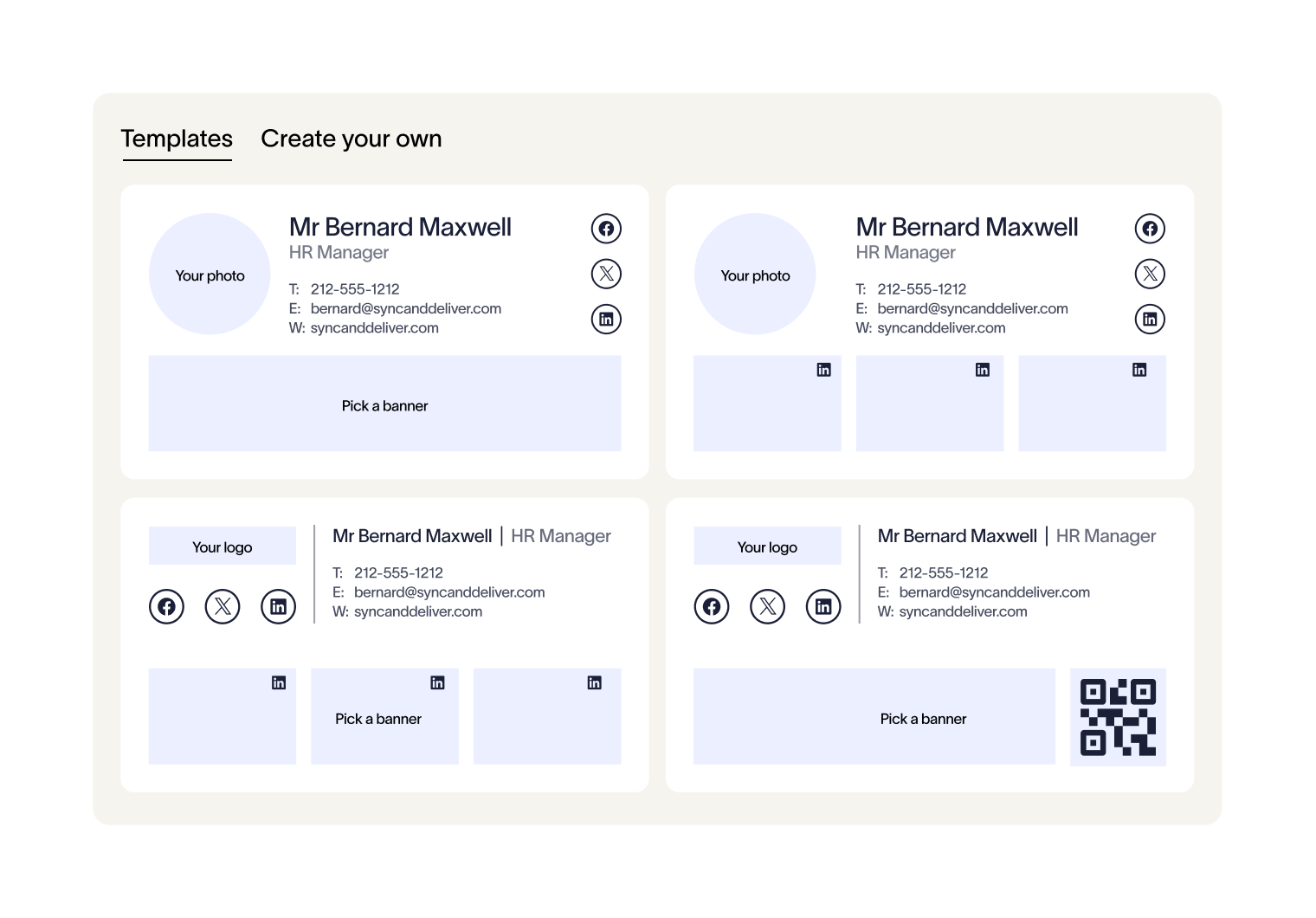
In Exclaimer, configuration follows a clear sequence: brand foundation, primary template, variants, signature rules, and access control.
Create a Brand Kit. Start by building a Brand Kit containing your approved logos, fonts, colors, banners, and meeting backgrounds. Brand Kits can be assigned to signature templates, ensuring updates to a logo, font, or color flow through to every signature.
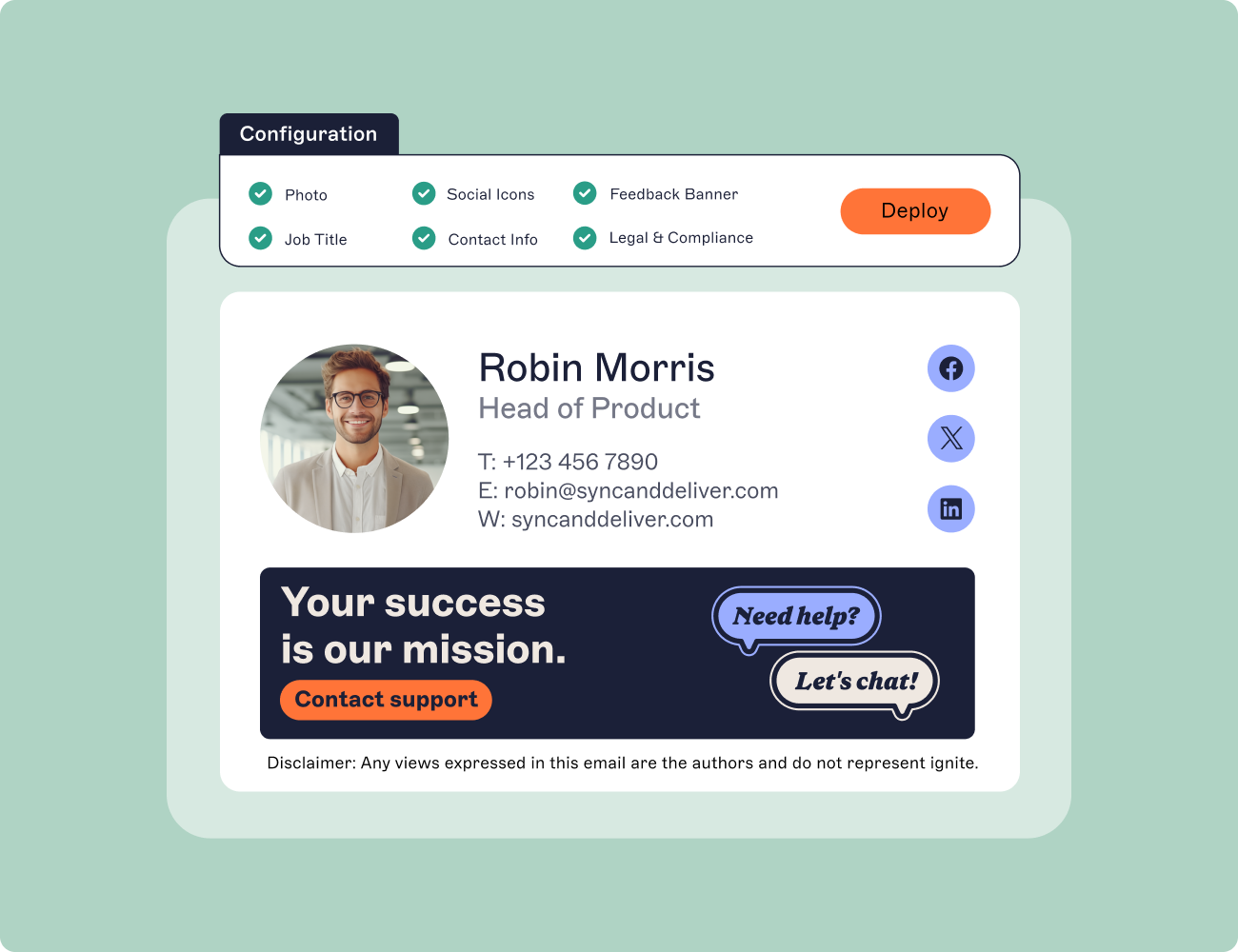
Create your primary template. Either customize one of Exclaimer’s pre-built templates from the library or build your own from scratch using the drag-and-drop editor. A complete template includes the user’s name, job title, and department; contact details; brand assets from your Brand Kit; required disclaimers; and an optional banner. Pull contact and identity fields from your directory so signatures stay accurate when users change roles.
Create the variants you need. Use the primary template as the basis for any variations your organization requires. Sales teams, for example, may require a different layout or different contact info fields than support teams. Variants share the same Brand Kit, so brand-level updates flow through every version automatically.
Set signature rules. Signature rules determine which template each user receives based on directory attributes like department, location, or role, and on context like internal versus external recipients. Set the rules once and every user is matched to the right template automatically, including new hires on their first sync.
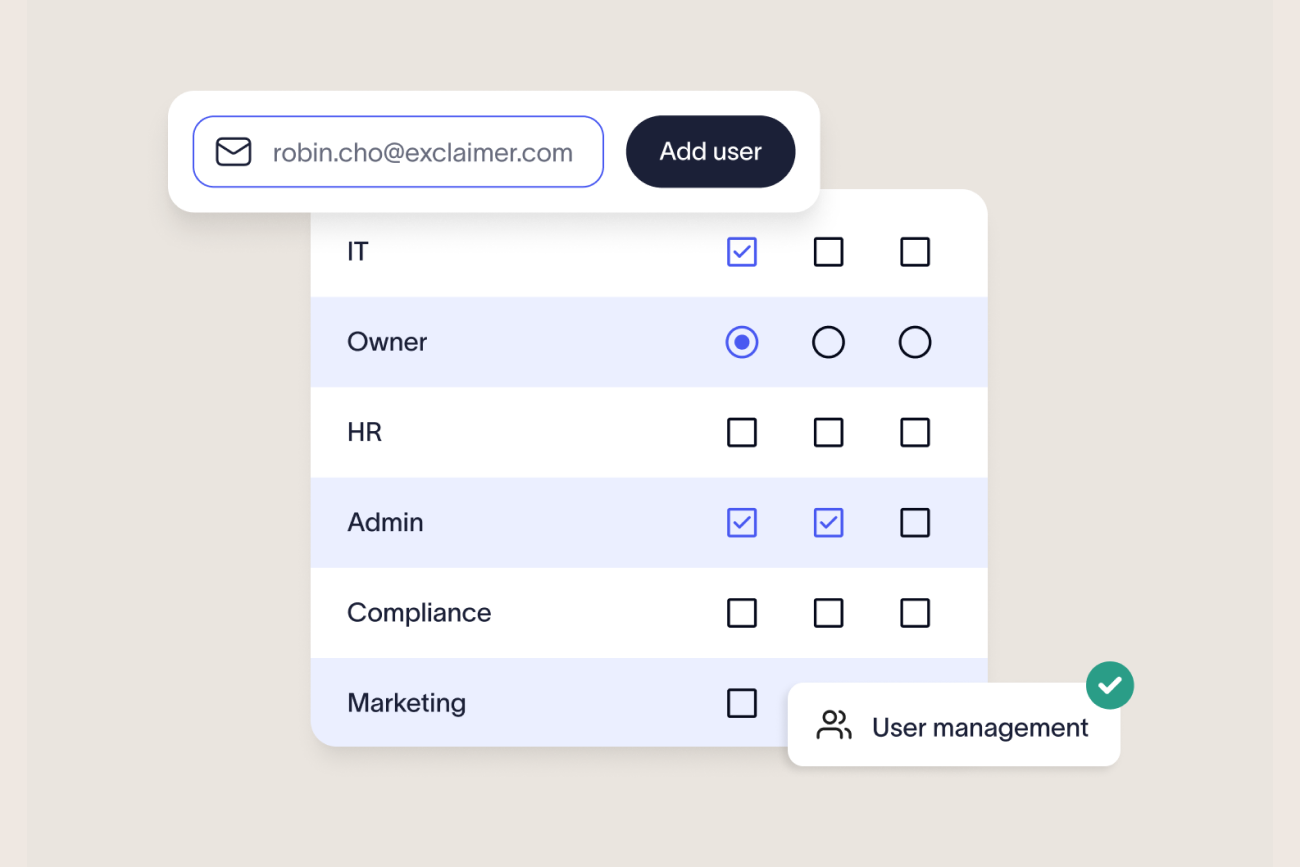
Define role-based access controls. Use role-based access control to support cross-functional ownership without giving up overall control. IT manages deployment and platform configuration, marketing edits banners and visuals, legal updates disclaimers, and HR maintains the directory data signatures pull from.
This permission model is what lets you manage email signatures during a rebrand or any other content-heavy change without it becoming a ticket-by-ticket project.
Test your signature rules before deploying
Once your signature rules are set, the next step is verifying they behave the way you expect before going live. Testing the rule logic confirms every user will receive the right signature when you deploy.

Use the built-in Signature Rules Tester to walk through scenarios for different sender and recipient combinations. Verify that department- and location-based variants apply correctly, disclaimers reach the right recipients, and reply-chain behavior matches what you want. Rules testing gives you confidence to move from configuration straight to deployment.
Deploy across your organization
Exclaimer supports three deployment modes (server-side, client-side, and hybrid) so you can match deployment to how your teams work.
Choose the deployment mode that fits your environment:
Deployment mode | How it works | Best fit for |
|---|---|---|
Business Standard & Premium | New Outlook is now the default | Available now |
Client-side (device) | Signatures sync to user devices and previews are visible during email composition | Teams who want users to see and select signatures while writing |
Hybrid | Combines live composition visibility with centrally applied final output | Organizations that want a polished sender experience plus full coverage at delivery |
Server-side is a common choice for company-wide rollouts because it applies signatures regardless of where the email is sent from—whether that’s an Outlook desktop client, Outlook on the web, Gmail, or any mobile client. Whichever mode you choose, directory sync keeps signatures aligned with your identity source.
Measure and refine
Measure rollout success against four signals: signature coverage, brand consistency, reduction in IT tickets, and engagement with campaigns or links inside signatures.

Capture baselines before deployment: the percentage of outbound emails with compliant signatures, consistency across a sample of employees, signature tickets logged over the previous 90 days, and how long the most recent rebrand took.
After deployment, use Exclaimer’s built-in analytics to monitor usage and signature application, as well as engagement data on banners, links, and campaign content. For IT, this demonstrates oversight and coverage. For marketing, it shows campaign reach and click activity from the signature layer.
Once the platform is steady, the same setup unlocks broader email signature use cases: targeted campaigns, event promotion, and recruitment that weren’t practical with manual signatures.
Start your email signature rollout with Exclaimer
Exclaimer centrally manages email signatures across Microsoft 365 and Google Workspace, automatically applying branded, compliant signatures to every email without relying on users to do anything manually.
Directory sync keeps signatures accurate
Signature rules handle targeting
Role-based access lets marketing, legal, and HR contribute while IT keeps overall control.
Start a free trial to deploy in your environment, or view pricing to find the plan that fits your organization.