Top 10 tips for creating an email signature with certifications
25 February 2026
0 min read
TL;DR
Include only relevant, recognized certifications that strengthen trust with your specific audience. Avoid overcrowding your signature with every credential you hold.
Make certification badges clickable and verifiable whenever possible. Link to official credential pages to reinforce transparency and credibility.
Keep badges structured, proportionate, and optimized for email clients. Oversized or poorly formatted images can break layouts, especially in Outlook and mobile apps.
Limit the number of certifications displayed. A focused selection maintains visual hierarchy and keeps your signature professional and easy to scan.
Confirm compliance and licensing requirements. Some credentials require specific wording, trademark usage, or regional disclosures.
Manage certification signatures centrally. Standardized control prevents outdated logos, broken links, and unauthorized badge usage at scale.
An email signature with certifications can reinforce credibility, confirm qualifications, and support compliance requirements in client communications. Professional accreditations, vendor certifications, and regulatory badges signal expertise immediately. But only when they are presented correctly.
Too many logos, outdated credentials, or poorly formatted images can make a signature look cluttered and unprofessional. Certification badges must be clear, relevant, and technically optimized to work across desktop and mobile email clients.
This guide outlines 10 practical tips for creating an email signature with certifications that strengthens trust without overwhelming the design. You’ll learn what to include, what to avoid, and how to structure certification images so they enhance your professional reputation.
1. Only include certifications that are relevant to your role
An email signature with certifications should display credentials that directly support the purpose of your communication. Adding every qualification you hold may seem impressive, but it can weaken clarity and reduce visual balance.
 Start by asking:
Does this certification strengthen trust with this recipient?
Is it recognized within this industry?
Is it current and verifiable?
A cybersecurity consultant may include CISSP or ISO credentials. A financial advisor may display CFP or regulatory affiliations. A legal professional may reference bar accreditation. Each credential reinforces expertise within a specific context.
Limiting certifications to those that align with your role and audience keeps the signature focused, professional, and easier to scan.
2. Make certification badges clickable and verifiable
An email signature with certifications should include clickable badges whenever verification is available. A logo alone signals affiliation. A linked badge allows recipients to confirm your credential directly with the issuing body.
Where possible, link badges to:
An official certification authority page
A public credential verification portal
A secure digital certificate profile
A unique credential ID lookup
Use secure HTTPS links and confirm that the URL resolves correctly in both desktop and mobile email clients. Broken or outdated links can undermine trust more than an unlinked logo.
If verification isn't available, evaluate whether the badge adds meaningful credibility. In regulated industries, transparency matters.
3. Limit the number of certification badges
An email signature with certifications should remain structured and easy to scan. Adding too many badges competes for attention, disrupts visual hierarchy, and can make the signature appear promotional rather than professional.
Limit visible certifications to the most relevant and recognized credentials. In most business contexts, displaying two or three well-known certifications is sufficient to establish credibility without messing up the design.
Each additional image increases email size and can affect rendering speed, particularly on mobile networks. Multiple logos also introduce alignment issues across different email clients.
4. Optimize certification images for email compatibility
Email clients handle images differently than web browsers. An email signature with certifications must account for limited CSS support, inconsistent scaling, and rendering constraints across Outlook, Gmail, and mobile apps.
 Follow these technical guidelines:
Use PNG for logos that require transparent backgrounds. Use JPEG only when transparency is not needed.
Compress images to reduce file size without compromising clarity. Large files increase email weight and can slow loading on mobile networks.
Maintain consistent dimensions to preserve visual alignment. Certification badges typically display clearly when sized proportionally to surrounding text rather than dominating the signature block.
Host images on a secure HTTPS server to avoid security warnings.
Test rendering in Outlook desktop, Outlook web, Gmail, Apple Mail, and mobile clients before rolling out updates.
Outlook in particular uses a Word-based rendering engine, which can alter spacing and scaling. Always preview certification images in the environments your teams use most.
5. Maintain visual hierarchy and spacing
An email signature with certifications should follow a structured visual hierarchy. The recipient should first see your name, then your role and contact details, and finally your supporting credentials.
Certifications are secondary elements. They reinforce identity but shouldn't compete with it.
To maintain balance:
Position certification badges below your primary contact block.
Keep badge sizes proportionate to surrounding text. Oversized logos draw attention away from essential information.
Use consistent spacing between elements to avoid crowding. Even small adjustments in padding or line height can affect readability.
Align badges uniformly within a structured layout, ideally using table-based formatting to preserve alignment across email clients.
6. Keep certification badges current and accurate
An email signature with certifications should display only active and verified credentials. Expired certifications, outdated logos, or incorrect credential titles can weaken trust and introduce compliance concerns.
Establish a review process to confirm:
The certification remains valid and in good standing
The logo matches the issuing body’s current branding guidelines
The credential name is presented correctly
Required trademark or attribution statements are included
Organizations should also prevent individuals from adding unofficial or unverified badges to their signatures. Central oversight reduces the risk of inconsistent messaging or inaccurate claims.
7. Avoid cluttered or oversized certification logos
Oversized certification badges can distort layout and shift attention away from your contact details. In an email signature, credentials should reinforce identity, not compete with it.
 Keep badge height proportionate to your text block. A certification logo shouldn't exceed the visual weight of your name and title combined. Avoid stacking large banner-style graphics that expand the overall width of the signature.
Excessively large images also increase total email weight and can trigger image scaling in certain clients, particularly on mobile devices. This may result in blurred rendering or misalignment.
Clear spacing, consistent dimensions, and moderate sizing maintain balance. A controlled layout presents certifications as professional credentials rather than promotional graphics.
8. Consider compliance and regulatory requirements
In regulated sectors, certification badges are often subject to licensing rules, trademark protections, or jurisdictional restrictions.
An email signature with certifications should comply with:
Issuing body logo usage guidelines
Required attribution or trademark language
Regional licensing disclosures
Industry-specific advertising standards
Financial services professionals may need to include regulatory identifiers alongside credentials. Legal practitioners may be restricted in how they reference bar membership. Healthcare professionals may need to clarify licensing status by jurisdiction.
Organizations operating across multiple regions should verify that displayed certifications are valid in the recipient’s jurisdiction. A credential recognized in one country may not carry the same authority elsewhere.
9. Test certification rendering across devices and email clients
Certification badges can render differently across platforms. An email signature with certifications should be tested before organization-wide deployment to confirm consistent display and functionality.
Test signatures in:
Outlook desktop and Outlook web
Gmail web and mobile apps
Apple Mail
iOS and Android native mail clients
Confirm that:
Table-based layouts hold alignment
Images maintain correct proportions
Links resolve securely
Dark mode doesn't distort logo contrast
Image blocking doesn't hide essential credential information
Consider using a pilot group or staged rollout before applying updates across all users. Small formatting inconsistencies can scale quickly if left untested.
10. Manage certification signatures centrally for consistency
Allowing individuals to update certification badges manually often leads to variation in sizing, outdated logos, broken links, or unapproved credentials. These inconsistencies may appear minor in isolation but become visible at scale.
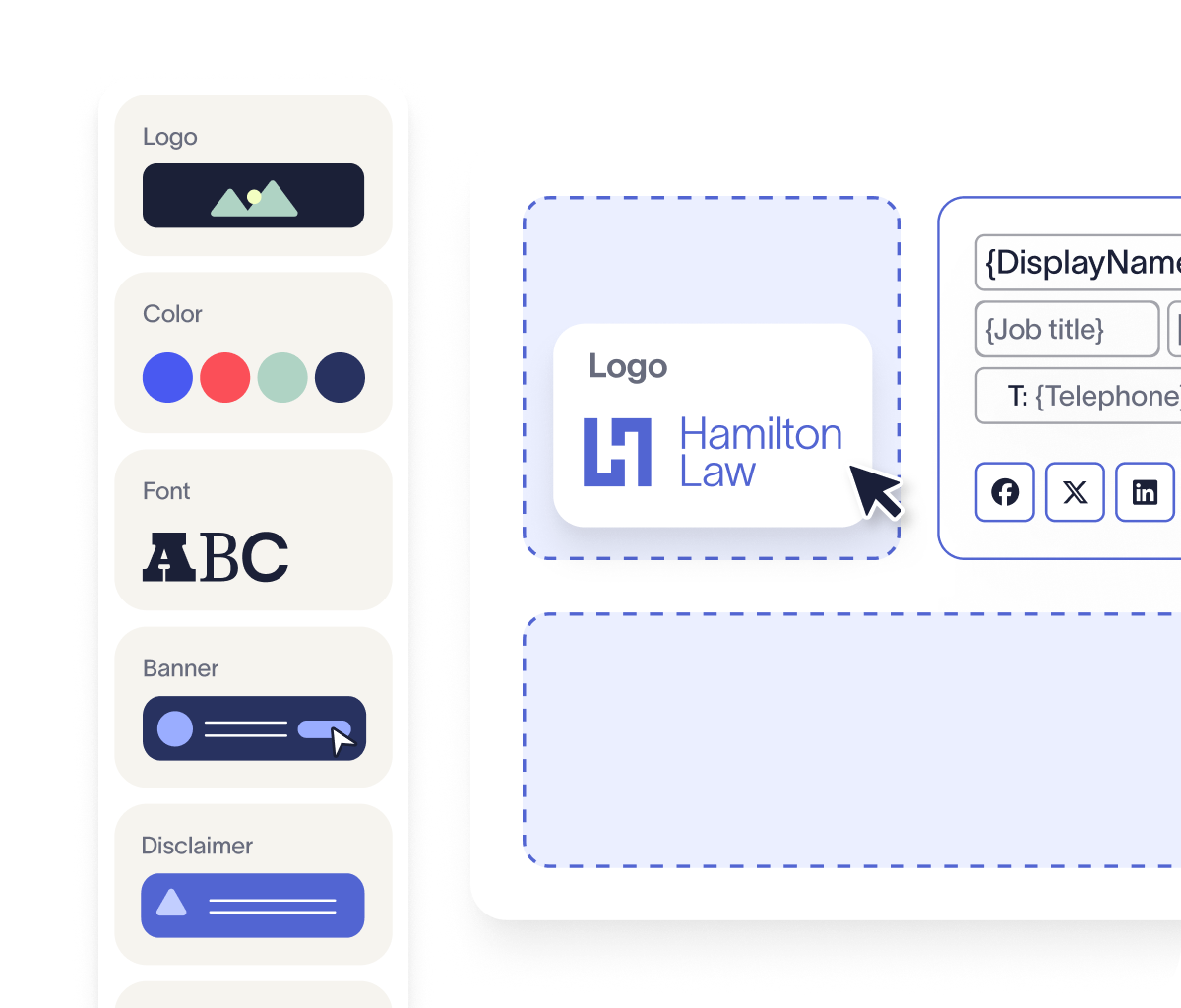
An email signature with certifications should be governed through a centralized process that defines:
Which certifications are approved
How logos are sized and positioned
Where verification links point
What disclaimers or trademark statements are required
How updates are deployed across teams
Central oversight improves consistency, reduces compliance exposure, and simplifies updates when credentials change or expire. It also provides clearer accountability for how certifications are represented externally.
As organizations grow, structured management becomes increasingly important. Standardized control reinforces trust, protects brand integrity, and keeps credential presentation aligned across every message.
Create and manage certification email signatures with full control
An email signature with certifications must stay accurate, compliant, and consistent across every employee, department, and device. Manual management makes this difficult. Certifications expire. Logos change. Formatting varies. Even small inconsistencies can scale quickly across thousands of emails.
Exclaimer gives IT centralized control over how certifications are displayed across the organization. Approved credentials, logo sizing, placement rules, verification links, and required disclaimers are defined once and applied automatically. Updates are deployed instantly without relying on individual users.
By integrating with Microsoft 365 and Google Workspace directories, Exclaimer keeps sender details synchronized and reduces manual errors. Role-based permissions allow marketing or compliance teams to update approved certification content while IT retains oversight. Audit visibility adds accountability.
Learn more about Exclaimer and get yourself a free interactive product tour today.