Outlook roaming signatures vs centralized email signature management
3 March 2026
0 min read
TL;DR
Outlook roaming signatures sync user-created signatures across devices in Microsoft 365 by storing them in the cloud mailbox.
They improve convenience, but do not provide centralized administrative control.
There’s no built-in enforcement of standardized templates or legal disclaimers.
Roaming signatures lack conditional logic, segmentation, analytics, and audit visibility.
For small teams, synchronization may be sufficient.
For larger organizations, centralized email signature management adds governance, automation, and policy enforcement at scale.
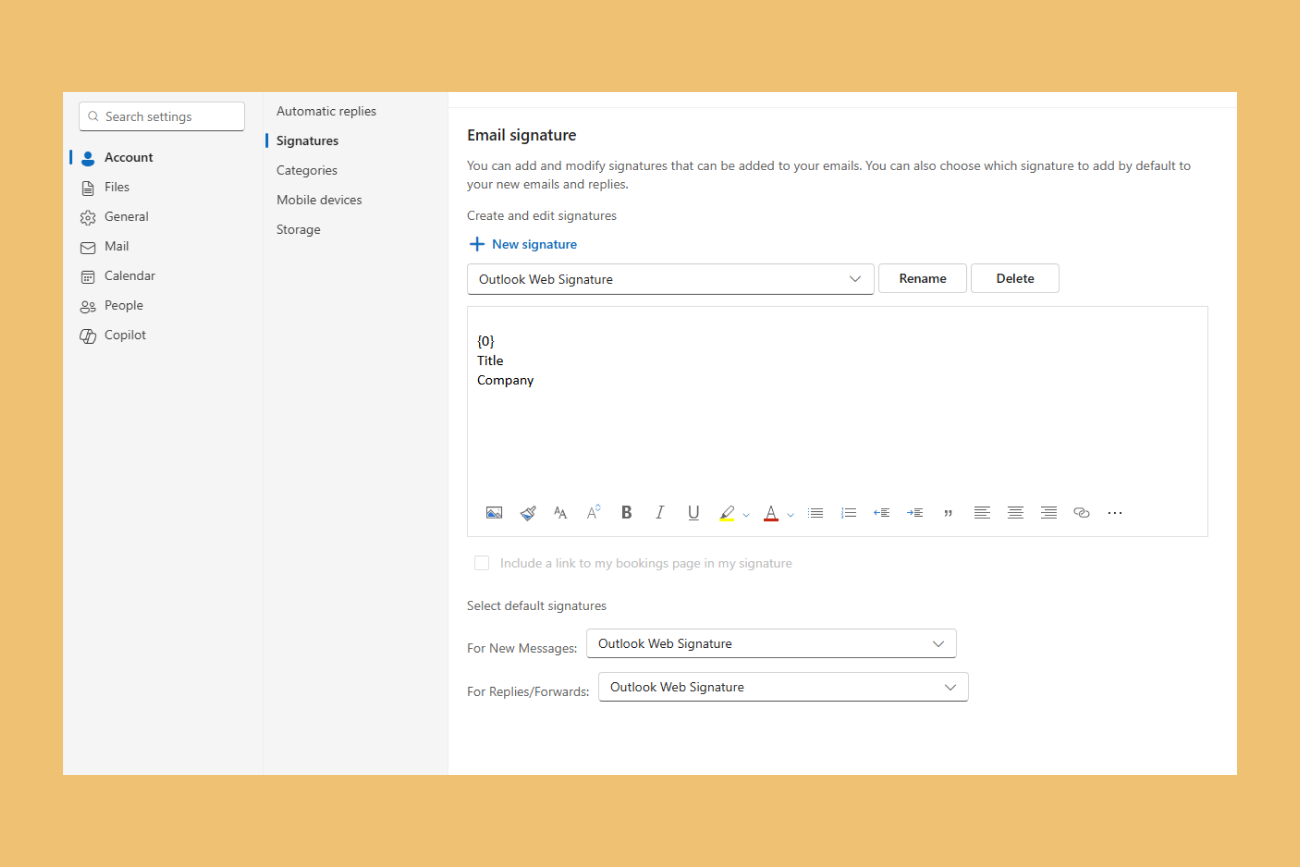
Outlook roaming signatures are Microsoft’s built-in feature for synchronizing email signatures across devices in Microsoft 365. Instead of storing signatures locally on one computer, Outlook saves them in the user’s mailbox so they can sync automatically between supported clients.
For many organizations, this removes the frustration of managing separate signatures on desktop, web, and mobile. But while roaming signatures improve user convenience, they don't provide centralized administrative control or compliance enforcement.
This guide explains:
How Outlook roaming signatures work
Which Outlook versions support them
Their current availability status
Their limitations in enterprise environments
How they compare to centralized signature management
If you’re deciding whether Microsoft’s native capability is enough, this breakdown provides clarity.
What are Outlook roaming signatures?
Outlook roaming signatures are a Microsoft 365 feature that stores a user’s email signature in the cloud mailbox rather than on a local device. This allows the signature to automatically sync across supported Outlook clients.
Instead of creating separate signatures on each device, users manage one version that follows their account wherever they sign in.
Supported Outlook environments
Roaming signatures are supported in:
New Outlook for Windows
Outlook on the web
Outlook for Mac
However, functionality may vary depending on:
Whether users are running the new or classic Outlook client
Tenant configuration settings
- Hybrid Exchange deployments
Ongoing Microsoft service updates
How Outlook roaming signatures work
A user creates or edits a signature in Outlook.
The signature is saved to their Microsoft 365 mailbox.
When the user signs in to another supported Outlook client, the signature syncs automatically.
Updates made in one client reflect across supported clients.
This feature is designed to improve user experience and reduce device-level configuration issues.
What Outlook roaming signatures do not provide
While roaming signatures sync content across devices, they don't offer:
Organization-wide template enforcement
Role-based or department-based signature targeting
Automatic application of legal disclaimers
Campaign banners or marketing controls
Engagement tracking or analytics
Centralized audit control
Roaming signatures solve synchronization. They don't solve governance.
Enterprise limitations of Outlook roaming signatures
For individual users, synchronization is helpful. For organizations operating at scale, additional controls are often required.
No organization-wide template enforcement
Roaming signatures allow users to create and edit their own signatures. Administrators can't universally lock down layouts, fonts, logos, or messaging across all users.
This can lead to:
Inconsistent brand presentation
Outdated visual assets
Formatting variations across departments
No conditional or rule-based logic
Outlook roaming signatures don't support automatic signature variation based on:
Department
Region or jurisdiction
Recipient type (internal vs external)
Business unit or subsidiary
All logic must be managed manually at the user level.
No automated compliance enforcement
Legal disclaimers, regulatory text, and compliance statements can't be centrally enforced with conditional logic using Outlook roaming signatures alone.
If a user deletes or edits required text, there's no built-in mechanism to reapply it automatically.
No centralized oversight or reporting
Microsoft 365 doesn't provide a dashboard for administrators to:
Verify signature usage across the organization
Confirm required content is present
Audit signature changes
At enterprise scale, the absence of centralized oversight increases operational complexity.
To understand whether Outlook roaming signatures are sufficient, it helps to compare them directly with email signature management.
Outlook roaming signatures vs centralized email signature management
The key difference between Outlook roaming signatures and centralized email signature management is scope.
Roaming signatures focus on user-level synchronization. Centralized solutions focus on organizational control.
Capability | Outlook roaming signatures | Centralized management platform |
|---|---|---|
Cross-device synchronization | Yes | Yes |
Cloud-based signature storage | Yes | Yes |
Organization-wide template enforcement | No | Yes |
Role-based design control | No | Yes |
Conditional logic (department, region, recipient type) | No | Yes |
Automated legal disclaimer enforcement | No | Yes |
Marketing banner management | No | Yes |
Signature analytics and reporting | No | Yes |
Centralized audit visibility | No | Yes |
When Outlook roaming signatures are sufficient
Roaming signatures may be appropriate when:
The organization operates with fewer users
Brand consistency is managed informally
Compliance requirements are low-risk
There's no need for conditional logic or targeting
Administrative oversight of signatures is not required
When centralized signature management is required
Organizations typically require centralized management when they need:
Enforced brand consistency across all users
Automated application of legal disclaimers
Conditional logic by department, region, or business unit
- Controlled campaign messaging
Audit visibility and policy verification
Governance that doesn't depend on user action
Why enterprises choose Exclaimer over native Outlook capabilities
If you want to manage email signatures easily, Exclaimer is far superior to Outlook roaming signatures.
We worked with the Microsoft product team to release an update to our client-side agent that automatically sets the registry key to prevent Microsoft from updating the mailbox. Our client-side functionality is significantly more feature-rich than anything Microsoft's Outlook roaming signatures can offer. This means Exclaimer offers the most comprehensive email signature management solution on the market.
With Exclaimer, you can:
Enforce standardized email signature templates across every user
Automatically apply disclaimers based on department, office, or recipient
Sync contact details directly from Microsoft Entra ID
Apply signatures consistently across desktop, web, and mobile
Deploy controlled campaign banners without relying on users
Maintain centralized visibility and administrative oversight
Signatures are applied automatically, removing dependency on employee action.
Built for Microsoft 365 at scale
Exclaimer works with Microsoft 365 environments, including:
Cloud-only deployments
Hybrid Exchange configurations
Server-side or client-side application
Mail flow remains within your Microsoft ecosystem. There's no need to redesign your routing architecture.
For organizations managing hundreds or thousands of users, this enables governance without operational disruption.
A governance layer for business communication
As organizations scale, communication becomes more complex:
Multiple departments
Multiple regions
Multiple compliance obligations
Hybrid and remote workforces
Roaming signatures don't address these governance challenges.
Exclaimer introduces:
Policy enforcement without user intervention
Consistent brand expression across all emails
Automated compliance application
Centralized administrative control
This transforms email signatures from a user-level setting into an organization-wide governance control.
When synchronization is not enough
If your only requirement is cross-device sync, Outlook roaming signatures may be sufficient.
If you require:
Controlled branding across departments
Automated legal text enforcement
Conditional logic and segmentation
Visibility into signature compliance
Scalable management during growth or restructuring
See how centralized signature management works in Microsoft 365
For organizations evaluating whether Outlook roaming signatures are enough, the most effective next step is to see how centralized management operates in practice.
With Exclaimer's email signature management solution, every email is consistent, compliant, and up to date. Brand elements stay aligned. Legal disclaimers are applied automatically. Contact details sync from your directory, so nothing goes out wrong or outdated.
Explore how Exclaimer integrates with Microsoft 365 to provide full signature governance without disrupting your existing environment. Get a free trial or request a demo today.