Dave is a marketing expert with 15 years experience in the tech and SaaS world. He specializes in educating IT and channel audiences, with a focus on security, privacy, compliance, and marketing technology. With a talent for storytelling and a deep understanding of the industry, Dave transforms complex IT topics into clear, engaging, and impactful narratives.
Outlook vs Microsoft 365: Email signature management & setup guide
TL;DR
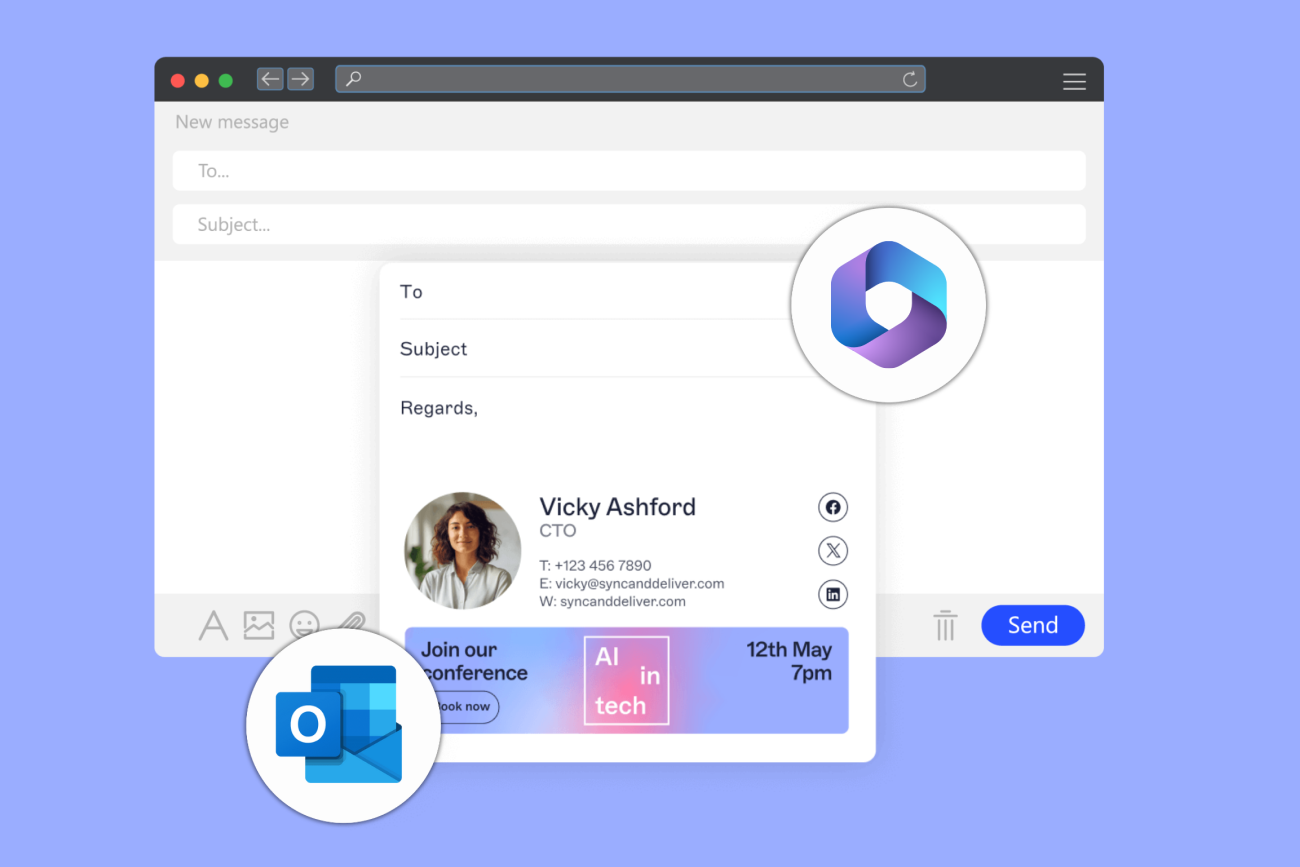
Two native paths, both limited: Outlook gives users local, device-by-device control with no central oversight. Microsoft 365 (Exchange mail flow rules) applies signatures server-side after send, with no compose-time preview and no way to delegate design or content to non-IT teams.
As headcount, regions, and devices grow, native tools create brand drift, inconsistent rendering (especially on mobile), and a steady stream of help desk tickets.
Governance is really three things: consistent enforcement, evidence you can show for it, and confidence in who's sending. Neither native path delivers all three at scale.
Outlook works for individuals. Microsoft 365 mail flow rules can handle basic, blanket disclaimers. Neither is built for multi-brand, multi-region environments.
Exclaimer gives IT a central platform with client, server, or hybrid deployment, enforced brand consistency, delegated updates that don't give up IT control, and policies that scale with the business.
IT teams running Microsoft technology will often face a deceptively simple question: should email signatures be managed through Outlook or through Microsoft 365?
It reads like a tool choice, but tt's actually a governance question. And it has real consequences for brand consistency, regulatory exposure, and how much of IT's week gets eaten by signature tickets.
This guide covers the practical differences between Outlook and Microsoft 365 for email signature management, where each one runs out of road, and why IT teams managing signatures at scale end up looking at Exclaimer instead.
What is a Microsoft 365 email signature?
A Microsoft 365 email signature is the block of contact information and branding automatically added to the end of an email sent through Outlook or Exchange Online. It can include key details like a sender’s name, job title, company, phone number, and logo, along with optional elements such as social media icons or legal disclaimers.
Microsoft 365 offers two ways to manage them:
User-managed signatures in Outlook. Each person creates and maintains their own signature in the Outlook desktop or web app.
Organization-wide signatures via Exchange Admin Center (EAC). Admins build mail flow rules, often called transport rules, to append a uniform signature or disclaimer to outgoing mail.
Both work. They serve different purposes. Outlook-based signatures give users local control with no central oversight. Exchange rules give consistency but almost no design flexibility or personalization.
That leaves IT with a familiar trade-off: local control produces inconsistency, and centralized control through native tools can't deliver the branding precision, automation, or visibility a growing organization needs.
How Microsoft 365 handles email signature management
Microsoft 365 offers two main approaches to email signature management, depending on whether control sits with individual users or with IT.
1. User-created signatures in Outlook
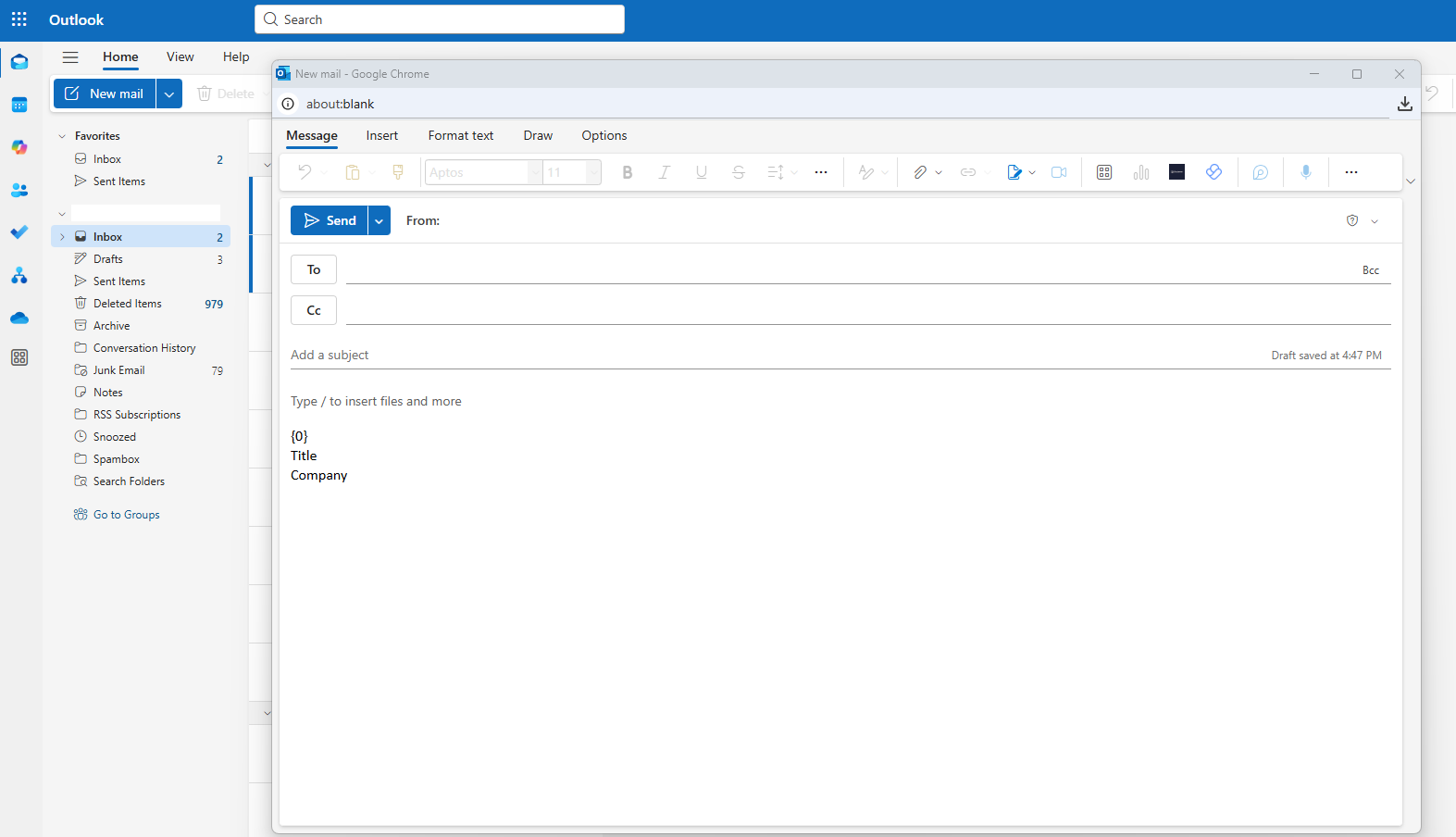
Signatures are stored locally in the user's device settings.
Users can freely modify fonts, images, spacing, and layout.
Outlook shows a real-time preview during composition, which builds user confidence in what's being sent.
Simple to set up for individuals or very small teams.
No IT oversight, centralized control, or audit capability.
Each device has to be configured separately. There's no cross-platform sync.
Tip
Outlook works well for individual use or small businesses with minimal brand control requirements. In larger environments, this decentralized approach produces inconsistent branding, outdated information, and disclaimers that fall out of compliance without anyone noticing.
2. Organization-wide signatures via Exchange mail flow rules
Admins create mail flow (transport) rules to insert signatures after the message is sent.
Rules can apply broadly across departments or domains without involving individual users.
Server-side application applies the signature consistently across desktop, web, and mobile.
Supports basic HTML and limited dynamic fields using Microsoft Entra ID tokens.
No preview for users before sending, which limits visibility and trust in what actually goes out.
Limited logic, static templates, and no design control or audit logging.
Tip
Microsoft 365 gives IT a step up from Outlook for organization-wide enforcement, but it still lacks the design flexibility, preview capability, and conditional logic that IT teams need once the environment gets complex.
Outlook vs Microsoft 365: Key differences for IT teams
Feature | Outlook | Microsoft 365 (Exchange Online) |
|---|---|---|
Signature location | Stored locally per device | Applied server-side after sending |
User-level control | Full user control | Admin-controlled via rules only |
Cross-device consistency | Not supported | Applied server-side on every device |
Formatting reliability | Varies by client and platform | Limited: HTML is often stripped or broken |
Signature preview | Visible in compose view | Not visible before sending |
Dynamic fields from Microsoft Entra ID | Manual entry required | Basic token support, limited flexibility |
Branding and layout enforcement | No standardization | No design enforcement or templates |
Delegated access for non-IT roles | Not possible | Not supported |
Change history or audit trail | None | None |
Key takeaway
Neither platform was built for IT to enforce email signature management across modern, complex environments. Microsoft 365 provides basic centralization and broad coverage. It’s a step up from Outlook for organization-wide enforcement. However, it lacks the design flexibility, preview capability, and advanced logic IT teams need for complex environments.
What IT teams face with manual email signature management
Native tools may work for very small teams. But at scale, manual email signature management quickly creates brand, legal, and operational risk. These scenarios show what IT professionals experience daily.
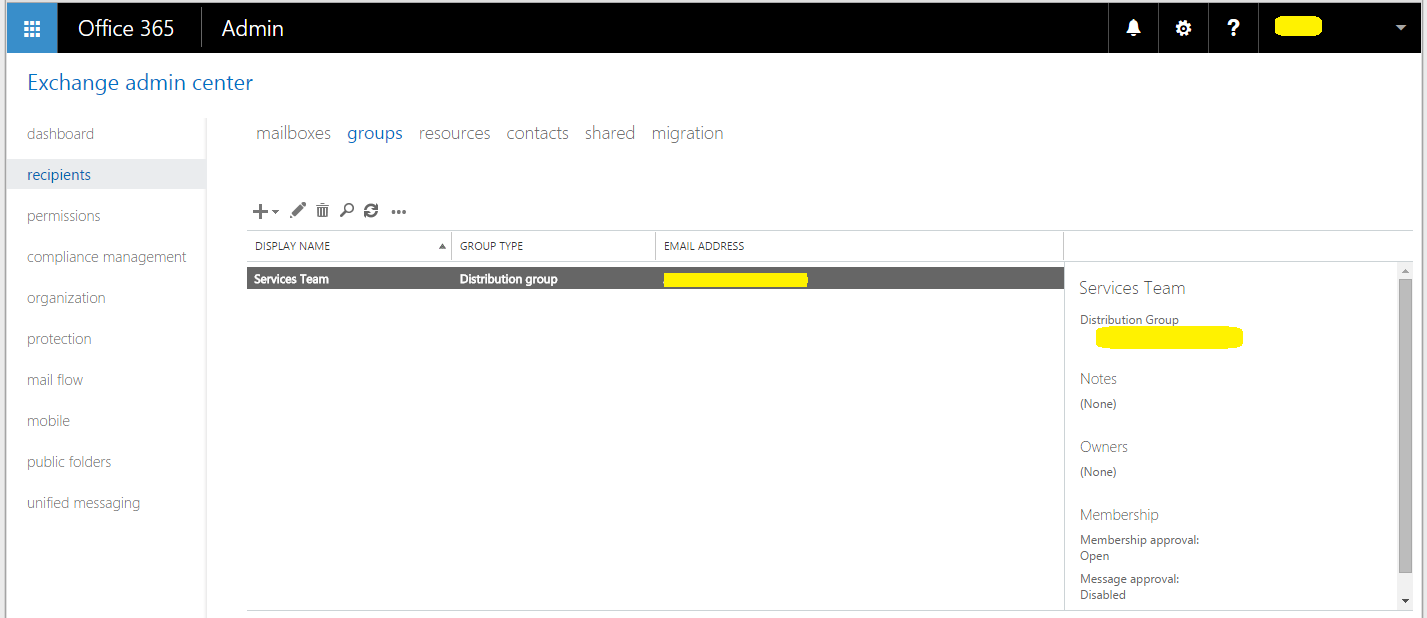
Scenario 1: Rebranding chaos
A mid-sized company rolls out new logos and brand fonts. Outlook signatures are managed locally by each user. Some people keep the old design. Others copy and paste formatting inconsistently.
The impact:
A week of internal coordination across time zones
Manual reconfiguration on every affected device
A spike in help desk tickets from broken layouts
Scenario 2: Legal disclaimer updates
Legal mandates a new company-wide disclaimer. Microsoft 365's mail flow rules can't vary the wording by geography or entity, so IT builds six separate rules and assigns them manually. Some stack redundantly. Others misfire because of incorrect group memberships.
The impact:
Disclaimers missing from key regions
Duplicated footers on email threads
No record IT can point to that proves the policy was actually enforced
Scenario 3: Mobile rendering fails
Executives report their signatures are unreadable on mobile. Images don't load, fonts collapse, spacing disappears.
Microsoft 365 injects the signature after the message is sent, but mobile clients like iOS often strip HTML or render it inconsistently, particularly in reply chains.
The impact:
Damaged brand perception
Inconsistent compliance across mobile communications
Escalations to IT with no real fix available in native tools
Industry-specific email signature requirements
Every industry has its own compliance, branding, and operational needs, and native Outlook or Microsoft 365 tools don't fully cover any of them.
Financial services
Disclaimers, registration numbers, and legal footers are standard practice, and in many jurisdictions expected by regulators.
Firms increasingly need to show who sent what, and when, for regulatory review.
Inconsistent or missing disclaimers can raise compliance exposure and, in the worst cases, lead to financial penalties.
Healthcare
Handling patient information over email raises real confidentiality obligations, and HIPAA email disclaimer examples are a common way healthcare organizations address them.
Without a record of what went out and when, demonstrating that a policy was followed becomes guesswork.
Signatures that render poorly can obscure a disclaimer entirely, which raises the same exposure as never adding one.
Manufacturing
Multiple sites, brands, and languages complicate signature deployment.
Disconnected tools and regional teams often end up running inconsistent templates.
Getting the right signature to the right business unit, brand, or region needs targeting logic that keys off department, region, device, or recipient, not a six-rule patchwork that breaks the moment the org chart changes.
Key takeaway
According to Exclaimer's U.S. Business Email Report 2025, only 18% of U.S. organizations use a centralized email signature solution. The rest split between employees managing their own signatures (41%) and IT patching things together with scripts or manual workarounds (41%).
Why Outlook and Microsoft 365 email signature management breaks down
Native tools work fine for individual users or very small teams. But once you're managing multiple departments, devices, or domains, the cracks show quickly.
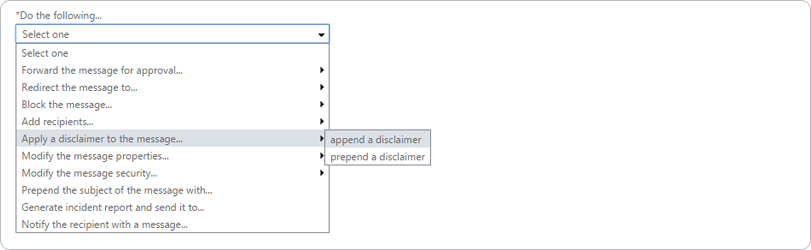
1. No single source of truth
Outlook stores signatures locally. Microsoft 365 applies rules without a preview. The two systems run independently, and IT can't manage branding, compliance, or user data from one place, let alone confirm it's actually being applied correctly.
2. Formatting fails across devices
Outlook for Windows uses a different rendering engine than Outlook for Mac or iOS. Microsoft 365 server-side rules often strip HTML formatting entirely. Mobile email signatures frequently show up broken or stripped down.
3. Transport rules don’t scale
Microsoft 365 mail flow rules work on simple "if X, then insert Y" logic. Managing variations across brands, departments, and geographies means building a web of rules with no dynamic templates, no conditional logic, and no visual configuration.
4. No preview means user confusion
With Microsoft 365 server-side rules, senders can't see their signature while composing. That produces formatting errors, duplicated content, and user distrust in the system, which drives more tickets back to IT rather than fewer.
5. No delegation, no audit trail
There's no safe way to hand disclaimer or marketing-banner control to Legal or Marketing. IT ends up owning every edit. And when someone asks for proof of what changed, when, and by whom, native tools have nothing to show.
Native transport rules can't do either of those things. And even once change-level logging ships, there's a further piece still missing from what's described here: proof of which exact disclaimer appeared on which specific email. Access logs and change logs get you most of the way to "prove the policy was enforced." They don't get you all the way to "prove this message carried it."
The common misconceptions about native Microsoft email signature tools
Even experienced IT teams often overestimate the control Microsoft 365 and Outlook provide. These six common misconceptions reveal why native tools break down in real-world scenarios.
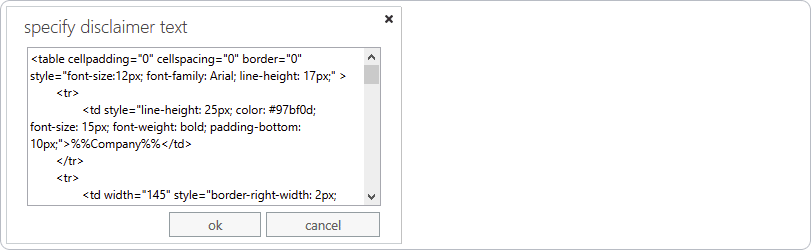
1. “Server-side rules mean consistency.”
Not always. Microsoft 365 transport rules apply after a message is sent. If it goes out via mobile or a third-party SMTP relay, it can bypass Exchange Online entirely, and no signature gets applied. Even when it's routed correctly, formatting often breaks on reply chains or mobile clients.
Use case: An executive replies from a tablet while traveling. The email skips server-side rules, and the signature with the required legal disclaimer never gets attached.
"A common complaint with transport rule disclaimer signatures is that with replies and such, the signature will continue to get applied each time, but at the bottom of the email chain."
2. “Users can manage their own email signature.”
Yes, and that's the problem. With Outlook, users have full control over their own signatures, which means inconsistent logos, outdated titles, or missing email disclaimers are inevitable, especially once people start copying formatting in from Word or a browser.
Use case: Sales reps add their own banners or font styling. Marketing loses brand control, and IT gets flooded with requests to fix the layouts that broke.
3. “We can just use Group Policy.”
Only on Windows desktops. Group Policy Objects (GPOs) work for Outlook desktop on domain-joined Windows machines. They don't touch macOS, mobile apps, Outlook Web Access (OWA), or unmanaged devices, which makes them close to useless in hybrid or remote environments.
Use case: A remote employee working from a personal MacBook has no enforced signature at all. Their emails go out unbranded and outside policy.
4. “Mail flow rules can handle disclaimers.”
Partially. Microsoft 365 can insert static disclaimers through transport rules, but there's no logic for region-specific legal text, no way to prevent duplication, and no dynamic targeting per business unit without custom scripting.
Use case: A disclaimer meant only for EMEA gets applied to North American teams too. Meanwhile, forwarded emails end up with disclaimers stacked five messages deep.
"You might think a disclaimer only has to go to external recipients, but this is not accurate. There have been a number of lawsuits that have occurred due to offensive emails that have been sent internally. So, it's important to add an internal disclaimer, albeit one that differs from your external one."
5. “One email signature template is enough.”
Not once you have multiple teams, brands, or locations. Native tools can't easily assign different signature layouts by brand, department, or language, so IT ends up hand-managing a growing pile of transport rules.
Use case: A manufacturer supports three brand identities. Sales wants promotional banners. HR wants a recruitment message. Microsoft 365 has no native way to apply the right template by role.
6. “We’ll just copy and paste our signature template into Outlook.”
That breaks more often than it works. Email HTML isn't like web HTML, and copy-pasted content from Word or a browser skips that table-based structure entirely, which is why embedded images can break, fonts collapse, and spacing goes wrong.
Use case: A signature template looks fine in Outlook desktop, but the recipient viewing it in Gmail or on mobile sees something unreadable.
"Believe it or not, even today there are companies disseminating Word documents with 'approved' email signatures and instructions for employees to copy the one they want to use into their various email clients."
Which platform should you use?
Outlook and Microsoft 365 both offer basic signature tools, but neither was designed for enterprise-level governance. Here's where native tools might be enough, and where they fall short.
Requirement | Best option |
|---|---|
One-off personal signature | Outlook (user managed) |
Company-wide legal disclaimers | Microsoft 365 (basic rules) |
Consistent branding across all devices | Native tools can't guarantee it |
Multi-region or multi-brand deployment | Native tools lack targeting |
Preview while composing | Only with Outlook or Exclaimer |
Role-based access for Legal or Marketing | Only with Exclaimer |
Signature-level audit logs | Only with Exclaimer |
If you're managing a handful of users, Outlook is manageable, and a platform like Exclaimer probably isn't worth the switch yet. For organizations with hundreds or thousands of employees, especially across regions or brands, native tools aren't built to scale: they lack central oversight, consistent formatting, dynamic targeting, and a way to prove any of it happened.
The honest trade-off: a platform like Exclaimer means adopting and paying for another tool. Whether that's worth it depends on how much time your team is already losing to signature admin. Exclaimer's U.S. Business Email Report 2025 (cited above) found signature updates and disclaimer enforcement rank among the most time-consuming IT tasks specifically in legal, finance, and education. If that's not your situation, the trade may not clear.
How Exclaimer solves the problem of Microsoft email signature management
Exclaimer for Microsoft 365 gives IT centralized control over every signature, cutting the scripting, formatting rework, and support tickets that come with transport rules.
Centralized control
Manage signatures for every user from one platform, using Exclaimer's Signature Rules to apply policy consistently.
Apply policies by department, region, or device.
Remove the need for Group Policy Objects or PowerShell scripts.
Entra ID Sync
Pull user details automatically from Microsoft Entra ID.
Keep titles, departments, and contact info accurate without manual edits.
Populate signature fields dynamically instead of editing them by hand.
Role-based access and approval
Let Marketing edit design layouts while keeping disclaimers locked down.
Delegate compliance control to Legal without losing IT oversight.
Use approval workflows to review and log changes before they go live.
Device-agnostic deployment
Server-side: Ensure consistency across all devices.
Client-side: Show the correct email signature as users compose.
Hybrid: Give flexibility where needed.
Compliance-ready infrastructure
Platform access logs record every Owner and Auditor sign-in today, with change-level logging in development, closing the exact gap described above. Per-message send evidence, showing exactly which disclaimer appeared on which email, isn't part of that yet.
ISO 27001, ISO 27018, and SOC 2 Type II certified.
Compliant with GDPR, HIPAA, and CCPA requirements.
Hosted across 14 Azure datacenters in seven geographically separated active-active pairs, with automatic regional failover.
Outlook vs Microsoft 365 vs Exclaimer: Workflow comparison
Stage | Outlook | Microsoft 365 | Exclaimer |
|---|---|---|---|
Preview before sending | Yes, if configured | Not available | Yes, in client-side or hybrid mode |
Signature application | Client-side only | Server-side only | Configurable: client, server, or hybrid |
Admin design control | User-controlled | Limited, via rules only | Full template control |
Directory sync | None | Basic token support | Real-time Microsoft Entra ID sync |
Delegated editing | Not supported | Not supported | Role-based permissions |
Audit trail and version history | None | None | Platform access logs today; signature-change logging in development |
Why IT teams choose Exclaimer
Scales across brands, locations, and user types: one platform instead of a patchwork of transport rules.
Reduces support burden: signature changes take minutes, not weeks of back-and-forth with users.
Meets regulatory needs: access logs, enforced disclaimers, and region-specific policies are built in.
Trusted at scale: 80,000+ organizations rely on Exclaimer, with a 96% customer retention rate.
Ready to take control of email signature management across Outlook and Microsoft 365?
IT teams use Exclaimer to move email signature management out of the transport-rule workaround category and into something they can actually govern: consistent by default, delegated without losing control, and backed by evidence when someone asks for it.
Book a demo