The ultimate guide to adding social media icons in email signatures for maximum engagement (with 100+ icons to copy)
8 April 2026
0 min read
TL;DR
Use 3–5 social media icons in your email signature to keep it clean and focused
Prioritize relevant platforms like LinkedIn (B2B) and only link to active profiles
Keep icons consistent in size and place them below contact details
Social icons turn everyday emails into a low-effort channel for brand visibility and engagement
Exclaimer lets you manage, update, and scale icons (and even social feeds) across all users without manual work
What are social media icons in email signatures?
Social media icons in email signatures are clickable links that connect recipients directly to your company’s social profiles. They turn everyday business emails into a consistent channel for brand visibility and audience growth.
In most organizations, email remains one of the most widely used communication channels. According to Radicati Group research (2024), business users send and receive an average of 126 emails per day. Every message sent by employees is a chance to reinforce your brand and guide recipients toward your content, events, or updates. Social media icons make that connection simple and repeatable
Used correctly, they support brand consistency and create steady engagement over time. Used poorly, they add clutter, distract from key information, or point to channels that don’t add value.
This guide explains when to include social media icons in email signatures, which platforms matter for different audiences, and how to apply them in a clean, effective way.
Should I include social media icons in my email signature?
By using social media icons in email signature designs, you’ll increase your social presence and engagement with customers, encourage more people to follow you, and send more traffic to your website.

How can I use social media icons in my email signature?
There are many useful ways to use social icons in your email signatures. Some great ideas include:
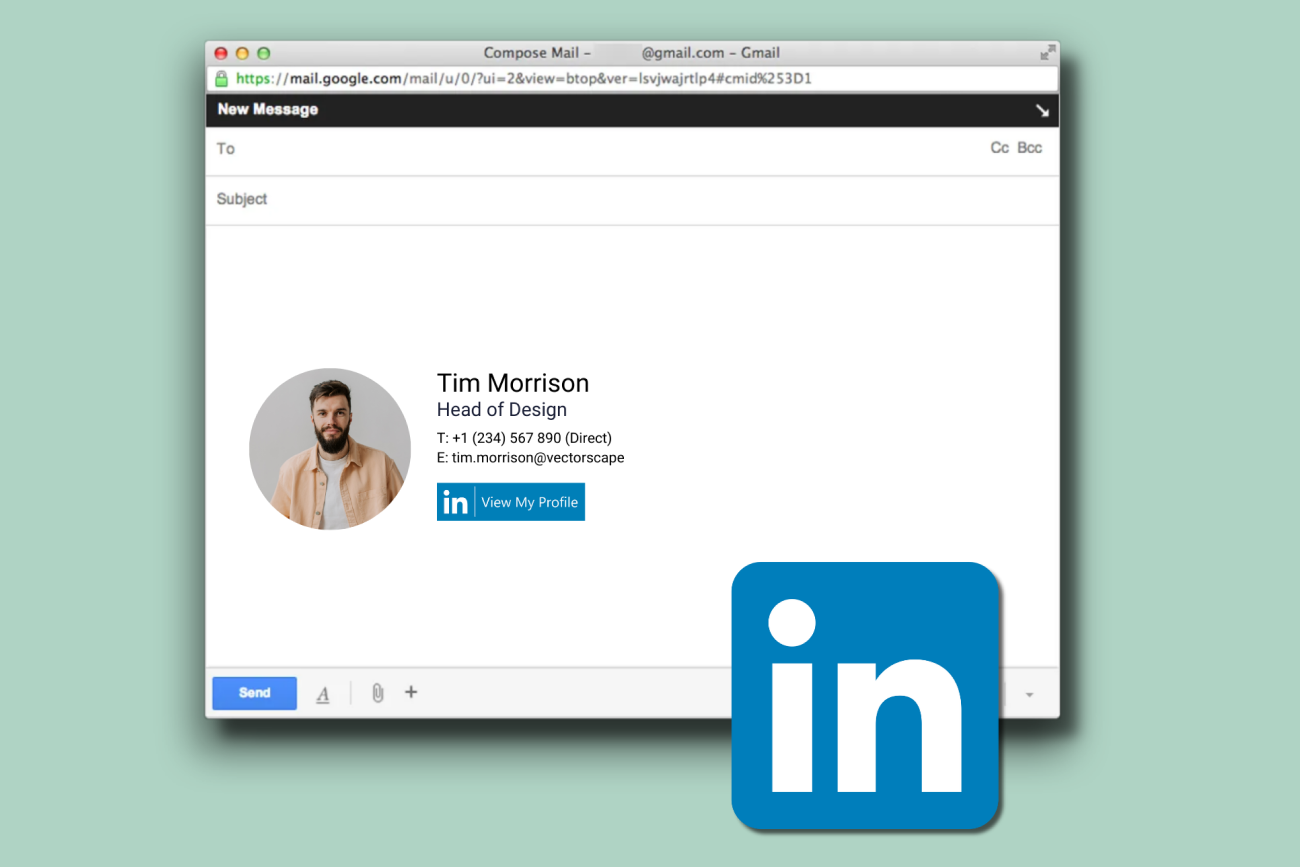
Add a hyperlink to your LinkedIn profile in your sales team’s email signature template.
Your customer service team’s signature could go to your Facebook page relating to your whole company.
Marketing could use your X (formerly known as Twitter) profile.
Rather than offer discounts or free items, offer information about your company or exclusive content.
How do I get people to click social media icons in my email signature?
Rather than ordering recipients to ‘Follow’ you, sell them the benefits of doing so. Show readers the opportunities available if they follow your social media channels.
So, consider the use of social media in email signatures like any other social situation. Your success depends on three factors:
Be there. Let your email users know you’re on social media and they can join you with a single click.
Be interesting. Offer them some information and an incentive to do so, perhaps with a promotional banner beside the link.
Be yourself. Incentives offered should be appropriate and reflect your sector or output.
For more great tips on how to use social media in email signatures, check out our official Email Signatures for Dummies guide.

How to add social media icons to an email signature
Adding social media icons to an email signature is a simple process. The goal is to include clickable icons that link directly to your social profiles.
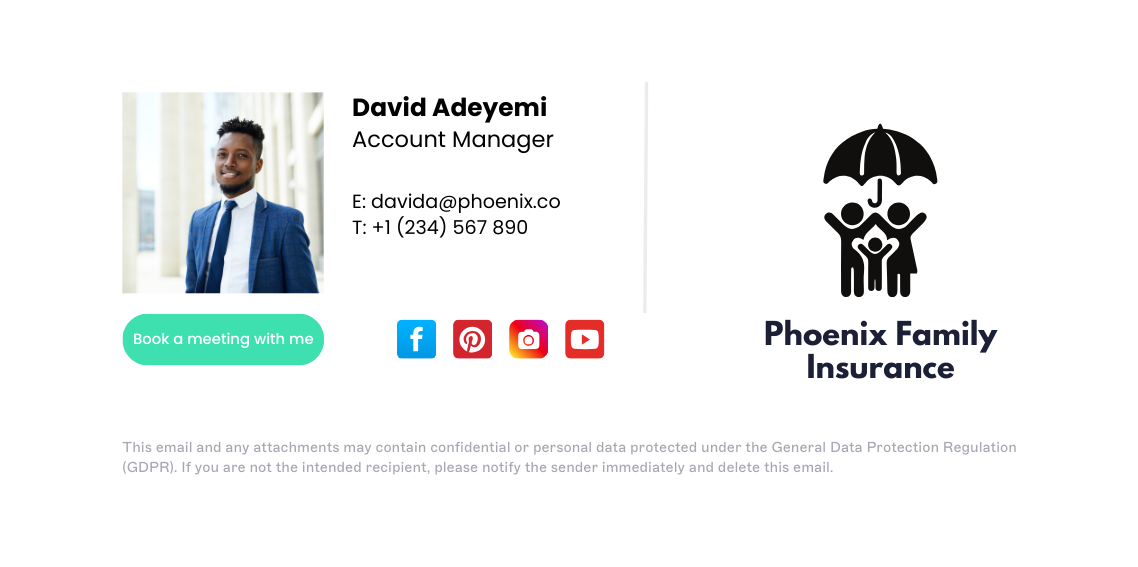 Quick steps to add social media icons:
Choose the social media platforms you want to include
Select the platforms that are relevant to your business or role.Get the icon images
Use official icons or brand-aligned versions that match your signature design.Add links to your social profiles
Each icon should link directly to the correct profile page.Insert the icons into your email signature
Place the icons into your signature using your email client or signature editor.Save and test your signature
Send test emails to check that the icons display correctly and links work across devices.
Adding icons in different email clients
Most email platforms let you insert social media icons directly into your signature using a visual editor. You can upload an image and add a link to your social profile in just a few steps.
If you’re working with HTML-based signatures, you can also embed icons using standard image and link tags.
👉 For detailed setup instructions across Outlook, Gmail, and Microsoft 365, see our guides on managing email signatures.
Icon size quick reference
Icon size | Best use case |
|---|---|
16px | Mobile signatures, compact layouts |
24px | Standard desktop signatures (recommended) |
32px | High-resolution displays, larger signature designs |
Where should social media icons go in an email signature?
Adding social media icons to an email signature is simple in principle, but small decisions around placement, sizing, and platform choice make a big difference in how effective they are.

Best practices summary |
|
Detailed guidance
Limit the number of icons to three to five
A smaller set keeps the signature clean and helps focus attention on the most important platforms.Prioritize platforms that match your audience
For B2B organizations, LinkedIn is the most valuable. Additional platforms should support a clear purpose, such as content distribution or brand awareness.Keep icon size between 16px and 24px
This ensures icons are visible without overwhelming the rest of the signature.Place icons below contact details
This keeps the signature structured and makes the icons easy to find without distracting from key information.Use a consistent visual style
Align icon color, shape, and spacing with your brand. Consistency improves readability and reinforces credibility.Only link to active, maintained profiles
Every click should lead to relevant, up-to-date content. Inactive profiles can weaken trust.Keep the signature focused on communication
Social icons should support the message, not compete with it. Avoid overcrowding the signature with visual elements.Standardize usage across the organization
Applying the same structure and rules to every employee signature helps maintain brand consistency at scale.
Common mistakes to avoid
Linking to inactive or outdated profiles
Recipients who click through to dormant accounts may lose trust in your brand
Using inconsistent icon sizes
Mixing 16px and 32px icons creates a disjointed, unprofessional appearance
Overcrowding the signature
Adding too many icons (6+) clutters the design and dilutes focus
Failing to test across devices and email clients
Icons may display differently in Outlook, Gmail, and mobile apps
Linking to personal profiles instead of company pages
Ensure icons point to official brand accounts unless individual profiles are intentional
Forgetting to update links after rebranding
Old URLs or defunct platforms (like Google+) damage credibility
Platform selection guide
B2B organizations |
|---|
|
B2C organizations |
|
Regional considerations |
|
Benefits of social media icons in email signatures
Adding social media icons to email signatures gives recipients a simple way to connect with your brand beyond the inbox. When applied consistently, they turn everyday communication into a steady source of visibility and engagement.
 Key benefits include:
Increased visibility in a high-frequency channel
Every email becomes an opportunity to promote your social presence
Timely and relevant content distribution
Social platforms often host your most up-to-date content
Stronger ongoing engagement
Existing contacts are more likely to connect on social media
A subtle, low-friction marketing channel
Icons create passive exposure without interrupting communication
Improved consistency across communications
Standardized signatures reinforce brand presence in every message
Which social media icons should I put in my email signature?
The best approach is to include a small number of platforms that support your audience and communication goals. Most organizations benefit from a focused set rather than trying to cover every channel.
Start with a default baseline
For most organizations:
LinkedIn is the primary platform for B2B communication
One additional platform can be added if it supports content, campaigns, or brand visibility
This keeps the signature focused while still offering a clear path to further engagement.
Professional networks (B2B priority)
LinkedIn
The most relevant platform for professional communication. It supports company updates, hiring, thought leadership, and direct engagement with prospects and customers.
Brand and social channels
Instagram
Useful for visual storytelling, employer branding, and culture-driven contentFacebook
Suitable for broad audience engagement and eventsX (formerly Twitter)
Best for real-time updates and industry commentary
Content and media platforms
YouTube
Ideal for video content such as demos, webinars, and tutorialsVimeo
Often used for higher-quality or embedded video experiencesMedium or WordPress
Useful for sharing long-form content and thought leadership
Messaging and regional platforms
WhatsApp
Common for direct communication in sales, support, or regional marketsWeChat
Essential for organizations operating in ChinaFacebook Messenger
Useful for customer interaction in certain industries
Niche and community platforms
Pinterest (visual discovery)
Reddit (community engagement)
TikTok (short-form video and brand awareness)
Snapchat (younger audiences)
RSS feeds (content distribution)
Flickr (image-heavy portfolios)
Digg (content sharing)
When should you leave a social media icon out of your email signature?
It’s often more effective to leave a platform out if:
The account is inactive or rarely updated
The audience isn't present or engaged there
The content doesn't align with your brand or messaging
Testing checklist
Before deploying your email signature with social media icons, verify the following:
Social media icons for email signatures (free examples)
We’ve made it easy for you to integrate social media platforms with your email signature. Below you’ll find that we’ve put together a comprehensive library of the most common social media icons available.
To use these icons, all you need to do is:
Download the icon that matches your chosen platform
Add it to your email signature editor
Link it directly to your social profile
Keep sizing consistent across all icons
16x16
 |  |  |
 |  |  |
 |  |  |
 |  |  |
 |  |  |
 |  |
24x24
 |  |  |
 |  |  |
 |  |  |
 |  |  |
 |  |  |
 |  |
32x32
 |  |  |
 |  |  |
 |  |  |
 |  |  |
 |  |  |
 |  |
64x64
 |  |  |
 |  |  |
 |  |  |
 |  |  |
 |  |  |
 |  |
128x128
 |  |  |
 |  |  |
 |  |  |
 |  |  |
 |  |  |
 |  |
How does Exclaimer help manage social media icons in email signatures?
Adding social media icons to signatures is a simple but powerful way to boost brand visibility and drive more engagement with your online presence.

Exclaimer makes it simple to showcase your company’s social presence in every email. Instead of manually inserting icons or worrying about formatting, our platform lets you add and manage social media icons across all employee signatures in just a few clicks.
With Exclaimer, you can:
Add social media icons using a drag-and-drop editor
Apply consistent icons across Outlook, Gmail, and mobile
Update links and designs centrally without user involvement
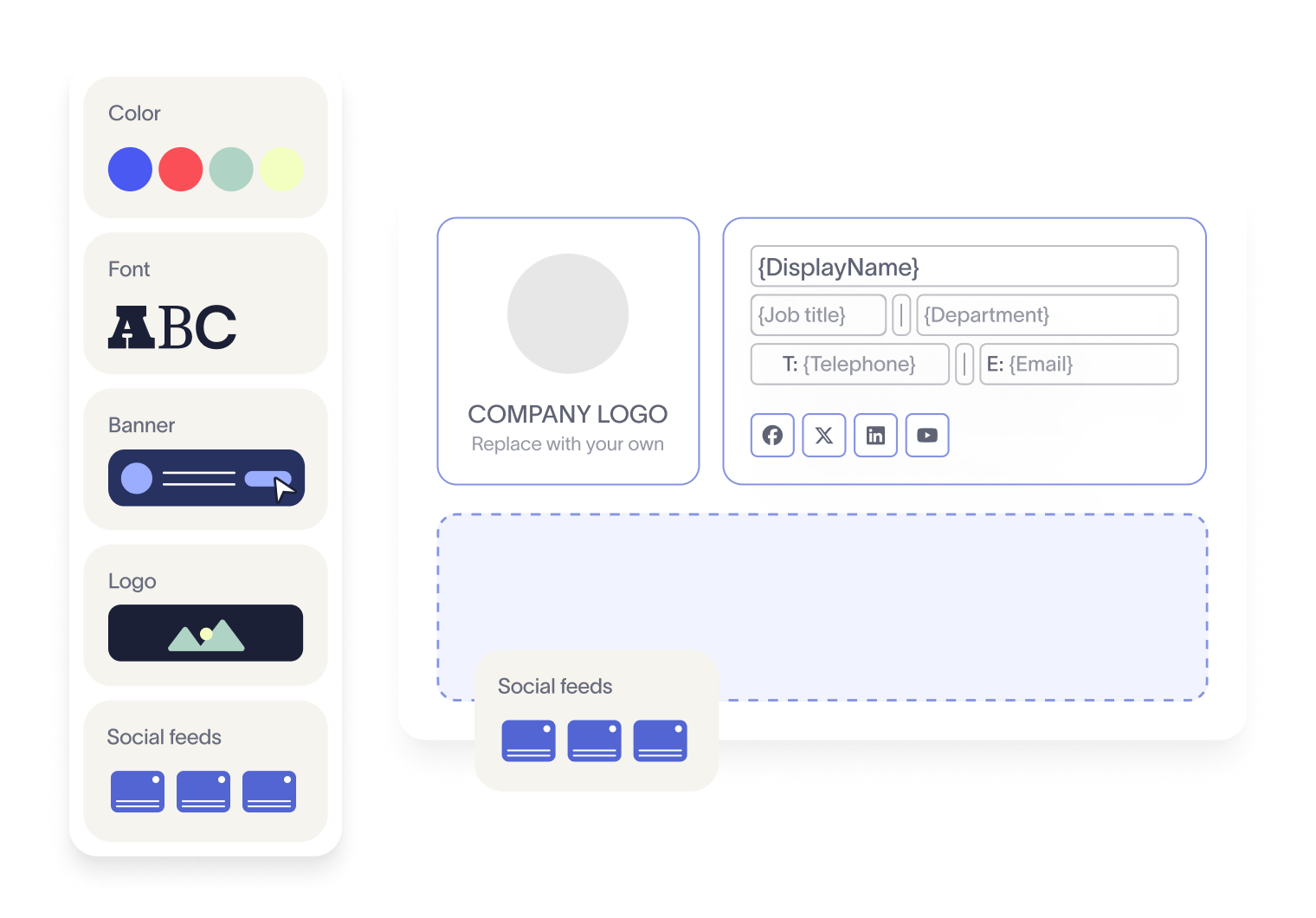
Display live social media feeds in email signatures to surface your latest posts, announcements, or content automatically
Support campaigns by aligning email signatures with social activity
Track engagement through click data and analytics
This approach reduces manual work while keeping every email aligned with your brand and communication standards.
See how Exclaimer helps you manage email signatures at scale and keep every message consistent. Get your free demo today.