



Dave is a marketing expert with 15 years experience in the tech and SaaS world. He specializes in educating IT and channel audiences, with a focus on security, privacy, compliance, and marketing technology. With a talent for storytelling and a deep understanding of the industry, Dave transforms complex IT topics into clear, engaging, and impactful narratives.
Outlook attachment size limit: How to check it, raise it, and work around it
TL;DR
Outlook's attachment size limit depends on your account type: about 20-35 MB by default on Microsoft 365/Exchange Online (admins can raise it), 10 MB on-premises Exchange, and 25 MB on Outlook.com.
If you hit the limit, compress or split the file, share it via a cloud link (OneDrive, SharePoint, Google Drive), or ask your IT admin to raise the mailbox limit.
IT admins can raise the limit through the registry (local only), Exchange Admin Center, or PowerShell, up to roughly 150 MB on Microsoft 365, though the recipient's server limit still applies.
Understanding your Outlook attachment size limit is crucial for smooth communication and efficient file sharing. However, many users struggle with attaching files larger than Outlook's designated size limit, resulting in delayed or failed delivery of important documents.
In this guide, we'll explore ways to maximize your email usage by mastering Outlook's attachment size limit. From understanding the limitations to implementing effective strategies for efficient sharing, you'll learn how to effectively use Outlook for seamless communication.
And if your organization uses Microsoft 365, our email signature management solution can help you streamline another key part of email management: ensuring consistent, compliant email signatures across every message.
What is Outlook's attachment size limit?
Outlook, like any other email client, limits the size of attachments that can be sent and received through its platform. This size limit varies depending on the type of account you've got, whether it's a free or paid subscription, and also differs between versions of Outlook.
Here's how the limits compare across account types, per Microsoft's own published limits and Microsoft support documentation:
Account type | Default limit | Admin-raisable ceiling |
|---|---|---|
Microsoft 365 (Exchange Online) | ~20-35 MB per message | Yes, up to roughly 150 MB |
On-premises Exchange | 10 MB | Configurable by IT, no fixed published ceiling |
Outlook.com (free, personal) | 25 MB per file | Fixed, not admin-configurable |
Keep in mind that these attachment size limits aren't just restricted to the file itself but also include any text or images within the email body. This means that even if your attached file is within the limit, you may still encounter issues if your email contains a lot of text or images.
How do you check the email attachment size limit for your version of Outlook?
There are a few ways to check the email attachment size limit for your particular version of Outlook:
1. Check by sending a large file
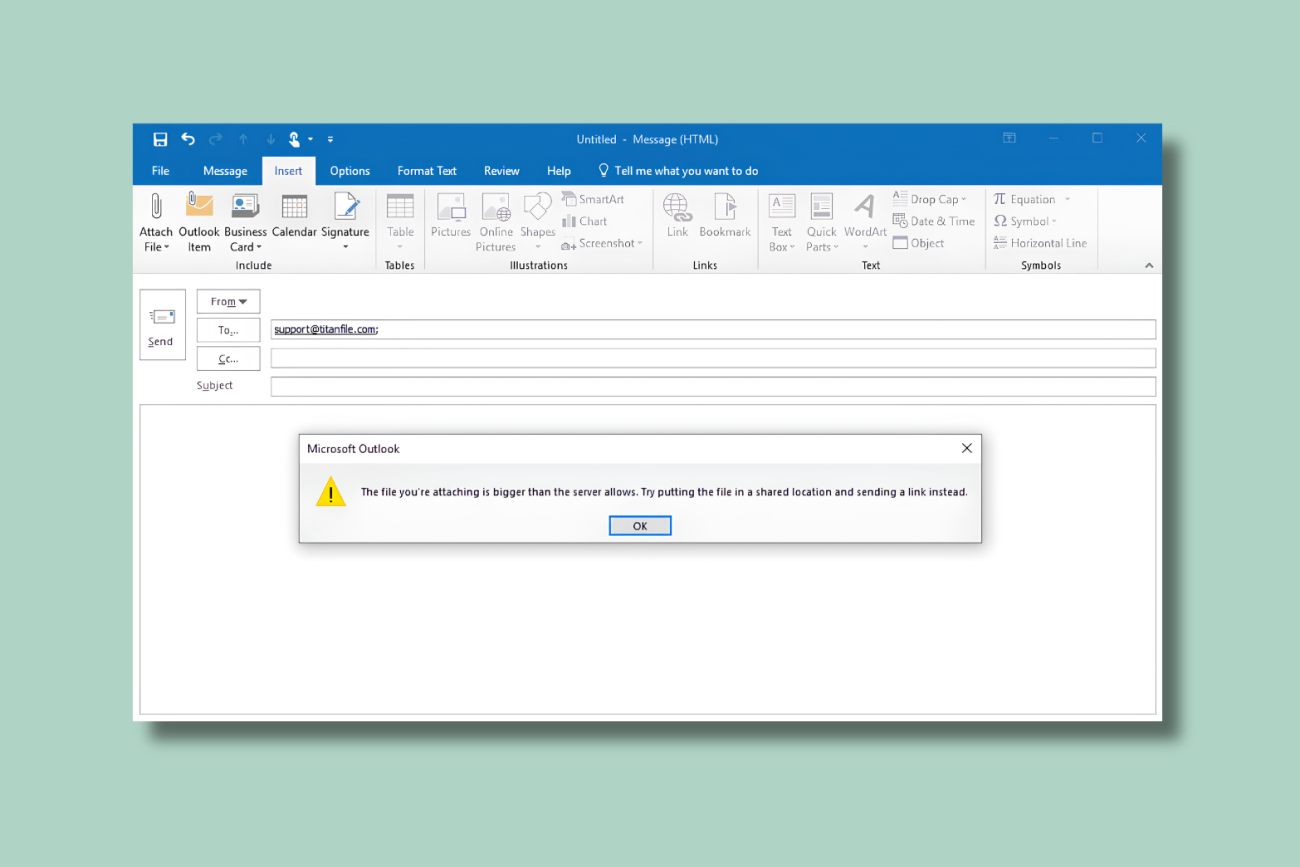
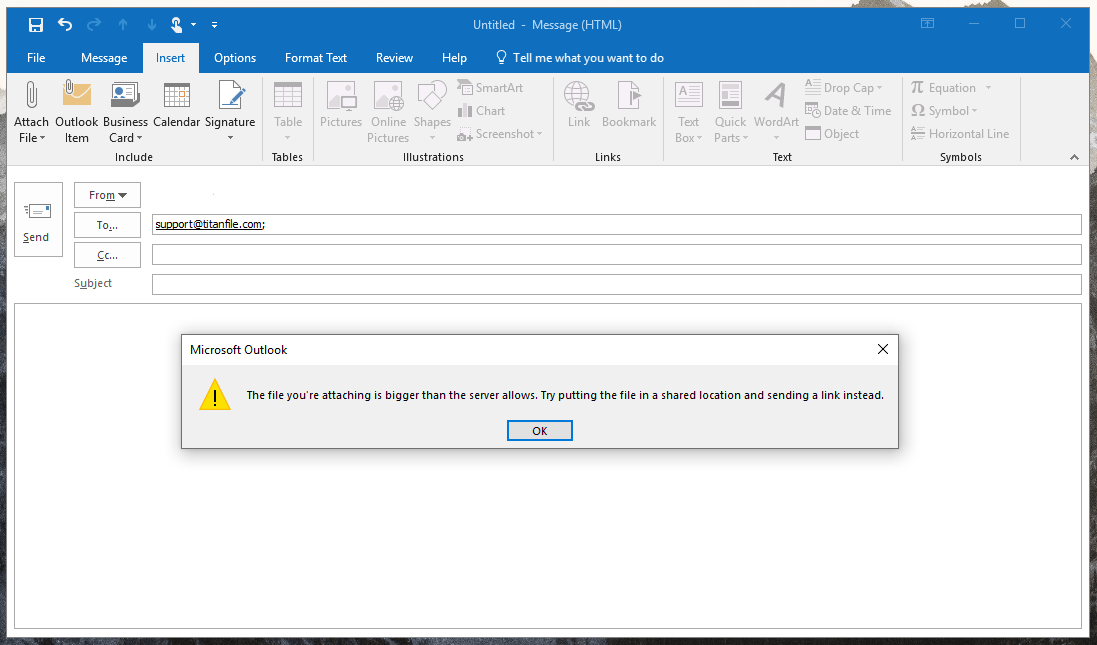
Try attaching a file larger than 35MB (for Microsoft 365/Exchange accounts) or 25MB (for Outlook.com), per Microsoft's published defaults. If you exceed the limit, Outlook will display an error message with the allowed size.
2. Check your mail server settings
For Microsoft 365/Exchange Online:
Go to the Microsoft 365 Admin Center → Exchange Admin Center
Navigate to Mail Flow → Rules and look for any policies restricting attachment size.
For Outlook.com, Hotmail, Live:
The limit is 25MB per attachment.
For On-Premises Exchange (Workplace Email):
IT admins can check in Exchange Management Shell by running:
Get-TransportConfig | Select MaxSendSize, MaxReceiveSize HKEY_CURRENT_USER\Software\Microsoft\Office\\Outlook\Preferences MaximumAttachmentSize (value in KB) This will show the max attachment size for sending and receiving emails.
3. Check in the Windows registry (For Outlook desktop users)
If you're using the Outlook app on Windows, you can check the registry for custom limits:
Open Registry Editor from the Start menu:
regeditNavigate to:
HKEY_CURRENT_USER\Software\Microsoft\Office\{version}\Outlook\Preferences(replace{version}with 16.0 for Outlook 2016/2019/365 or 15.0 for Outlook 2013).Look for "MaximumAttachmentSize" (value in KB). If missing, the default limit applies. If present, it defines the max attachment size in kilobytes (e.g., 20480 for 20MB).
4. Check IT or email provider documentation
If you use corporate email, ask your IT team for the specific limit.
If you use a third-party email provider (e.g., Gmail with Outlook), check their help documentation.
Why does Outlook have attachment size limits?
Outlook's attachment size limits are in place for several reasons:
Storage: Emails with large attachments take up more storage space on the server, potentially slowing down the system for all users. To ensure smooth operation and prevent overloading, email providers set attachment size limits.
Bandwidth constraints: Large attachments can also cause bandwidth issues, resulting in slow email delivery and potential disruptions for other users on the same server.
User experience: Sending or receiving an email with a large attachment can be frustrating for both the sender and receiver. It may take a long time to upload or download, consume excessive data, and even cause email crashes.
Security: Email providers also have attachment size limits to prevent malicious attacks, such as spam or viruses, from being sent through their platform. By limiting the size of attachments, they can reduce the risk of these threats.
Compatibility: Different email clients and devices may have trouble opening or displaying large attachments, causing compatibility issues. By setting a size limit, email providers ensure that their users can access the attachments they receive without any problems.
What happens when you exceed the Outlook attachment size limit?
When you exceed Outlook’s attachment size limit, you’ll see an error message preventing you from sending the email. If you're using a corporate or Microsoft 365 account, the email may fail to send entirely due to server restrictions. In some cases, Outlook might suggest using OneDrive to share larger files instead of blocking the send outright.
How to manage and work around the Outlook attachment size limit
When you need to send files that exceed the max Outlook attachment size limit, consider these strategies:
Use a file-sharing service: Instead of attaching large files directly to your email, use a file-sharing service such as Dropbox or Google Drive. These services allow you to upload larger files and share them through a link in your email.
Compress the file: If the file you need to send is just slightly over the attachment size limit, try compressing it using software like WinZip or 7-Zip. This can reduce the file size and make it easier to attach.
Split the file: For larger files, you can split them into smaller parts and send them as separate attachments. This requires some extra work for both the sender and receiver, but can be a useful workaround if neither of the above options is available.
Use shared folders: Some email providers like Office 365 allow you to create shared folders where files can be stored and accessed by multiple users. This is a great option if you need to collaborate on documents with others.
Increasing the Outlook attachment size limit: Paid Outlook users can ask their email admin or service provider to increase the attachment size limit. However, this mightn't always be possible, and it's important to understand why the limit exists before asking for more.
How to change the Outlook attachment size limit (for IT admins)
Registry edits for Outlook on Windows to increase limits
IT admins can modify the Windows Registry to adjust Outlook's attachment size limit. This involves navigating to the HKEY_CURRENT_USER\Software\Microsoft\Office path and adding or modifying the MaximumAttachmentSize DWORD value. The value should be set in kilobytes (e.g., 51200 for 50MB). However, this only affects Outlook's local restriction: email servers may still impose limits.
Exchange Online and on-premises settings that IT can modify
For Microsoft 365 and Exchange Server users, attachment size limits are controlled at the server level. IT admins can adjust these via Exchange Admin Center (EAC) or PowerShell.
In Exchange Online, the Set-TransportConfig cmdlet allows admins to modify MaxSendSize and MaxReceiveSize, typically up to Microsoft's 150MB ceiling.
For on-premises Exchange, these settings can also be configured at the mailbox level or through transport rules.
Considerations for increasing limits (impact on storage, performance)
Raising attachment size limits can lead to:
Increased server storage usage
Network congestion
Email delivery delays
Backup and archiving challenges for IT teams
Tip
Instead of significantly increasing limits, IT admins should consider encouraging cloud storage solutions like OneDrive, SharePoint, or Google Drive for large file sharing, ensuring better performance and security.
Other tips for sending large attachments in Outlook
To ensure that your emails are delivered smoothly and efficiently, consider these best practices when dealing with large attachments:
Know the limit: Always be aware of the attachment size limit for your specific version of Outlook and plan accordingly.
Optimize your email text and images: Remove any unnecessary text or images in your email to reduce its overall size.
Notify recipients in advance if you plan to send large attachments: Let the recipient know that you'll be sending a large attachment so they can prepare for any potential download delays.
Be mindful of recipients' storage space and email quotas: Consider the storage space and email quotas of your recipients when sending large attachments. If possible, check with them beforehand to avoid any issues.
Avoid sending unnecessary or irrelevant large attachments: Ask yourself if the recipient really needs the file or if it can be shared through other means.
Why this keeps landing on IT's desk
An attachment-size error is a two-minute fix in isolation: raise the mailbox limit, point someone to OneDrive, or tell them to zip the file. No single request costs much time. The volume does. Attachment limits, email signature formatting, a blocked file type, a full mailbox quota: none of these are hard problems on their own. They all land in the same queue, though, and that queue doesn't stop growing as the organization does.
IT teams already track where this kind of drag shows up:
Time-consuming IT task | Share of IT leaders citing it |
|---|---|
Archiving and storage issues | 34% |
Email signature management (a top-two time sink) | 35% |
Source: Exclaimer's State of Business Email 2025 report.
Email signature management is a smaller cousin of the same problem this guide is about, with a different trigger but the same shape.
"None of this is a big deal by itself. Someone hits send, gets an error, and IT bumps up a limit or points them to a workaround. Two minutes, tops. What actually costs us time is doing that over and over, across every platform we already support side by side. Multiply that by a few hundred employees, and it's real hours a month we're not spending on the job we're actually here to do."

Add attachment links to Outlook email signatures
Another useful strategy for managing attachment size limits in Outlook is to add links to your email signature. This way, you can easily share important files and documents without worrying about the attachment size limit.
To add an attachment link to your Outlook email signature, follow these steps:
Open Outlook and click on the New Email button.
Click on Signature and select Signatures from the dropdown menu.
In the Signatures and Stationery window, click on New to create a new signature.
Give your signature a name and enter any desired text in the Edit Signature box.
When you're ready to add an attachment link, click on the Link button (chain icon) and enter the URL of the file you want to share.
Click Insert and then OK to save your changes.
Exclaimer's email signature management solution provides another option for sharing large files, by embedding direct download links right into your professional email signatures. No more bulky attachments. Just a single click gives recipients instant access to files hosted on secure servers. You can even personalize these links for each sender, so they align perfectly with the recipient's needs at every stage of the sales cycle.
Elevate your business communications effortlessly with email signature management. Experience Exclaimer firsthand with a free trial or through an online demo.