Naimh is a seasoned marketer of 12 years, including in SaaS and tech. She’s an expert at simplifying complex technology concepts, bridging the gap between IT and marketing. Naimh specializes in turning tech speak into actionable insights, helping marketers get the most out of their tools and technology.
Virtual backgrounds at work: should you use one?

Video calls have become a default communication channel, and the background behind each employee is now part of how the company shows up. So should you use a virtual background at work?
There are good reasons to switch one on, and a few ways they can backfire. But the bigger question, for most companies, is whether anyone is managing how their team appears on screen at all.
Quick answer
Use virtual backgrounds for client-facing calls, sales demos, and webinars when you have proper lighting and a high-resolution image (1920 × 1080 pixels minimum). Avoid them in casual internal meetings or when your hardware creates visible edge-detection issues—in these cases, a tidy physical workspace is preferable.
What are the advantages of using a virtual background?
A virtual meeting background gives employees control over what their audience sees, regardless of where they're working from. For customer-facing roles in particular, it can also turn an everyday call into another small moment of brand visibility.
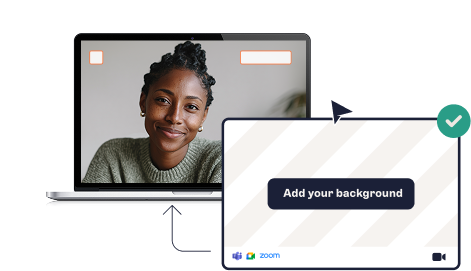
When done well, virtual backgrounds can enhance:
Privacy and focus. A virtual background hides home environments, family members, clutter, and noisy co-working spaces while reducing visual distraction for everyone watching.
Consistency across settings. An employee looks the same whether they're working from home, a hotel, or a hot-desk in the office.
Polish in external-facing moments. Sales demos, client meetings, webinars, and recorded sessions all benefit from a deliberate, tidy backdrop.
Brand visibility. For customer-facing roles, the background is a small but repeated brand surface across every call, prospect, and recording.
In the right context, a virtual background is a quiet upgrade to how the company shows up.
Tip
Virtual backgrounds look professional when you use high-resolution images (1920 × 1080 pixels minimum), adequate lighting, and hardware that handles edge detection well. They only appear unprofessional when poorly implemented or used in inappropriate contexts.
Why virtual backgrounds can work against you
Backgrounds can also backfire. They depend on the right image, the right hardware, and the right judgment for the moment. When any of those slip, what looked like a polished choice quickly becomes a distraction.
Potential problems include:
Inconsistent visual identity. When employees source their own backgrounds, your company shows up differently in every call, quietly eroding a polished impression for sales, customer success, and executive teams.
Technical drawbacks. Weaker laptops and webcams create edge-detection issues that often look worse than a plain wall, especially for presenters using props or gestures.
Wrong-context choices. A beach sunset in a quarterly review or an over-decorated branded background in a casual internal stand-up can both feel off.
Distraction. Even a well-chosen background pulls focus if it's too busy or animated. The point of a call is the conversation, not the scenery.
Across hundreds of meetings a day, small issues like these add up to something more visible.
When to use vs. when to avoid virtual backgrounds
When to use | When to avoid |
Client-facing sales calls | Casual internal stand-ups |
Customer success meetings | One-on-ones with direct reports |
Webinars and recorded sessions | Brainstorming sessions requiring whiteboard use |
External presentations and demos | When hardware causes visible edge-detection issues |
Interviews with candidates | When using props or frequent hand gestures |
The real problem isn't whether to use one, but whether anyone's managing them
Most of these downsides trace back to a single root cause: no one is managing meeting backgrounds at an organizational level.
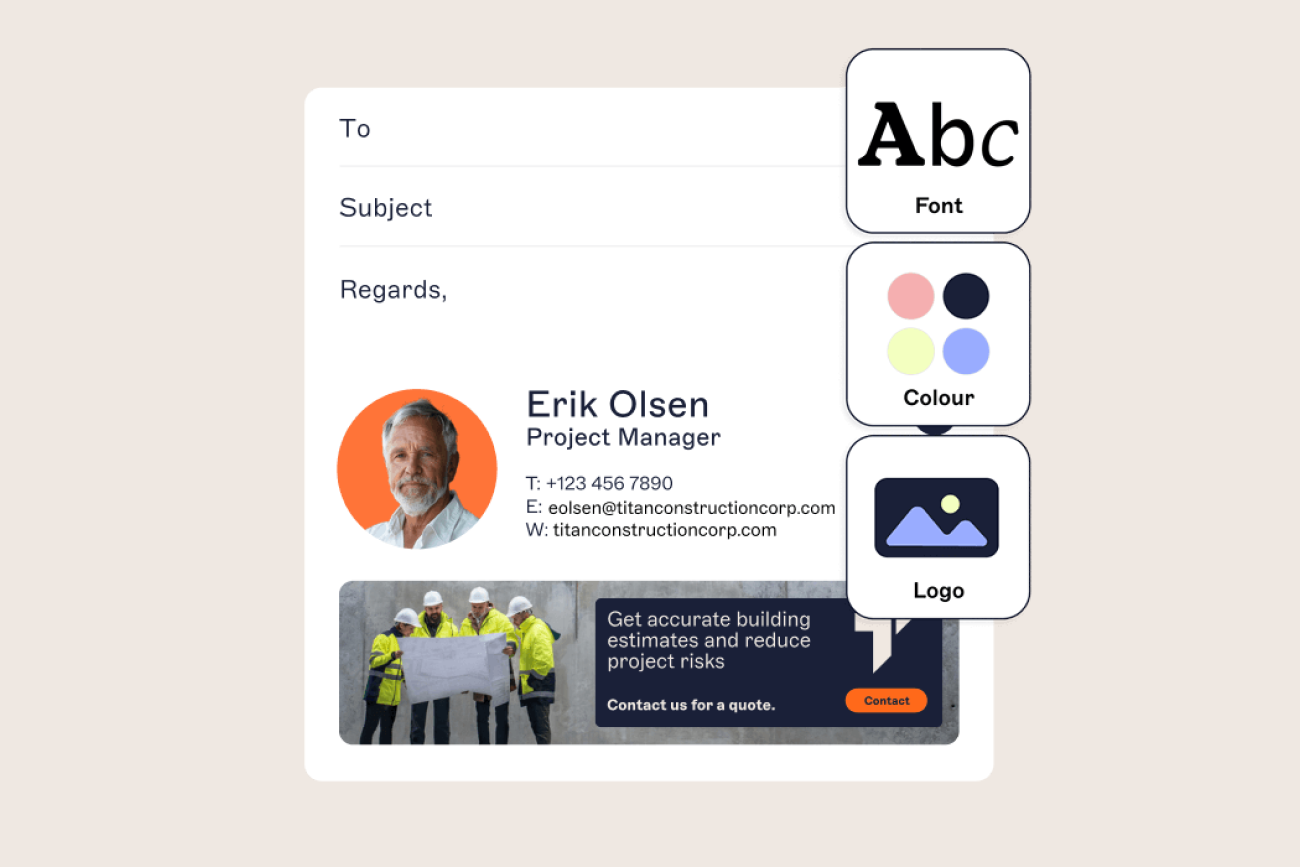
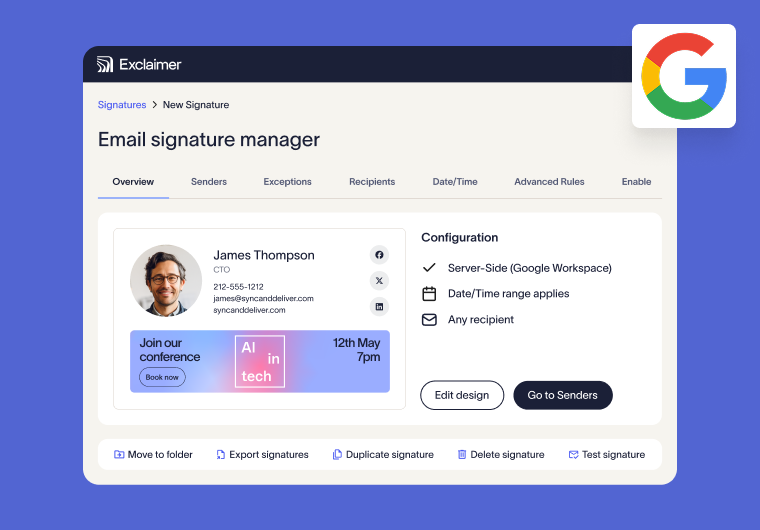
Many companies invest carefully in how email signatures look. Logos, disclaimers, and campaign banners are all centrally controlled and applied automatically to every email. And then they leave video backgrounds entirely to individuals.
That leads to a visible gap between two channels that prospects and clients see side by side: a polished email, followed by a patchwork of backgrounds on the follow-up call. This is a governance gap, not a creative one. The real question is whether the brand can show up consistently without asking every employee to source their own assets.
Tip
A good professional virtual background uses a clean, high-contrast design with minimal visual clutter, company branding positioned appropriately, and resolution that matches your platform's requirements (1920 × 1080 pixels for most platforms).
Best practices checklist for virtual backgrounds
Before using a virtual background, ensure you meet these criteria:
Use high-resolution images (minimum 1920 × 1080 pixels for Zoom; 16:9 aspect ratio up to 3840 × 2160 pixels for Teams)
Test in varied lighting conditions with adequate front-facing light
Position yourself against a solid-color physical backdrop for better edge detection
Avoid busy patterns or animated backgrounds that distract from the conversation
Use high-contrast, simple designs that don't compete with your presence
Position logos appropriately (typically lower corner, not behind your head)
Test your setup before important calls to check for edge-detection issues
Platform-specific guidance
Zoom
Recommended image dimensions: 1920 × 1080 pixels. Zoom supports both image and video backgrounds, with virtual background settings accessible under Settings > Background & Effects.
Microsoft Teams
Recommended aspect ratio: 16:9, up to 3840 × 2160 pixels. Teams allows custom background uploads through Settings > Effects and Avatars > Video Effects.
Google Meet
Recommended dimensions: 1920 × 1080 pixels. Access background options by clicking the three-dot menu during a call and selecting "Apply visual effects."
How does Exclaimer make branded backgrounds simple to manage?
Virtual backgrounds aren't inherently professional or unprofessional. What separates a sharp video presence from a messy one is whether anyone is managing them. When backgrounds are treated like any other brand surface, prepared centrally and applied consistently, they stop being a coin-flip and start working for the company.
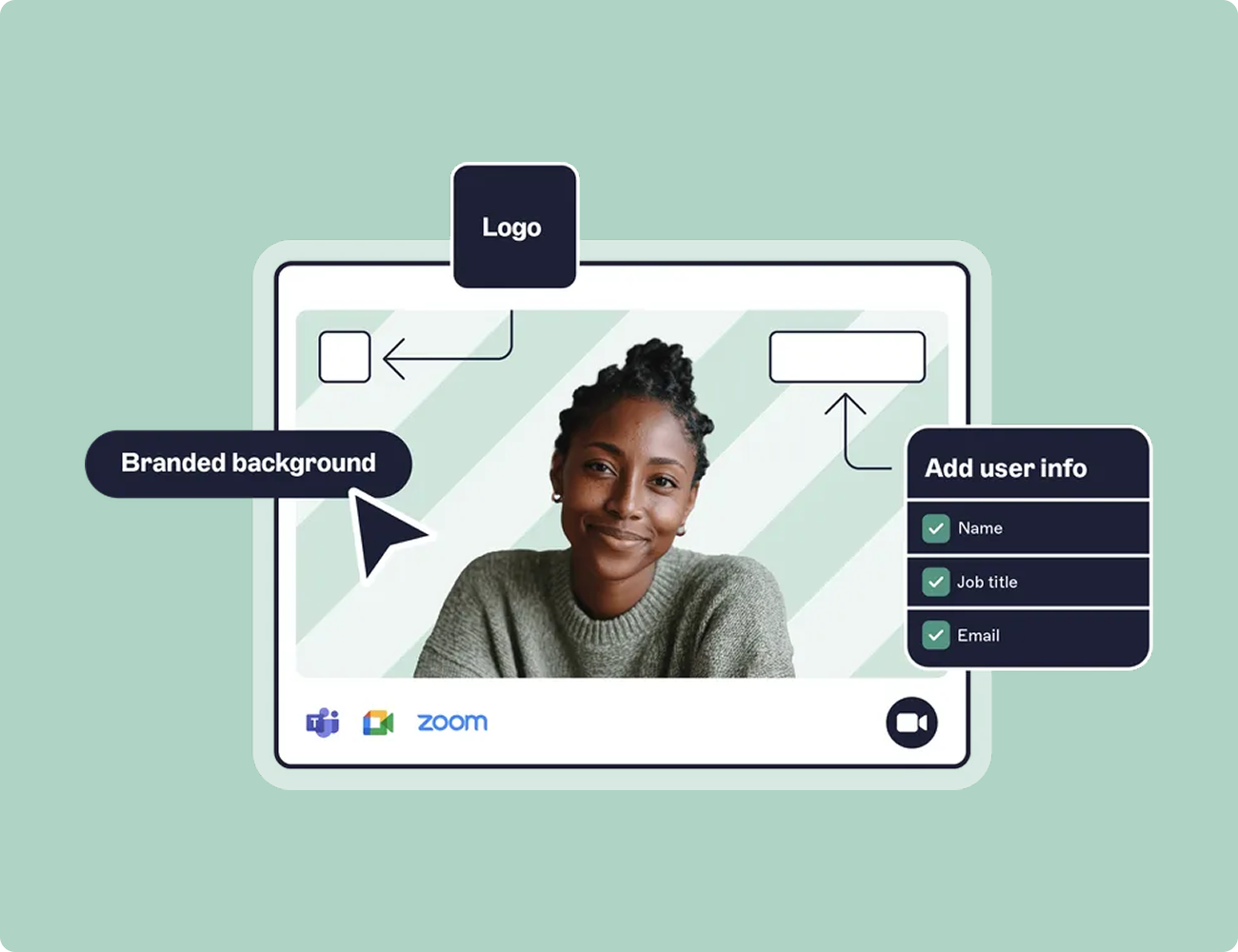
Exclaimer Meeting Branding extends the same brand-governance logic behind email signatures into video calls.
Centrally prepared assets. Backgrounds and personalized nametags are drawn from Brand Kits, the same approved logos, colors, and assets that power your email signatures. Update the Brand Kit, and every connected signature and meeting theme updates with it.
Multiple themes. Create additional Brand Kits and themes to support multi-brand, multi-region, or department-specific setups.
Works with multiple platforms including Zoom, Microsoft Teams, and Google Meet.
Applied without the guesswork. For Microsoft Teams and Google Meet, employees download their prepared branding from the User Details Editor and apply it in their meeting software. Assets are centrally governed and personalized with directory data, so there's no more sourcing images independently and no more guessing at the standard.
The result is a consistent, on-brand video presence across the organization, without making every employee a designer or putting IT in the middle of chasing wallpaper.
Curious how it works in practice? See how Meeting Branding keeps brand assets consistent across Zoom, Microsoft Teams, and Google Meet.