Linn is a technology leader specializing in engineering management, product strategy, and agile delivery. As Director of Engineering Management at Exclaimer, she drives innovation and scalability while fostering high-performing teams. She excels in optimizing engineering processes and guiding teams through complex transitions.
How to change or update your email signature in Outlook

TL;DR
In new Outlook for Windows and Outlook on the web, select Edit signature under Settings > Accounts > Signatures, then select Save.
In classic Outlook for Windows, open File > Options > Mail > Signatures and edit the text before selecting Save.
In Outlook for Mac, select the email signature under Outlook > Settings > Signatures, then select Edit.
Open Settings in the Outlook mobile app and tap Signature to type the new version.
Check two things before you change your email signature in Outlook: the version you’re using, and whether your company adds its own email signature after you send.
The version determines where the setting is and which of your devices the change reaches. A company-wide email signature can override whatever you set in Outlook.
Which version of Outlook do I have?
Outlook's email signature settings sit in one of four places depending on the version.
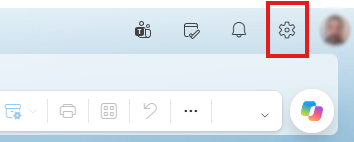
On a Windows PC, look at the top-right corner of Outlook. A Settings gear icon there means you're in new Outlook for Windows. Classic Outlook has a File tab at the far left instead. Microsoft's guide to Outlook versions has screenshots of each.
In a browser, check the address bar. Outlook on the web runs at outlook.office.com for work or school accounts, and Outlook.com runs at outlook.live.com for personal Microsoft accounts.
Version | Where to find it | Syncs with |
New Outlook for Windows, Outlook on the web, and Outlook.com | Settings > Accounts > Signatures | Each other and classic Outlook, for Microsoft 365 and Outlook.com accounts |
Classic Outlook for Windows | File > Options > Mail > Signatures | New Outlook and Outlook on the web, for Microsoft 365 and Outlook.com accounts, unless your admin has turned roaming off |
Outlook for Mac | Outlook > Settings > Signatures | No other versions |
Outlook mobile app | Settings > Signature | No other versions |
How to change your email signature in new Outlook for Windows
New Outlook for Windows lists each account's email signatures on one Settings page, where you can edit the text and choose which email signature Outlook adds automatically.
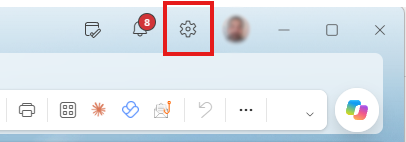
Select Settings (the gear icon) in the top-right corner.
Select Accounts > Signatures.
If you have more than one account, pick the one whose email signature you're changing.
Select Edit signature (the pencil icon) next to the email signature.
Make your changes, then select Save.
Checkboxes at the bottom of the same page decide whether Outlook adds the email signature to new messages and to replies and forwards on its own.
How to change your email signature in classic Outlook for Windows
Classic Outlook edits email signatures in the Signatures and Stationery window, which you can open from the File menu or from inside a new message.
Select File > Options > Mail > Signatures.
Under Select signature to edit, choose the email signature.
Make your changes in the Edit signature box.
Select Save, then OK.
From a message, open a new email and select Signature > Signatures on the Message tab to reach the same window. Microsoft's instructions note that Outlook won't add a newly created email signature to the message you opened to get there, so start a fresh email to check the result.
The Choose default signature section of the same window sets which email signature each account uses for new messages and for replies and forwards.
How to change your email signature in Outlook on the web
Outlook on the web and Outlook.com keep email signatures in the same place as new Outlook for Windows.
Sign in at outlook.office.com with a work or school account, or at outlook.live.com with a personal account.
Select Settings (the gear icon) at the top of the page.
Select Accounts > Signatures.
Select Edit signature next to the email signature.
Make your changes, then select Save.
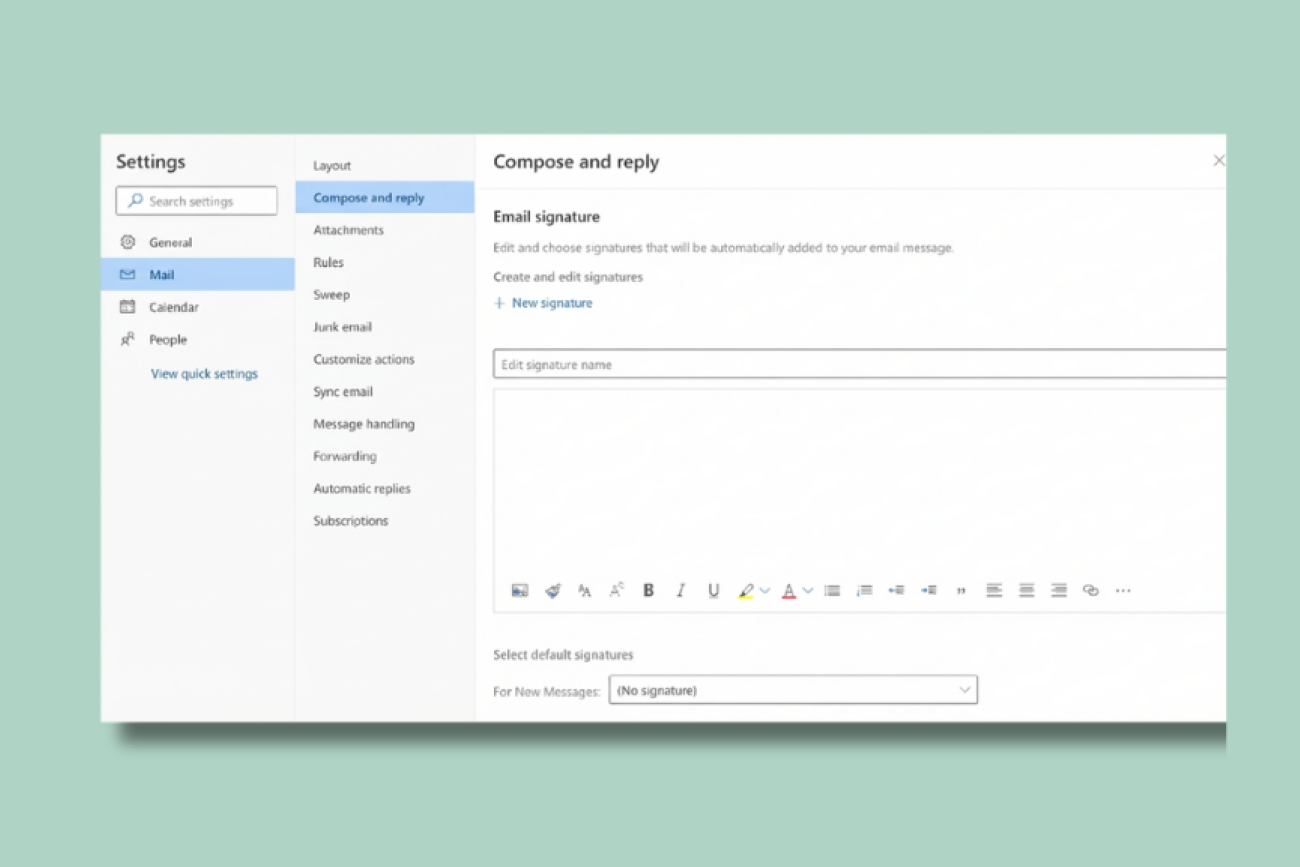
Some older instructions point to Mail > Compose and reply instead. Organizations that host their own Exchange servers may run an older Outlook Web App that looks different, so ask your IT team if your screen matches neither path.
How to change your email signature in Outlook for Mac
Outlook for Mac keeps email signatures under Mail in the app's Settings, where you edit them in a separate Signatures window.
On the Outlook menu, select Settings.
Under Mail, select Signatures.
Under Signature name, select the email signature, then select Edit.
Make your changes, then close the Signatures window.
The Signatures window also holds Set default signature, where you pick an account and set For new messages and For replies or forwards.
How to change your email signature in the Outlook mobile app
Microsoft’s steps are the same in the Outlook app for iOS and Android.
Open Settings.
Under Mail, tap Signature.
Type your new email signature, or turn on Per Account Signature and enter one for each account.
How to change what's in your email signature block
Your email signature block is the group of lines at the bottom of each email with your name, job title, company, and contact details, plus any logo or links.
The editors that change an email signature also handle creating a Microsoft 365 email signature from scratch, starting from Add signature in new Outlook or New in classic Outlook.
Replace a logo or image
Select the old image in the editor and delete it, then insert the new file with the editor's picture option. In Outlook for Mac, the picture option sits under See more items (...). Send yourself a test email afterwards to check the size and position.
Fix or add links
Highlight the text you want to link, then use the editor's link option and paste the full web address. On a Mac, Link is under See more items (...), where you enter the Text to Display and Address. For an email address, start the link with mailto: so it opens a new message.
Use a shorter email signature for replies and forwards
Create a second, shorter email signature and select it as your default for replies and forwards.
Pick a different email signature for one email
In new Outlook, select Signature in the Insert group on the Message tab and pick another saved email signature. Classic Outlook has a Signature button on its Message tab too, and Outlook on the web lets you insert any saved email signature while you write. On a Mac, select Signature on the ribbon, under See more items (...) if it's hidden.
Why isn't my email signature change showing up in Outlook?
If an edited email signature doesn't appear, check what's overriding it before you redo the edit.
Why isn't my new email signature added to my emails?
The edited email signature probably isn't set as the default for the account you're sending from. Check the defaults for new messages and for replies and forwards, and make sure the account in the From field is the one you edited.
Why did my email signature change in one version of Outlook but not another?
Outlook only syncs email signatures between some versions. For Microsoft 365 and Outlook.com mailboxes, Outlook for Windows and Outlook on the web share email signatures stored in the mailbox. Outlook for Mac and the mobile app keep their own copies, and on-premises Exchange, third-party, and POP or IMAP accounts don't roam at all. Update each copy that doesn't sync, using the Outlook email signature location for each version.
Why do recipients see a different email signature from the one I edited?
Your company may add an email signature on the server after you send, through Exchange mail flow rules or a server-side tool for centralized email signature management. You won't see that version while you write unless an Outlook add-in shows it. With mail flow rules, it's missing from your Sent Items too. Your own Outlook setting can't change it, so ask your IT team who manages it.
How to change email signatures for everyone in your organization
Changing everyone's email signature at once is the core of managing Outlook email signatures at scale, and the options differ in who does the work and where the email signature gets added.
Approach | How a change rolls out | Things to know |
Per-user Outlook settings | Each employee edits their own email signature, or IT pushes one to each device with scripts or Group Policy | Relies on every user or device being updated, and file-based scripts don't reach new Outlook |
An admin's disclaimer rule adds the email signature as mail passes through Exchange Online, using directory fields such as name and title | Can't sit under the latest reply, can't embed images, doesn't show in Sent Items, and skips lines where a directory field is empty | |
Central email signature management platform | Templates fill from directory data and are applied either on the server after sending or inside Outlook through an add-in | Server-side tools apply changes to the next email from any device, and it needs a separate subscription |
Microsoft's guide to organization-wide email signatures and disclaimers lists the mail flow rule limits above and suggests third-party Microsoft 365 email signature tools for the gaps.