Linn is a technology leader specializing in engineering management, product strategy, and agile delivery. As Director of Engineering Management at Exclaimer, she drives innovation and scalability while fostering high-performing teams. She excels in optimizing engineering processes and guiding teams through complex transitions.
Email warm-up best practices for new Microsoft 365 domains

TL;DR
A new sending domain has no reputation, so sending high volume on day one gets your mail filtered, throttled, or rejected. Warm-up builds that reputation gradually, usually over four to eight weeks.
In Microsoft 365 you're warming your domain's reputation, not an IP. Microsoft owns and manages the shared outbound IP pool, so your job is domain reputation, clean authentication, and staying inside the sending limits.
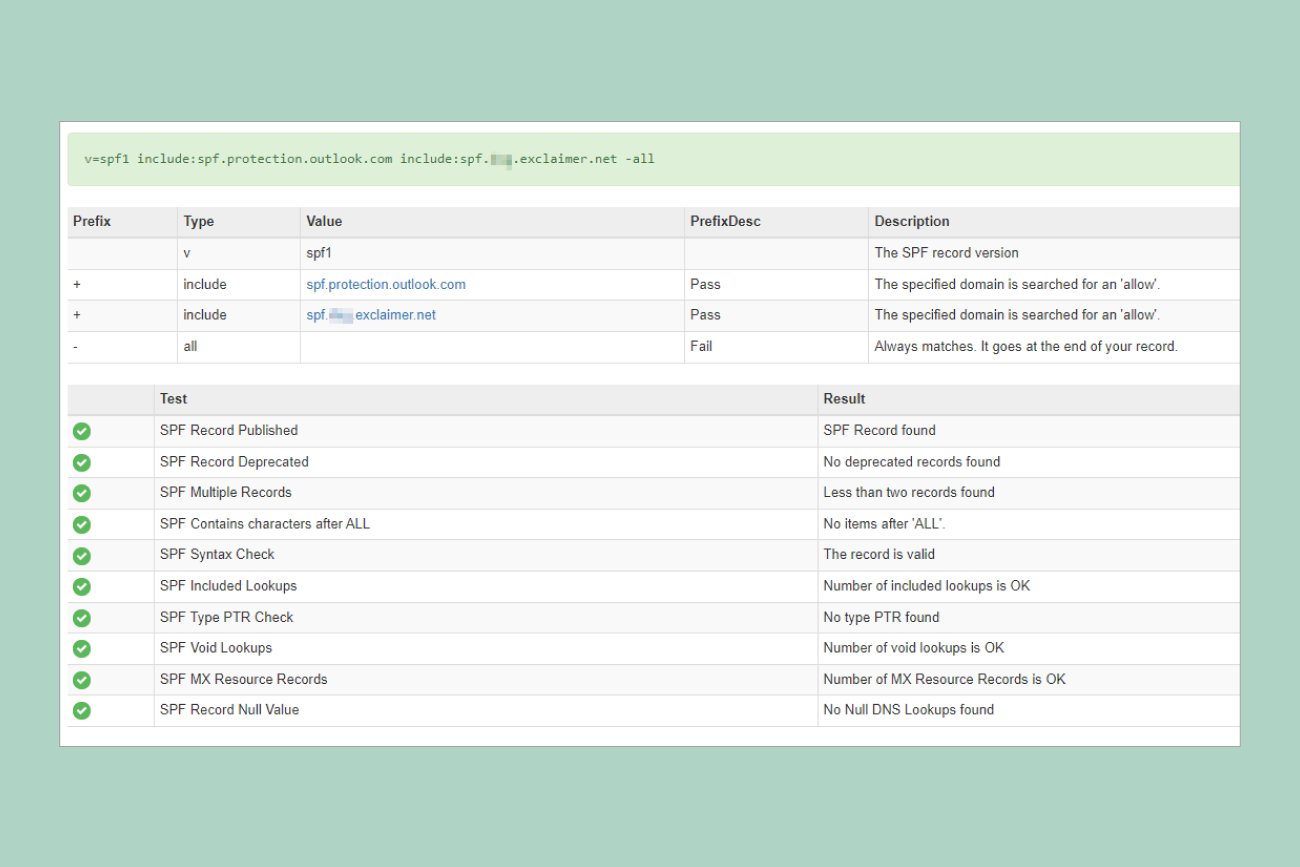
Get SPF, DKIM, and DMARC live and passing before you send a single warm-up email. Providers treat unauthenticated mail as suspect no matter how carefully you ramp.
For most tenants, manual warm-up is enough, since employees already send genuine mail that recipients engage with. Monitor progress with Exchange Online message trace and Google Postmaster Tools as you scale.
Exclaimer's solution for Microsoft 365 applies email signatures through Microsoft's mail flow rules without touching your sending domain or IP, so it has no effect on warm-up and can be added at any point.
You've configured a new Microsoft 365 tenant, added your sending domain, and you're ready to send. Point real volume at it on day one, though, and a large share of your mail will land in spam or bounce back with a non-delivery report.
The reason is reputation. A brand-new domain has no sending history, so to Microsoft, Google, and every other mailbox provider it looks the same as a domain a spammer registered yesterday. Warm-up is how you build that reputation gradually, before a cold start turns into a deliverability problem you can't quickly undo.
This guide walks through how warm-up works for a Microsoft 365 tenant carrying everyday business mail. That's a different job from warming a domain for cold-outreach or sales-sequence sending: the volumes, the tools, and the risk tolerance are different, and most warm-up advice online is written for the outreach case, not for the IT admin standing up a brand-new tenant through a tenant migration, a new company, or a spin-off. What follows is a ramp schedule you can follow, the Exchange Online limits that shape it, and how to monitor deliverability as you go.
What email warm-up is and why new domains need it
Email warm-up is the process of gradually increasing send volume from a new domain so mailbox providers learn to trust it before you send at full scale.
Mailbox providers like Microsoft and Google weigh the sender behind a message, not only its content. They look at whether a domain has a history of sending mail that people open, read, and reply to. That history is your sending reputation, and a brand-new domain has none.
In Microsoft 365, you're not warming a dedicated IP the way you would on a self-hosted server or a standalone sending platform. Exchange Online Protection is a shared service: your outbound mail leaves on IP addresses that Microsoft owns and shares across many tenants, and Microsoft monitors and manages the reputation of those IPs itself. Mail that trips the spam threshold gets routed through a separate, low-reputation pool called the high-risk delivery pool, where delivery isn't guaranteed.
So in a new Microsoft 365 tenant, the reputation you warm is the domain's, not an IP's. The shared IP pool is Microsoft's to manage. Your job is to build domain reputation and sending history gradually, keep authentication clean, and stay inside Microsoft's sending limits.
Tip
You can't warm up an IP you don't own. Microsoft's shared pool is already trusted; your domain isn't, and that's the only part of this you're actually responsible for.
The risk of sending high volume from a cold domain
The temptation with a new tenant is to treat it like a warm one. The migration's done, the mailboxes are live, so you point your first campaign or first big all-company announcement at everyone and send.
But to a mailbox provider, a cold domain sending high volume looks like a compromised account or a spam run, and providers respond the way they're built to. They filter your mail to spam, and as the signals worsen, they start deferring messages or rejecting them outright. Domains used for cold outreach without warm-up average below 30% inbox placement in their first month. A Microsoft 365 tenant carrying everyday business mail isn't running that kind of volume, but it's exposed to the same underlying problem: no sending history yet, so no reason for a mailbox provider to extend trust.
Microsoft 365 adds its own enforcement. Exchange Online Protection caps how much you can send, and once you cross a limit, mail is throttled or rejected with a non-delivery report. Messages that trip the spam threshold are diverted to the high-risk delivery pool, so even mail that goes out leaves on low-reputation IPs.
And the cost outlasts the day you overreach. A single bad send, whether it's high bounces or a spike in spam complaints, can undo weeks of careful ramping and leave you worse off than when you started.
Get authentication right before you ramp
Warm-up assumes your domain can prove it is who it says it is. If it can't, no amount of careful ramping helps, because providers treat the mail as suspect regardless of volume.
That proof comes from three Domain Name System (DNS) records, and all three need to be live and passing before you send your first warm-up email:
Sender Policy Framework (SPF) tells receiving servers which hosts are allowed to send on your domain's behalf.
DomainKeys Identified Mail (DKIM) adds a cryptographic signature that proves a message wasn't altered in transit.
Domain-based Message Authentication, Reporting, and Conformance (DMARC) tells receivers what to do when a message fails SPF or DKIM checks, and reports back on who's sending as your domain.
This is where a lot of new domains fall down. Fewer than one-third of organizations have implemented DMARC, DKIM, or SPF, according to Exclaimer's State of Business Email 2025 research. Providers increasingly expect all three, and a domain without them starts its warm-up at a disadvantage.
Manual vs. automated warm-up
Once authentication is in place, you have two ways to run the ramp: by hand, or with a tool that does it for you. Both build reputation the same way, through gradually increasing, engaged sending. They differ in effort, cost, and how much you can trust what's happening. Here's how the two compare:
Approach | Cost | Signal strength | Best fit |
|---|---|---|---|
Manual | Free | Real, engaged sending from genuine business mail | Tenants where employees are already corresponding daily |
Automated | Paid tool | Consistent volume, but the engagement itself is artificial | Tenants sending little natural mail that need a baseline |
Manual warm-up
Manual warm-up means you own the schedule. You have your users, or a subset of them, send genuine mail to genuine recipients at low volume, then raise it week over week against a plan you set.
The advantage is that it's free and it's authentic. The mail is real business correspondence to people who engage with it, which is exactly the signal providers reward. In a new tenant where employees are already emailing customers and partners, much of the warm-up happens on its own, just from people doing their jobs.
The drawback is coordination. Someone has to set the targets, watch the volume, and hold the line when a team wants to send more than the schedule allows. Across a large migration that's meaningful overhead, and discipline tends to slip in week two, when nothing appears to be going wrong.
Automated warm-up
Automated warm-up tools run the ramp for you. They send on a schedule, often to a network of other inboxes that open and reply automatically, generating engagement signals with no one involved.
The appeal is consistency: a tool never forgets to increase volume or gets pulled onto other work. The caveats are worth weighing, though. The engagement is artificial, providers have improved at detecting warm-up networks, and the 2026 shift toward engagement-based warming rewards genuine interaction, which manufactured signals struggle to imitate.
Automation earns its place when a tenant sends little natural mail and needs help generating a baseline. But in a Microsoft 365 environment where employees are already corresponding all day, it often solves a problem you don't have.
A recommended warm-up schedule
Microsoft doesn't publish a warm-up schedule for Exchange Online, so what follows is a representative ramp drawn from established deliverability practice. Adjust it to your tenant's size and how your reputation holds as you go.
The approach is simple: start low and build gradually. A brand-new domain usually needs four to eight weeks to warm fully, with newer or reputation-damaged domains at the longer end.
Week | Daily volume per mailbox | Daily increase | What to watch |
1 | 10–20 | Hold at baseline | Bounce rate; that mail is reaching inboxes |
2 | 30–50 | ~20% | Spam-folder placement, early complaints |
3–4 | 75–150 | ~20% | Reputation signals, engagement rates |
5–6 | Scale toward target | ~30% per week | Complaint rate as volume climbs |
7–8 | Full target volume | Hold steady | Ongoing deliverability and reputation |
Tip
These per-mailbox figures come from outbound sending practice, so treat them as a guide for shaping your tenant's overall ramp, not a literal cap on each user's daily mail.
The exact figures matter less than two habits:
Keep increases gradual. Sudden spikes are what trigger filtering, so raise volume in small steps rather than big jumps, even when engagement looks strong.
Favor engagement over raw volume. Mail that gets opened and answered builds reputation far faster than a high send count to people who ignore it.
Every figure here sits well inside Exchange Online's per-mailbox recipient rate limit. The tenant-level limits are the ones worth knowing precisely.
How to monitor deliverability during warm-up
Warm-up without monitoring is guesswork. You need to see whether your mail is landing and how your reputation is trending, in time to correct a downward turn. A handful of free and built-in tools cover most of what you need.
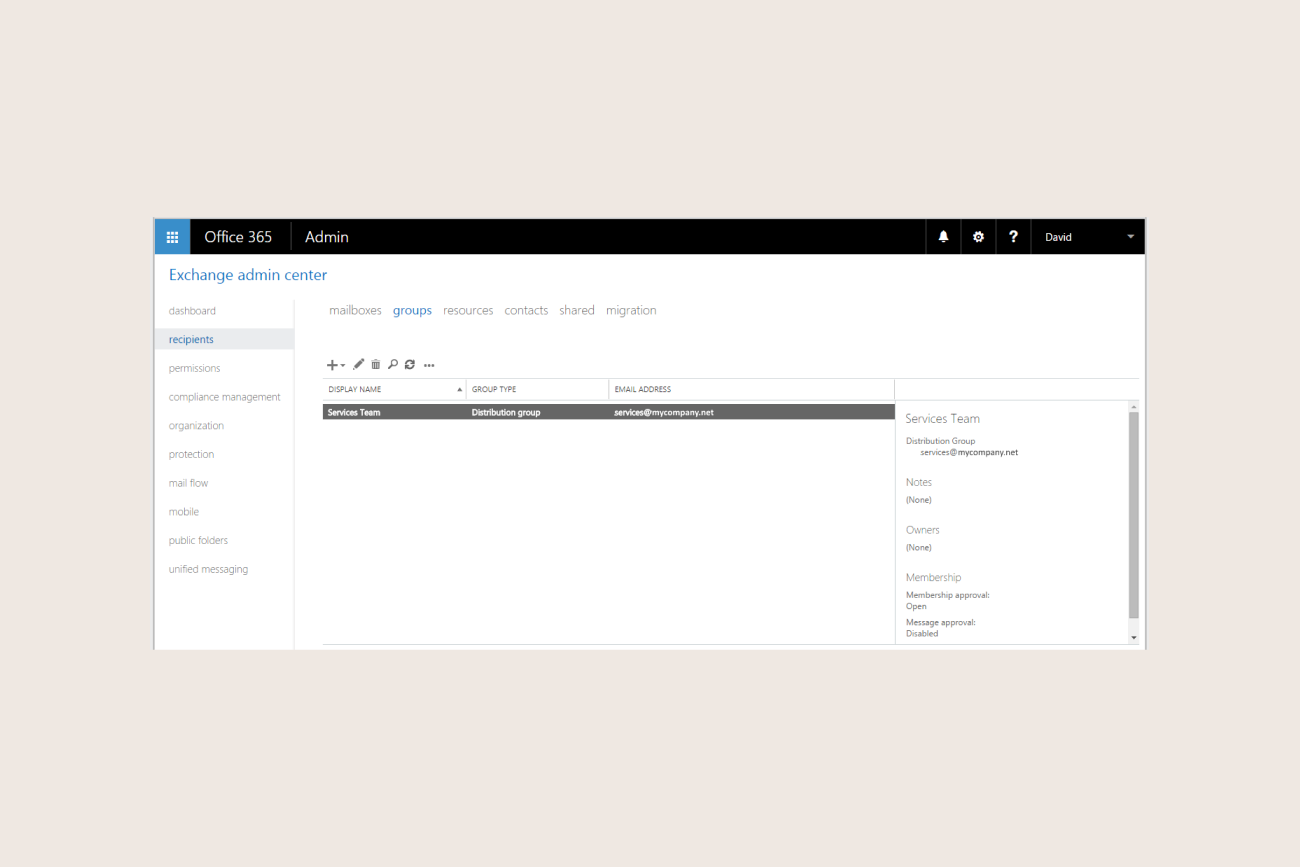
Start with what's already in your tenant. Exchange Online message trace, in the Exchange admin center, shows whether each message was delivered, failed, pending, quarantined, or filtered as spam, and why. It's where you confirm whether Microsoft is deferring or rejecting your mail as volume climbs. Alongside it, the admin center's mail flow reports show your aggregate sending patterns and top senders.
For how the outside world sees you, Google Postmaster Tools is the clearest free window into a major provider's view. For any domain sending to Gmail, it reports your spam complaint rate, your authentication results for SPF, DKIM, and DMARC, and Gmail's assessment of your sending, updated regularly at no cost. One caveat: it needs a minimum daily volume to Gmail before data appears, so expect empty dashboards in the early weeks of warm-up.
One tool that won't help here, despite showing up in a lot of general warm-up advice: Microsoft SNDS (Smart Network Data Services). SNDS access is restricted to senders on a dedicated IP; Microsoft doesn't grant it for shared IP pools, since the data would blend every tenant sharing that IP together. A standard Microsoft 365 tenant sends through Exchange Online Protection's shared outbound pool, so SNDS isn't an option here regardless of how carefully you set it up. Skip it unless you're also running dedicated sending infrastructure outside Microsoft 365.
Tip
Skip Microsoft SNDS on a standard Microsoft 365 tenant. It only returns usable data for a dedicated IP, and the shared Exchange Online Protection pool won't give you anything specific to your own domain.
Inbox placement tests and sender reputation checks from third-party deliverability tools show where mail actually lands, inbox versus spam, across providers rather than just confirming it was accepted. Many have a free tier that's enough for a warm-up.
Run these checks throughout the ramp, not just at the end. The value is catching a slipping reputation in week two, when a small adjustment fixes it, rather than in week six, when the damage is done.
Microsoft 365-specific considerations
Warm-up builds reputation, but Microsoft 365 also caps how much you can send regardless of how warm your domain is. These ceilings are worth mapping before you plan your ramp, so you don't design a schedule that hits one.
Exchange Online Protection enforces several that matter during and after warm-up:
Recipient rate limit: a single mailbox can send to up to 10,000 recipients in any 24-hour period. It's enforced at the service level and can't be raised.
Message rate limit: a mailbox can send roughly 30 messages per minute. Exceed it and further messages are throttled until the rate drops.
Recipients per message: a single message can address up to 500 recipients across the To, Cc, and Bcc fields, by default.
One newer limit hits new tenants specifically. The Tenant External Recipient Rate Limit (TERRL) caps how many external recipients your whole organization can email per day. For a tenant with paid licenses, the cap scales with license count. Trial tenants get the tightest version: a flat 5,000-external-recipients-per-day ceiling regardless of size, so a trial or newly licensed tenant can hit a tenant-wide limit an established one wouldn't come close to.
Exchange Online isn't built for bulk sending, and Microsoft says so directly: using Microsoft 365 for bulk email is permitted only on a best-effort basis. If your real goal is high-volume campaigns rather than everyday business mail, the recommended route is a dedicated service such as Azure Communication Services.
Where Exclaimer fits into warm-up
Does adding email signature management to a new tenant interfere with warm-up? For Exclaimer's cloud solution, the answer is no.
Email signatures are applied through Microsoft's mail flow rules, the same transport pipeline your mail already travels. Mail isn't routed through a separate sending domain or a different IP, so there's no effect on your sending IP's reputation or the volume you're ramping. The warm-up you've planned runs exactly as it would otherwise.
Authentication holds up too. As mail passes through, the DKIM signature is removed during processing and re-applied by Microsoft 365 immediately afterward, before delivery, so its integrity is preserved and DKIM alignment isn't broken. Processing happens entirely in transit: the message is handled just long enough to apply the email signature, with no email content, subject lines, or attachments stored.
For an IT admin, that's one less thing to sequence. You don't have to finish warm-up before adding email signatures, or stage the rollout around a reputation you're still building. It also means governance doesn't have to wait for the domain to settle in. Brand-consistent, compliant email signatures apply to every message from day one, not bolted on once warm-up is finally done. The wider relationship between email signatures and deliverability is a separate topic, but warm-up isn't affected either way.
With more than 25 years in email signature management, Exclaimer is designed to sit inside Microsoft's mail flow without disturbing it. Learn more or get yourself a free trial.