Linn is a technology leader specializing in engineering management, product strategy, and agile delivery. As Director of Engineering Management at Exclaimer, she drives innovation and scalability while fostering high-performing teams. She excels in optimizing engineering processes and guiding teams through complex transitions.
How to assign email signatures by Active Directory group
TL;DR
Target email signatures by Active Directory or Entra ID group instead of managing users individually. Assign a signature to a group once, and it follows people as their membership changes.
Only mail-enabled security groups and distribution groups can be targeted. Plain security groups and organizational units can't, so build dedicated mail-enabled groups for signatures.
For targeting that maintains itself, base rules on an attribute like department or office rather than static membership. The signature reassigns automatically on the next sync, which runs twice a day for Microsoft 365.
When someone matches more than one rule, priority order decides which signature wins. Exceptions remove people from a signature but don't assign a different one.
Test with a simulation and a small pilot group before rolling out to everyone.
If you manage email signatures for more than a handful of people, handling them one user at a time stops working fast. People join, leave, and switch teams constantly, and every one of those changes can leave someone with the wrong email signature.
Active Directory groups solve this. You point an email signature at a group once, and everyone in that group gets it. When someone moves to a different group, their email signature changes with them. No per-user edits, and no stale templates sitting there until someone notices.
Signature management is a real drain on IT's time. In Exclaimer's State of Business Email 2025 research, 35% of IT teams named it one of their two most time-consuming tasks. Most of that effort is manual, per-user work, and group-based targeting removes it.
This guide covers how to structure Active Directory or Entra ID groups for email signature targeting, how a signature tool reads group membership, how dynamic groups keep targeting current on their own, and how to test everything before you roll it out.
Why Active Directory groups are the right way to target email signatures
Active Directory groups are the right way to target email signatures because your directory already maintains them. You don't need to build a separate list of who sits in sales or who works out of the Berlin office. That membership already lives in the groups you use for access control and licensing, and it's the same data an email signature tool can read.
 The alternative is assigning an email signature to each user by hand.
Manual, per-user assignment | Group-based targeting | |
|---|---|---|
Who updates the signature | IT edits each user individually | IT edits the group; membership does the rest |
When someone joins, changes department, or leaves | Requires a manual edit for each event | Signature follows automatically |
Risk when an update is missed | Wrong signature goes out on a real email | No per-user step to miss |
Effort at scale (hundreds of people) | A maintenance task that never ends | One change updates everyone in the group |
Groups give you clean targeting axes instead. You can assign a different email signature by:
Department: sales, support, finance, or legal
Location: country, region, or individual office
Role: seniority level, or client-facing versus internal teams
Legal entity: separate branding for each company under a parent organization
Membership is governed in one place, so a single change updates every email signature tied to that group. You edit the group, not the users.
How email signature tools read AD and Entra ID group membership
An email signature tool assigns the right template by reading group membership from your directory. It checks which groups each user belongs to in Active Directory or Entra ID and applies the email signature rule that matches. When someone's group changes, their assigned email signature changes on the next sync.
Microsoft recently changed how tools access that directory data. As Microsoft's own retirement notice confirms, the Azure AD and MSOnline PowerShell modules are deprecated, and directory access has moved to Microsoft Graph, so any current tool should read group and attribute data through Graph rather than the deprecated modules. For more on this, see our guide to Microsoft 365 email signatures after the Graph move.
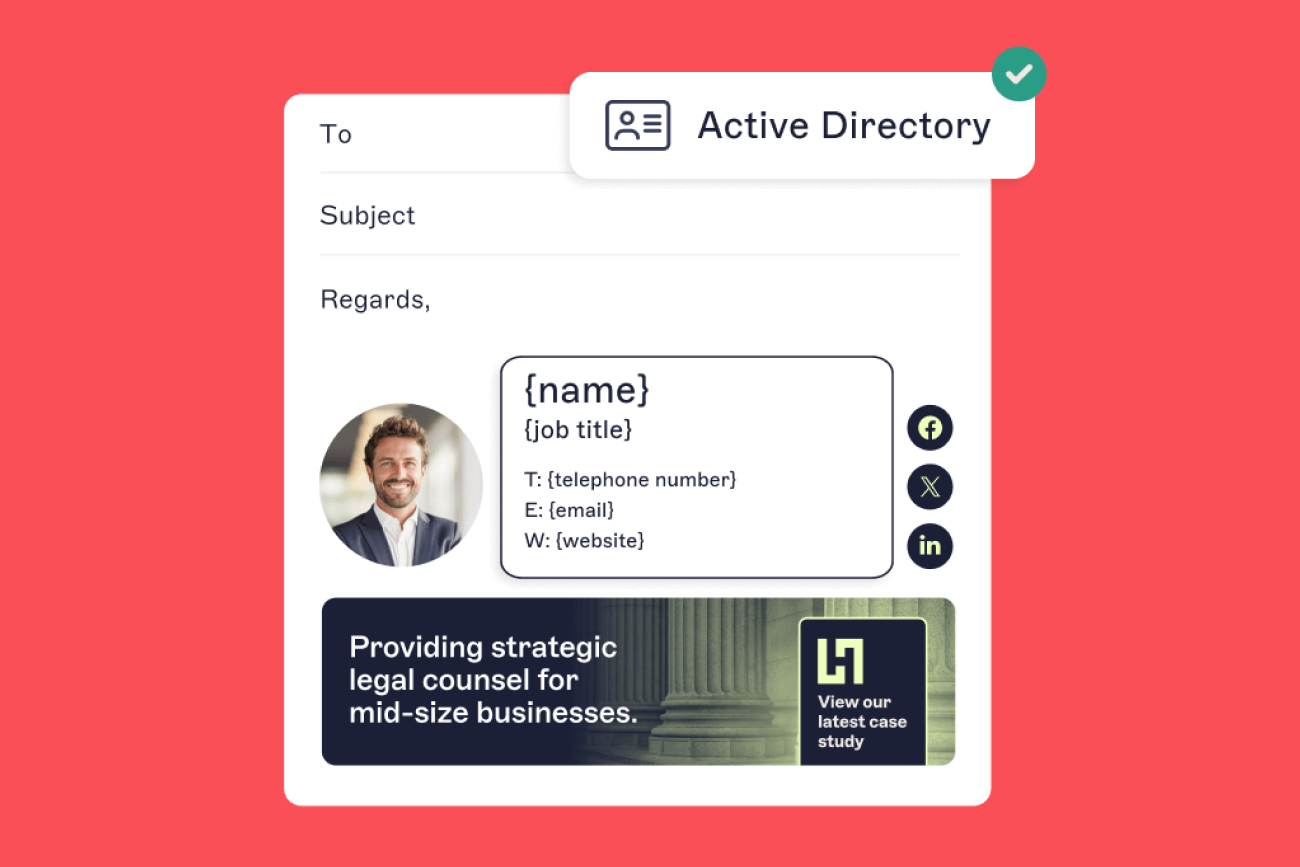
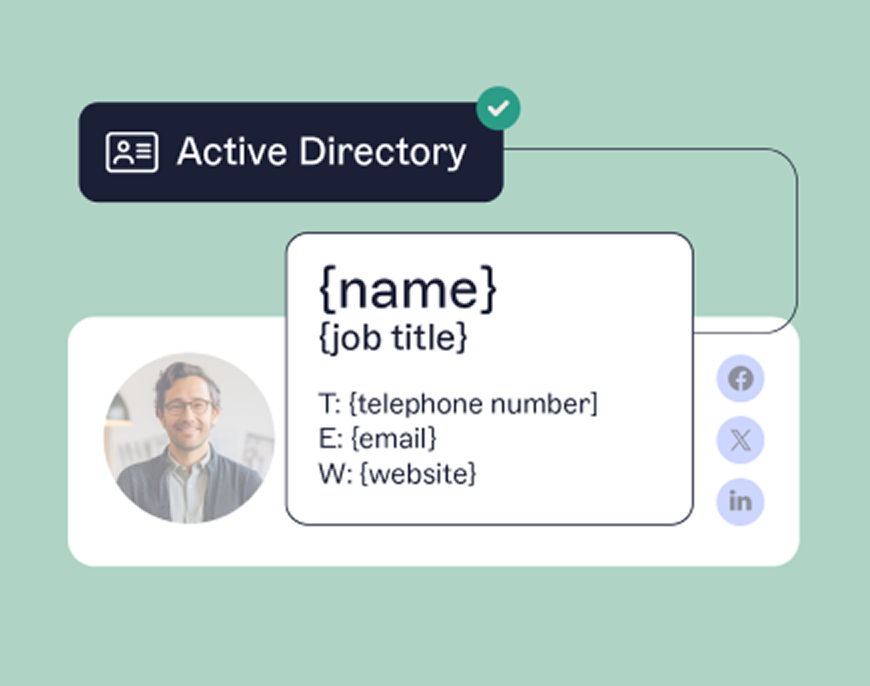
Exclaimer's cloud solution follows that model. It connects to Entra ID through the Microsoft Graph API, reads group membership and user attributes in read-only mode, and never writes back to your directory. Its Directory Sync pulls fields such as name, job title, phone number, and department into your templates, so the details inside each email signature stay accurate on their own. Set the group rule once and you stop touching individual users: both the targeting and the content update as your directory does.
"We built Directory Sync to read from Microsoft Graph and nothing else. It's read-only by design, not by limitation. Group and attribute data flows one way, into your email signatures, so signature targeting can never be the thing that changes your directory."

Hybrid setups work on the same principle. If you run on-premises Active Directory synced to Entra ID through Microsoft Entra Connect (formerly Azure AD Connect), group membership still drives targeting, and it connects to your on-premises directory over secure LDAP or through Entra Connect.
How quickly do group and attribute changes take effect?
Targeting follows the directory on Exclaimer's next sync, not instantly.
Step | Timing |
|---|---|
A change made in Microsoft 365 reaches Entra ID | Up to 2 hours |
Exclaimer's automatic sync of Microsoft 365 data | Twice a day, at 00:00 and 12:00 UTC |
Exclaimer's automatic sync of Google Workspace data | Every 12 hours |
A manual sync, started by an Owner or Admin | Up to 3 hours to complete |
Entra Connect sync in hybrid environments | Every 30 minutes by default |
The timings come from Exclaimer's knowledge base article on synchronizing user data, updated August 19, 2026.
How do you create the right groups in Active Directory for signature targeting?
Create one group for each distinct email signature you need to assign, and base each group's membership on the attribute that actually decides the signature. Targeting usually comes down to three axes: department, location, and role.
Tip
You can only target mail-enabled groups: mail-enabled security groups or distribution groups. If a group isn't one of these types, it won't appear when you set up group-based targeting, and you'll need to re-create it as a mail-enabled security group or distribution group first. Exclaimer's article on creating a mail-enabled security group covers the steps.
Start by checking whether a suitable group already exists. If a mail-enabled group already includes your entire sales team, target it directly. Where nothing maps cleanly, create a dedicated group for signatures rather than bending an access-control group to a job it wasn't built for. A clear naming convention helps keep the two purposes apart. There's no official standard, but a simple approach is to prefix signature-targeting groups with something like SIG-, so their purpose is obvious and you can audit every targeting group at a glance.
Department groups
Department is a common axis, because email signatures usually differ by function. Sales might carry a booking link, support a service-desk number, and legal a mandatory disclaimer. Create one group per department that needs its own email signature:
SIG-Dept-SalesSIG-Dept-SupportSIG-Dept-Legal
Target each email signature at its matching group. When someone transfers from support to sales, move them from the support group to the sales group and their email signature changes to match.
Location groups
Location groups handle signatures that change by office or region: local phone formatting, regional addresses, language, and jurisdiction-specific legal text.
SIG-Loc-LondonSIG-Loc-NewYorkSIG-Loc-Sydney
A London employee gets the UK address and disclaimer; a Sydney employee gets the Australian version. When someone relocates, move them to the new location group and their email signature updates to match.
Role groups
Role groups target by seniority or function rather than department. Typical cases are executives who need a distinct email signature, or client-facing staff who carry a booking link internal teams don't.
SIG-Role-ExecSIG-Role-ClientFacing
Because role cuts across departments, these groups often overlap with department groups. A sales director could sit in both SIG-Dept-Sales and SIG-Role-Exec, which is exactly where rule priority comes in, covered further down.
One thing to know about these groups: their membership is managed by hand, so when someone changes department you move them between groups yourself. That's fine for stable teams. If you'd rather targeting update on its own as the directory changes, attribute-based rules do exactly that: point a rule at a directory attribute like department, and the right email signature follows automatically as the attribute changes, with no manual group move.
How do dynamic groups in Microsoft Entra ID keep signature targeting current?
To make targeting maintain itself, base it on a directory attribute instead of manual group membership. When the attribute changes, the targeting follows, and nobody has to move people between groups.
 Entra ID supports this through dynamic groups. Rather than adding members by hand, you define a membership rule such as
 user.department -eq "Sales", and Entra ID adds anyone whose department matches and drops them when it no longer does. Membership stays accurate on its own as people change roles.
Dynamic groups don't apply to signature targeting directly
Dynamic membership applies to security groups and Microsoft 365 groups, but not to the mail-enabled security groups you target signatures with. So a dynamic security group can't be pointed directly at a signature as its sender. Microsoft's dynamic membership documentation lists the supported group types.
Target the attribute instead
Instead, target the attribute directly. In a Signature Rule, an Advanced Query applies an email signature to everyone whose department is Sales, or whose officeLocation is London, the same attribute a dynamic group would key on. When someone's department changes in the directory, the matching rule picks them up on the next sync, with no manual step. You get the self-updating behavior of a dynamic group, without the group.
An Advanced Query is a starting set plus one or more conditions:
Starting set: everyone, or no one.
Conditions: add or remove users whose attribute matches a test like is, contains, or starts with. You can stack up to ten.
Start with "no one," add users where "department" is "Sales," and you've targeted the sales team without a member list to maintain. A new hire gets the correct email signature once the next sync picks up their account, and a leaver's rule-based assignment ends when their account is deactivated and the next sync runs, with no manual remap required.
Your rules are only as good as your attributes
Attribute-based targeting depends on those attributes being populated and consistent. If a user's department or officeLocation is blank, or spelled differently from what the rule checks for, the rule has nothing to match and that person quietly falls through. Audit the fields you plan to target on before you rely on them. Our Entra ID attributes guide lists the attributes Exclaimer reads.
How do you use nested groups without breaking your targeting?
Nesting groups inside other groups is a normal way to model an organization: regional groups roll up into a national one, teams roll up into a department. It keeps the directory tidy, but it adds distance between "who's in this group" and "who actually gets the signature." Three habits keep that distance from breaking your targeting.
Keep nesting shallow
When a targeting group contains other groups, which contain still others, you can't look at the group and know who's in it. Someone three levels down might receive an email signature you didn't mean to apply to them, or miss one you assumed they'd get. The fewer layers between the rule and the person, the easier it is to answer the only question that matters: who does this rule actually cover?
Avoid circular membership
If group A contains group B and group B contains group A, membership has no stable answer. Entra ID blocks most direct loops, but complex nesting across many groups produces the same practical result: membership nobody can trace. Keep membership flowing one direction.
Verify the tool expands nested members
Whether members of a nested group are picked up when you target the parent depends on the tool and the group types involved. Don't trust it, test it. The Signature Tester in Exclaimer's cloud solution shows exactly who a rule resolves to, so you can confirm nesting behaves as intended before rollout.
Across all three, the fix is the same: keep signature-targeting groups shallow and purpose-built. A dedicated SIG- group with direct membership is easier to audit and quicker to fix than a rule pointed at the top of a deep nesting tree.
How do you configure include, exclude, and rule priority in Exclaimer?
Group-based targeting is really two jobs: choosing who gets a signature, and resolving what happens when someone qualifies for more than one. You handle both inside Exclaimer's cloud solution.
Set who's included and excluded
Include logic lives in the Senders tab. Apply a signature to everyone in the organization, or to specific senders: named users, a domain, one or more groups, or an attribute-based Advanced Query. Add the mail-enabled group you built for targeting, and the signature applies to its members.
Exclusions live in the Exceptions tab and remove specific users from a signature. The signature then applies to everyone in your sender rule except the people or groups you list, which is useful for a shared mailbox or automated account that sits inside the targeted group but shouldn't send a personal signature. Exceptions only take people out of a signature. To give someone a different one instead, use priority.
Decide which signature wins when rules overlap
Signatures are processed in the order they're arranged, top to bottom. That order is the priority. The first signature whose rules match a sender is applied, and by default processing stops there. You can deliberately stack signatures so more than one applies, but for group targeting you usually want a single clear winner.
So when a user matches several signatures, the order decides which one they get. Take a sales director who sits in both SIG-Dept-Sales and SIG-Role-Exec, because role cuts across department. Place the executive signature above the sales signature: the director matches the executive rule first and gets it, while everyone else in sales doesn't match that rule and gets the sales signature. No exception required, just the right order.
You can reorder at any time, and the Signature Tester confirms which signature a given user resolves to.
Key takeaway
For a handful of rules, doing this by hand is quick. When you're making the same change across many signatures, or auditing assignments in bulk, scripting is faster than the interface. Our guide to managing email signature assignments with PowerShell covers when to reach for the command line instead.
How do you test signature targeting before you roll out?
Targeting mistakes are quiet. A misconfigured group or the wrong priority order doesn't throw an error; it just puts the wrong signature, or no signature, on someone's email, and you find out when a colleague or a customer notices. So test before you roll out, in two passes.
First, simulate. Exclaimer's Signatures Tester mimics an email from a chosen sender and shows which signature would apply and why, without sending anything. Run it against a sample from each group you've targeted, including someone who matches more than one rule, and confirm the priority order resolves the way you intended. It validates your logic before any real email is involved.
Second, pilot. Deploy to a small mail-enabled security group before going organization-wide, so a handful of real users get live signatures while everyone else stays untouched. Check that:
The right template reaches the right people
Directory fields like name, job title, and office populate correctly
Overlapping rules resolve to the intended signature
The signature renders properly in Outlook on desktop, web, and mobile
Target the pilot at the group, but keep the directory sync set to all users and groups. If you run a manual sync for a single mail-enabled security group, Exclaimer removes user data for people outside that group from its database.
When the pilot checks out, extend the same validated rules to the rest of the organization.
Getting started
Active Directory and Microsoft Entra ID groups already hold the information you need to target email signatures correctly: who's in sales, who's based in Sydney, who's an executive.
Pick one department and build its mail-enabled security group. Target one email signature at it, run the Signatures Tester against a few of its members, then pilot with a handful of live users before you add the next department.
Exclaimer's cloud solution reads those groups through Directory Sync and keeps the targeting current on each sync. You can try it free for 14 days.