Office 365 signature tools: Technical evaluation & deployment options
4 March 2026
0 min read
TL;DR
Office 365 includes basic signature tools, but they’re designed for individual configuration, not centralized governance across an organization.
Outlook signatures and mail flow rules have limitations, especially around template control, multi-device consistency, and advanced compliance enforcement.
Client-side, server-side, and hybrid deployment models each impact governance differently, affecting preview capability, enforcement strength, and architectural complexity.
IT teams should evaluate Office 365 signature tools based on control, scalability, and mail flow integrity, not just formatting features.
Enterprise environments often require hybrid-compatible, directory-synced platforms to maintain consistent branding and disclaimer enforcement at scale.
The right Office 365 signature tool supports communication governance, applying policies automatically across all users and devices without increasing IT workload.
Office 365 includes basic tools for creating email signatures in Outlook. However, these native capabilities were designed for individual user customization, not centralized governance across a modern Microsoft 365 estate.
For IT teams, managing email signatures becomes a governance challenge. Signatures must remain consistent across desktop, web, and mobile clients. Legal disclaimers must be applied correctly. Directory data must stay synchronized. Policies must be enforced without relying on end users to maintain formatting.
This guide provides a technical evaluation of Office 365 signature tools, including built-in Microsoft options and third-party deployment models. It examines how each approach works within the mail flow, what level of administrative control is possible, and how well each option scales across SMB and enterprise environments.
What are Office 365 signature tools?
Office 365 signature tools are the mechanisms used to create, apply, and manage email signatures in Microsoft 365 environments. These include:
Outlook desktop and web signature settings
Exchange Online mail flow (transport) rules
Third-party Microsoft 365 signature platforms deployed client-side, server-side, or in hybrid configurations
Each approach differs in where the signature is applied, how much administrative control IT retains, and whether consistent formatting, disclaimer enforcement, and cross-device coverage can be maintained at scale.
Office 365 signature tool options explained
Microsoft 365 environments support multiple approaches to applying Outlook email signatures. Each option differs in how signatures are created, where they are inserted in the mail flow, and how much administrative control IT teams retain.
 Understanding these differences is critical when evaluating Office 365 signature tools for scalability, governance, and compliance.
Outlook desktop signatures
How it works
Users create and edit signatures locally in the Outlook desktop client.
Where the signature is applied
Inserted into the message before sending, directly within the client.
Administrative control
No centralized enforcement. Users can modify formatting, remove disclaimers, or apply inconsistent branding.
Device coverage
Desktop only. Doesn't automatically sync across web or mobile clients.
Limitations for IT
No central governance
No automatic directory synchronization
No standardized disclaimer enforcement
No reporting or audit trail
High support burden during rebrands or role changes
Best suited for
Very small organizations without compliance requirements.
Outlook on the web signatures
How it works
Users configure signatures in Outlook on the web settings.
Where the signature is applied
Inserted before sending from the web interface.
Administrative control
User-controlled. No consistent enforcement across the organization.
Device coverage
Web only. Separate configuration from desktop and mobile.
Limitations for IT
No synchronization between clients
No organization-wide template locking
No conditional targeting
No compliance guarantees
Best suited for
Small teams using web-only environments with minimal governance requirements.
Exchange Online mail flow rules (transport rules)
How it works
IT configures mail flow rules in Exchange Online to append disclaimers to outgoing messages.
Where the signature is applied
Server-side, after the message is sent.
Administrative control
Centralized. Applied to all matching emails automatically.
Device coverage
All devices, since it operates within mail flow.
Limitations for IT
Limited formatting flexibility
Primarily supports plaintext or basic HTML disclaimers
No user preview before send
No marketing banner management
No dynamic targeting beyond rule conditions
Cannot fully replicate branded signature layouts
Best suited for
Organizations that only require basic legal disclaimer enforcement.
Client-side signature management platforms
How it works
Signature software integrates with Outlook or Gmail to insert signatures before sending, using centrally managed templates.
Where the signature is applied
Applied within the client prior to send.
Administrative control
Templates centrally designed and deployed. IT can lock formatting and restrict editing.
Device coverage
Typically desktop and web. Mobile support varies by vendor.
Advantages
User preview before send
Strong design flexibility
Campaign banner support
Directory synchronization
Considerations
May require deployment configuration
Governance depends on locking controls
Duplicate prevention must be managed in hybrid scenarios
Server-side signature management platforms
How it works
Signatures are applied within the mail flow after the email leaves the user’s mailbox.
Where the signature is applied
Server-side, before delivery to the recipient.
Administrative control
Fully centralized. Users cannot modify applied signatures.
Device coverage
All devices and clients, including mobile.
Advantages
Consistent enforcement
Guaranteed disclaimer application
No reliance on end-user configuration
Strong governance alignment
Considerations
No native user preview before send
Requires secure connector configuration
Must prevent duplication if client-side is also enabled
Hybrid deployment models
Many modern Office 365 signature tools support hybrid deployment.
How it works
Client-side applied for user preview
Server-side applied for full enforcement
Duplication prevention logic prevents double signatures
Why IT teams choose hybrid
Maintains user visibility
Guarantees governance
Supports enterprise and hybrid Exchange environments
Reduces policy risk without sacrificing usability
Central control | Cross-device | User preview | Branding flexibility | Disclaimer enforcement | Enterprise ready | |
|---|---|---|---|---|---|---|
Outlook desktop | No | No | Yes | Limited | No | No |
Outlook web | No | No | Yes | Limited | No | No |
Mail flow rules | Yes | Yes | No | Minimal | Yes (basic) | Limited |
Client-side platform | Yes | Partial to full | Yes | High | Conditional | Yes |
Server-side platform | Yes | Yes | No | High | Strong | Yes |
Hybrid model | Yes | Yes | Yes | High | Strong | Yes |
Can you centrally manage email signatures in Office 365?
Not fully, using native Microsoft 365 tools alone. While Exchange Online mail flow rules allow administrators to append disclaimers centrally, they do not provide complete template control, design consistency, or cross-device signature governance.
Outlook signature settings remain user-managed. This creates gaps in:
Formatting consistency
Disclaimer enforcement
Mobile coverage
Directory data accuracy
Audit visibility
For IT teams evaluating Office 365 signature tools, the key distinction is between:
Configuration — Users creating signatures
Enforcement — Transport rules appending text
Governance — Centrally managed, locked, and scalable signature control
Native Office 365 tools support configuration and partial enforcement. They don't provide full governance across an organization’s Microsoft 365 estate.
Client-side vs server-side signatures in Microsoft 365
In Microsoft 365 environments, signature application typically interacts with Exchange Online mail flow, connectors, or transport agents in hybrid deployments. Understanding where signatures are inserted in the message lifecycle is critical when assessing governance, compliance enforcement, and operational risk.
Signatures can be applied:
Before the email is sent (client-side)
After the email is sent (server-side)
Using a hybrid combination of both
Each approach has architectural, governance, and operational implications.
Client-side signature deployment
Client-side signature tools insert the signature into the message before it leaves the user’s mailbox.
How it works
Integrated into Outlook desktop, Outlook web, or Gmail
Signature is added while the user composes the message
The sender can see the final signature before clicking send
Technical advantages
Full user preview before send
Strong design flexibility
Supports dynamic fields from directory data
Enables campaign banners and conditional content
No post-send mail modification
Governance considerations
Requires template locking to prevent edits
Mobile coverage depends on deployment model
Must avoid duplication if server-side rules are also active
Client-side deployment is often preferred when user visibility is important. However, enforcement depends on how tightly templates are controlled.
Server-side signature deployment
Server-side signature tools apply signatures within the mail flow after the user sends the message.
How it works
Email is routed through a processing layer
Signature is appended before final delivery
Applied automatically regardless of device or client
Technical advantages
Full centralized enforcement
Consistent formatting across all devices
- Guaranteed disclaimer application
No reliance on end-user configuration
Governance strength
Users cannot remove or modify applied signatures
Supports organization-wide standardization
Reduces risk of inconsistent communications
Operational considerations
No native preview for users before send
Requires secure mail routing configuration
Must maintain mail flow integrity and latency performance
Server-side deployment is typically favored in environments where policy enforcement and compliance consistency are the primary requirements.
Hybrid deployment models
Many modern Office 365 signature tools support hybrid models combining both approaches.
How it works
Client-side insertion provides preview
Server-side processing guarantees enforcement
Duplication detection logic prevents double signatures
Why IT teams adopt hybrid
Balances usability and governance
- Supports complex enterprise environments
Works across hybrid Exchange deployments
Reduces risk without sacrificing user experience
Hybrid deployment is often considered the most robust option for larger organizations that require both visibility and control.
What is the best Office 365 signature tool for IT teams?
The best Office 365 signature tool for IT teams is one that delivers centralized enforcement, cross-device consistency, directory synchronization, and scalable governance without disrupting Microsoft 365 mail flow.
While native Microsoft 365 tools support basic configuration and disclaimer insertion, they don't provide full template control, dynamic targeting, or organization-wide enforcement across desktop, web, and mobile environments.
For most IT teams, the “best” solution is the one that combines architectural stability with policy control.
For small and mid-sized IT teams
SMB IT teams often prioritize simplicity and rapid deployment.
The right solution should:
Deploy without changing MX records
Integrate directly with Microsoft 365
Synchronize automatically with Microsoft Entra ID
Apply signatures across desktop, web, and mobile
Eliminate manual updates during role changes or rebrands
Reduce support tickets related to formatting issues
Even in smaller environments, relying on user-managed signatures typically creates inconsistency and avoidable administrative overhead.
A centrally managed platform that automates updates and locks templates reduces operational noise while maintaining professional standards.
For enterprise IT environments
In enterprise Microsoft 365 environments, email signature management becomes part of digital communication governance.
The best Office 365 signature tools for enterprise IT should support:
Server-side and client-side deployment options
Hybrid Exchange compatibility
- Multi-domain and multi-brand management
Conditional rules based on department, region, or recipient
Guaranteed disclaimer enforcement
- Role-based access control
Audit visibility
High availability architecture
Secure connector-based routing
Duplication prevention in hybrid deployments
At scale, email signature management is about policy enforcement, risk reduction, and maintaining consistency across every communication surface.
Platforms that support hybrid deployment models often provide the strongest balance between usability and enforcement.
Built-in tools vs governance-focused platforms
Native Office 365 signature tools are sufficient for individual configuration or basic transport rule disclaimers.
However, organizations with compliance requirements, multiple business units, rapid growth, hybrid infrastructure, and brand governance standards typically require a purpose-built email signature management platform designed for Microsoft 365 environments.
The most effective solutions are those that:
Apply signatures automatically to every email
Preserve mail flow integrity
Integrate with directory data in real time
Scale across thousands of users without additional scripting
Allow delegated editing while retaining centralized control
When evaluating Office 365 signature tools, IT teams should prioritize enforcement and scalability over cosmetic design features.
Exclaimer for Microsoft 365 gives you centralized control of every signature. Sync data from Entra ID, apply consistent branding and disclaimers, and push updates automatically—no scripts, no manual fixes, no user errors.
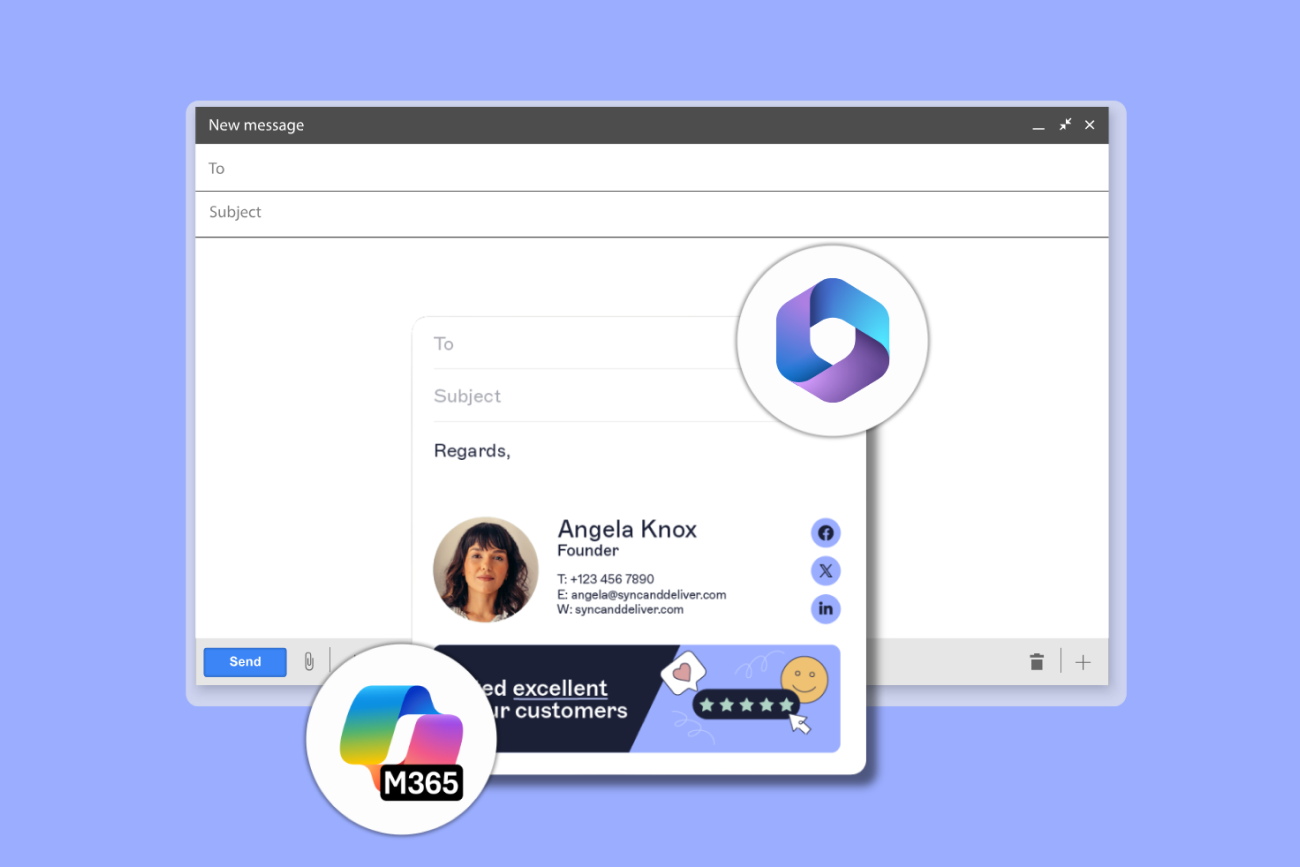
Example of a governance-focused Office 365 signature platform
Exclaimer for Microsoft 365 is a cloud platform for managing email signatures. It delivers consistent, policy-driven signatures across every device and client, using secure Microsoft APIs and connectors. There’s no disruption to mail flow, no local installs, and no manual effort for users.
Exchange Online connectors
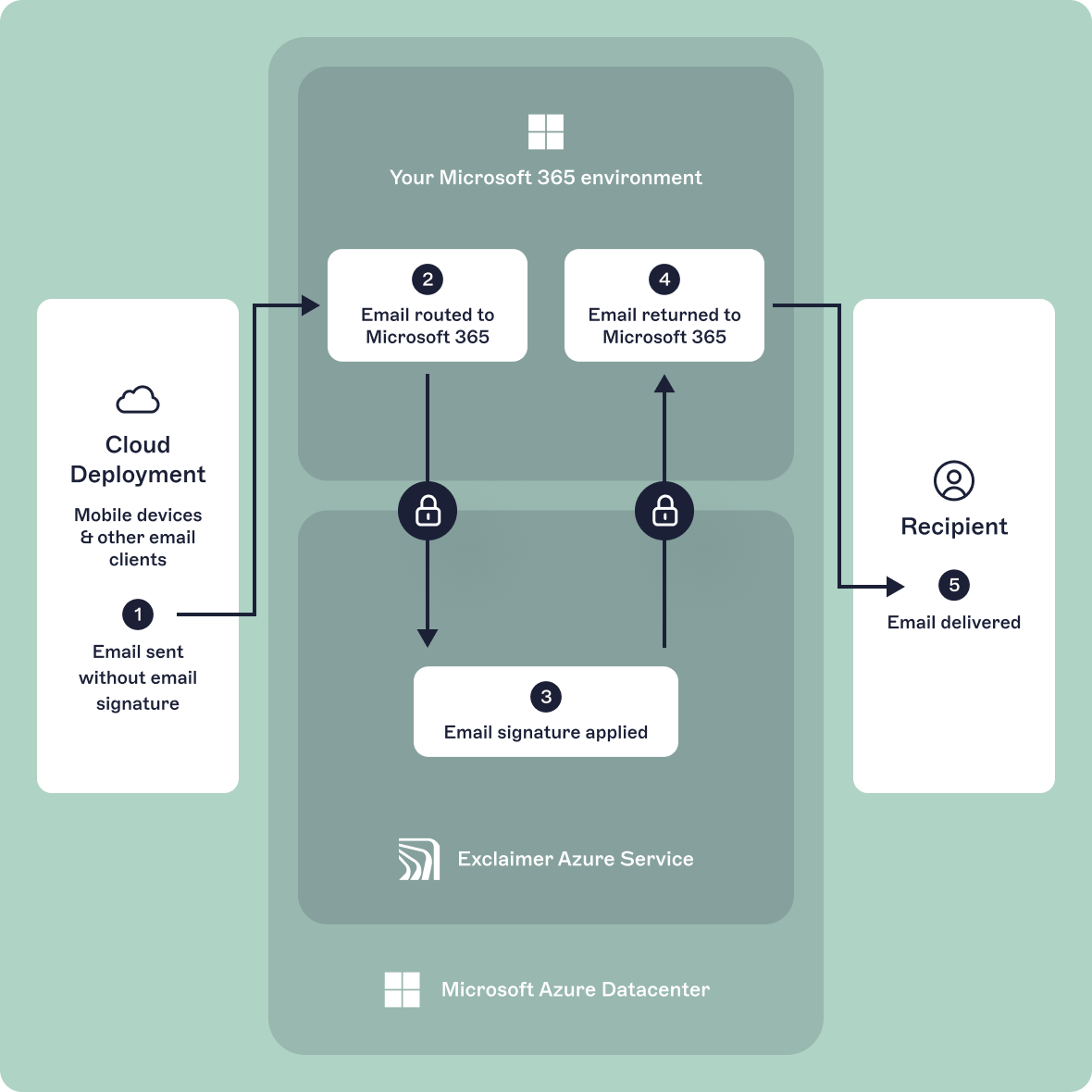
Exclaimer sets up secure connectors in your Microsoft 365 environment to route emails through its Azure service after sending and before delivery. This enables server-side signature application without user involvement.
- The email leaves the sender’s mailbox
- It’s routed to Exclaimer for processing
- A signature is applied using rules and user data
- The signed email returns to Microsoft 365 for delivery
Microsoft Graph API integration
User data syncs directly from Azure Active Directory via Microsoft Graph API. This means dynamic fields stay accurate and reflect current roles, contact details, and attributes.
- Supports standard and custom fields
- Enables conditional logic, such as location-based disclaimers or department-specific banners
- Updates automatically on a defined schedule
- Lets admins control which data is pulled and applied
Outlook Add-in for client-side visibility
Exclaimer’s Outlook Add-in shows users their live signature while composing emails in Outlook for Windows, Mac, and the web.
- Retrieves templates directly from the Exclaimer platform
- Previews the final signature in the message body
- Requires no user setup or local software
- Deployed centrally from the Microsoft 365 Admin Center with automatic updates
No local software, no scripts
Exclaimer is cloud managed from end to end. There’s no need for Group Policy, login scripts, or desktop agents. Everything is controlled from one central dashboard.
As Microsoft 365 environments continue to grow in complexity, email signature management increasingly intersects with compliance, brand governance, and operational efficiency. IT teams evaluating Office 365 signature tools should assess not only how signatures are created, but how consistently they are enforced, maintained, and scaled across the organization.
How Exclaimer supports compliance and safeguards sensitive data
Exclaimer is built to meet the security, compliance, and governance demands of all organizations. Its architecture and controls ensure that sensitive data is protected at every stage of processing.
Encrypted mail routing
Emails route through Exclaimer’s Azure service using TLS-encrypted connectors configured in Exchange Online. These are scoped by IP and secured through certificate-based authentication, preventing unauthorized access or message interception.
No email storage
Exclaimer never stores or archives email content. Email signatures are applied in real time as the message flows through the platform, then passed back to Microsoft 365 for delivery. This stateless approach reduces the attack surface, meaning sensitive content never lives on third-party servers.
Access control and auditing
Administrators use role-based access to define permissions for IT, Marketing, and Compliance. Every change to templates or settings is logged with user attribution, providing full visibility for audit and compliance reviews.
Enterprise security certifications
Exclaimer is certified against globally recognized standards, including:
- ISO 27001 for information security management
- ISO 27018 for cloud privacy
- SOC 2 Type II for security, availability, and confidentiality
- Microsoft 365 Certification for trusted app integration
Regional data residency
To support data sovereignty requirements, Exclaimer offers regional hosting options through Microsoft Azure in the UK, EU, U.S., Canada, Middle East, and Australia. This helps meet local regulations such as GDPR and CCPA, and aligns with internal data residency policies.

How Exclaimer supports hybrid or multi-tenant Microsoft 365 environments
Hybrid and multi-tenant Microsoft 365 environments are common in large organizations. Exclaimer is designed to support both with full feature parity and centralized control.
Hybrid environments
When some mailboxes stay on-premises in Exchange and others are in Exchange Online, Exclaimer applies signatures using server-side processing. Messages route through Exchange Online connectors, so that every email gets the correct, centrally managed email signature.
This works across all clients and devices without requiring local setup or user involvement.
Multi-tenant environments
Exclaimer allows administrators to manage multiple tenants from one interface or separately, depending on organizational structure. Access can be delegated by tenant, region, or department, which is especially useful for:
Managed service providers
Multinational businesses
Companies navigating mergers or acquisitions
You don’t need to duplicate templates or maintain separate policies. Exclaimer lets you manage branding, compliance, and email signature updates across tenants from a single platform.
Take control of email signatures in Microsoft 365
Gain consistency, compliance, and control in minutes—no IT headaches, no workarounds.

How Exclaimer compares with other Office 365 email signature tools?
Not all email signature management platforms are created equal. While some vendors offer lightweight cloud tools or Outlook plugins, Exclaimer offers a deeper, more scalable solution purpose-built for IT teams managing Microsoft 365 environments.
Capability | Exclaimer | CodeTwo | Templafy | Opensense | Crossware |
|---|---|---|---|---|---|
Built for Microsoft 365 | ✅ | ✅ | ❌ | ✅ | ✅ |
Server-side + client-side modes | ✅ | ✅ | ❌ | ❌ | ✅ |
Azure AD sync | ✅ | ✅ | Limited | ✅ | Limited |
Real-time preview in Outlook | ✅ | ✅ | ❌ | ❌ | ❌ |
Role-based access controls | ✅ | Limited | ✅ | Limited | Limited |
Dedicated compliance tools | ✅ | ❌ | ❌ | ❌ | ❌ |
Multi-tenant support | ✅ | ✅ | ❌ | ❌ | Limited |
Designed for marketing + IT | ✅ | Limited | ✅ | ✅ | ❌ |
Exclaimer is the only solution that offers true enterprise-grade flexibility across devices, departments, and regions. And all without compromising control or visibility.
The security implications of routing email through Exclaimer?
Routing email through a third-party service introduces potential risk but only if the platform lacks enterprise-grade controls. Exclaimer is designed to meet the security, privacy, and compliance demands of Microsoft 365 environments.
Secure mail flow with Microsoft 365 connectors
Exclaimer uses native Exchange Online connectors to route outbound emails through its service. These are encrypted using TLS 1.2 or higher and authenticated by IP and certificate.
- No inbound email is routed through Exclaimer
- MX records remain unchanged
- Mail is processed in transit and delivered back to Microsoft 365
The platform is hosted in Microsoft Azure, inheriting Microsoft’s physical and network-level security.
No access or storage of message content
Exclaimer runs in real time, applying signatures as email passes through. Messages are handled in memory and never stored, logged, or written to disk.
- No email content is retained
- Eliminates data-at-rest exposure
- Aligns with zero-retention policies
Data residency options
Exclaimer supports regional hosting across Microsoft Azure datacenters in the EU, UK, US, Canada, and Australia. This helps organizations meet data residency and governance requirements by controlling where emails are processed.
Get started with Exclaimer
Getting up and running with Exclaimer is fast and low effort. There’s no disruption to mail flow and nothing to install on user devices. Here’s what the onboarding process typically looks like for Microsoft 365 environments:
1. Start a free trial or request a demo
Visit exclaimer.com to start a 14-day trial. No payment details required. You’ll have full access to admin features, templates, and integrations.
If your organization has more than 100 users, a dedicated Customer Success Manager can help guide your setup, user provisioning, and rollout.
2. Connect to Microsoft 365
The setup wizard walks you through secure authentication using Microsoft 365 global admin credentials. Exclaimer connects to your tenant via Microsoft Graph API and configures mail flow with minimal permissions.
This step includes:
- Authorizing Azure AD access through Microsoft’s OAuth 2.0
- Creating Exchange Online connectors and transport rules
- Validating mail routing without changing MX records
The full setup typically takes under 30 minutes.
3. Sync user data from Azure AD
Exclaimer imports user attributes such as job title, department, and contact info from Azure Active Directory. You can scope this sync to specific groups or organizational units.
Dynamic fields and logic can be previewed instantly to confirm layout accuracy.
4. Build or import signature templates
Design branded email signature templates using Exclaimer’s drag-and-drop editor or import existing HTML. Insert user data, legal disclaimers, promotional banners, or apply rules based on attributes like region or department.
Templates can be targeted by business unit, role, or geography for complete control.
5. Choose your deployment method
Select how email signatures are applied:
- Server side: Messages are routed through Exclaimer, and signatures are added automatically
- Client side: Use the Outlook Add-in to show the signature while composing
- Hybrid: Combine both methods for full coverage and visibility
Client-side deployment is pushed centrally through the Microsoft 365 Admin Center.
6. Test and go live
Preview signatures by user, simulate policies, and verify the setup before enabling live mail flow. Once activated, signatures apply automatically according to your configuration—no user action needed.
Start a free trial and explore the platform firsthand. No credit card. No disruption. Just secure Office 365 email signature management built for the way IT works.