Naimh is a seasoned marketer of 12 years, including in SaaS and tech. She’s an expert at simplifying complex technology concepts, bridging the gap between IT and marketing. Naimh specializes in turning tech speak into actionable insights, helping marketers get the most out of their tools and technology.
17 out of office email templates & examples
TL;DR
Email is still the main business communication channel, so clear out-of-office messages matter for setting expectations when you’re unavailable.
A good out-of-office message explains why you’re away, how long you’ll be gone, when to expect a reply, and who to contact instead.
It should carry the same email signature and any required legal disclaimers as a standard outgoing email, not a stripped-down version of your usual message.
Keep it professional, clear, and brief, and proofread it before you switch it on.
Avoid overpromising response times, sharing personal details, committing colleagues without agreement, or including sensitive information.
IT admins in Microsoft 365 can set or update out-of-office messages for users via PowerShell or the Microsoft 365 admin center, without needing to access individual accounts.
In Exclaimer's State of Business Email 2025 research, 89% of IT leaders ranked one-to-one email as important to their organization, and 82% named it their single most important external communications channel.
However, it's not always possible for workers to answer every email they receive in a prompt fashion. People go on vacation, can get sick, or have other commitments that mean they can't or won't be able to answer their emails. An out-of-office message is an automated reply that tells senders you're away, covering why you're unavailable, when you'll return, and who to contact in your absence. If you're ever unable to respond to emails, it's important to set one up.
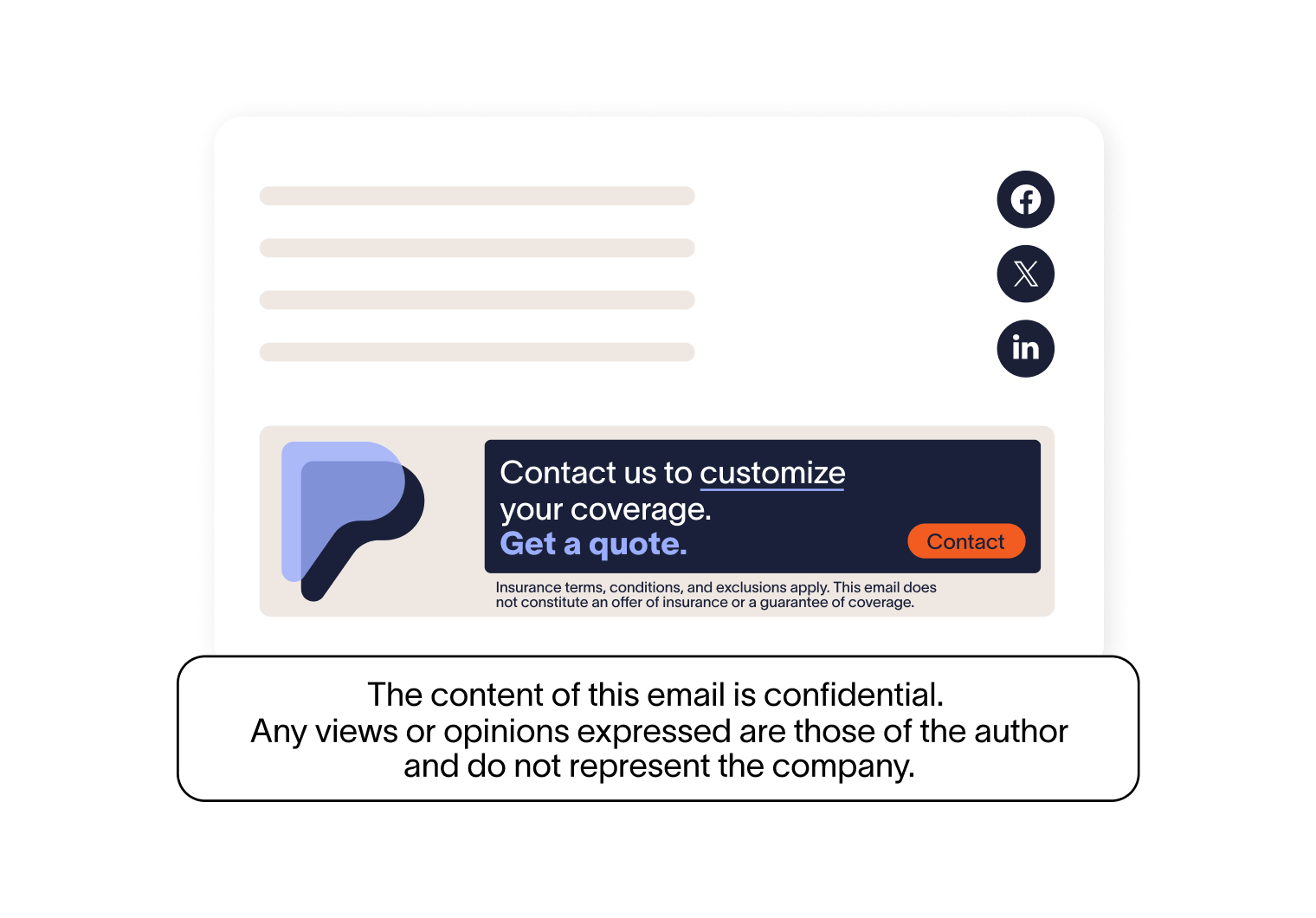
An out-of-office reply is still an email your organization sends. The person receiving it reads it as a message from your company, the same as anything else that lands in their inbox from your domain. If your organization applies a standard email signature and legal disclaimers to everything else it sends, the auto-reply someone gets while you're on leave is worth treating the same way.
In this guide, we share some common out-of-office templates you can use, and we'll guide you through the process of setting them up in both Outlook and Gmail.
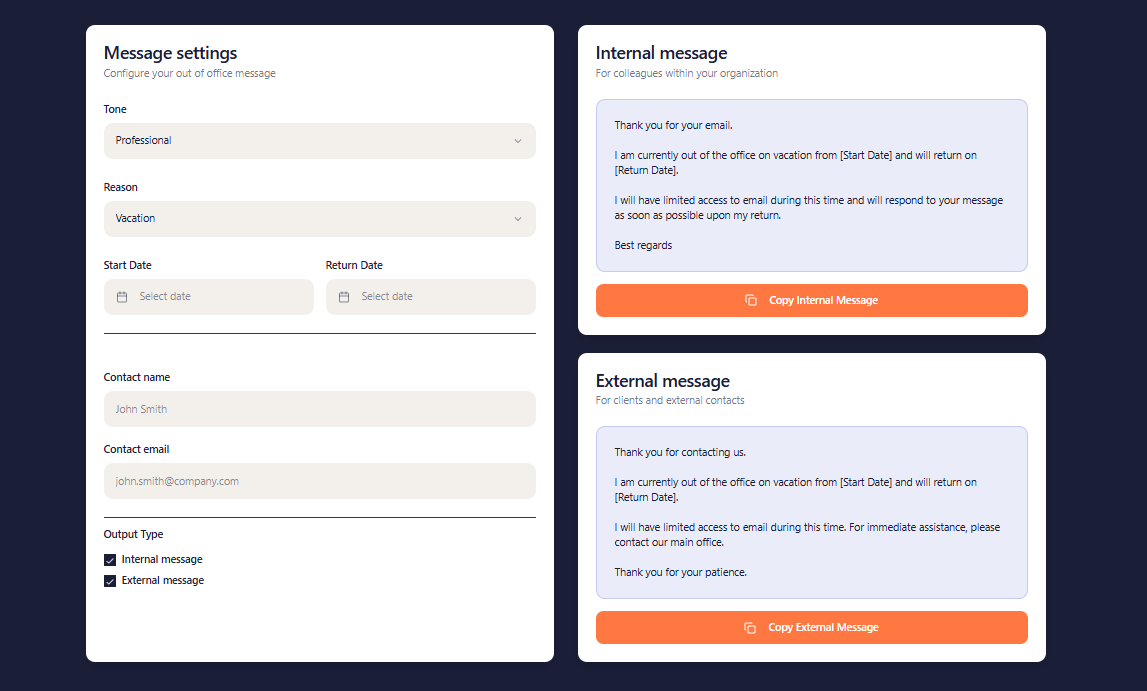
Need to write your message fast?
Use Exclaimer's out-of-office message generator to build a ready-to-use reply in seconds.
What should an out-of-office message contain?
A good out-of-office message covers the basics clearly: why you're away, when you'll be back, and who to call on in your absence. Here's what to include:
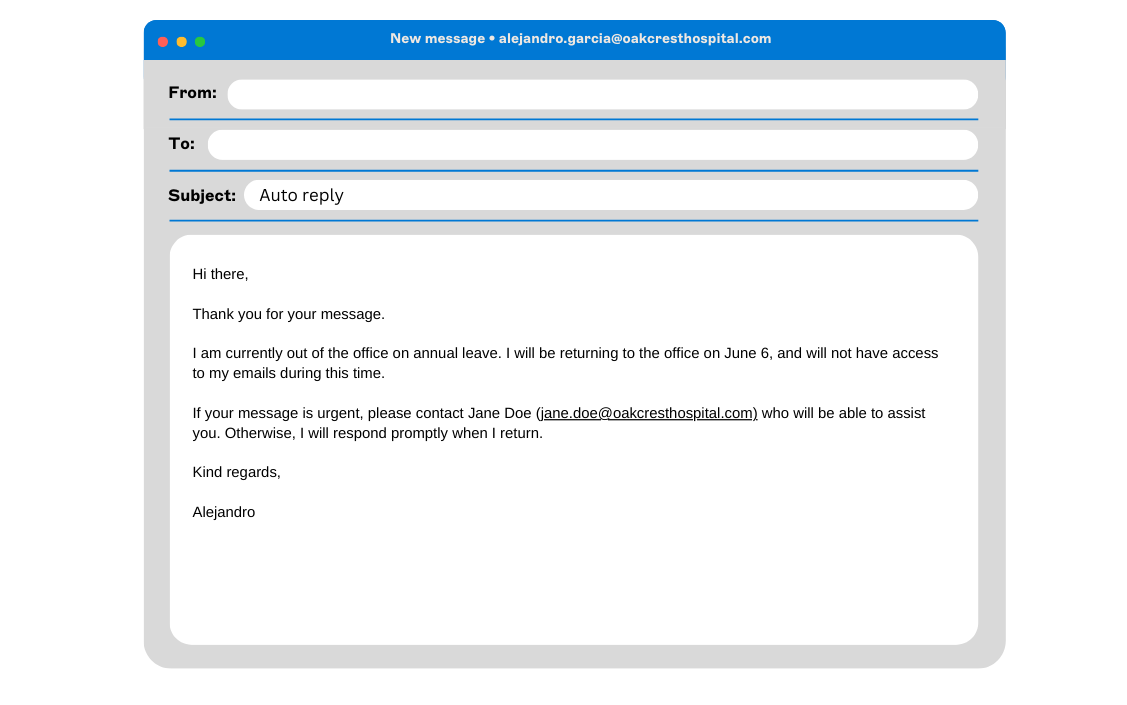
Why you're unavailable — a brief reason (annual leave, a conference, sick leave) is enough. You don't need to go into detail.
Your return date — specific dates are more useful to senders than vague timeframes. "Back on 14 July" is better than "back soon."
When to expect a reply — if you'll be checking emails occasionally, say so. If you won't be checking at all, make that clear too.
An alternative contact for urgent matters — include a colleague's name and email or phone number. Make sure they know in advance that you've listed them.
Professional language — your message goes to everyone who emails you: clients, partners, and colleagues at every level. Keep the tone consistent with how you'd want your organization to come across.
A proofread — typos stand out in automated messages. Check it before you switch it on.
A company email signature – this keeps your message on-brand and applies any required legal disclaimers to every automated reply, just as they would on a standard outgoing email.
What should an out-of-office subject line say?
Your subject line is the first thing a sender sees. It should tell them you're away and when you'll be back before they've even opened the message.
Most email clients display 40–60 characters of a subject line on mobile, so keep it short. Lead with "Out of office" or "OOO" so the purpose is immediately clear, and include a return date where possible.
Here are five formats that work across different situations:
Situation | Subject line |
Standard absence | Out of office: [Your name] returns [Date] |
Date range | Out of office: [Start date] to [Return date] |
Short, minimal | Out of office until [Date] |
Internal, informal | OOO until [Date], [Colleague] covering |
Company closure | Office closed for [Holiday], back [Date] |
When in doubt, default to the standard format. "Out of office: [Your name] returns [Date]" works in every context, external and internal.
What out-of-office templates work best for every situation?
The templates below can be used for a variety of different circumstances. Use the table below to find the right template for your situation, then scroll to the full version.
Scenario | Suggested subject line | Key details to include | Avoid |
Vacation | Out of office: [Your name] returns [Date] | Return date, alternative contact | Where you're going, exact itinerary |
Sick leave | Out of office — currently unavailable | Estimated return date if known, alternative contact | Medical details, diagnosis |
Short-term absence | Out of office until [Date] | Return time or date, next steps | Promising an immediate reply |
Unexpected absence | Out of office — unplanned absence | Alternative contact, brief reason | Over-explaining |
Delayed responses | Limited email access until [Date] | Access level, expected reply time | Overpromising response times |
Public holiday | Office closed for [Holiday] — back [Date] | Reopening date, time zone if relevant | Over-promoting a specific holiday |
Internal | OOO until [Date] | Return date, covering colleague | Unprofessional language — visible to all staff |
Parental leave | On parental leave until [Date] | Leave dates, monitoring status, covering contact | Over-sharing personal details |
Lead generation | Out of office until [Date] | One CTA link, return date | Multiple CTAs, salesy tone |
Remote work | Working remotely — limited email until [Date] | Access level, response expectation | Suggesting you're fully unreachable |
Training | Attending [Event/Training] until [Date] | Event dates, response timeline | Unnecessary detail about the training |
Bereavement | Out of office — personal leave | Alternative contact | Nature of loss, return date if not confirmed |
Email forwarding | Out of office — messages being forwarded | Forwarding contact, expected replies | Not telling senders their email has been forwarded |
Leaving company | No longer with [Company name] | Successor contact, account deactivation date | Why you left, where you're going |
1. Out-of-office messages for vacations
Annual leave is the most common reason for an out-of-office message. The only details you need to include are your return date and an alternative contact for urgent matters. You don't need to share where you're going.
You don't need to include details such as where you'll be going or whether you'll be out of the country.
The most important point is that you won't be responding to emails during this time.
Suggested subject line: Out of office: [Your name] returns [Date]
Hi there,
Thank you for your email. I'm on annual leave until [DATE] and won't be checking emails during this time.
For urgent matters, please contact [CONTACT NAME] on [EMAIL ADDRESS/PHONE NUMBER] who will be able to assist you. I'll respond to all other messages when I return.
Kind regards,
[YOUR NAME]
Hi,
I am currently on vacation with no access to my emails. I will be back at work on [DATE].
In my absence, please contact [NAME] at [EMAIL ADDRESS] if your email requires immediate attention.
Best,
[YOUR NAME]
2. Sick leave out-of-office messages
Sick leave messages don't need to include medical details. An estimated return date and a colleague's contact information are enough.
You don't need to tell the sender too much, but it's important to say if you won't be available. If it's a long-term illness, you might not have a date set for your return.
Do:
State that you're unavailable and give an estimated return date if you have one
Name an alternative contact for urgent matters
Keep the message brief
Don't:
Include medical details, a diagnosis, or the nature of your illness
Commit to a specific return date if you're not certain
Leave senders with no contact option
Suggested subject line: Out of office — currently unavailable
Hi,
I am currently on sick leave, so will not be responding to any emails.
I expect to return to work on [ESTIMATED DATE].
Please contact [NAME] at [EMAIL ADDRESS AND PHONE NUMBER] who will be more than happy to help while I'm away.
Many thanks,
[YOUR NAME]
3. Out-of-office message for short-term absence
Short-term absences, from a few hours to a couple of days, still warrant an out-of-office message. It prevents senders from chasing a reply that isn't coming until you're back.
An out-of-office message for short-term absence is used to inform colleagues, clients, or contacts that you are temporarily unavailable. This is typically for a few hours or days, providing alternative contacts or timelines for your response.
Suggested subject line: Out of office until [Date]
Hi,
I am away from the office today [DATE] and will reply as soon as possible. For urgent matters, please contact [COLLEAGUE'S NAME] at [EMAIL ADDRESS].
All the best,
[YOUR NAME]
4. Out-of-office message for unexpected absence
Unexpected absences don't allow time for preparation. A brief, factual message with an alternative contact is enough.
It often sets response time expectations and can provide alternative contact information. This helps maintain clear communication during disruptions.
Suggested subject line: Out of office — unplanned absence
Hi,
Due to an unforeseen circumstance, I am out of the office and currently unable to access emails. Please reach out to [COLLEAGUE'S NAME] at [EMAIL ADDRESS] for urgent issues.
Thanks,
[YOUR NAME]
5. Out-of-office message templates for delayed responses
If you have limited or intermittent email access while you're away, say so explicitly. Senders are more likely to wait when they know a reply is coming.
This will help set a sender's response expectations.
Suggested subject line: Limited email access until [Date]
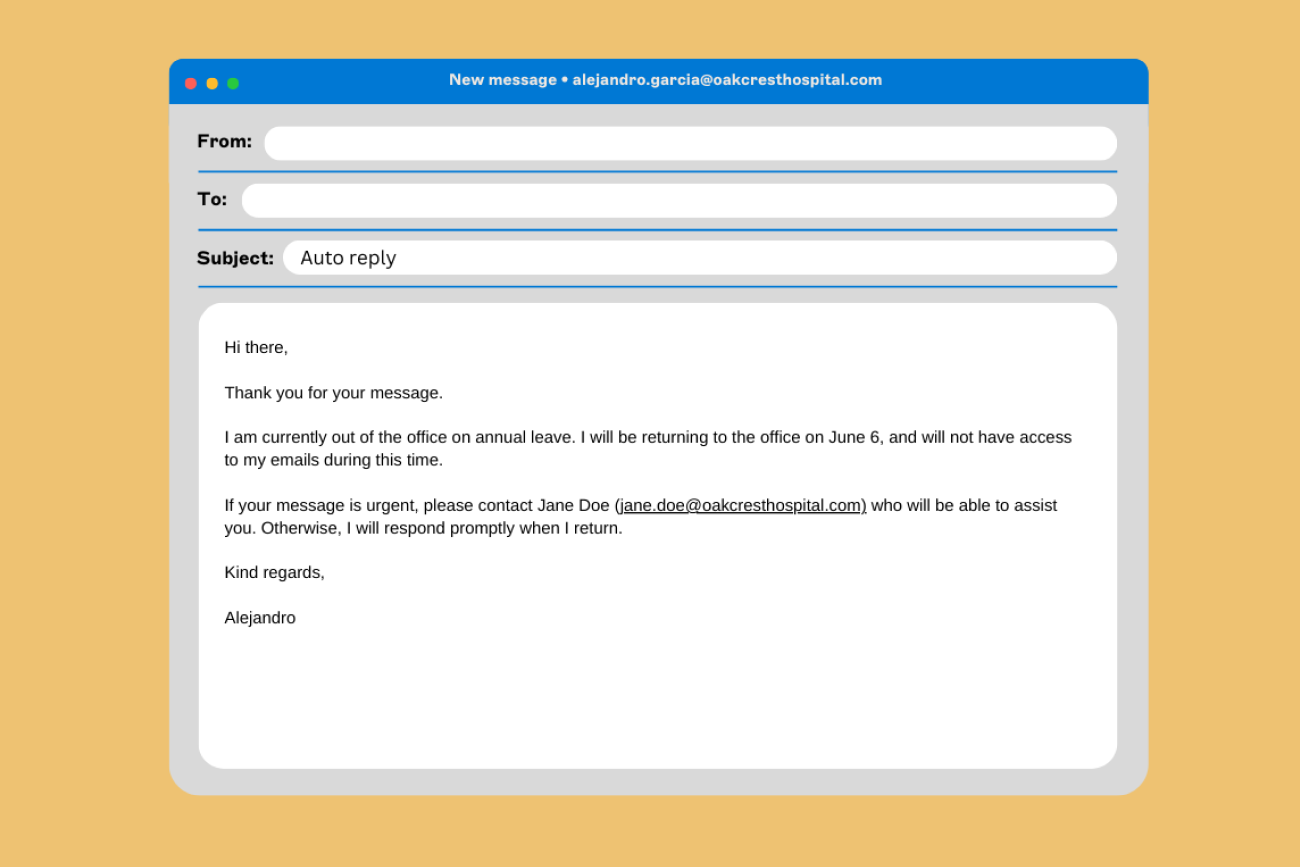
Hi there,
Thank you for your message.
I am currently out of the office due to [REASON]. I will be returning to the office on [DATE]. I will be checking my emails intermittently, but please expect a delay to any response.
If your message is urgent, please contact my [COLLEAGUE/MANAGER], [CONTACT NAME] on [EMAIL ADDRESS/PHONE NUMBER] who will be able to assist you. Otherwise, I will respond to your email on my return.
Best,
[YOUR NAME]
Dear sender,
Thank you for your email.
I am currently exhibiting at [EVENT] in [LOCATION] from [DATE] to [DATE]. I will have limited access to my emails, so there will be a delay in me responding to you.
If you need to contact me urgently, please call me on [PHONE NUMBER].
Many thanks,
[YOUR NAME]
Hi there,
Thank you for your email.
I am currently out of the office speaking at [EVENT NAME] in [LOCATION]. I will be following up on emails when I have the chance, but please expect a delay to any response.
If you're attending [EVENT NAME], make sure to stop by [BOOTH NUMBER/STAGE] and we can catch up directly.
Regards,
[YOUR NAME]
6. Out-of-office template for public holidays
Public holiday messages tell senders that your entire organization is closed. That's important context for anyone emailing from a different country or time zone who may not be aware of the holiday.
We don't recommend promoting the holiday too much in your reply as not all senders will celebrate it.
Suggested subject line: Office closed for [Holiday] — back [Date]
Hi there,
Thank you for your email.
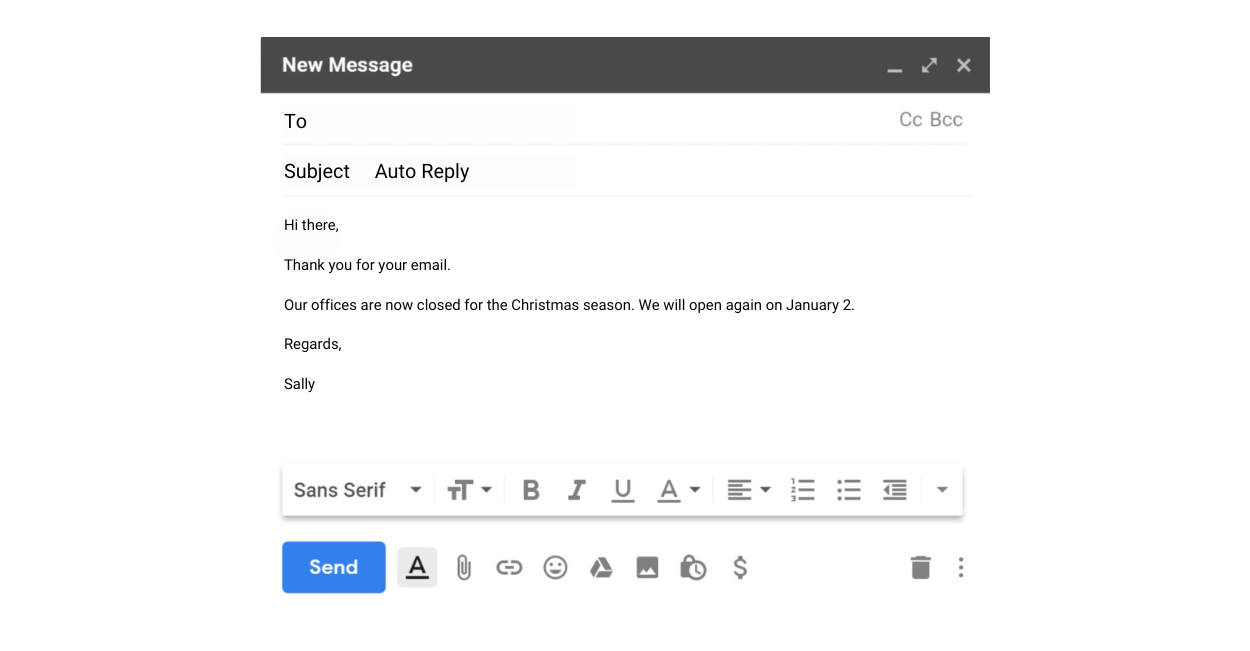
Our offices are now closed for [PUBLIC HOLIDAY]. We will open again on [DATE].
I will respond to you ASAP upon our return.
Regards,
[YOUR NAME]
7. Internal out-of-office reply template
Internal out-of-office messages are visible to every employee who emails you, including senior leadership. A slightly more relaxed tone is fine; an unprofessional one isn't.
Remember that any employee, including management, will be able to see this auto-response if they email you.
Suggested subject line: OOO until [Date]
Hi there,
I'm currently on [HOLIDAY/VACATION/ANNUAL LEAVE], but I'll be back on [DATE].
If you need assistance, please direct any emails to [NAME] who is looking after my [WORKLOAD/INBOX/PROJECTS] while I'm away.
If it's urgent, you can message me on [PHONE].
Thanks,
[YOUR NAME]
For teams with a more informal culture, a second variant:
Hi,
I'm out until [DATE] and won't be checking emails. If something can't wait, [NAME] at [EMAIL ADDRESS] is covering for me and will be happy to help.
See you when I'm back,
[YOUR NAME]
8. Maternity leave out-of-office template
Parental leave messages follow the same structure as any other out-of-office message: absence duration, whether you're monitoring emails, and an alternative contact.
Taking maternal leave, and indeed any parental leave, often means more time off work than standard annual leave. However, the messaging you use in this auto-reply will be similar.
Do:
State your leave dates and confirm whether you'll be monitoring emails
Name who's covering your responsibilities
Give senders a direct contact for ongoing work
Don't:
Over-share personal details about your family situation
Leave longer absences without a named covering contact
Commit to checking emails if you won't be
Suggested subject line: On parental leave until [Date]
Hi there,
Thank you for your email. I am out of the office on [MATERNITY/PATERNITY/PARENTAL] leave commencing [DATE]. I plan on returning to the office on [DATE].
I will not be monitoring my emails during this time.
During this period, please contact [NAME] on [EMAIL ADDRESS/PHONE NUMBER] who will be able to assist you.
Regards,
[YOUR NAME]
9. Lead generation out-of-office email messages
Out-of-office messages can include a call to action without being intrusive. A single sentence with a relevant link is enough to keep marketing activity running while you're away.
As with email signatures, out-of-office messages can be used for lead generation purposes and promoting new content.
Suggested subject line: Out of office until [Date]
Hi,
I will be attending [EVENT] from [DATE] to [DATE]. Therefore, please expect a delay in me responding to you.
If your message is urgent, please contact our [DEPARTMENT] team on [EMAIL ADDRESS] who will be able to help.
If you want to try our new [PRODUCT], visit our website and sign up for a free trial [LINK TO FREE TRIAL URL]
Best,
[YOUR NAME]
Hi there,
Thank you for your message.
I am currently out of the office on annual leave. I will be returning to the office on [DATE] and will not have access to my emails during this time.
If your message is urgent, please contact [CONTACT NAME] on [EMAIL ADDRESS/PHONE NUMBER] who will be more than happy to help. I will respond to all other emails on my return.
In the meantime, have you seen our new white paper? It provides lots of useful info on [WHAT THE WHITE PAPER IS ABOUT]. You can access it here [LINK TO WHITE PAPER URL].
Best,
[YOUR NAME]
10. Remote work/offsite location out-of-office message
A remote work out-of-office message is appropriate when your email access is intermittent rather than absent. It sets expectations without suggesting you're completely out of contact.
Suggested subject line: Working remotely — limited email until [Date]
Hi there,
Thank you for your message.
I am currently working remotely from [LOCATION] until [DATE], and my email access may be limited. Please contact [COLLEAGUE's NAME] at [EMAIL ADDRESS] for immediate assistance.
Best,
[YOUR NAME]
11. Professional training automatic reply
Training and workshop commitments are a valid reason for limited email access. A clear message prevents unnecessary follow-up from senders who'd otherwise assume no reply is coming.
Suggested subject line: Attending [Event/Training] until [Date]
Hello,
I am currently attending professional training from [START DATE] to [END DATE], and will have limited email access.
Please reach out to [COLLEAGUE's NAME] at [EMAIL ADDRESS] if you require urgent assistance.
Best,
[YOUR NAME]
12. Bereavement leave out-of-office notice
Bereavement leave messages should be short and factual. There's no obligation to explain the nature of the loss or commit to a return date if one isn't confirmed.
This message is appropriate during personal leave taken due to the loss of a loved one. It communicates sensitivity, helps maintain privacy, and directs senders to an alternative contact for urgent matters.
Do:
Keep the message short and factual
Provide an alternative contact for urgent matters
Omit a return date if one isn't confirmed
Don't:
Share details about the bereavement, the person you've lost, or your relationship to them
Feel obligated to explain when you'll be back
Apologize for your absence
Suggested subject line: Out of office — personal leave
Hi,
Due to a personal loss, I am currently out of the office on bereavement leave for the foreseeable future. Please contact [COLLEAGUE'S NAME] at [EMAIL ADDRESS] if you require anything urgent
Best,
[YOUR NAME]
13. Out-of-office message for email forwarding
Email forwarding is useful for extended absences where messages need timely attention. Letting senders know their email has been forwarded avoids confusion when they receive a reply from someone they didn't contact directly.
When you're out of the office for an extended period, your emails might be forwarded to another contact so important messages are addressed. It's essential to notify senders about this forwarding to avoid confusion.
Suggested subject line: Out of office — messages being forwarded
Hello,
This is an automated response. [NAME] is currently unavailable. Your email has been forwarded to [NAME] at [EMAIL]. They will respond to you shortly.
Best regards,
[YOUR NAME]
14. Leaving the company out-of-office message
A leaving message has a different job from a standard out-of-office reply. There's no return date, so the goal is to redirect senders permanently to whoever has taken over your responsibilities and to let them know your address is going away.
When you're leaving a company, keep the tone professional and neutral. The message will reach clients, partners, and contacts you may cross paths with again.
For IT admins, a leavers' out-of-office message is part of the offboarding checklist alongside forwarding rules and account deactivation.
Do:
State clearly that you've left and redirect senders to a named successor
Include when the account will be deactivated if that date is known
Keep the tone professional and neutral
Don't:
Explain why you left or where you're going
Share opinions about the company or your role
Leave senders without any alternative contact
Suggested subject line: No longer with [Company name]
Hi,
Thank you for your email. I left [COMPANY NAME] on [DATE] and am no longer contactable at this address.
For any ongoing queries, please contact [NAME] at [EMAIL ADDRESS], who has taken over my responsibilities.
Best regards,
[YOUR NAME]
If the account is being deactivated on a set date, add this line before the sign-off:
Please note that this email address will be deactivated on [DATE]. You may want to update your records.
How do I set up an out-of-office message in Outlook?
Outlook's automatic replies feature lets you set separate messages for people inside and outside your organization, with optional start and end dates.
New Outlook and Outlook on the web (Microsoft 365)
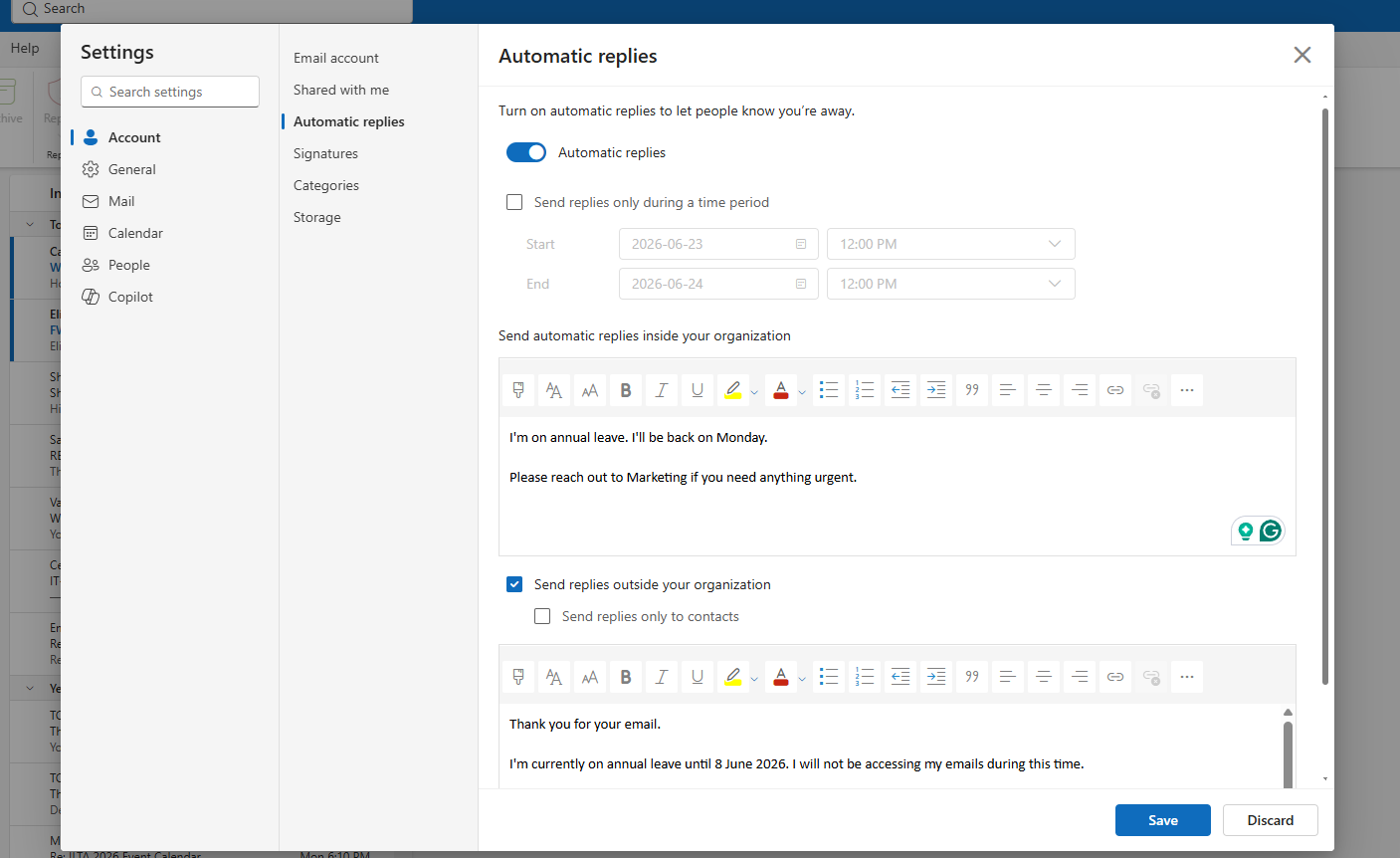
Select the Settings gear icon (top right)
Click Accounts > Automatic replies
Toggle Automatic replies on
(Optional) Check Send replies only during a time period and set your start and end dates
Write separate messages for people inside and outside your organization
Click Save
Classic Outlook (2016 or later)
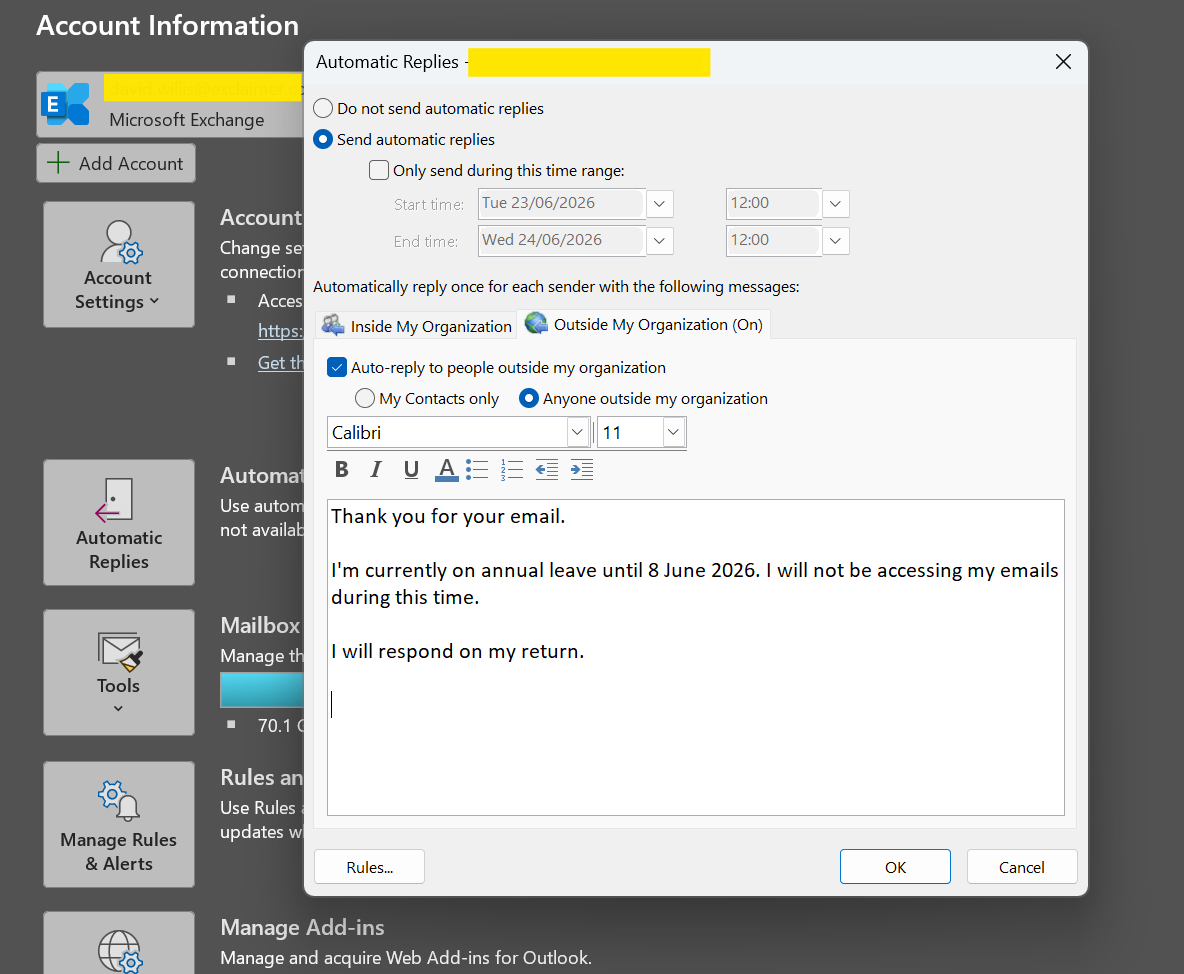
Click File > Automatic Replies (Out of Office)
Select Send automatic replies
Check Only send during this time range and select your start and end dates
Write your message in the Inside My Organization and Outside My Organization tabs
Click OK to save
Sources:
- Microsoft Support — Send automatic Out of Office replies from Outlook
- Microsoft Learn — Set-MailboxAutoReplyConfiguration
- Microsoft Learn — Connect-ExchangeOnline
How do I create an out-of-office message in Gmail?
Gmail's vacation responder sends one automated reply per sender every four days. This is regardless of how often they email you during that period.
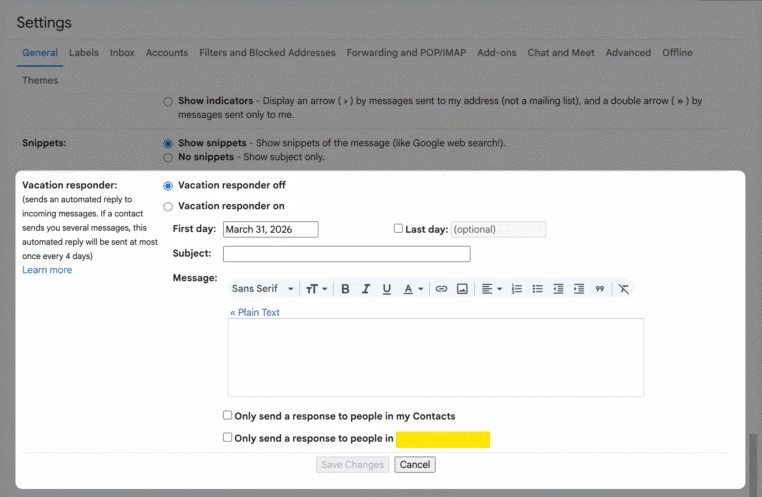
Click the Settings gear icon
>(top right), then select See all settingsGo to the General tab and scroll to Vacation responder
Select Vacation responder on
Set a First day, and optionally a Last day, so the reply switches off automatically
Add a Subject line and write your message
Tick Only send a response to people in my Contacts if you want to limit who receives the automated reply
Select Save Changes
Note: Gmail sends the vacation responder once per sender every four days. If you edit your message while it's active, the counter resets and the updated version goes out to everyone again.
Note: Google Workspace admins can manage vacation responders for users via the Gmail API. See the IT admin section below.
Source:
How to manage out-of-office messages as an IT admin
Individual employees manage their own out-of-office messages. For IT admins, there are faster ways to set or update automatic replies on behalf of users across Microsoft 365 and Google Workspace.
Microsoft 365 and Exchange Online
The most direct method is PowerShell via the Exchange Online module. The Set-MailboxAutoReplyConfiguration cmdlet lets you enable automatic replies for any user mailbox, set separate internal and external messages, and apply date ranges.
# Enable automatic replies for a userSet-MailboxAutoReplyConfiguration -Identity [email protected] -AutoReplyState Enabled -InternalMessage "I'm currently out of the office." -ExternalMessage "I'm currently out of the office."# Set a scheduled windowSet-MailboxAutoReplyConfiguration -Identity [email protected] -AutoReplyState Scheduled -StartTime "2026-07-01 09:00" -EndTime "2026-07-14 09:00" -InternalMessage "Out of the office until 14 July." -ExternalMessage "Out of the office until 14 July."# Check a user's current configurationGet-MailboxAutoReplyConfiguration -Identity [email protected]You can also manage automatic replies through the Microsoft 365 admin center without using PowerShell. Go to Users > Active users, select the user, then choose Mail > Manage automatic replies.
For shared mailboxes and room mailboxes, automatic reply settings are available directly in the Exchange Admin Center under Recipients > Mailboxes.
For automated workflows or integrations, the Microsoft Graph API supports managing automatic reply settings programmatically via PATCH /users/{userId}/mailboxSettings with the automaticRepliesSetting property.
Google Workspace
Google Workspace Admin Console doesn't include a native UI for managing individual users' vacation responders. The recommended approach for IT teams is the Gmail API, using the users.settings.updateVacation method with a service account configured for domain-wide delegation.
This is most practical for automated workflows. For example, triggering an out-of-office message based on an HR system leave record rather than setting individual messages manually.
How organizations manage out-of-office messages at scale
At an organizational level, out-of-office messages raise questions that go beyond individual setup. Every auto-reply is a customer-facing communication, which means it's subject to the same brand standards as any other outgoing email, including tone, contact details, and email signature consistency.
We see it all the time from customers. Their disclaimer policy says to apply legal text to all outbound emails. But auto-replies are also outbound emails and they're often configured individually. This is outside the usual admin controls, and most IT teams don't check what's in them. So, the legal footer that's meant to appear on every other email sent from your domain suddenly isn't there.

There's a specific technical reason auto-replies are hard to reach centrally on either platform this guide covers, and it's worth understanding if you're the one setting policy.
On Microsoft 365, an automatic reply is sent with its routing information deliberately blank, a measure to stop automatic replies looping between two out-of-office mailboxes. Centralized signature and disclaimer tools rely on that routing information, so they typically can't reach a Microsoft 365 automatic reply the way they reach standard outgoing mail.
Google Workspace has a documented parallel limitation of its own: Exclaimer's own knowledge base confirms Gmail's out-of-office format isn't supported for the equivalent server-side deployment either.
Exclaimer publishes a specific manual workaround for the Microsoft 365 case (pasting the signature into the Outlook auto-reply template, though without images or HTML); it doesn't publish an equivalent step-by-step fix for Gmail, so treat the Google Workspace side as a confirmed limitation without a confirmed workaround, not an identical process to the Outlook one.
Standard outgoing email | Out-of-office auto-reply (Microsoft 365 or Google Workspace) | |
|---|---|---|
Email signature | Applied automatically by a centralized tool, if one's in place | On Microsoft 365, has to be pasted into the auto-reply template manually. On Google Workspace, the limitation is confirmed but Exclaimer doesn't publish a fix. |
Legal disclaimers | Applied automatically where policy requires it | Same gap, on both platforms |
Who's responsible for it | IT or whoever owns signature and disclaimer policy | Each employee, in the absence of a written template |
A few areas worth considering if you're responsible for your organization's email communications:
Why it's worth fixing, not just noting: In Exclaimer's 2026 consumer research, a professional, branded email signature ranked as a stronger trust signal in a business email than either a legal disclaimer or consistent formatting. An auto-reply without one is missing exactly what that research says people notice.
Policy standards: Without clear guidelines, employees write their own messages in their own format. A short internal template covering tone, contact details, and return-date format keeps communications consistent across teams.
Legal and compliance considerations: In regulated sectors, confirm with your legal team whether your outbound-email disclaimer policy is written to cover auto-replies specifically, and whether the template employees actually use carries it. Given the technical gap above, don't assume it does by default.
Tip
Exclaimer's Signature Rules let IT teams centrally manage email signature templates across Microsoft 365, Google Workspace, and Microsoft Exchange, applying consistent branding and legal content to standard outgoing email automatically.
Enhance your email communication with Exclaimer
At Exclaimer, we help 80,000+ organizations worldwide manage and automate their email signatures.
Writing one out-of-office message is easy. Keeping your email signature, branding, and disclaimers consistent across every other email your organization sends is the harder problem, and it's not one to solve by hand.
Exclaimer's Signature Rules apply them automatically to standard outgoing email across Microsoft 365, Google Workspace, and Microsoft Exchange, so IT isn't relying on each employee to get it right, even though the auto-reply itself still needs the quick manual check covered above.
Do you want to be one of them? Get started with a free trial.