Naimh is a seasoned marketer of 12 years, including in SaaS and tech. She’s an expert at simplifying complex technology concepts, bridging the gap between IT and marketing. Naimh specializes in turning tech speak into actionable insights, helping marketers get the most out of their tools and technology.
How to track email signature clicks with UTM parameters
TL;DR
Email signature clicks are trackable: Add UTM parameters to your banner links, and Google Analytics attributes each click to the right campaign instead of filing it under "Direct."
Use a consistent naming convention. Keep
utm_sourceandutm_mediumfixed, varyutm_campaignandutm_contentper campaign, and stick to lowercase with no spaces.Isolate the traffic in GA4 under Reports, Acquisition, Traffic acquisition, then connect clicks to pipeline by capturing UTMs on your forms and copying them to the deal in your CRM.
Watch for the common failures: parameters placed after a #, redirects or shorteners that strip tags, and mobile in-app browsers that don’t pass source and medium.
The real challenge is consistency. When signatures are applied by hand, some go untagged and the data has gaps. Centrally managed signatures from Exclaimer, an email signature management platform, apply the tags once, for everyone.
Your company sends thousands of emails a week, and most carry a signature banner promoting a webinar, a report, or a product launch. People click. Traffic arrives. Then your analytics logs much of it as untracked "direct" or "referral" visits, with no clear source and no way to prove the banner did anything.
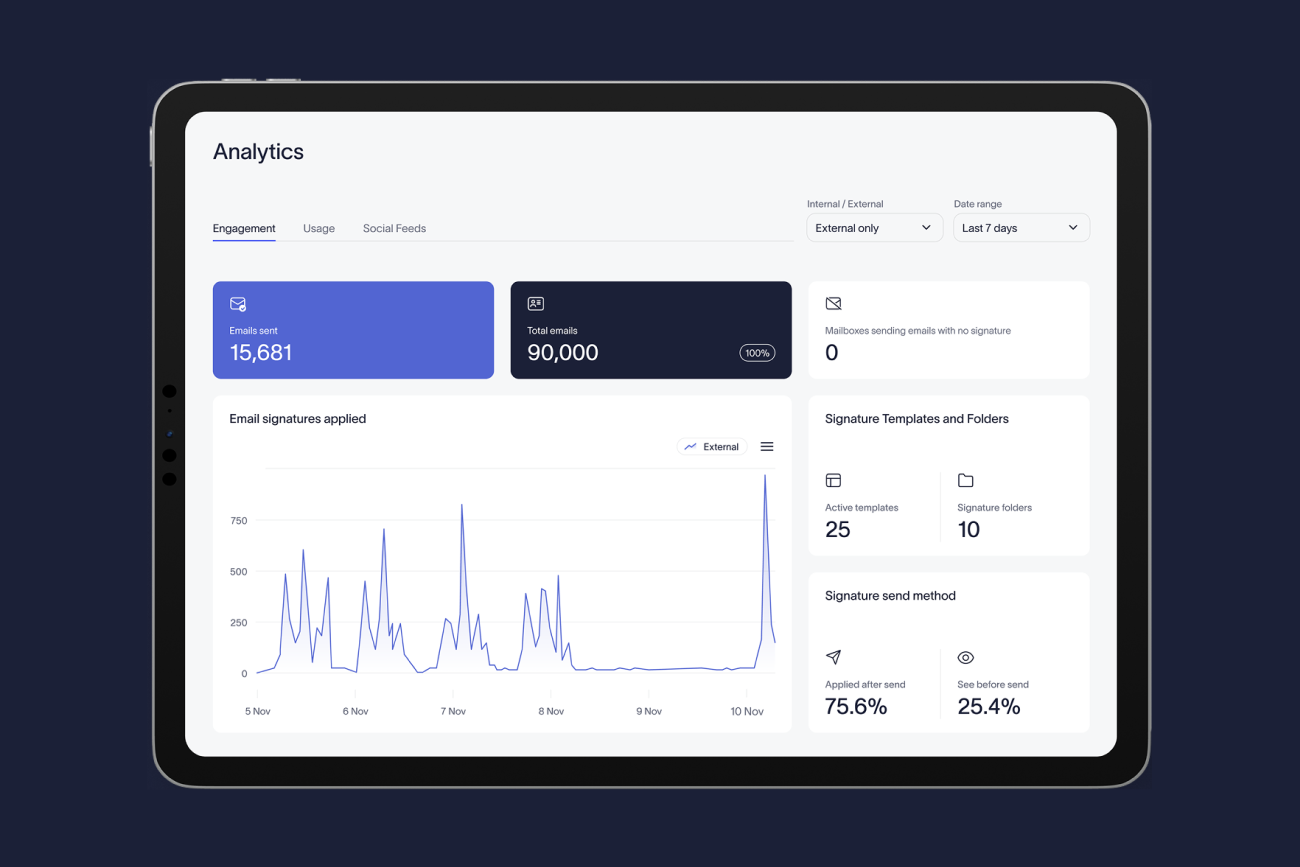
UTM parameters solve this. They’re short tags you add to the links in your email signature, and they tell Google Analytics which campaign and which banner drove each click. Tag your links correctly, and you can follow a signature click all the way to a conversion in your CRM. (If you'd rather see clicks and campaign performance in one place without building any of this yourself, Exclaimer's Analytics dashboard tracks it natively)
There’s one condition, and it’s the part that trips teams up. Signature tracking is only as reliable as it is consistent. If some employees carry the tagged banner and others don’t, your data has gaps you can’t see. So this guide covers both parts of the job: how to build and apply UTM parameters for email signature campaigns, and how to keep that tracking accurate across everyone who sends email.
What is email signature click tracking?
Email signature click tracking measures how recipients interact with the links in your email signature, such as the banner, the call-to-action (CTA) button, or the social icons. It tells you which links drive action, so a click on the webinar banner under your team’s emails becomes a result you can point to rather than a guess.

Three metrics carry most of the weight:
Clicks: The number of times recipients click a link in the signature. This is the most reliable of the three, because a click is a real action recorded when the visitor lands on your site.
Impressions: The number of times a banner or link is displayed. Treat this as an estimate, not a hard count. Many email clients block tracking pixels and cache images, so the true number of views is hard to measure precisely.
Click-through rate (CTR): Clicks divided by impressions, shown as a percentage. Because impressions are an estimate, use CTR as a directional guide rather than an exact figure.
Clicks are where UTM tracking earns its keep. A tagged link records the click in Google Analytics with the campaign details attached, so you can measure it accurately and connect it to whatever the visitor does next.
What are UTM parameters, and how do they work?
UTM stands for Urchin Tracking Module, named after Urchin, the web analytics software Google acquired in 2005 and built Google Analytics from. A UTM parameter is a short piece of text added to the end of a link that passes campaign information to your analytics platform. When someone clicks a tagged link, the parameters travel with them to your site and tell Google Analytics where the click came from.
A tagged signature link looks like this:
https://yourcompany.com/webinar?utm_source=email-signature&utm_medium=email&utm_campaign=spring-webinar-2026Everything after the question mark is the tracking. The page loads exactly as normal for the visitor, but your analytics now knows the visit came from a signature banner promoting the spring webinar.
There are five parameters in total: three you should always use, and two optional ones that add finer detail.
Parameter | What it tracks | Signature example value | Why it matters |
| Where the click came from |
| Separates signature traffic from newsletters, ads, and other sources |
| The channel type |
| Labels the visit as email traffic so it groups with your other email activity |
| The specific campaign |
| Lets you compare one campaign against another |
| Which link or element was clicked |
| Shows whether the banner, CTA button, or footer link drove the click |
| Traditionally a paid-search keyword | n/a | Rarely needed for signatures |
Two rules keep the data clean:
Use lowercase throughout, because analytics platforms read Email and email as two different values.
Pick one separator, either hyphens or underscores, then use it across every campaign.
What UTM naming convention should you use for email signature campaigns?
Decide your naming rules before you tag a single link. Consistency is what makes signature data usable, and getting the convention right at the start saves you from cleaning up fragmented reports later.
Parameter | Rule | Example |
| Keep this fixed as email-signature so every signature click groups under one source, whichever campaign is running. |
|
| Always email. This is a standard medium value, so Google Analytics files the visit under its Email channel. |
|
| The campaign the banner promotes, plus the year. Keep it short. |
|
| The specific banner or variant, so you can compare creative and run A/B tests. |
|
A quick note on source and medium, since analytics teams are particular about this. By convention, source names where a click came from and medium names the type of channel. Signatures are a special case: rather than record which email client rendered the banner, you set one fixed source value so all signature traffic reports together. Because that value and the medium both signal email, Google Analytics still groups it under the Email channel.
Three rules keep the data clean. Use lowercase everywhere, because analytics tools read Email and email as two different values. Never put spaces in a value, as they get encoded into unreadable characters. And stick to standard medium values like email, because inventing your own sends the traffic into GA4’s "Unassigned" bucket, where it’s no use to anyone.
Because utm_content identifies which banner drove the click, it turns your signature into a place to test creative. Run two banner designs across the company for a week, tag them banner-a and banner-b and the click data tells you which one to keep.
This convention has one weak point: it only works if every person carries the correctly tagged banner, and any swap reaches everyone at once. Doing that by hand across a whole company is where signature tracking usually falls apart.
How to add UTM parameters to your email signature banner links
Once your convention is set, tagging your banner links takes just a few minutes.
Choose the destination. Decide which page the banner points to, such as the webinar registration page, the report download, or the product page. Send people to a page built for that click, not your homepage. This is the URL you’ll tag.
Build the tagged URL. Add your UTM parameters to the destination URL, following the convention above. You can write it by hand or use a free tool like Google’s Campaign URL Builder, which assembles the parameters for you and cuts down on typos. The result looks like this:
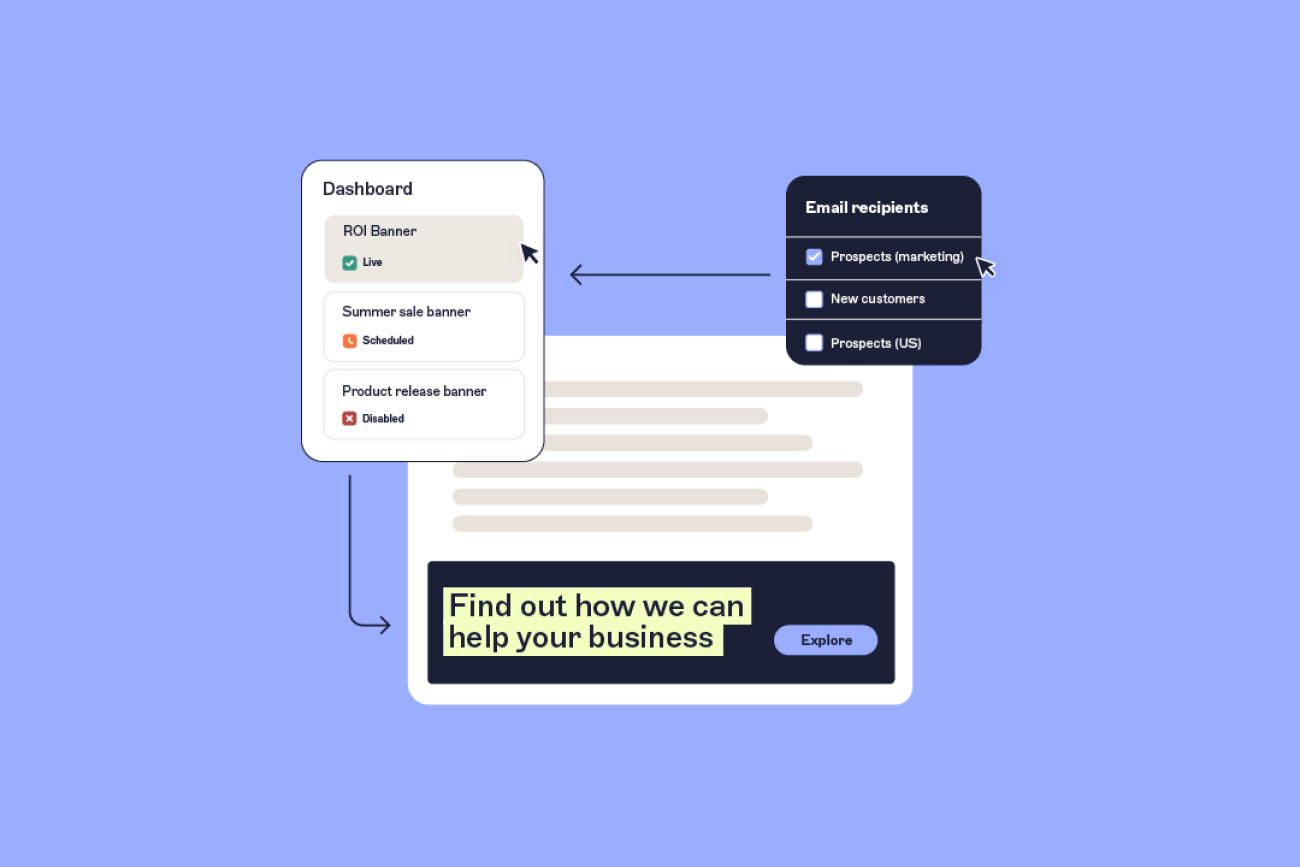
https://yourcompany.com/webinar?utm_source=email-signature&utm_medium=email&utm_campaign=spring-webinar-2026&utm_content=banner-aApply it to the banner. Set the tagged URL as the link behind your email signature banner. Building one tagged link is simple; applying it consistently across everyone is the hard part. If each employee updates their own signature, some will paste the correct link, some will mistype it, and some won’t add it at all. That inconsistency splinters your data before you’ve measured anything. With Exclaimer's Campaigns feature, you add the tagged link once in the template, and it applies to everyone automatically..
Test before you roll out. Click the banner in a test email and confirm it opens the right page with the parameters still in the address bar. Then open GA4’s Realtime report and check that your visit appears with the correct source and medium. A real-time test only confirms your own click works. It won’t catch problems specific to other browsers or devices, so treat it as a first check rather than a guarantee.
How to isolate email signature traffic in GA4 and HubSpot
Once tagged clicks start arriving, you need to separate signature traffic from the rest of your site’s visitors. Because you tagged every link the same way, both Google Analytics and HubSpot can group it for you, though each with a few quirks.
In Google Analytics 4
Go to Reports, then Acquisition, then Traffic acquisition. This shows GA4’s channel groups by default. Change the primary dimension to Session source / medium to see your raw UTM values, and the traffic you tagged appears as email-signature / email. Switch the dimension to Session campaign to compare individual campaigns.
This row shows the clicks that were tagged and tracked successfully, not every signature click. Treat it as a reliable floor, not the full total, since some clicks go missing for reasons the troubleshooting section covers.
For anything more detailed, build an Exploration, the free-form report builder in GA4’s left-hand menu. It lets you drag dimensions and metrics into one table to see which banner variant drove the most sign-ups.
Use a rough benchmark to read the result. Exclaimer's platform data puts the average click-through rate on signature content at 4%, above the low single digits typical of mass marketing emails. Treat that as directional rather than exact: a banner pulling 3% is healthy for the channel, not disappointing.
In HubSpot
HubSpot reads UTM parameters directly, so a click tagged utm_medium=email files into your Email source bucket automatically. To see it, go to Reports, then Traffic Analytics, where the Sources view and UTM Parameters tab break traffic down by campaign.
Connecting a click to a specific person takes some setup. If your forms don’t already capture UTMs, you’ll need to add the five parameters as hidden fields, backed by custom contact properties. Once that’s in place, a visitor who submits a form after arriving from your banner has the campaign values saved to their contact record. From there, build a custom contacts report filtered to where utm_source is email-signature, and group by campaign to see how many contacts each one produced.
Two limits are worth knowing before you rely on these reports. HubSpot has no single view where you type in a campaign and get a complete traffic-and-contacts picture, so you’ll move between the traffic report and custom reports. And a contact’s Original Source is sticky. Once HubSpot records where someone first came from, it keeps that value, so a signature click that isn’t their first interaction shows up in Latest Source instead. That distinction matters once you start tracing clicks to revenue, which is where the CRM comes in.
If setting up GA4 and HubSpot this way isn't something you want to build and maintain, Exclaimer's Analytics dashboard natively tracks signature clicks, impressions, and CTR by campaign, without any of the configuration above.
How to attribute a signature click to pipeline in your CRM
A session count tells you a banner was clicked. To know whether it mattered, you need to follow that click past the visit and into a deal. That’s what CRM attribution does.
The link depends on the UTM values reaching the contact record. Once captured, the campaign value sits on the contact’s record, but a later visit can overwrite it. To tie it to revenue, set up a workflow that copies the campaign value to a deal property when the deal is created. That locks the campaign onto the deal, so you can report on pipeline and closed revenue by signature campaign, not just sessions.
A signature banner is rarely the last click before a purchase. More often it’s an early or assisting touch on the way to a deal. If the signature click is genuinely someone’s first tracked interaction, HubSpot’s sticky Original Source preserves that first-touch credit. If they’d already found you another way, the signature shows up as a later touch instead. For those middle touches, multi-touch attribution reporting shows where the signature assisted, though it’s a more advanced feature on higher HubSpot plans.
None of this is exact. Consent limits and multi-step buying journeys mean you’re measuring influence, not sole cause. What makes even a directional read trustworthy is consistent tagging. If every signature carries the same campaign values, the CRM has clean data to work with. If tagging is patchy, it surfaces as deals with no traceable source.
Common email signature tracking problems (and how to fix them)
When signature clicks don’t appear in your reports, it’s tempting to blame the email app. The cause is usually one of a few fixable setup issues instead.
Start by clicking your own banner and checking the address bar on the page that loads: if the
utm_tags aren’t there, the link dropped them before GA4 ever saw the click.The parameters sit after a # in the URL. GA4 ignores everything after the fragment, the part following a #. This catches people whose banner points to an on-page anchor or a single-page app route, where the # lands before the parameters. A link like
/webinar#register?utm_source=email-signatureopens the right page but reads as direct, with no campaign attached. Put the UTM parameters in the query string before any #, so the fragment comes last:/webinar/?utm_source=email-signature#registerA redirect or shortener drops the parameters. If your banner link passes through a redirect or a shortened URL that doesn't carry the query string, the UTMs never reach the landing page. Build and tag the final destination URL first, then shorten it, and use a shortener that preserves query strings. Click through and check the address bar to confirm the tags survive.
Some clicks can’t be fully tracked. No amount of tagging captures every click, so read your tagged total as a conservative floor rather than a full count. Two causes account for most of the gap. On phones, an email app's in-app browser sometimes fails to pass source and medium, and GA4 logs the session as "(not set)". And a visitor who declines analytics cookies won't be fully recorded. Test your links in the in-app browsers your audience uses, and treat the rest as a known limit of the channel, not a flaw in your setup.
Your signature banner points to your site from an email, so it counts as an inbound link and should be tagged. What you shouldn’t tag are links between pages of your own site, because those overwrite the visitor’s original source.
Why email signature attribution breaks at scale
Every method in this guide assumes one thing: that the tagged banner is on every email, tagged the same way, every time. That assumption is where most signature attribution quietly falls apart.
The reason is how most companies manage signatures. In Exclaimer’s State of Business Email 2025 survey of more than 4,000 IT professionals, 80% of organizations still manage email signatures manually or leave them to individual users, and only 18% use centralized management. Manual management is the precondition for inconsistent tagging: when people update their own signatures, some paste the tagged banner, and some use an old version or skip it. Follow that through, and your GA4 report shows only a fraction of the real clicks, with no way to know how big that fraction is.
Manual signature management | Centrally managed (Exclaimer) |
|---|---|
Each employee tags, or forgets to tag, their own banner link | The tagged link is set once in the template |
Some carry an old link, some skip it, some mistype it | Every employee's signature carries the same link, automatically |
GA4 and the CRM see a partial, inconsistent picture | GA4 and the CRM see the full picture, by default |
The gap in the data isn't something better UTM values can fix, because it isn't a tagging problem. It's a distribution problem. It's the same reason UTM governance guides consistently point to one fix: enforce the naming convention automatically rather than relying on people to follow it. A tag that lives in one central template can't be mistyped across hundreds of separate signatures.
Centrally managed signatures address this directly. With Exclaimer's Campaigns feature, the tagged banner and its UTM parameters are set once in the template and applied automatically across every employee's email. Everyone sends the same tagged link, so the data reaching GA4 and your CRM is consistent by default.
Consistent tagging is what turns signature data from roughly indicative into something you can rely on when you report it upward.