Naimh is a seasoned marketer of 12 years, including in SaaS and tech. She’s an expert at simplifying complex technology concepts, bridging the gap between IT and marketing. Naimh specializes in turning tech speak into actionable insights, helping marketers get the most out of their tools and technology.
How to run marketing campaigns using email signatures in Exclaimer
TL;DR
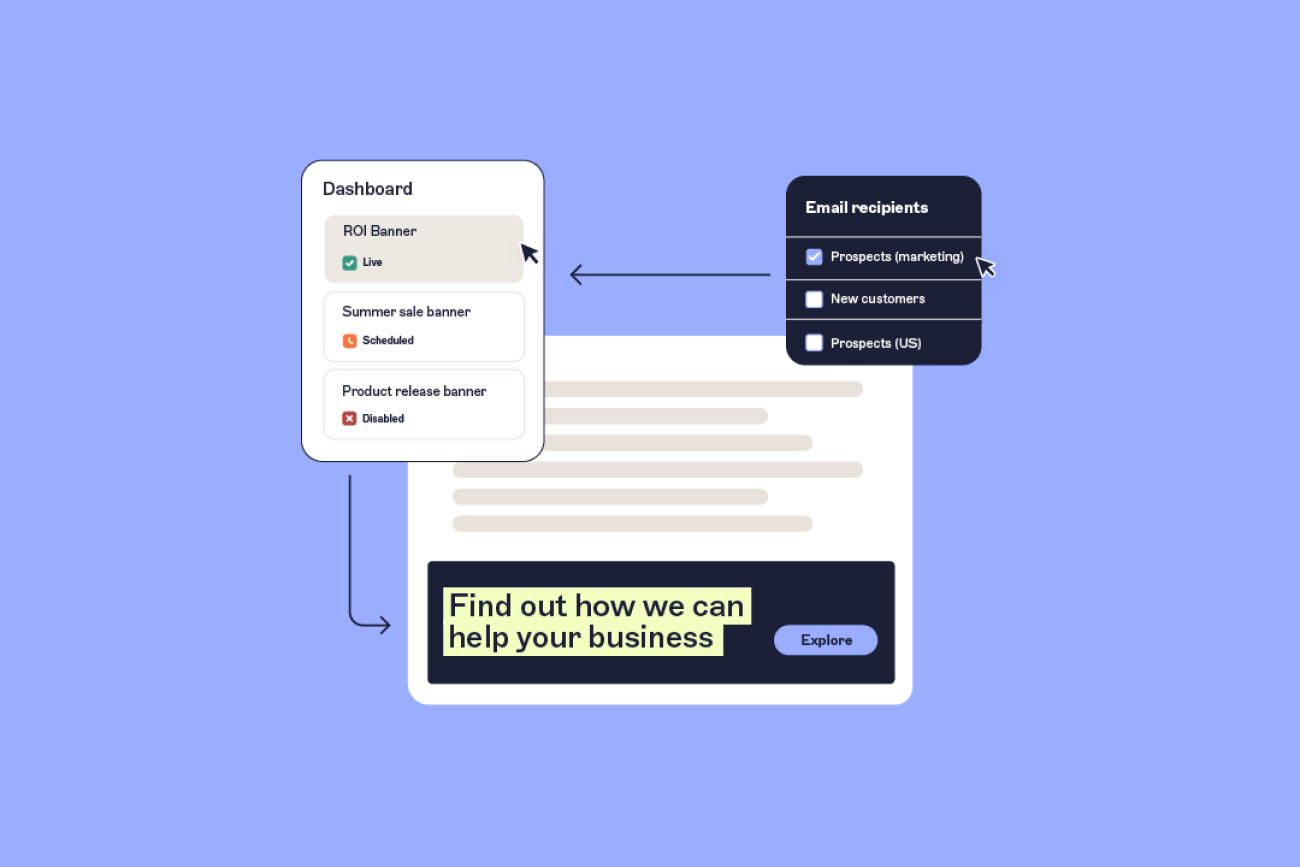
Select Campaigns in Exclaimer, create a campaign, upload one banner, add its destination URL, and set the dates. Then use Manage to choose senders and recipients, and check that the campaign shows as Live.
Campaigns need the Standard or Pro plan. A banner can't exceed 600 by 600 pixels or 300 KB, and only one campaign applies to an email at a time (Exclaimer Campaigns article, updated July 28, 2026).
A user with the Designer role can create and edit campaigns, so marketing can build its own once IT assigns the role (Exclaimer User Management article, accessed October 19, 2026).
The same steps run external campaigns and internal awareness campaigns for specific teams.
What is an email signature campaign?
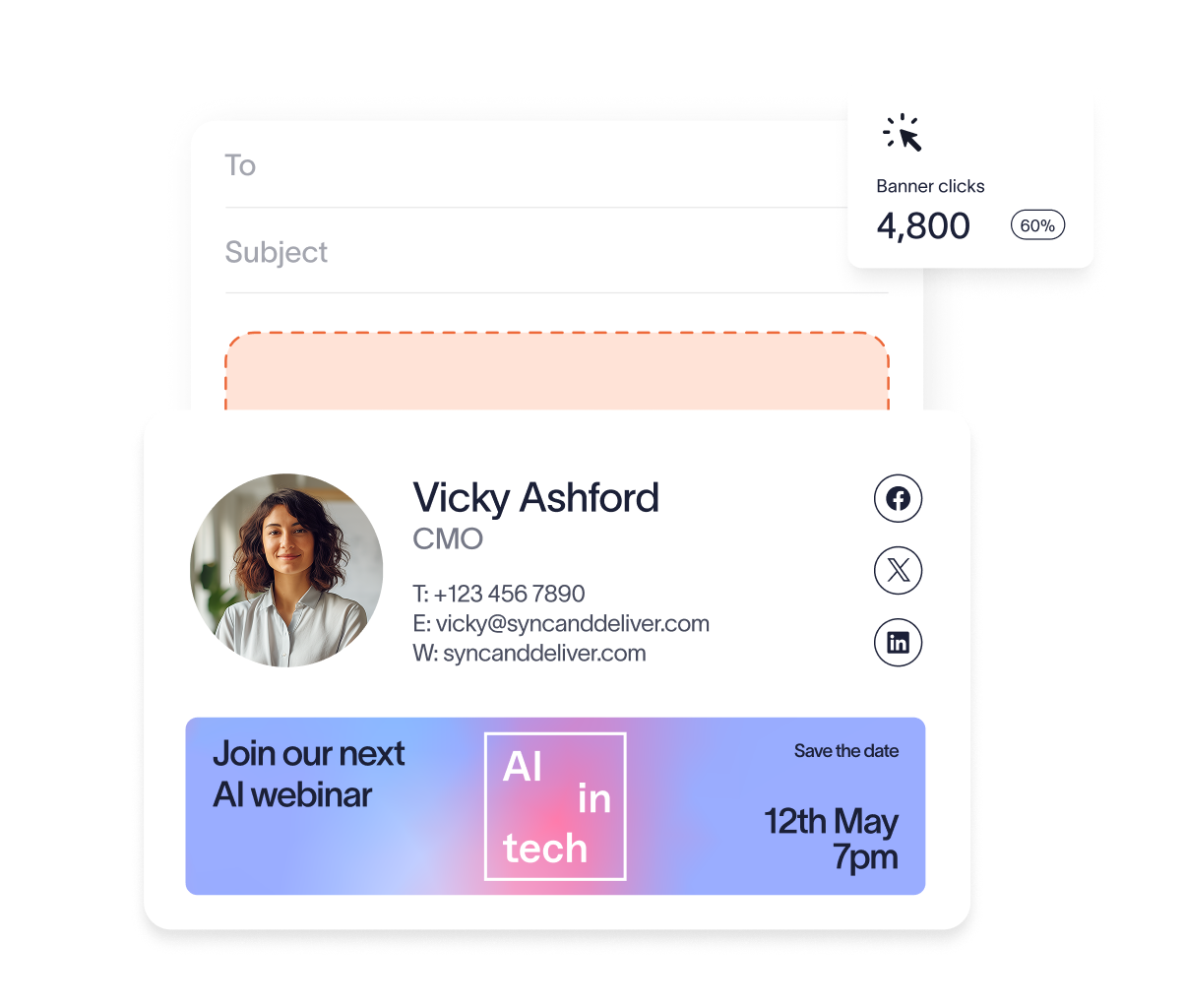
 An email signature campaign in Exclaimer is a banner image with a link, shown for set dates to chosen senders and recipients. The campaign appears after the sender's email signature and uses no email signature slot (Exclaimer Campaigns article, updated July 28, 2026).
For campaign types, targeting strategy, and measurement, see Email signature marketing: How to get started.
What do you need before you start?

The Standard or Pro plan, because Campaigns isn't available on other plans.
The Designer role for whoever builds the campaign.
A banner in JPG, JPEG, PNG, or GIF format, no larger than 600 by 600 pixels and 300 KB.
A destination URL, tagged with UTM (Urchin Tracking Module) parameters if you want click tracking.
Server-side deployment for Google Workspace, because Campaigns doesn't work with client-side deployment in Gmail.
The plan, banner, and Gmail details come from the Campaigns article. The role comes from the User Management article.
“Marketers can design banners or templates directly in the platform, with no HTML and no IT tickets. Campaign scheduling makes it easy to plan seasonal promotions or event tie-ins on the fly, all within the brand guardrails, and campaigns deploy automatically across your groups in a couple of minutes. It bridges the gap between creative and control, marketing moves faster while IT keeps oversight.”

Step-by-step: How to set up a marketing banner campaign in Exclaimer
You build the campaign on the Campaigns screen and set its audience in Manage.
Log in to Exclaimer and select Campaigns from the menu sidebar.
Select Create Campaign.
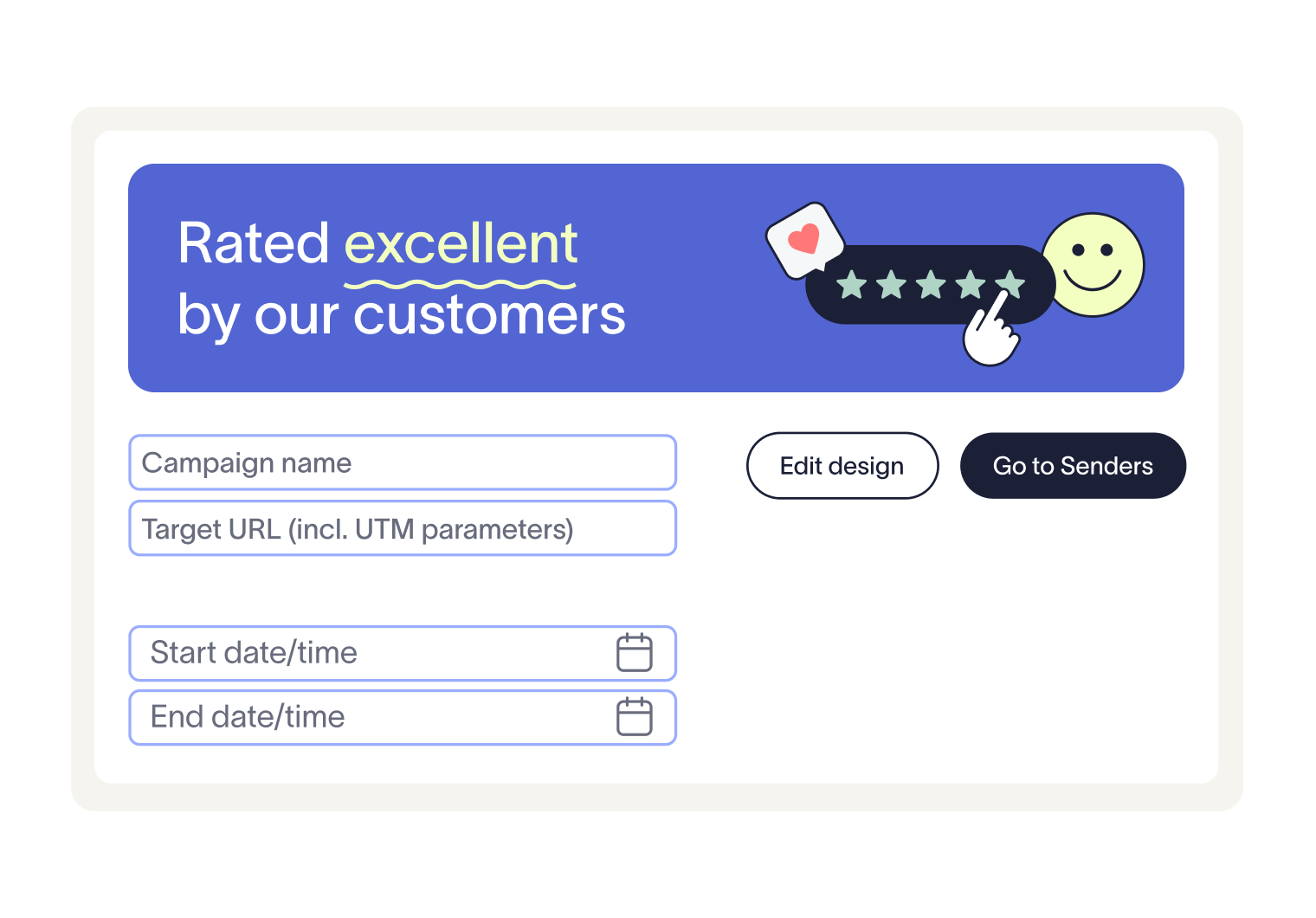
Select the Enable this Campaign toggle, then enter a Campaign Name.
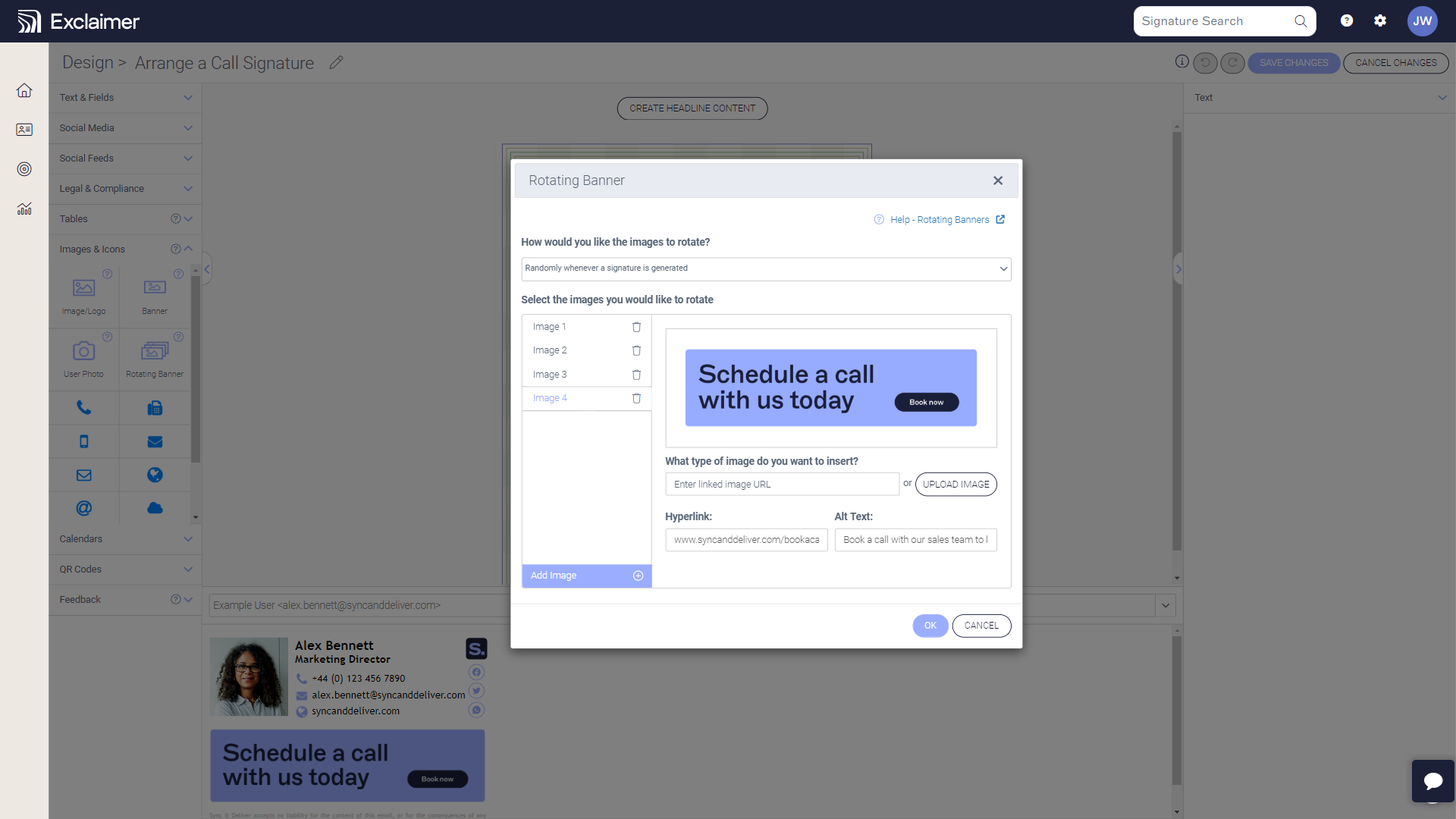
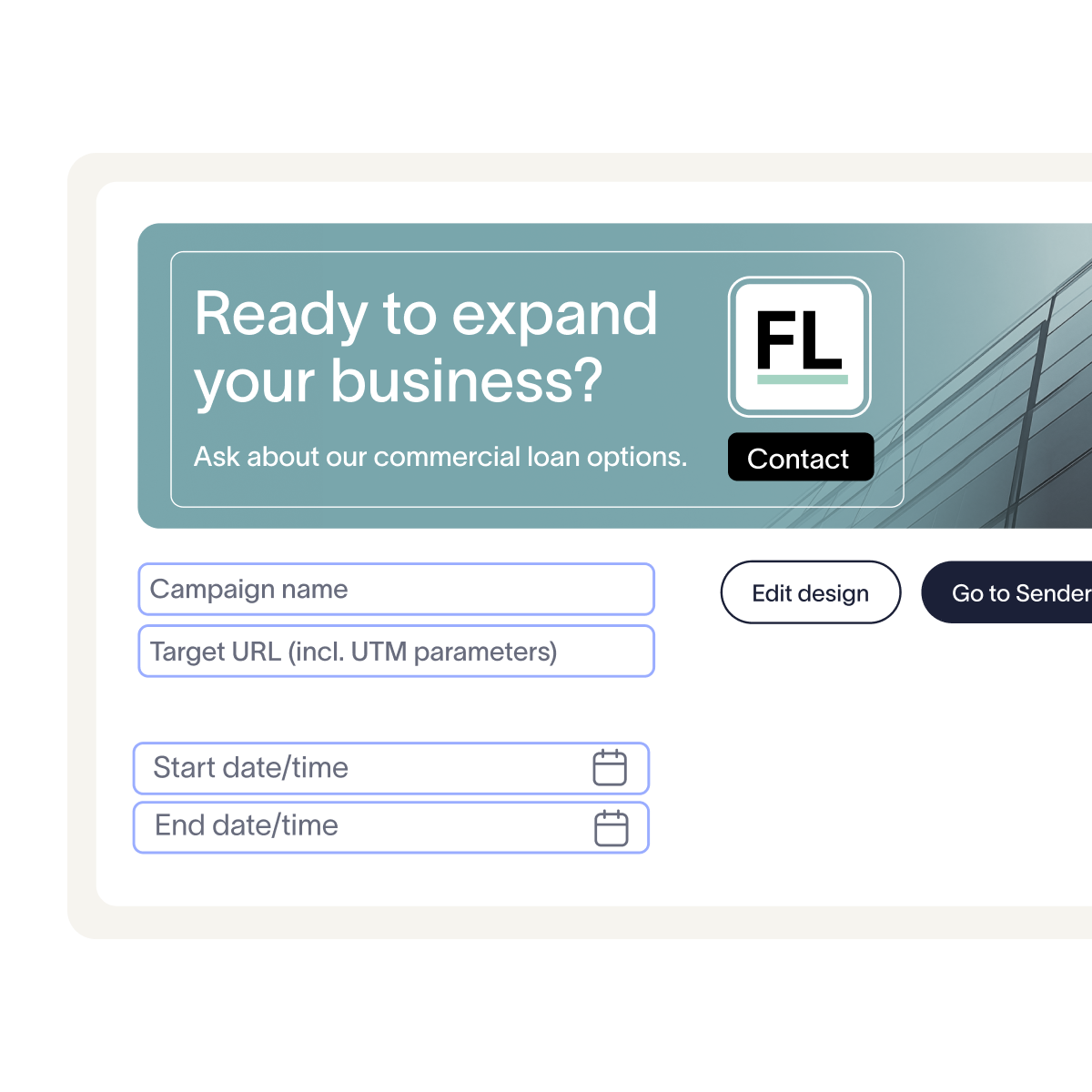
Select Add Banner Image and upload your banner. To replace it later, select the upload icon.
Enter the Destination URL. Exclaimer accepts UTM parameters in the URL, and How to track email signature clicks with UTM parameters explains how to tag it.
Enter Alt Text for when the image can't display, and a Screen reader label that describes where the link goes.
Enter the Start Date/Time and End Date/Time, then select Save from the unsaved changes banner.
Select Manage on the campaign to choose its senders and recipients, then check that the Campaigns screen shows it as Live.
Only Live campaigns apply to email signatures. The status reads Scheduled before the start date and Completed after the end date. It reads Disabled when the toggle is off (Exclaimer Campaigns article, updated July 28, 2026).
Tip
Campaigns aren't supported for Gmail client-side deployment. Server-side deployment is required for campaign banners to appear in Gmail. Check your deployment method in Exclaimer settings before going live.
How do you test a campaign before it goes live?
Use the Signatures Tester from the menu sidebar. It simulates an email from a sender you choose to a recipient you choose, and checks the conditions for each campaign.
Pick the server-side or client-side tester to match your deployment, then read the Details tab to see why a signature was or wasn't applied and which rules affected it.
Can you schedule and target email signature campaigns in Exclaimer?
 Every campaign has a start and end date and time, and the Manage screen sets who sends it and who sees it.
Manage tab | What it does |
Senders | Applies the campaign to specific senders, by domain or user attribute |
Exceptions | Excludes specific senders |
Recipients | Applies the campaign to internal or external recipients or to Salesforce lists, or excludes recipients |
Advanced Rules | Applies or prevents the campaign using trigger text in the subject or body of the email. Server-side deployment only |
The tabs come from the Manage Campaign rules article (accessed October 19, 2026).
Advanced date and time schedules need the Pro plan (Exclaimer Campaigns product page, accessed October 19, 2026). Salesforce lists need the Pro plan and a connected Salesforce account. HubSpot lists need the Pro plan too.
“Measurement has been the missing piece in signature marketing. You can track impressions, clicks and engagement, split by team or region, quantifying exposure that used to be invisible. It shifts email signatures from set-and-forget to an always-on, measurable marketing channel.”
How do you target different campaigns to different teams or audiences?
 Give each campaign its own senders, and use the Recipients tab to separate customers from everyone else.
To run two campaigns at once, give each one different senders in Manage: a directory group, or an advanced query on a user attribute like job title from Microsoft Entra ID or Google Workspace Directory. Exclaimer applies only the first campaign that matches an email, so two campaigns with the same senders and overlapping dates won't both appear. Use the Exceptions tab to keep a campaign off specific senders or groups.
To reach existing customers, choose a recipient type in the Recipients tab and add a Salesforce or HubSpot list as an inclusion. Exclaimer checks the recipient type before the inclusions, so an Internal Only campaign won't reach an external address you add. Campaign Manage tabs work the same way as the options for email signatures.
“You can apply this to the emails going out to deals already in your pipeline, nurturing deals that are already warm. That can be far more effective than worrying about the top of the funnel, and email signatures can be tremendously effective at simply increasing the percentage of deals you win.”
How to manage campaigns without adding IT overhead
 Yes, once IT gives a marketer the right role. A user with the Designer role can create and edit Campaigns. Only Subscription Owners and User Managers can change roles (Exclaimer User Management article, accessed October 19, 2026).
ROI Automotive's marketing team now manages all of its email signatures and launches new campaigns in under 15 minutes. At Experlogix, IT hands the design work to marketing, and the story lists minimal IT overhead among its results.
For who should own and approve a campaign, see Who should control email signature marketing, marketing or IT?.
“Role-based permissioning lets marketing control the creative while IT keeps governance, security and the top-down view behind the scenes. Marketing can put a campaign live without raising an IT ticket, and IT handles directory sync and the technical side.”
Can you run internal awareness campaigns with email signatures?
Campaign Rules can run a banner as internal comms for specific teams (Exclaimer Campaigns product page, accessed October 19, 2026).
To keep a banner on email between colleagues, choose Internal Only in Recipients and set the senders in Senders. Experlogix runs event promotions and internal announcements through email signatures (Experlogix customer story, accessed October 19, 2026).
What are the limits of Exclaimer Campaigns?
Limit | Detail |
Banner size | 600 by 600 pixels and 300 KB, in JPG, JPEG, PNG, or GIF format |
Overlap | One campaign applies at a time, and the first match wins. Campaigns can't be reordered manually |
Placement | The banner sits at the bottom of the email signature, can fall below a disclaimer, and can't be resized or realigned |
Plans | Campaigns need Standard or Pro. Advanced schedules, Salesforce and HubSpot lists, and Engagement Analytics need Pro |
Gmail | Campaigns don't work with client-side deployment in Gmail. Salesforce lists don't work with client-side deployment on Google subscriptions |
Advanced Rules | Server-side deployment only |
Salesforce and HubSpot lists | Sync every 24 hours |
How do you track campaign results?
Tag the destination URL with UTM parameters and read the clicks in Google Analytics 4 (Google Analytics Help). On the Pro plan, Engagement Analytics also reports sends and clicks, and it needs server-side configuration (updated June 30, 2026).
For how to read the numbers, and which ones overstate results, see How do you measure email signature marketing?.
Set up your first campaign
 Pick one banner and one end date, then set the campaign live. Book a demo to see Campaigns and the Manage screen working on your own directory.