Linn is a technology leader specializing in engineering management, product strategy, and agile delivery. As Director of Engineering Management at Exclaimer, she drives innovation and scalability while fostering high-performing teams. She excels in optimizing engineering processes and guiding teams through complex transitions.
How email signatures work in a hybrid Active Directory environment

TL;DR
Email signature tools that read Microsoft Entra ID can only use on-premises Active Directory attributes once your sync engine has copied them up.
A standard set of attributes syncs by default. Anything outside that set has to be added to sync scope as a directory extension before your email signature tool can see it.
Entra Connect Sync and Entra Connect cloud sync both feed Microsoft Entra ID, but they handle custom attributes differently, which changes what identifier your email signature tool has to look for.
Check the attribute in Microsoft Entra ID before you check your email signature tool. If it isn't there, the fix belongs in your sync configuration.
You add a job title to a user in on-premises Active Directory. A day later, the email signature still renders that field blank, and the attribute is sitting right there in Active Directory Users and Computers where you put it.
The problem is that the value hasn't reached Microsoft Entra ID, and that's where a cloud email signature tool like Exclaimer reads from. That's the first thing to check whenever a hybrid signature renders wrong.
Tip
Cloud-only tenants don't have this gap, and our guide to Active Directory and Entra ID for email signatures covers that case.
What is a hybrid Active Directory environment?
A hybrid Active Directory environment runs on-premises Active Directory Domain Services alongside Microsoft Entra ID, with a synchronization engine copying identity data from the on-premises directory up to the cloud.
Users exist in both places. The on-premises directory remains the authoritative source, and Entra ID holds a synchronized copy that cloud services can read.
Two Microsoft tools do that synchronization. Microsoft Entra Connect Sync is the long-standing option, installed on a Windows server you run. Microsoft Entra Connect cloud sync uses lightweight agents and does its configuration work in the cloud. Some organizations run both side by side during a migration.
Tip
Hybrid identity and hybrid Exchange are separate things. You can run hybrid identity with every mailbox in Exchange Online, or on-premises mailboxes with identity synced to the cloud. This guide covers identity, which is what feeds your signatures. Microsoft's Entra Connect Sync directory extensions documentation covers the sync mechanics.
How directory data actually reaches an email signature
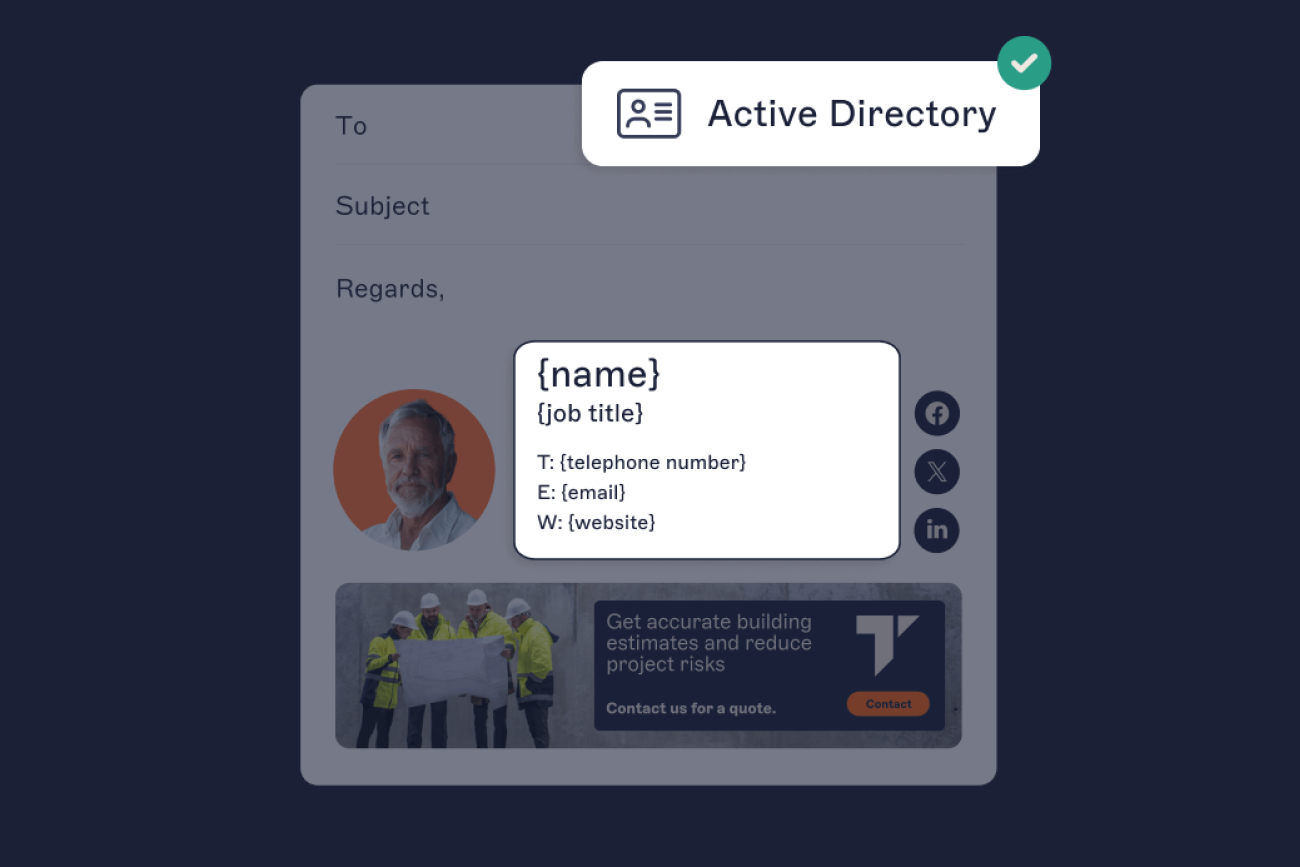
An attribute takes four steps to get from Active Directory into a rendered email signature.
An attribute is written in on-premises Active Directory.
Entra Connect Sync or Entra Connect cloud sync reads it, assuming that attribute is in scope, and writes it to Microsoft Entra ID.
The email signature tool queries Microsoft Entra ID, usually through the Microsoft Graph API, and reads the attributes it has been granted permission to read.
The template renders using whatever it got back.
Step two is where nearly everything goes wrong.
A tool that reads Microsoft Entra ID has no connection to your domain controller. It can't see an organizational unit or run an LDAP query against your domain. All it sees is a user object in Microsoft Entra ID and the properties on it, so a value that never made the trip may as well not exist.
Active Directory is still the ultimate source of truth here. But every tool downstream, including Exclaimer, has to treat Entra ID as the operative one. That distinction is a specific case of a principle Exclaimer's IT and information security lead applies more broadly:
"The most important thing is having one authoritative source of truth that everyone else calls from. The worst setup is multiple sources of truth with no clear hierarchy."

In a hybrid estate, you have two directories, and your email signature tool can see one of them.
Changes take longer to appear than in a cloud-only tenant, because two sync cycles have to finish. And the fix for a missing attribute is rarely in the email signature tool's admin console.
Which Active Directory attributes are available for email signatures?
Only the attributes that your sync engine has written to Microsoft Entra ID and that your email signature tool is configured to read.
Microsoft publishes the full list of attributes Entra Connect synchronizes, grouped by the Microsoft Entra app they serve, so what actually syncs depends partly on which apps you enabled. The common email signature fields sit in the Exchange Online group:
displayName, givenName, sn, title
department, company, physicalDeliveryOfficeName
streetAddress, l, st, postalCode
telephoneNumber, mobile, facsimileTelephoneNumber
extensionAttribute1 through 15
Custom on-premises attributes aren't in that default set. To use one, you add it to sync scope as a directory extension, which projects it into Entra ID as an extension property. Where you do that depends on your sync engine, and the next section covers both.
Directory extensions won't take everything, and they cap what they do take.
Multi-value attributes can't be used, including description, which the schema marks multi-valued even when it holds a single value.
An object can hold up to 100 directory extension attributes, with a maximum length of 250 characters. Longer values get truncated by the sync engine rather than rejected.
Constructed attributes such as msDS-UserPasswordExpiryTimeComputed, and non-replicated ones such as badPwdCount, won't sync at all.
Directory extensions also fix the reverse problem. Some attributes sync by default but still aren't exposed through the Graph API; sAMAccountName is Microsoft's own example, and a directory extension is the documented way to surface one.
For Exclaimer specifically, a defined set of standard Entra ID attributes is supported out of the box. Custom attribute data is a separate case. Microsoft 365 doesn't expose it to Exclaimer by default, so an admin has to explicitly grant permission to synchronize it, on top of choosing how it's populated. That choice, the Additional User Attributes feature, is an either/or setting, not an additive one: synchronize Custom Attributes 1-15 from Exchange Online, or synchronize up to 100 single-value attributes from your on-premises directory as directory extensions.
Turning on the on-premises option does not also enable the 15 Exchange Online custom attributes, per Exclaimer's own documentation, so pick based on where the data you actually need already lives.
What changes if you use Entra Connect cloud sync?
Both engines get identity data into Microsoft Entra ID, and both support directory extensions. The differences start once you need an attribute that isn't in the default set.
Entra Connect Sync | Entra Connect cloud sync | |
|---|---|---|
Custom attribute setup | Directory extensions, selected in the local wizard | Attribute mappings, added in the Microsoft Entra admin center |
Directory extension application | The wizard creates and registers it for you | Supported for CloudSyncCustomExtensionsApp and Entra Connect's Tenant Schema Extension App; you may need to create the first yourself |
Picking up a new AD extension attribute | Created in the wizard, so finishing it and running a full sync cycle is enough | Restart the provisioning agent after creating the extension, or it won't be discovered |
Every directory extension is registered against an application in your tenant, and Microsoft's documentation says the attribute's identifier carries that application's ID: extension_xxxxxxxxx_AttributeName. Entra Connect's wizard creates that application and registers your extensions against it.
Microsoft's cloud sync documentation names two applications cloud sync works with: CloudSyncCustomExtensionsApp and the Tenant Schema Extension App that Entra Connect creates. Without Entra Connect, you create the first yourself through Microsoft Graph or PowerShell.
So the same attribute can carry a different identifier depending on which application registered it, and a service reading Graph only finds what it knows to ask for. The identifier question doesn't arise for standard attributes or extensionAttribute1-15, because they aren't directory extensions and carry no application ID. Before you assume an attribute is missing, pull the user object in Graph Explorer and check what it's called.
Which groups can you target in a hybrid setup?
In Exclaimer, you can target mail-enabled groups, which means mail-enabled security groups and distribution groups. A plain security group won't work, whether it was created on-premises and synced up or created directly in Microsoft Entra ID.
On-premises groups do sync to Entra ID and can drive email signature assignment, provided they're mail-enabled and in sync scope. Test nested groups against a real sender before you rely on them, because each tool resolves nesting its own way.
Our guide to assigning email signatures by Active Directory group covers rule design, nesting, and testing in more detail.
How Exclaimer reads hybrid directory data
Exclaimer syncs from Microsoft Entra ID through the Microsoft Graph API in read-only mode. There's no separate hybrid connector and no agent that talks to your domain controller. In a hybrid estate, you sync on-premises Active Directory to Entra ID, and Exclaimer syncs from Entra ID.
The hop from your domain controller to Microsoft Entra ID is yours, configured in Entra Connect and governed by your sync scope and filtering rules. The hop from Entra ID to Exclaimer is ours, and it reads only what your Global Administrator consented to. Nothing Exclaimer does writes back to either directory.
Key takeaway
The hop from your domain controller to Microsoft Entra ID is yours to configure. The hop from Entra ID to Exclaimer is read-only and one-way. If an attribute isn't in Entra ID, no configuration on Exclaimer's side can surface it.
On-premises mailboxes are handled separately. Where mail is sent from on-premises Exchange rather than Exchange Online, the Exclaimer Exchange Transport Agent installs on each mailbox server and applies server-side email signatures in transit. It handles mail flow, not directory data, and the identity attributes still come from Entra ID. That configuration requires an Entra ID subscription and Entra Connect already synchronizing.
How to verify your attributes before you deploy
Run through this before you build any templates, so a pilot group doesn't email customers with a blank job title.
In Exclaimer's State of Business Email 2025 report, a survey of 4,009 IT professionals across the UK, US, Germany, and Australia, 35% named email signature management as one of their two most time-consuming tasks.
Check the attribute reached Microsoft Entra ID. Open the user in the Microsoft Entra admin center, or query the user object through Graph Explorer. Start here, because a value absent from Entra ID was never going to render.
Check sync scope and filtering. Look at your organizational unit and domain filtering, then at whether the attribute is in scope as a directory extension. In Entra Connect that's the wizard; in cloud sync it's the attribute mappings.
Force a synchronization and re-check. Run a full sync in Entra Connect, or restart the provisioning agent in cloud sync, then confirm the value has landed before moving on.
Run a manual sync in your email signature tool. Directory data is cached. A value that reached Entra ID an hour ago may not be in the signature tool yet.
Pilot with real senders. Use a small group covering each rule you've written, and check rendering in Outlook desktop, Outlook on the web, and Outlook mobile.
Common hybrid sync problems and how to fix them
Problem | Likely cause | Fix |
|---|---|---|
A standard field renders blank for some users | The users sit outside your sync scope, or the field is genuinely empty on those objects in Active Directory | Check organizational unit filtering, then check the source objects |
A custom attribute never appears | It isn't in the directory extensions list, so it never reached Entra ID | Add it to sync scope, then force a full sync |
An attribute works for cloud-only users and not synced users | Cloud-only objects were populated directly in Entra ID; the synced objects depend on the sync scope | Add the attribute to sync scope, or populate it in the on-premises source |
A value shows in Active Directory Users and Computers but not in Entra ID | It's multi-value, constructed, or non-replicated, so it can't sync | Populate a supported single-value attribute with the data you need instead |
A change hasn't appeared yet | Two sync cycles are in play, yours and the signature tool's | Force both, in that order |
Group targeting matches nobody | The group isn't mail-enabled | Mail-enable the group, or switch the rule to an attribute-based condition |
Getting the hybrid hop right
Exclaimer sits on the far side of the sync hop, reading Microsoft Entra ID and never your domain controller. Directory Sync connects to Entra ID through the Microsoft Graph API in read-only mode, and Signature Rules assign templates from the attributes and group memberships it finds there. Nothing writes back to your directory, and there's nothing to install for identity.
Before you build a single template, open two or three representative users in the Microsoft Entra admin center and confirm the fields you're planning to use are actually populated. If they are, you're ready to deploy. If they aren't, you've found the problem while it's still cheap to fix.
See how Exclaimer's Directory Sync works, or open the Entra ID attribute list alongside your own tenant and check them off.