Dave is a marketing expert with 15 years experience in the tech and SaaS world. He specializes in educating IT and channel audiences, with a focus on security, privacy, compliance, and marketing technology. With a talent for storytelling and a deep understanding of the industry, Dave transforms complex IT topics into clear, engaging, and impactful narratives.
How to set up an SPF record in Microsoft 365
TL;DR
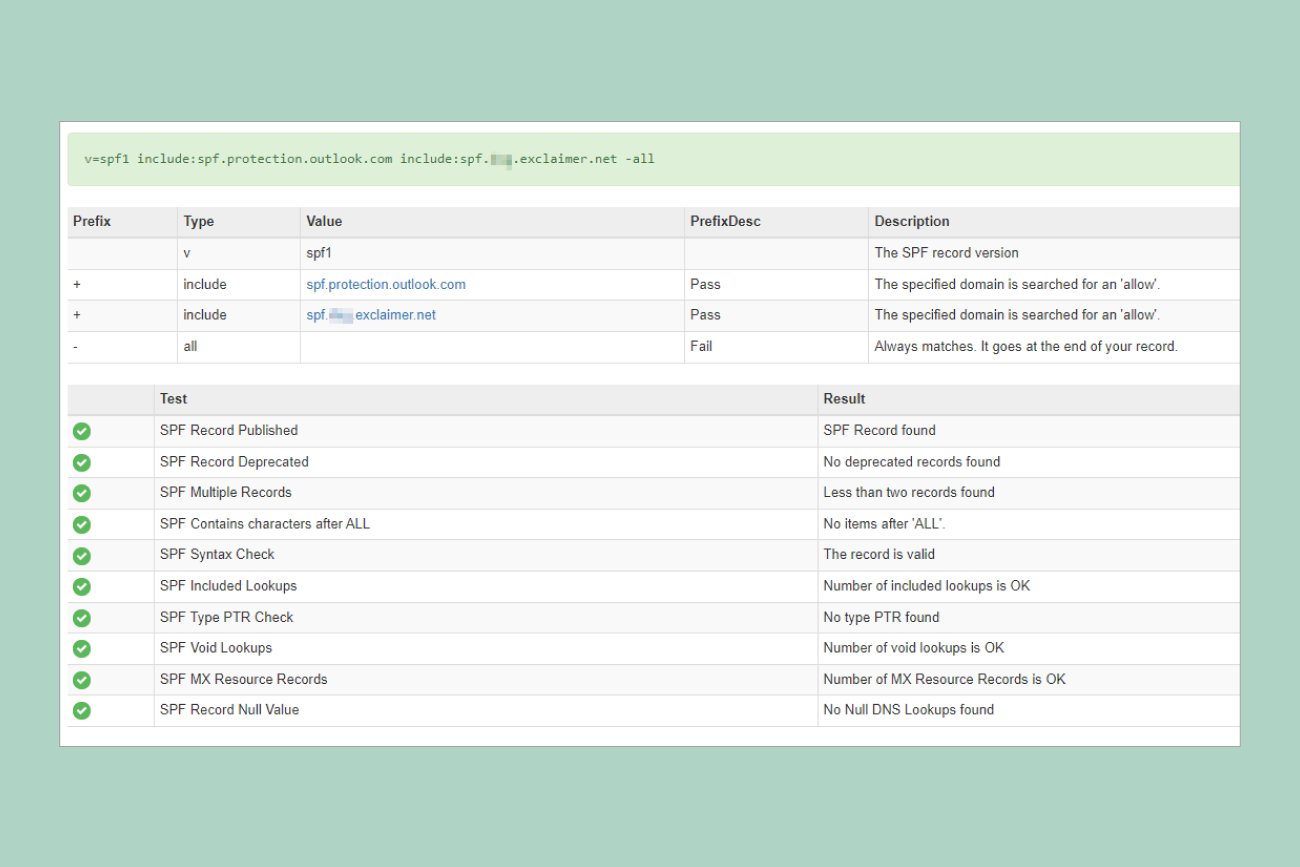
SPF is a DNS TXT record listing the servers allowed to send email for your domain. In Microsoft 365 it starts with
v=spf1 include:spf.protection.outlook.comand ends with anallmechanism.A domain can have only one SPF record, and that record can trigger no more than 10 DNS lookups before it fails with a permerror.
If you go over the lookup limit, remove unused includes, consolidate senders, or flatten the record to bring it back under 10.
An email signature tool only needs its own SPF include if it sends mail through its own infrastructure. Tools that return mail to Microsoft 365 for delivery add no sending domain and no lookup.
Validate your record with a free checker like MXToolbox or dmarcian, then send a test message and confirm
spf=passin the headers.
A Sender Policy Framework (SPF) record tells receiving mail servers which servers are allowed to send email for your domain. In Microsoft 365, getting it right is what keeps your legitimate mail out of spam folders and makes it harder for anyone to send email that looks like it came from you.
The mechanics of SPF records are simple. The rules around them are where admins get caught: the one-record requirement, the 10 DNS lookup limit, and what happens when you add another tool that sends on your behalf.
Third-party email signature tools fall into two camps, and only one of them touches your SPF record. A tool that applies email signatures through Microsoft’s own mail flow doesn’t add a sending domain, so it doesn’t need its own include: entry. One that routes mail through its own infrastructure does, and on a record with a hard lookup limit, that difference adds up.
Most organizations haven’t covered the basics yet. Fewer than one-third have implemented SPF, DKIM, or DMARC, according to Exclaimer’s State of Business Email 2025 research, so setting yours up properly already puts you ahead. This guide covers how to create, configure, and validate an SPF record in Microsoft 365, how to stay under the lookup limit, and how third-party tools affect what you publish.
What is SPF, and why does it matter?
SPF is a DNS record that lists the mail servers authorized to send email for your domain. When a receiving server gets a message claiming to be from you, it checks your SPF record to confirm the sending server is on the approved list. If it is, the message passes. If it isn’t, the receiving server can treat the message as suspicious or reject it.
Two things ride on this. The first is deliverability: mail that fails SPF is far more likely to land in spam, or never arrive. The second is that it makes your domain harder to impersonate, because a message sent from an unapproved server won’t pass the check.
An SPF record lives in your DNS as a TXT record, written in a specific syntax. A basic one for a Microsoft 365 domain looks like this:
v=spf1 include:spf.protection.outlook.com -all That tells receiving servers to accept mail from Microsoft 365’s sending infrastructure and reject the rest.
How SPF, DKIM, and DMARC fit together
SPF rarely works alone. It’s one of three standards that verify your email is genuine, and each does a different job.
SPF confirms which servers can send for your domain. DKIM (DomainKeys Identified Mail) adds a cryptographic signature that proves a message wasn't altered in transit. DMARC (Domain-based Message Authentication, Reporting, and Conformance) ties the two together and tells receiving servers what to do when a check fails.
Starting with SPF alone is fine, but most organizations run all three together.
"Email has something most channels don't: authentication standards. DMARC, DKIM, SPF. Imperfect, but they exist. As AI-generated content floods Teams, Slack, LinkedIn, and everywhere else, email's verifiability becomes more valuable. But that trust depends on organizations actually implementing these standards properly. The gap between companies with enforced DMARC and those without will widen."

How to set up an SPF record in Microsoft 365
Setting up SPF takes four steps: find everything that sends mail for your domain, build a single record that lists it, publish that record in DNS, and set a sensible refresh time.
1. Identify your sending sources
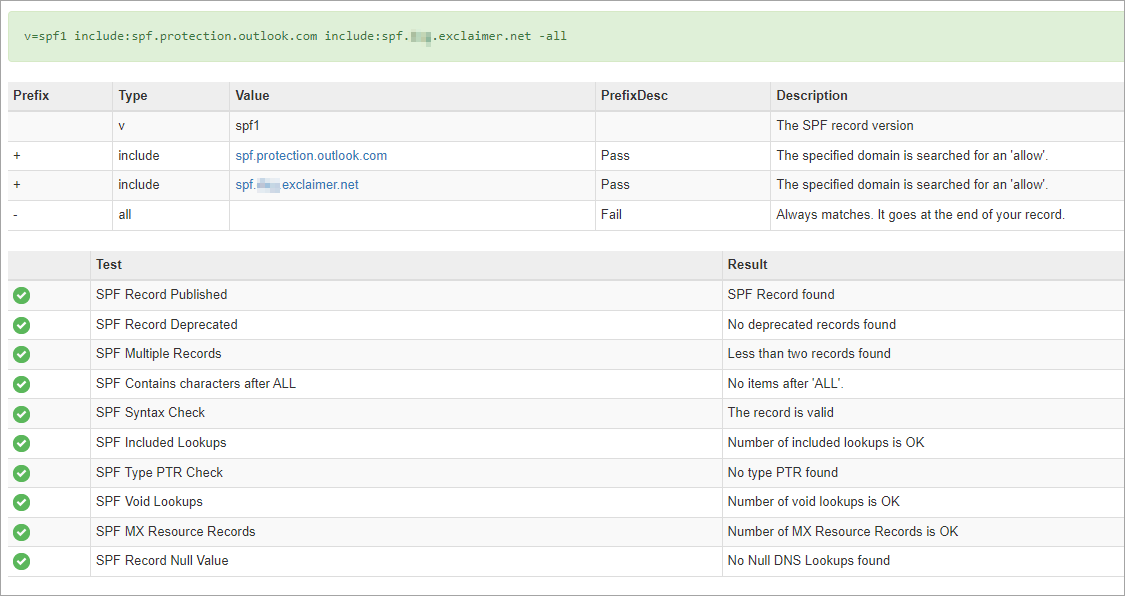
List every service that sends email on your domain’s behalf. For most Microsoft 365 organizations, that’s Exchange Online, but it usually includes more: a CRM, a marketing platform, a helpdesk or ticketing system, and an invoicing tool. Each legitimate source has to be accounted for, or its mail risks failing SPF.
2. Build your SPF record
Start with the Microsoft 365 include and add any other senders. Microsoft 365 is represented by include:spf.protection.outlook.com. A marketing platform or CRM will publish its own include value in its documentation. The record then ends with an allmechanism, covered in the example below.
3. Publish it in DNS
Add the record as a TXT record at the DNS host for your domain, on the root domain (often shown as @). You do this at your DNS provider, not inside Microsoft 365, though the Microsoft 365 admin center shows you the value it expects.
4. Set the TTL
Time to live (TTL) controls how long servers cache your record before checking again. An hour (3600 seconds) is a reasonable default. Lower it temporarily before making changes, so updates propagate faster.
What does a valid SPF record look like?
Here’s an SPF record for a Microsoft 365 domain that also sends through a marketing platform:
v=spf1 include:spf.protection.outlook.com include:_spf.marketingtool.com -all Reading it left to right: v=spf1 declares the record version. Each include: authorizes another sender's servers, here Microsoft 365 and the marketing platform. The closing -all is a hard fail, telling receiving servers to reject mail from any source not listed. A ~all (soft fail) is the more cautious alternative, marking unlisted mail as suspicious rather than rejecting it.
Why can you only have one SPF record?
A domain can have exactly one SPF record. Publishing two TXT records that both start with v=spf1 doesn't combine them. It breaks SPF, and receiving servers return a permanent error.
This catches people out when a new tool's setup guide says to add an SPF record, and they create a second one instead of editing the existing entry. If you're adding a sender, add its include to the record you already have.
What is the SPF 10 DNS lookup limit, and how do you fix it?
A single SPF record can trigger no more than 10 DNS lookups when a receiving server evaluates it~~.~~ , per RFC 7208, the SPF specification. Every include:, along with a few other mechanisms like a , mx , ptr, exists, and the redirect modifier, counts as a lookup, and some includes contain nested includes that count too. ip4 and ip6 mechanisms don't trigger a lookup, since they specify addresses directly instead of requiring DNS resolution. Go over 10 and your record returns a permerror. SPF stops validating, and your authentication effectively fails.
It's easy to breach this without realizing. One Microsoft 365 include is fine, but add a marketing platform, a CRM, a helpdesk, and a couple of other services, and each can bring nested includes of its own. A record that appears to list four senders can resolve into well over 10 lookups.
Three things keep you under the limit:
Remove unused includes. The quickest win and worth auditing every so often as tools come and go.
Consolidate senders. The fewer separate infrastructures your mail routes through, the fewer lookups you accumulate.
Flatten the record. SPF flattening replaces
includemechanisms with the actual IP addresses they resolve to, removing those lookups entirely.
Flattening has a maintenance cost: a flattened record won't update automatically when a provider changes its IP ranges, so you either re-flatten manually or use a service that keeps it current. Microsoft's own SPF guidance recommends re-flattening on a quarterly cycle, tracking which includes you've replaced, and testing validation after each change, whether you do that manually or through a service that keeps it current.
How email signature tools affect your SPF record
Whether an email signature tool touches your SPF record comes down to one thing: where your mail is sent from.
Sends via own servers | Returns mail to Microsoft 365 for delivery | |
|---|---|---|
SPF impact | Requires a new | No new sending domain; |
DKIM impact | Content is modified after signing; original DKIM signature breaks | Microsoft 365 handles final delivery and signing |
DNS lookup cost | 1 or more additional lookups | 0 additional lookups |
Example | Third-party mail routing tools | Exclaimer's cloud solution |
Some tools route your outbound mail through their own servers to add the email signature, then send it on. Because the mail now originates from their infrastructure, you have to add their include: to your SPF record. That consumes one of your 10 lookups, sometimes more if their include is nested inside others.
Exclaimer's Microsoft 365 solution applies email signatures within Microsoft's own mail flow, then hands the message back to Microsoft 365 for delivery. The final connection to the recipient still comes from include:spf.protection.outlook.com, so there's no extra sending domain and no additional lookup — one fewer thing to track on a tight lookup count. That's one less thing to track against a tight lookup count.
The same holds for DKIM. When a server-side signature is applied, the original DKIM signature is stripped during processing, and Microsoft 365 re-signs the message before it goes to the recipient, so it arrives correctly authenticated. Because Microsoft 365 handles final delivery, the outbound mail comes from its infrastructure rather than a separate sending domain.
For the specifics, see Exclaimer’s documentation on DKIM behavior with server-side signatures.
How to test and validate your SPF record
Confirm the record works before you rely on it. Three checks cover most cases.
Run it through an SPF validation tool. Free checkers like MXToolbox and dmarcian parse your published record and show a live count of the DNS lookups it triggers. This is the fastest way to confirm your lookup count stays below 10 and that each entry resolves correctly.
Send a test message and read the headers. Send an email from your domain to an external account, then view the message headers (in Gmail, "Show original"; in Outlook, "View message source"). Find the authentication-results line and check that it reads
spf=pass. That confirms the record holds up in a real delivery, not just in a checker. A passing result looks like:Authentication-Results: mx.example.com; spf=pass smtp.mailfrom=yourdomain.com. You can also query the record directly withdig +short TXT yourdomain.comornslookup -type=TXT yourdomain.comto confirm only one result starts withv=spf1.Check the envelope sender. SPF validates the envelope sender (the Return-Path), which isn’t always the address your recipient sees in the From field. If SPF passes but DMARC still fails, a mismatch between those two domains is a common cause. Our DMARC policy guide explains how alignment resolves it.
Common SPF misconfigurations and how to diagnose them
Most SPF problems trace back to a handful of mistakes.
Symptom | Likely cause | Fix |
|---|---|---|
Validator reports | Two or more | Merge into one record; check syntax with a validator |
Record works but stops validating past 10 lookups | Too many | Remove unused includes, consolidate senders, or flatten the record |
Mail passes SPF but shouldn't, or the reverse | Wrong | Confirm the mechanism matches your intended enforcement level |
Legitimate mail fails SPF | A sending service's | Check the service's documentation for its include value and add it |
Record won't validate at all | Stray space, mistyped include, or missing | Run it through a validator, which flags the exact entry at fault |
Forwarded mail fails SPF | The forwarding server's IP isn't in the original sender's SPF record | Configure trusted Authenticated Received Chain (ARC) sealers, or check that the forwarding service supports ARC |
The forwarded-mail row follows Microsoft's own guidance on troubleshooting email authentication in Microsoft 365, which treats forwarding as a distinct failure mode from the others in this table.
None of these results by themselves guarantee what a receiving server does with the message. The receiver applies its own filtering and DMARC policy on top of the SPF result. The pattern across all of these: when a record fails, read the checker's output instead of guessing. A permerror points to structure (too many lookups, duplicate records), while a softfail or outright failure usually points to a sender that isn't authorized yet.
How do you keep your SPF record accurate as your setup changes?
An SPF record reflects your sending setup at a moment in time, and that setup keeps changing. Add a tool that sends mail, switch providers, or retire a service, and the record should change with it. The ones that cause problems are usually the records nobody has looked at since the day they were published.
Tool sprawl is what makes this hard. Each sending service is another include, another set of lookups, another entry to keep current. Audit your record against what your organization actually uses, and strip out anything that’s no longer sending.
That upkeep adds up. In Exclaimer’s State of Business Email 2025 research, 35% of IT teams said email signature management was one of their two most time-consuming tasks, while only 18% had moved to centralized management. Choosing tools that work within your existing Microsoft 365 mail flow, instead of adding sending domains and lookups, keeps the maintenance burden lower.
Go wider: Our MX record guide explains the records that route your mail in the first place.
How does email authentication connect to email signature management?
SPF, DKIM, and DMARC handle the authentication layer: confirming that your mail is genuine and that your domain is only being used by authorized infrastructure. That's the foundation. Once it's in place, the next piece most Microsoft 365 admins turn to is what those authenticated emails actually contain.
Email signature management is where that authentication work pays off or gets undermined. Consistent, correctly formatted signatures reflect the organization you've worked to protect. When signatures are updated individually with no central control, that protection breaks down.
Our Microsoft 365 email signature management guide covers the full process: what Microsoft 365 natively supports and how centralized management handles it at scale.