Dave is a marketing expert with 15 years experience in the tech and SaaS world. He specializes in educating IT and channel audiences, with a focus on security, privacy, compliance, and marketing technology. With a talent for storytelling and a deep understanding of the industry, Dave transforms complex IT topics into clear, engaging, and impactful narratives.
How to recall an email in Outlook and unsend in Gmail
TL;DR
In Outlook, open the sent email, go to Message > Actions > Recall Message, then choose to delete unread copies or replace them with a new message.
In Gmail, click Undo in the pop-up that appears immediately after you hit send, within the 5-30 second window your Undo Send setting allows.
These aren't the same kind of feature: Outlook's recall pulls back a message that's already been delivered. Gmail's Undo Send stops one from being delivered in the first place. The comparison table below breaks down exactly how they differ.
Have you ever wanted to recall an email in Outlook, or unsend one in Gmail? You've realized there was a mistake in your email right after sending it, and you now want to retract your email. Luckily, both Outlook and Gmail offer the option to unsend an email, saving you from potential embarrassment or miscommunication.
At Exclaimer, we know a thing or two about emails. In fact, our email signature solution for Microsoft 365 helps over 80,000 organizations manage and automate their email signatures. In this guide, we'll go through the steps for how to unsend an email in Outlook and Gmail.
How to recall an email in Outlook: Step-by-step instructions
Microsoft's message recall now runs server-side, inside the recipient's mailbox, rather than depending on their device. That's why it works from any Outlook client, though the exact steps look a little different depending on which one you're using.
A quick note before you start: Recall only works between Microsoft 365 work or school accounts inside the same organization. It won't do anything for a Gmail recipient, a personal Outlook.com or Hotmail address, or someone at a different company's Microsoft 365 tenant. (A limited exception is rolling out from mid-August 2026 that lets two different Microsoft 365 organizations recall messages between each other, but both companies' IT admins have to turn it on first, so don't count on it yet.)
Classic Outlook for Windows
Outlook has a feature called "Recall This Message." Here's how to use it:
Go to your Sent Items folder and double-click the email you want to recall to open it in its own window. Selecting it in the reading pane won't show you the recall option.
On the Classic Ribbon, go to Message > Actions > Recall This Message. On the Simplified Ribbon, select More commands (…) > Actions > Recall This Message. Either way, you can also get there via File > Info > Message Resend and Recall > Recall This Message.
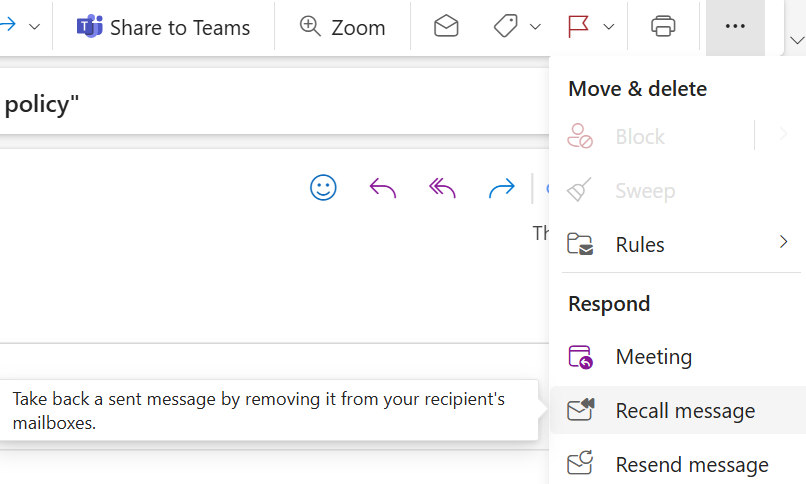
Choose Delete unread copies of this message, or Delete unread copies and replace with a new message.
Check the box to be notified whether the recall succeeds or fails for each recipient.
Click OK.
Watch for the Message Recall Report in your inbox, which tells you whether it worked for each recipient.
New Outlook for Windows
If you've been migrated to New Outlook, the menu is different, but recall is there:
Go to Sent Items and double-click the message to open it in its own window.
On the ribbon, select Recall Message. If you don't see it there, use the … (More actions) menu from the message list instead and select Recall message.
Confirm in the dialog and select OK.
Check the Message Recall Report that arrives afterward.

Outlook on the web
This works for Microsoft 365 work or school accounts. Personal Outlook.com accounts don't have this option.
Go to Sent Items and double-click the message.
Select Recall Message, confirm, and select OK.
Check the Message Recall Report.
Outlook for Mac
Recall has been available on Mac since version 16.94.
Go to Sent, and select the message.
Control-click it (or use the Message menu) and select Recall Message.
Confirm, select OK, and check the Message Recall Report.
Outlook mobile (iOS and Android)
Open the Sent folder and select the message.
Tap the … menu in the top-right corner and select Recall.
Check for the confirmation email afterward.
Tip
The recall dialog still says "delete unread copies," but that wording hasn't caught up with how the feature actually works. Microsoft's cloud-based recall can retract a message the recipient has already opened, not just an unread one, unless their organization's IT admin has specifically turned that off.
Outlook also has its own Undo Send delay
Separately from Recall, Outlook has a Gmail-style send delay you can turn on:
New Outlook and Outlook on the web: Settings > Mail > Compose and reply > Undo send. Current builds offer up to 30 seconds; some accounts are still capped at 10 seconds while the update rolls out.
Outlook for Mac: Settings > Composing > Undo Send, up to 120 seconds — the longest delay of any Outlook client.
Personal Outlook.com: 5 or 10 seconds.
Classic Outlook for Windows: No built-in Undo Send. The closest workaround is a rule that defers delivery by a set number of minutes, via File > Manage Rules & Alerts, though this needs Outlook to stay open and connected.
How to unsend an email in Gmail: Step-by-step instructions
Gmail has a similar feature called Undo Send that lets you unsend an email within a specific time frame after hitting send. Here's how to enable and use it:
As soon as you've hit Send on your email, quickly look for the Undo button at the bottom left of your screen next to a message stating, Message Sent.
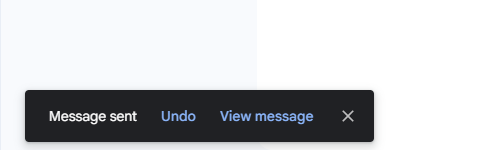
Click on the Undo button within 5-30 seconds (depending on your settings) to recall your email.
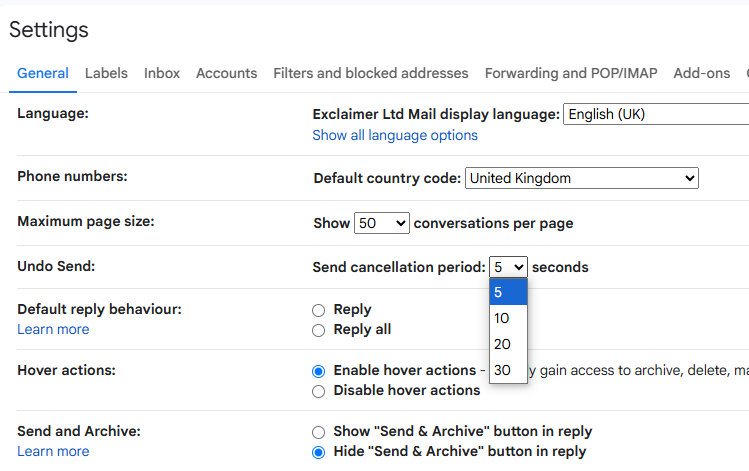
If you want to change the amount of time given to recall an email, go to the Settings menu, and under the General tab, look for the Undo Send option.
Choose a time interval from the drop-down menu and click on Save Changes.
Keep in mind that if you have enabled two-step verification for your Gmail account, you'll be asked to enter a code before recalling an email in Gmail.
Outlook recall vs. Gmail Undo Send: How they compare
These two features get lumped together constantly, but they work in fundamentally different ways. Here's the side-by-side:
Outlook recall | Gmail Undo Send | |
|---|---|---|
What it actually does | Retracts or replaces a message already delivered to the recipient's mailbox | Delays sending so the message never leaves your outbox in the first place |
Time window | No short countdown — can typically be attempted for up to a year after sending by default (your IT admin can adjust that) | 5, 10, 20, or 30 seconds, whatever you've set (30 is the max) |
Works if already read? | Yes, by default — unless your organization's IT admin has turned that off | Not applicable; nothing has been delivered yet |
Works across providers? | No — same Microsoft 365 organization only (a limited exception between two Microsoft 365 organizations starts rolling out in August 2026) | Yes — the recipient's provider doesn't matter |
Confirmation you get | A Message Recall Report, per recipient | A "Message sent" pop-up with an Undo link |
Where it's available | Classic Outlook, New Outlook, Outlook on the web (work/school), Outlook for Mac, Outlook mobile | Gmail on the web and in the mobile apps |
Why would you unsend an email?
There can be various reasons why someone would want to unsend an email. Some common scenarios include:
Sending an email with typos or wrong information: We've all been there - typing too fast or not proofreading can result in spelling mistakes, grammatical errors, or incorrect information.
Accidentally sending an email to the wrong recipient: It's easy to mistakenly send an email to the wrong person if you have similar names in your contact list.
Sending an email in the heat of the moment: We've all had those moments where we write an angry email and hit send in the heat of the moment. Unsending it can save us from potential conflicts or misunderstandings.
Realizing you attached the wrong file: Forgetting to attach a document or attaching the wrong one can be problematic, especially if it's time-sensitive information.
Changing your mind about sending an email: Sometimes, after hitting send, we realize that the information in the email is no longer relevant or necessary.
What does it mean to unsend an email?
Unsending an email involves recalling or retracting a sent email before the recipient reads it. It's like hitting an "undo" button for your email, making it vanish from the recipient's inbox.
However, it's important to note that this isn't foolproof and may not work every time. For example, if the recipient has already opened your email, they might still be able to access its contents even after you unsend it. Therefore, it's best to double-check your email information before hitting send.
Points to consider before retracting an email
The "unsend" feature in Outlook and Gmail only works when the recipient uses the same email client. If they're using a different one, recalling the email is not guaranteed.
Some other email clients, like Yahoo Mail, don't have an "unsend" feature. In such cases, you can try reaching out to the recipient and asking them to delete the email.
Certain conditions must be met for the "unsend" feature to recall emails in Gmail or Outlook, such as both sender and recipient being on the same server or network. If these conditions aren't met, the email may still be delivered even after attempting to unsend it.
It's best to use the "unsend" feature as a last resort and try to prevent mistakes by double-checking your emails before sending them.
Some third-party email plugins also offer an "unsend" feature, so explore your options if you want more control over recalling sent emails.
Are there times when you can't unsend an email?
There can be instances where you may not be able to unsend an email in Gmail or Outlook. These include:
For Outlook: The recipient has taken some action with the message that recall can't undo, such as forwarding it, or their organization has disabled recall for read messages. Being read is no longer an automatic dealbreaker the way it used to be.
For Gmail: You exceeded the Undo Send window (5-30 seconds, whatever you've set). Once that window closes, the message has been delivered, and there's no recall option at all, regardless of whether it's been read.
The recipient's inbox is full or they are offline.
The email is sent to a group or distribution list.
The email is sent from a shared mailbox or alias.
You don't have permission to recall the message.
Why this keeps happening
Unsending an email fixes one email. It doesn't fix why there was something to unsend in the first place.
"Nobody thinks of recalling an email as a real problem until they're the one asking IT about it. We get that question all the time. It's rarely more than a few minutes of someone's day, but multiply it across every employee and every platform we support, and it adds up to real time that isn't going toward the part of the job I'd actually call interesting."

Part of why it keeps happening is that most organizations don't run one uniform setup. Exclaimer works across Microsoft 365, Microsoft Exchange, and Google Workspace because our own customers typically run a mix of them. In fact, they often run two or three at once inside the same company, whether that's from an acquisition, a slow migration, or different departments settling on different tools over the years.
Each platform recalls, undoes, or reports a sent message slightly differently. That's exactly why the same "can I get that email back" question keeps landing on IT's desk no matter how many times it's been answered before.
Recall Message and Undo Send aren't bad features. But they are a personal fix for an organization-level problem: outbound email that depends on each person remembering to double-check, on whatever platform they're using that day. It's also why IT ends up carrying the workload for so much of email's day-to-day upkeep, recall requests included.
Check your email twice
Using the "unsend" feature can help avoid mistakes, but it's always better to proofread your emails before hitting send. Check everything from the email body to the attachments to ensure they're just right.
You can also maintain professionalism with your email signature. A branded email signature shows attention to detail. With the right email signature management software, you can create a signature that reflects your brand and provides key contact information for recipients.
Unlocking the power of Exclaimer
Exclaimer's email signature management platform offers a myriad of benefits that ensure consistency, professionalism, and efficiency in your email signatures.
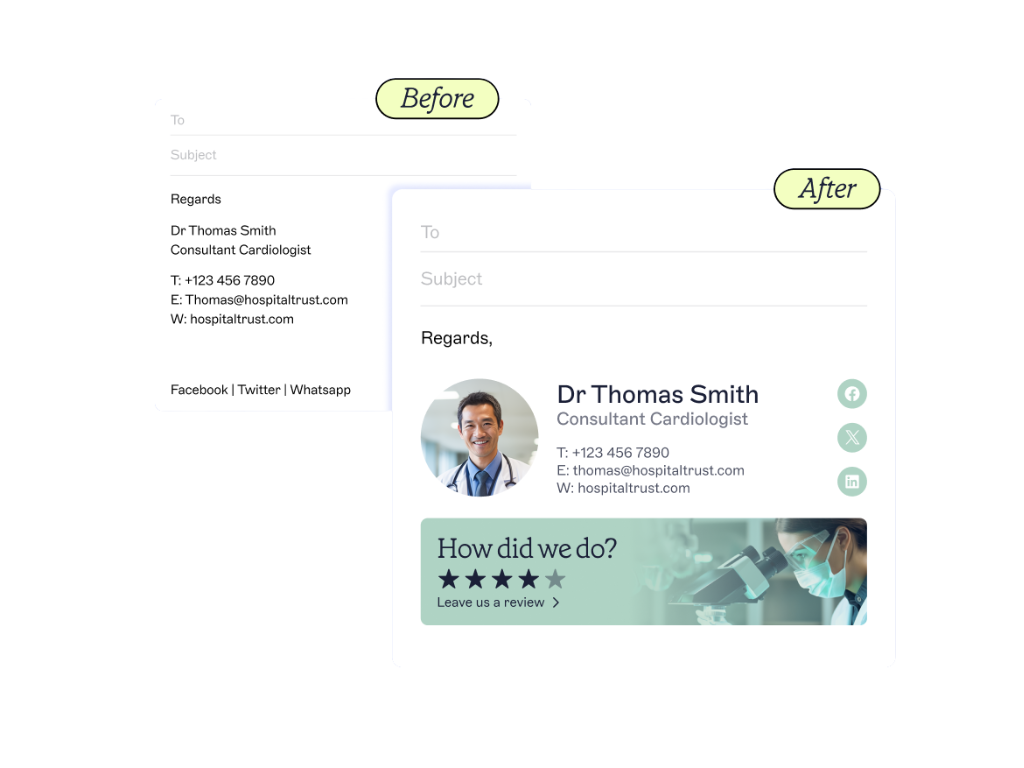
Automate the process of deploying standardized signatures to all users, ensuring that every email sent reflects the brand accurately. This boosts brand recognition and maintains a professional appearance in all communications.
Get the flexibility to design dynamic signatures that can vary by department or role, allowing for targeted messaging while adhering to brand guidelines.
Simplify the management process through centralized control, meaning updates can be rolled out quickly, without individual users having to do anything.
Choose a solution that supports various email clients and devices, ensuring a seamless and consistent user experience, regardless of how or where the email is sent from.
By using Exclaimer's cloud solution for email signature management, companies can enhance their brand presence in every email, promote professional communication, and save valuable time and resources.
Discover the advantages of Exclaimer and get an online demo today.