Naimh is a seasoned marketer of 12 years, including in SaaS and tech. She’s an expert at simplifying complex technology concepts, bridging the gap between IT and marketing. Naimh specializes in turning tech speak into actionable insights, helping marketers get the most out of their tools and technology.
How to add a logo to your email signature

TL;DR
Add your logo through Outlook's or Gmail's email signature settings, then resize it to 300–400 pixels wide. Send yourself a test email before it goes out to anyone else.
Use PNG or JPG. Outlook is actively rolling out changes that block SVG files in signatures, and support elsewhere is inconsistent.
A logo that won't display almost always has a specific, checkable cause. It's rarely a random glitch.
Manual email signature updates work fine for one person. Add more than a handful of employees, and the logo goes out of date at roughly the same pace people forget to update it themselves.
Email signature logos shape how your organization appears in every message sent. When done correctly, a logo reinforces brand identity and keeps communications visually consistent across teams and devices.
However, adding a logo to an email signature isn’t simply a matter of inserting an image. Incorrect sizing, unsupported file formats, broken hosting links, and image blocking can all affect how your signature displays. A distorted or missing logo can undermine the professional impression you’re trying to create.
This guide explains how to include a logo in your email signature step by step for Outlook and Gmail. It also covers image size recommendations, file formats, hosting considerations, and troubleshooting tips to help your email signature logos display correctly across desktop and mobile environments.
Using certain types of logos in email signatures
If your logo pairs an icon with your company name, use the full version in new emails and switch to the icon alone in replies.

An icon-only version works for internal email too. Your own team already knows the company name, so there's nothing the fuller version is adding for them.
If your logo already builds the company name into its design, don't switch it up. Use the same version everywhere, including internal messages, and don't crop or split it to fit. It should look the same in an email signature as it does anywhere else your brand appears.
How to add a logo to your email signature
Outlook and Gmail handle this differently, though the underlying task doesn't change: add the image, then confirm it actually displays before you trust it.

How to add a logo to your email signature in Outlook
These steps apply to Outlook desktop. On Outlook on the web, email signature settings live under Settings > Mail > Compose and reply instead.
Open Outlook.
Go to File > Options > Mail.
Select Signatures.
Create a new email signature or choose an existing one to edit.
Click where the logo should appear.
Click Insert Picture.
Choose a PNG or JPG file of your logo.
Resize it by dragging a corner handle, not a side handle. Corner handles keep the proportions correct.
Click OK, then Save.
Send yourself a test email and check the logo on desktop and mobile before it goes live for anyone else.
How to add a logo to your email signature in Gmail
Gmail accepts a direct upload or a hosted image URL.
Open Gmail and click the settings gear icon.
Select See all settings.
Scroll to Signature.
Create a new email signature or edit an existing one.
Click the Insert image icon.
Upload the logo file, or paste a secure HTTPS image URL if it's hosted elsewhere.
Adjust the display size.
Scroll down and click Save Changes.
Send a test message to confirm the logo renders correctly for the people receiving it.
Best practices for email signature logos
Inserting the logo is the easy part. Keeping it displaying correctly, across every device and client your team actually uses, is where email signatures usually break.
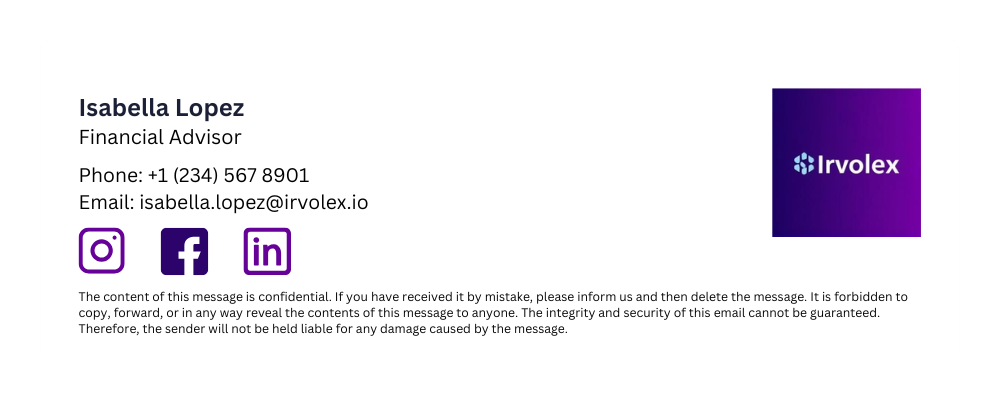 Email signatures are compact by design, so an oversized image causes problems fast. It distorts the layout and slows the message down for anyone on a weak connection.
Width: 300–400 pixels
File size: under 50 KB
Resolution: 72 DPI for screen
These match Exclaimer's logo and image guidance. This guide also flags a more common mistake: uploading an image larger than its display size and letting the email signature markup scale it down. That mismatch is the most frequent cause of a blurry logo in Gmail or Outlook. Match the file's actual pixel dimensions to its display size, and skip the high-resolution version built for print.
Use supported image formats
Compatibility varies by client, so the format matters as much as the size.
PNG handles a transparent background well.
JPG keeps the file size down for simpler graphics.
SVG is the least safe bet. Microsoft has been rolling out changes that block inline SVG in Outlook on the web and new Outlook for Windows, replacing the image with a blank placeholder instead of failing gracefully.
Stick to PNG or JPG. They render reliably across Outlook, Gmail, and mobile mail apps without extra testing.
Hosting vs embedded images
A logo can be embedded directly in the email signature file or hosted externally and pulled in by reference. Embedding increases the size of every email sent. Hosting keeps messages smaller, but only works if the image stays available, and some clients block it by default until the recipient approves it.
For the full trade-off, including which approach holds up better across a large user base, see embedded vs. hosted images in email signatures.
Validate display across clients and devices
Email clients render email signature HTML differently, so testing across a few specific ones catches most problems before employees do.
Check the email signature in Outlook desktop and web, then in Gmail and on a phone. Confirm it still looks right in dark mode too. Testing before a company-wide rollout is far cheaper than fixing a broken email signature after it's already gone out to the whole team.
"Placement and color matter as much as which version you use. Keep the logo compact and aligned to one margin, left or right, rather than centered: email signatures read left-aligned by default, and a centered logo looks like it's floating against the rest of the block. Match the surrounding accent colors to the logo's own palette rather than whatever a template defaults to. A mismatched color scheme is one of the more common reasons an email signature looks unpolished even when every individual element renders correctly.
Why is my logo not showing in my email signature?
When an email signature logo fails to display, the cause usually relates to image blocking, hosting configuration, file size, or client behavior.

Images are blocked by default
Some email clients block externally hosted images until the recipient explicitly allows them, which is a client-side decision your email signature has no control over. This is Outlook's own default behavior, though corporate IT policy can loosen or tighten it further. A first email to a new contact may show a placeholder instead of the logo until they choose to display images.
The image is not served over HTTPS
Some clients block images loaded over plain HTTP, treating an unencrypted image link the way they'd treat any other insecure content on the page. Confirm the logo's URL starts with https:// and that it opens correctly in a browser without a certificate warning.
The image link is broken
If the file was renamed, moved, or deleted after the email signature was set up, the email signature is still pointing at a URL that no longer resolves to anything. Open the image URL directly in a browser. If it doesn't load there, it won't load in the email signature either, and the fix is updating the link, not troubleshooting the email client.
The file size is too large
Oversized image files render inconsistently or fail to load, especially over a slow connection. Compress the logo and keep it under the size in the specs above. If someone reports the same problem again after a reply or forward, check the file for re-encoding first. That's a more common cause than a fresh upload gone wrong.
Outlook caching behavior
This one specifically affects a hosted logo, not an embedded one. Microsoft has confirmed that when an email signature links to an image hosted elsewhere, Outlook caches that image locally and keeps serving the cached version even after the source file has been replaced under the same URL. Restarting Outlook doesn't reliably clear this. The dependable fix is deleting the contents of Outlook's local image cache folder directly, which forces it to fetch the current version next time.
Dark mode adjustments
Some clients invert or adjust colors inside the image itself when dark mode is on, not just the background around it. Outlook 2021 for Windows, Office 365 for Windows, Windows Mail, and the Gmail app on iOS are named examples of clients that apply this kind of full color inversion, according to email-rendering research from Litmus. A logo with a transparent background and dark line art can come out looking inverted or washed out as a result, even though nothing about the file itself changed.
Check the email signature in both light and dark mode before rolling it out. A logo designed with a transparent background usually needs a light-colored or outlined backup version for dark mode, not just the original file.
Why this breaks down at scale
In Exclaimer's U.S. Business Email Report 2025, 41% of IT leaders said their organization still relies on individual employees to manage their own email signature, and another 41% lean on IT-built scripts or workarounds instead. Only 18% use any kind of centralized management.

Bloomerang, an Exclaimer customer, saw why that matters when it acquired the nonprofit software company Qgiv in late 2023. The combined organization needed the Qgiv team on a distinct transition email signature, a "Qgiv is now part of Bloomerang" version, for six months before flipping to Bloomerang's standard email signature. Before Exclaimer, a change like that could take weeks to propagate as employees updated their own email signatures one at a time. With directory-based rules already in place, a comparable change now takes under 15 minutes.
The fixes IT often reaches for solve the compliance problem but create technical ones of their own. A rule that injects the email signature at the mail server doesn't show the sender what actually went out. That means a broken logo gets discovered by the recipient, not before sending. Exclaimer's Build vs Buy Report found that 71% of in-house IT builds like these fail to deliver on time or on budget in the first place.
For more hints and tips on including images in email signatures, check out How to Create an HTML Email Signature.
Consistently branded email signatures every time
Manual email signature updates create unnecessary risk as organizations scale. Exclaimer delivers centralized email signature management for Microsoft 365 and Google Workspace, giving IT complete control over logos, branding, and compliance elements across every user and device. Approved signatures are applied automatically, eliminating version inconsistency and reducing administrative overhead.
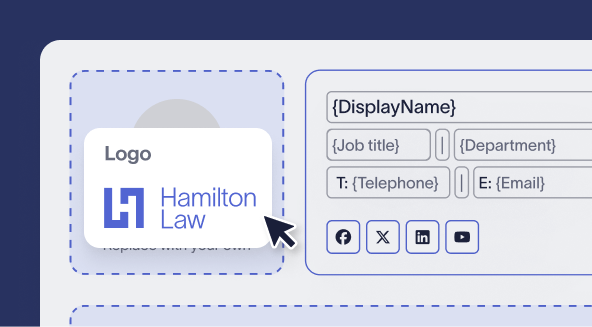
Cloud deployment applies the approved email signature at the mail server, before delivery, so it reaches every employee's outgoing email exactly as approved, regardless of device or email client. Signature rules determine which email signature each employee gets, based on directory attributes like department, region, or role, pulled automatically from Microsoft Entra ID or Google Workspace Directory.
See how Exclaimer would apply across your own departments and users. Request a demo to walk through it with your own environment in mind.