James is an experienced product specialist with a strong background in the IT and SaaS industry. As Senior Product Marketing Manager at Exclaimer, he plays a key role in showcasing the value of centralized email signature solutions and transforming them into a powerful communication tool for organizations.
How to manage email signatures after a rebrand with Exclaimer
TL;DR
Create a Brand Kit with the new logos, fonts, colors, and banners, then link every email signature template to it. A template that isn’t linked doesn’t pick up the change.
Correct the affected user details in Microsoft Entra ID or Google Workspace Directory, and directory sync carries them into each email signature.
Deploy server-side so the new email signature is applied as mail routes through Exclaimer, from every device and email client.
Use role-based access control to give Marketing the access it needs while IT keeps governance.
Managing email signatures after a rebrand means changing the logo, colors, fonts, and contact details in every employee’s email signature from one place.
Exclaimer’s cloud solution does that for Microsoft 365, Google Workspace, and Microsoft Exchange.
Rebrands trigger email signature updates, and most organizations still manage them manually
Exclaimer’s State of Business Email 2025 survey asked 4,009 IT professionals in the UK, US, Germany, and Australia (Censuswide, April 2025). Of those, 27% listed rebrands among the triggers for updating email signatures, and 80% said their organization still relies on manual methods or user self-service for them.
Exclaimer’s Rugby Football League customer story reports that updating email signatures by hand cost the technology team three to four working days on average every time templates changed.
For the audit, variant mapping, and pilot work that comes before the steps below, see our email signature rebranding rollout guide.
Each rebrand change has one place to make it in Exclaimer
Brand assets live in Brand Kits and user data comes from your directory, so a logo change doesn’t mean touching directory records.
What changes | Where you change it | What it reaches |
|---|---|---|
Logos, fonts, colors, banners | Brand Kit | Every template linked to the kit |
User details that sync from your directory | Microsoft Entra ID or Google Workspace Directory | Each user’s email signature, through directory sync |
Layout and any text that doesn’t come from the directory | The template in the drag-and-drop designer | Everyone the template’s Signature Rules cover |
Which email signature a person gets | Signature Rules | Users matched by attributes such as department or region |
Legal disclaimers | Disclaimers | Users, regions, brands, or audiences set by rule |
Who can edit what | Role-based access control | Every Exclaimer user |
How to roll out a rebrand in Exclaimer, step by step
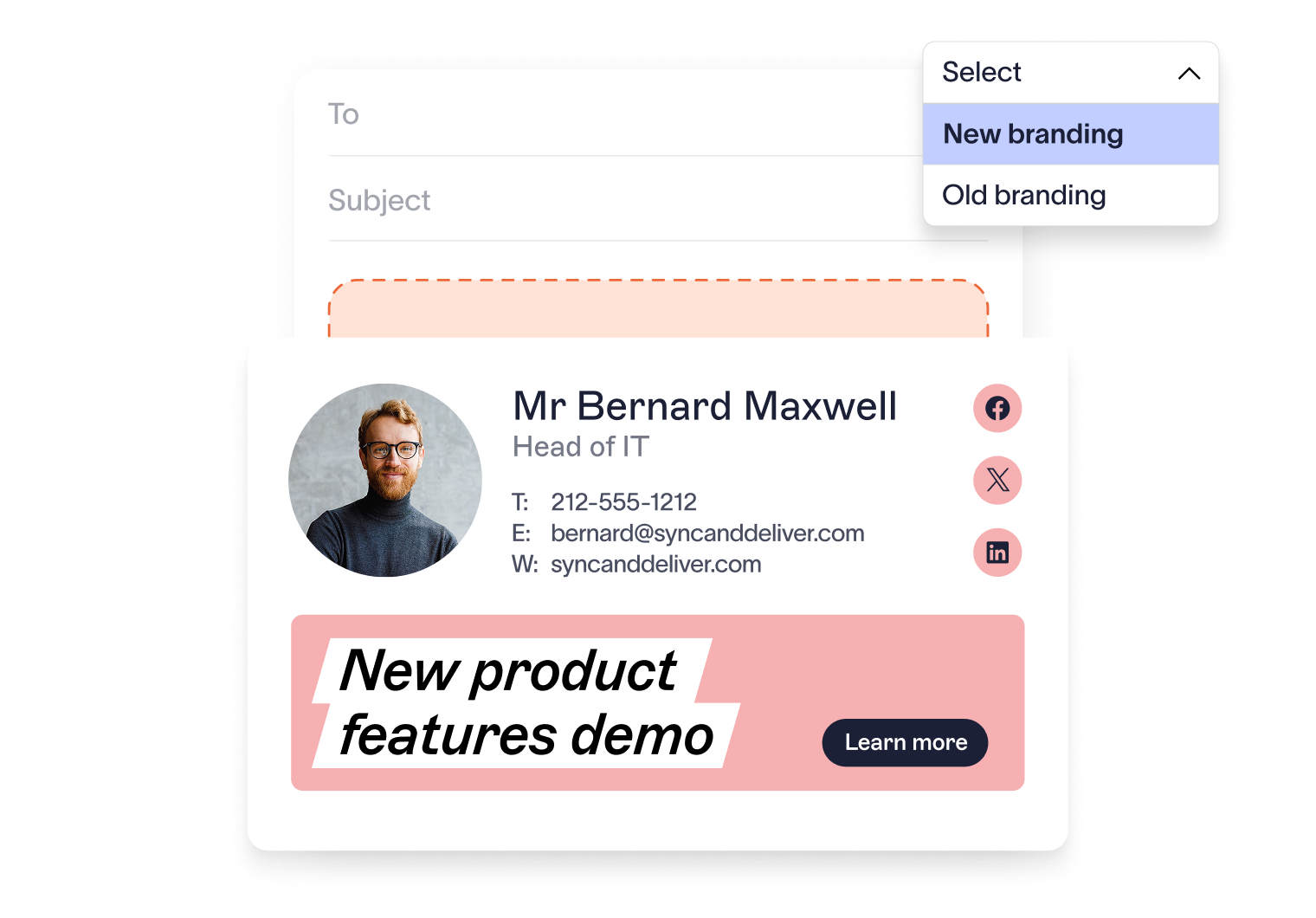
Step 1: Link every template to a Brand Kit with the new logos, fonts, and colors
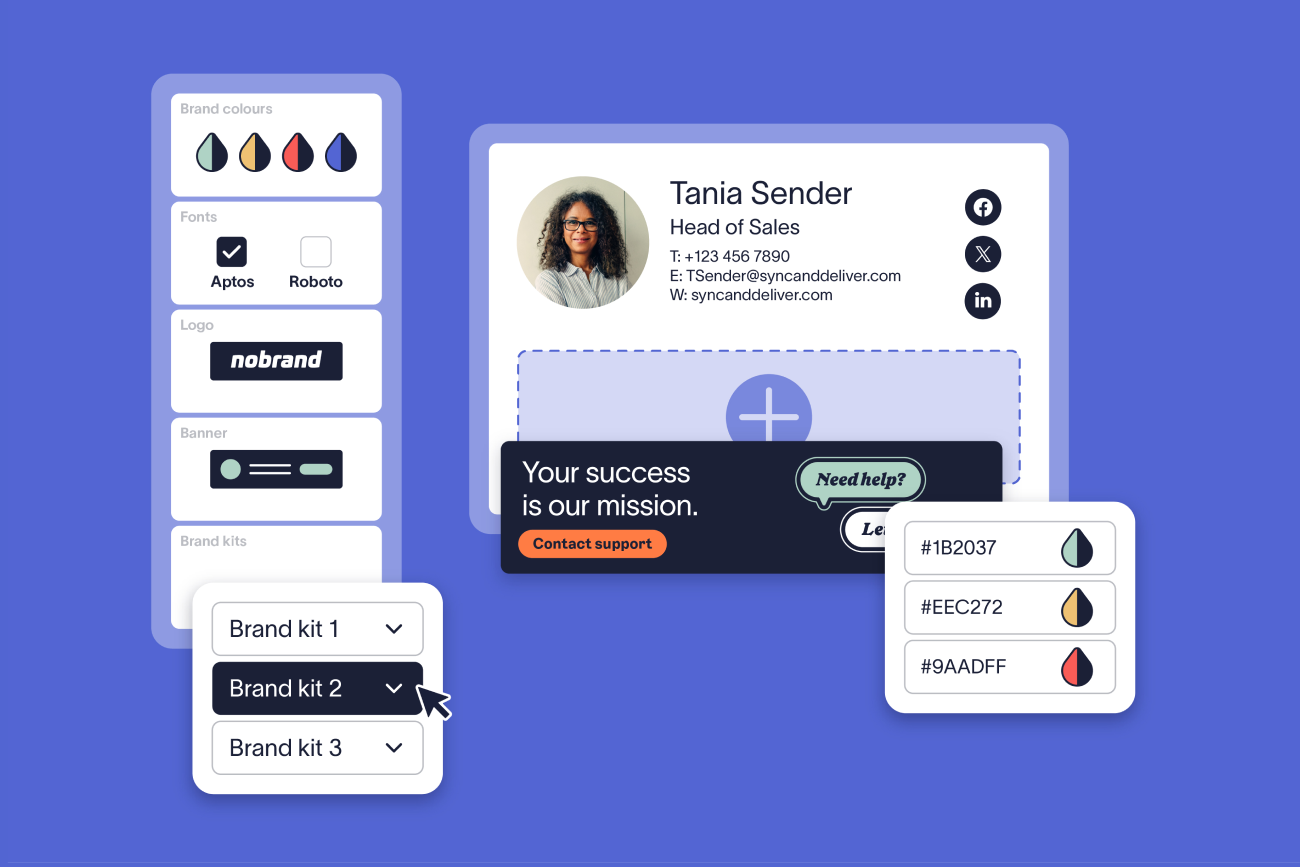
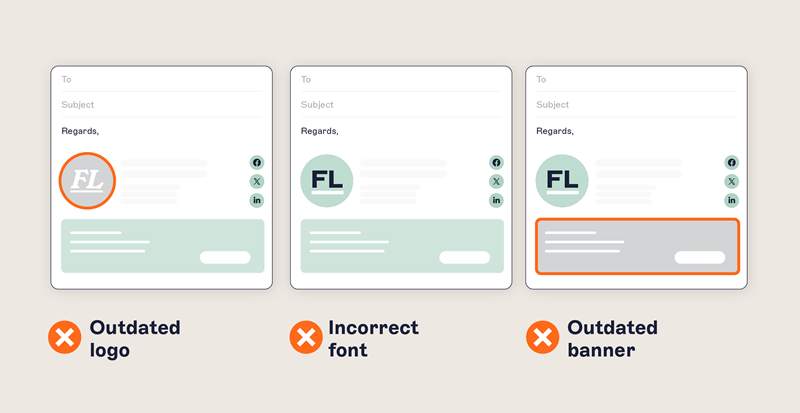
Create a Brand Kit with the new logos, fonts, colors, and banners, then link each email signature template to it. Updates to a kit apply everywhere the kit is linked, so one logo swap reaches every linked template. A template that isn’t linked doesn’t change.
Build or adjust the layout in the drag-and-drop designer, which needs no HTML. If other teams own templates, check those as well, so none of them is left unlinked.
If the rebrand brings a new brand font, test it before you commit. Jasmine Hotham-Tunnadine, Template Designer at Exclaimer, says, “You can use your own branded font, but bear in mind some recipients may not have it installed, especially if you use it a lot in print.”
Tip
Send a test to a machine without the font to see what recipients get.
Step 2: Correct user details in your directory first
Exclaimer reads user details from Microsoft Entra ID in Microsoft 365 environments and from Google Workspace Directory in Google Workspace environments. Exclaimer’s support articles list which Microsoft Entra ID attributes and which Google Workspace Directory attributes can sync.
Directory sync runs automatically twice a day, and an Owner or Admin can start one manually from Sender Management. Allow up to three hours for a sync to finish. In Microsoft 365, new user data can take up to two hours to reach Entra ID first, so make the corrections well before cutover and run a manual sync of all users and groups.
“You can’t fix data quality from where IT sits on your own. You have to work with teams like HR to make sure everyone’s working from good data.”

Step 3: Assign the new templates with Signature Rules
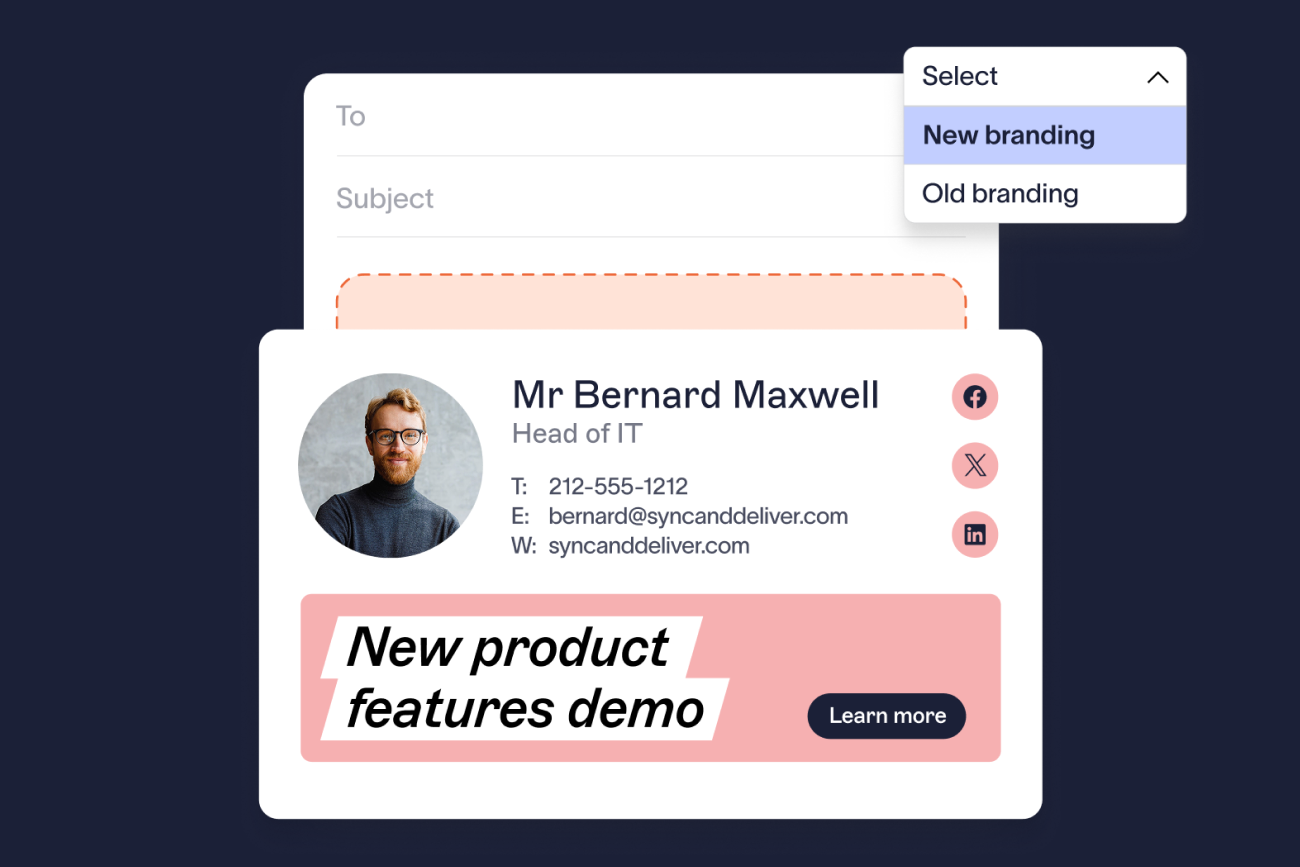
Create Signature Rules for each variant the rebrand needs and point them at the new templates. The rules decide which email signature each person gets, using attributes such as department or region. Retire the old templates and the rules that use them.
Disclaimers are applied by rule as well, and employees can’t edit or remove them. If the rebrand changes your legal entity name, ask Legal to review each disclaimer before cutover.
Step 4: Deploy server-side so the new email signature reaches every device
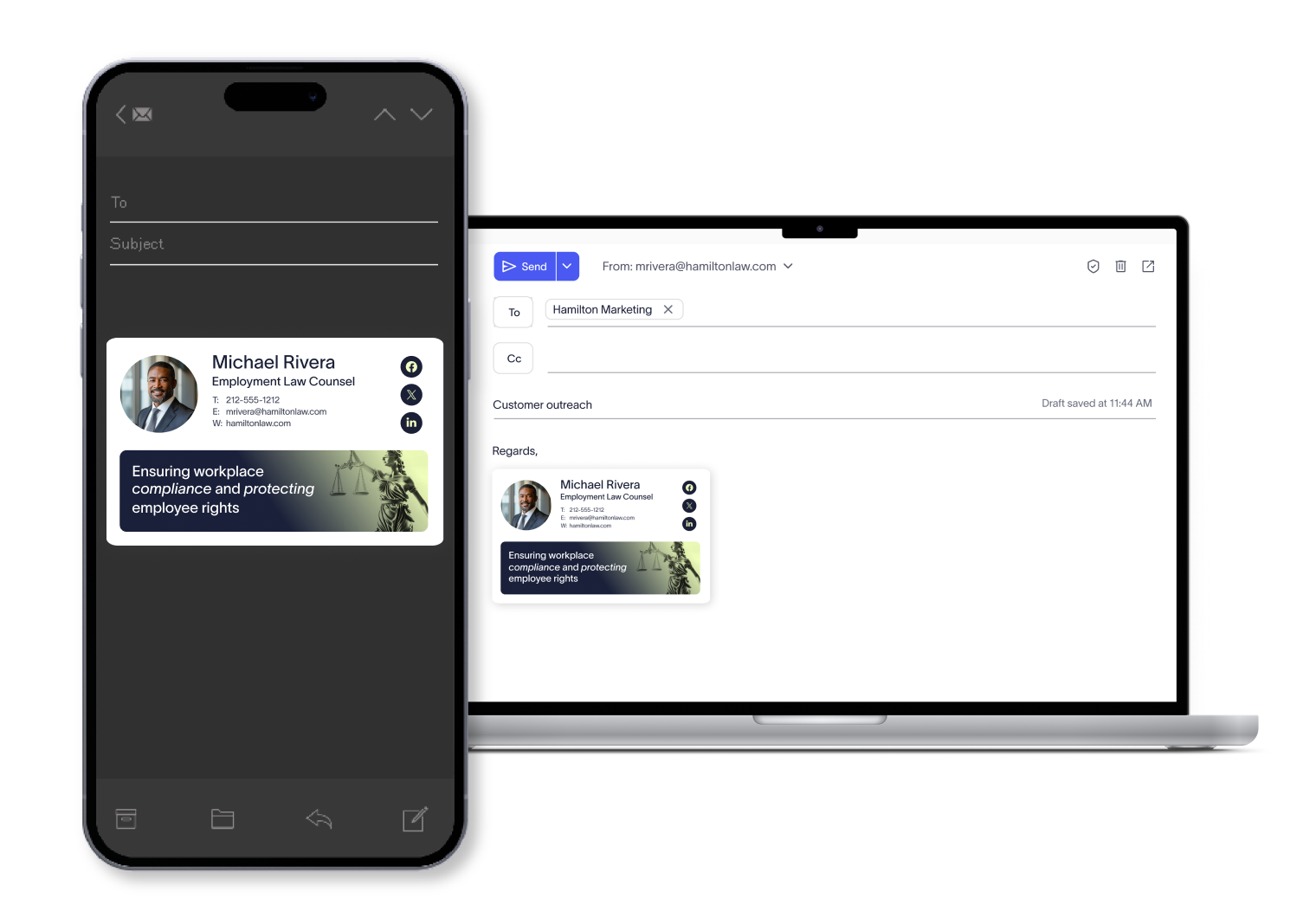
Server-side deployment applies the email signature as mail routes through Exclaimer, so it works from every device and email client, including mobile. Because server-side deployment runs in mail flow, the sender’s client doesn’t matter. Senders using Outlook or Outlook on the web in Microsoft 365, Gmail in Google Workspace, or a phone on either all get it.
Four kinds of email don’t get an email signature:
Emails over the plan size limit, which is 150MB on Pro plans and 30MB on Standard or Starter plans.
Automatic replies in Microsoft 365 and the Gmail Out of Office format.
Email that a CRM such as Salesforce or Zoho sends directly instead of through your company’s email servers.
Encrypted, digitally signed, or Information Rights Management (IRM) protected messages.
Tip
Update the text of your automatic replies by hand, and check what your CRM sends before cutover day.
The new email signature also stays out of the sender’s Sent Items folder unless an admin turns that on. In Microsoft 365, the setting is Sent Items Update, which isn’t guaranteed and doesn’t work for Exchange on-premises mailboxes. In Google Workspace, it’s Sent Items, which adds a message to the sender’s Sent Items folder and can increase mailbox size. Tell users before cutover, because their Sent Items won’t match what recipients see.
Step 5: Check the result in Diagnostics Logs
Send test emails from each client your people use, including a phone, then search for each sender in Diagnostics Logs. For each send, the logs show why an email signature was or wasn’t applied and which Signature Rules were evaluated. Diagnostics Logs keep only seven days of log information, so run your checks in the first week after cutover.
Step 6: Give Marketing the access it needs and keep governance with IT
“Brand strategy sits with marketing, legal implications sit with the legal team, and technical rollout sits with IT,” says Elisabeth Goossens, Director of Brand Communications at Exclaimer. She adds that the teams should agree up front who decides what and who gives final sign-off.
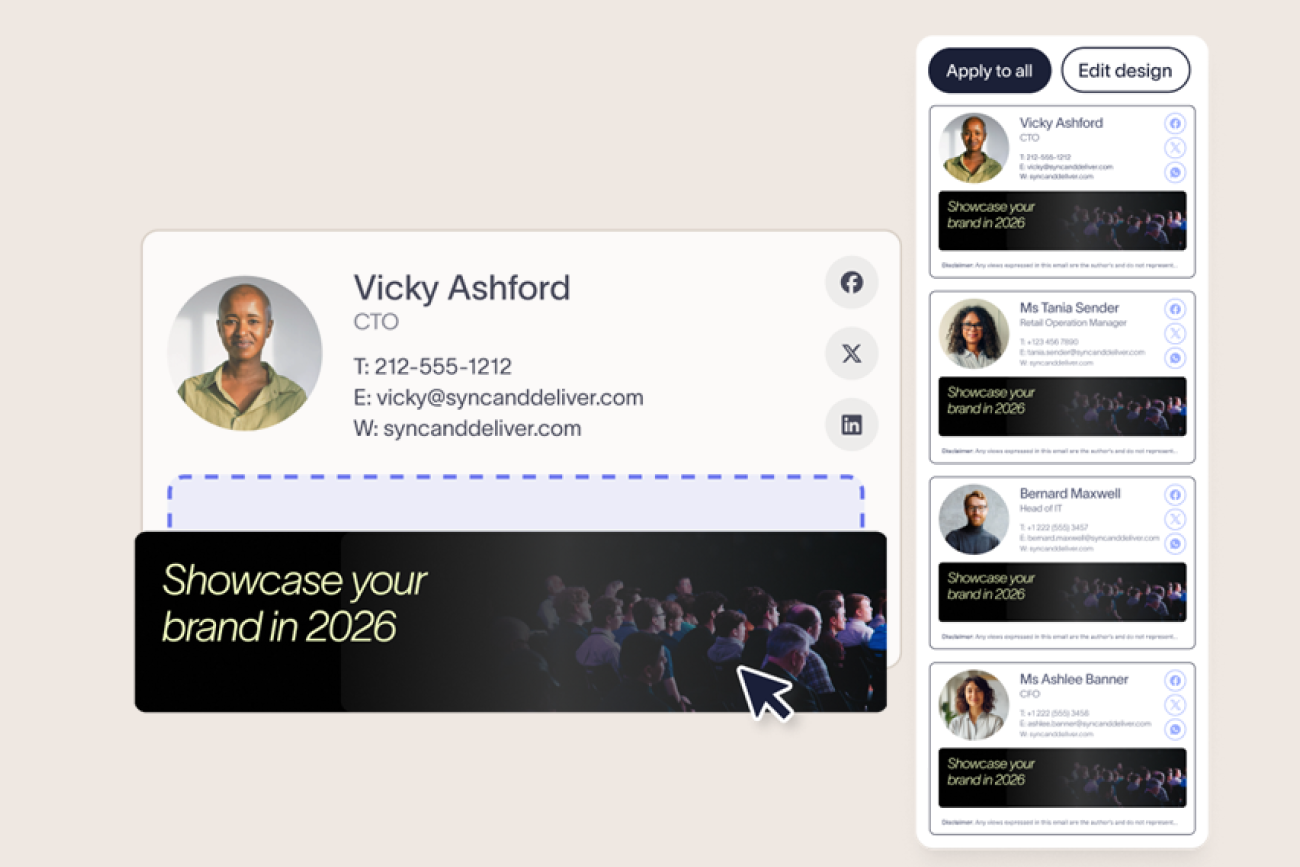
Role-based access control turns that agreement into permissions by letting IT delegate design and content rights to Marketing, HR, Legal, or Compliance, each with defined permissions. Exclaimer has eight user roles, including Designer and Auditor.
Campaigns, Exclaimer’s scheduled banner feature, lets Marketing launch banners without involving IT.
Exclaimer replaces per-employee edits with one admin change
Task | Manual updates | Exclaimer |
|---|---|---|
Who makes the change | Each person, or IT, one email signature at a time | One admin, for everyone the Signature Rules cover |
Mobile and webmail | Each client is updated separately | Applied server-side as mail routes through Exclaimer, with four exceptions |
Who can change an email signature | Whoever has access to it | Only users whose role allows it, through role-based access control |
Disclaimers | Added by hand | Applied by rule, and employees can’t edit or remove them |
Checking the result | Spot checks on individual mailboxes | Diagnostics Logs, with seven days of log information |
Try these steps in a free trial before launch day
Start a free 14-day trial of Exclaimer and try these steps with your own Brand Kit and email signature templates.